
Configure shipping methods
⏱ 60-second answer below · full page ≈ 8 min · skim the bold lead-ins to move faster.
In short. The Shipping tab under Store Configuration controls every shipping option your customers see at checkout. Flip the master Shipping System switch on, then enable whichever of the four methods fits your store — Flat Rate (fixed fee on every order), Free Shipping (free above a spend threshold), Local Pickup ($0 collect in person), or Weight-Based (fee × cart weight). Enable one or all four; hit Save Shipping Settings; the new options are live on the next checkout.
On this page: Fields at a glance · How to configure · Common setups · Troubleshooting · FAQs
The Shipping tab is where you decide what shipping options appear at checkout. Most stores enable one or two methods; a full setup takes about 5 minutes once you know your rates.
Scope
This doc covers the Shipping tab under Store Configuration — the four built-in shipping methods (Flat Rate, Free Shipping, Local Pickup, Weight-Based) and the master Shipping System switch. It does not cover carrier API integrations (SGEN shipping is self-managed rates only), zone-based or country-restricted shipping, per-product shipping classes, or the tax treatment of shipping costs (that is the Shipping Taxable toggle on the Taxes tab).
Fields
| Card | Field | What it controls |
|---|---|---|
| Shipping System | Master enable toggle | On = shipping step appears at checkout; Off = checkout skips shipping entirely |
| Flat Rate | Enable / Amount | Fixed fee added to every order with at least one shippable item |
| Free Shipping | Enable / Minimum Order Amount | Free shipping unlocks when cart subtotal ≥ threshold |
| Local Pickup | Enable / Pickup Instructions | $0 pickup option; instructions shown on confirmation page and order email |
| Weight-Based | Enable / Rate per KG (or LB) | Multiplies total cart weight by rate to compute shipping line |
Preview: Shipping overview — a screenshot of this screen will be added here.
Examples
| Goal | Settings |
|---|---|
| Simple flat fee on every order | Master switch ON · Flat Rate ON · set Amount (e.g. 5.00) |
| Free shipping above a spend threshold | Master switch ON · Flat Rate ON at 5.00 · Free Shipping ON at 50.00 |
| Add in-person pickup option | Master switch ON · Local Pickup ON · write Pickup Instructions |
| Digital-only store, no shipping step | Master switch OFF |
| Charge by cart weight | Master switch ON · Weight-Based ON · set Rate per KG/LB |
Example — Local Pickup. Your store has a physical location. Enable Local Pickup, paste the pickup instructions into the textarea:
`` Collect Monday-Friday 9am-5pm from your store address. Bring your order number. Ask for the fulfilment desk at the front. ``
Save. Checkout now shows Flat Rate and Local Pickup as two radio options; customers who pick Local Pickup pay no shipping and see the instructions on their order-confirmation page.
What NOT to use this for
- Do not use this panel to configure zone-based shipping (ship to some countries but not others). SGEN shipping here is country-agnostic — every enabled method applies globally. If you need to block shipping to certain countries, you need custom work beyond this panel.
- Do not use this panel to integrate with carrier APIs (UPS, FedEx, USPS live rates). SGEN shipping is self-managed rates only. The four methods on this panel are the four methods available — no carrier handshake, no live rate quoting.
- Do not enable multiple methods and expect the system to auto-pick the cheapest. When multiple methods are enabled, the customer picks the one they want at checkout — you do not preselect. Plan your method mix accordingly.
- Do not rely on Weight-Based shipping if your products do not have weights saved. A product with no weight contributes 0kg to the total, so a cart of weightless products picks up 0 × rate = $0 shipping even under weight-based.
- Do not assume Free Shipping stacks with a coupon. If a coupon already zeros out shipping, enabling Free Shipping does nothing more; if a cart exceeds the threshold, Free Shipping applies regardless of coupons.
- Do not stage rate changes in production while real shoppers are at checkout. A shopper mid-checkout when you save a new rate sees the new rate on their next page reload. Save during low-traffic windows when possible.
- Do not mix Pounds and Kilograms across products. The Weight Unit in the General tab is global. Editing a product's weight while a different unit was active will produce a wrong number until you re-enter it under the correct unit.
How this connects to other features
- Your public checkout — every method you enable here appears as a radio option on the shipping step at checkout. The order in which they appear matches the order on this panel (Flat Rate, Free Shipping, Local Pickup, Weight-Based).
- General store settings — the Weight Unit (kg or lb) from the General tab controls the label on the Weight-Based method's rate. You pick rate in "per kg" or "per lb" there; saved weights on products are in the same unit.
- Taxes — the Taxes panel has a Shipping is Taxable toggle. If it is on, tax is applied to the shipping fee in addition to the product subtotal. If it is off, shipping is tax-free. Many stores keep this off depending on their tax jurisdiction.
- Products — each product's Shipping tab on its edit page is where you save the weight used by Weight-Based shipping. A product marked as a Virtual product (no shipping) is skipped from all shipping calculations — a digital download is a typical virtual product example.
- Coupons — coupons of type "Free Shipping" override the shipping calculation. Other coupon types do not affect shipping by default.
- Order confirmation emails — the Local Pickup instructions you save here are stamped into every Local Pickup confirmation email at the time the order is placed. Edits to the instructions later do not change emails already sent.
- Currency setting — your store currency from the General tab is the currency every Flat Rate, Free Shipping threshold, and Weight-Based rate is denominated in. Changing currency does not auto-convert your saved shipping numbers.
Before you start
- You are signed in to SGEN as an Administrator or Site Owner.
- You know the shipping rate or threshold you want to offer.
- For Local Pickup: you have the pickup address, hours, and any special instructions ready.
- For Weight-Based: your products have weights saved on their Shipping tab, and your Weight Unit is set correctly in the General tab.
- For Free Shipping: you know the cart subtotal threshold that protects your margins after subtracting the shipping cost you will absorb.
- You have a private browsing window (or a second browser) ready to use as a customer-side test of every method you enable.
Where to go
- Open the left navigation in your SGEN admin.
- Click Store Management → Configuration → Shipping (or open
/sg-admin/ecommerce/configuration/shippingdirectly). - The Shipping panel loads with five cards: Shipping System, Flat Rate, Free Shipping, Local Pickup, Weight-Based.
Steps
1. Flip the master switch on
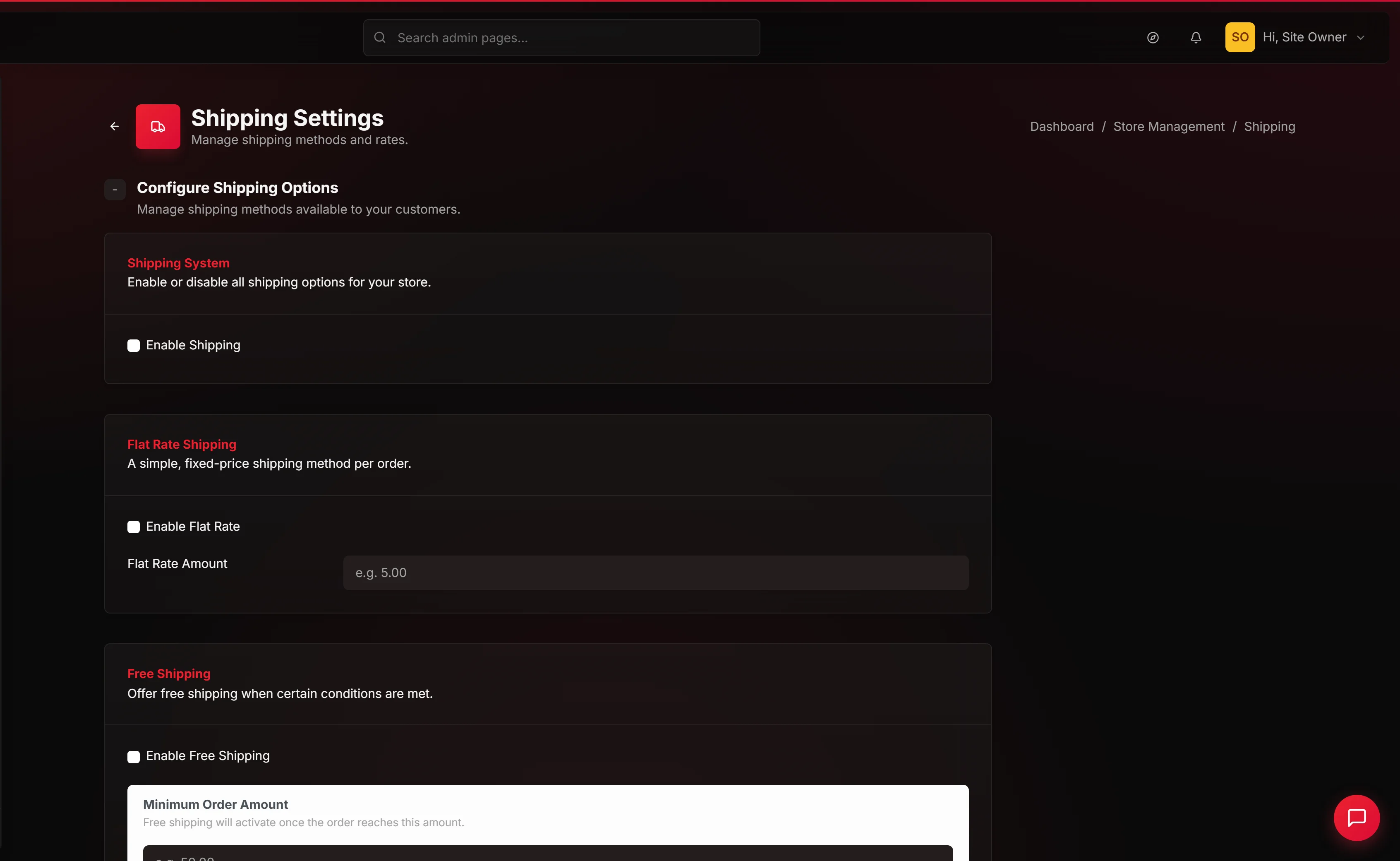
The Shipping System card at the top has a single master switch. Flip it on to enable shipping store-wide. With it off, checkout skips the shipping step entirely (and every method below is ignored). Leave it on for every store with physical products.
2. Enable Flat Rate and set the rate
Scroll to the Flat Rate card. Flip its switch on. Enter the shipping fee in Flat Rate Amount — for example 5.00 for $5, or 12.50 for $12.50.
This fee is added to every order that contains at least one shippable item, regardless of cart size or weight. If you want a simple "we charge $X for shipping" rule, this is the method.
3. Enable Free Shipping and set the threshold
Scroll to the Free Shipping card. Flip its switch on. Enter the threshold in Minimum Order Amount — for example 50.00 for free shipping on orders of $50 or more.
Free Shipping is computed against the cart subtotal (after any discounts but before tax and shipping). A cart whose subtotal is at or above your threshold sees Free Shipping as a checkout option alongside any other enabled methods.
You can enable Free Shipping alongside Flat Rate — shoppers whose cart is at or above the threshold see both options and usually pick Free; shoppers below the threshold see only Flat Rate.
4. Enable Local Pickup and write the instructions
Scroll to the Local Pickup card. Flip its switch on. Paste or type your pickup instructions into the Pickup Instructions textarea:
- Full pickup address
- Hours when pickup is possible
- What to bring (order number, ID)
- Who to ask for or where to go
Customers who pick Local Pickup at checkout pay $0 shipping and receive your instructions on the confirmation page and in the order-confirmation email.
5. Enable Weight-Based shipping and set the rate
Scroll to the Weight-Based card. Flip its switch on. Enter the rate in Rate per KG (or Rate per LB if your Weight Unit is Pounds) — for example 2.50 for $2.50 per kilogram.
At checkout, Weight-Based calculates the total weight of shippable items in the cart, multiplies by your rate, and displays the result as an option. A 3kg cart at $2.50/kg shows $7.50 for Weight-Based shipping.
Products with no saved weight contribute 0kg — if most of your products are weightless, Weight-Based is not the right method for your store.
6. Save the whole panel
The Save Shipping Settings button in the sticky right-hand column saves all five cards together. A green success message reads Ecommerce configuration has been successfully updated! at the top.
7. Verify at checkout
Open your store in a private browsing window, add the Canvas Tote Bag to your cart, and go to checkout. On the shipping step, confirm:
- Each method you enabled appears as a radio option with its price.
- Free Shipping appears only if your cart is at or above the threshold.
- Local Pickup shows the instructions you wrote on the order confirmation once you complete the order.
- Weight-Based shows a price that matches your rate times the cart weight.
What success looks like
- The green
Ecommerce configuration has been successfully updated!message appears after Save. - Checkout shows your enabled methods as radio options.
- Picking each method shows the correct price or $0 for Local Pickup.
- The Local Pickup instructions appear on the order confirmation page when you pick Local Pickup.
- Reloading the checkout after a cart price change shows Free Shipping appear or disappear based on the threshold.
- Reopening the Shipping panel after a save shows your saved values restored on every input — switches still in their saved state, rates still populated, instructions still in the textarea.
Common configurations
Two combinations cover the vast majority of SGEN stores. Pick the one closest to your store and tune from there.
- Mostly digital, occasionally physical. Master switch ON, Flat Rate ON at
5.00, Free Shipping OFF, Local Pickup OFF, Weight-Based OFF. Simplest possible setup. Every physical order picks up $5 shipping; every digital-only order skips shipping automatically. - Standard ecommerce store with a free-shipping incentive. Master switch ON, Flat Rate ON at
5.00, Free Shipping ON at50.00, Local Pickup OFF, Weight-Based OFF. A common starting point. Carts under $50 pay $5 flat; carts at or above $50 see Free as the obvious pick. - Hybrid online + brick-and-mortar. Master switch ON, Flat Rate ON at
5.00, Free Shipping ON at50.00, Local Pickup ON with full instructions, Weight-Based OFF. Adds a no-shipping option for nearby customers without compromising the online experience. - Heavy-product specialist (cookware, ceramics). Master switch ON, Flat Rate OFF, Free Shipping OFF, Local Pickup OFF, Weight-Based ON at the rate that matches your carrier's per-kg price. Every cart pays a price proportional to its actual weight.
What to do if it does not work
- No shipping methods appear at checkout. Confirm the Shipping System master switch is on, then confirm at least one method below has its switch on. Save after changes.
- Free Shipping is not showing at checkout even though my cart is above the threshold. Confirm the Minimum Order Amount matches what you expect. Cart subtotal is before tax and shipping — if you are at $49.99 and need $50, bump the cart up.
- Weight-Based shipping shows $0 at checkout. Your cart has no weight. Open each product's edit page and save a weight on the Shipping tab. Weight-Based only charges for weighted products.
- Local Pickup instructions look wrong on the order email. Confirm the Pickup Instructions textarea has the right content and save. Older orders keep the instructions from when they were placed.
- Flat Rate is adding to orders where I expected Free Shipping. Confirm both methods are enabled and that the cart meets the Free Shipping threshold. The customer picks which method at checkout — if they picked Flat Rate, that is their choice. You cannot force the cheaper method.
- The weight-based rate label says "KG" even though I set Pounds. This is a known label cosmetic — the saved rate still multiplies against your cart's weight in whichever unit you picked in the General tab. Your calculations are correct.
- A reopened Shipping panel shows blank values where I had filled them in. Hard refresh the page. If values still appear blank, check for a browser extension that injects content into form fields. Save again with your intended values.
FAQs
Q: Can I enable all four methods at once? Yes. Every enabled method appears as a checkout radio option; the customer picks one. Most stores enable Flat Rate plus Free Shipping (over $50) for the cleanest experience.
Q: Can I set different rates for different countries? Not on this panel. SGEN shipping methods are country-agnostic — every enabled rate applies globally. For per-country pricing you would need custom work beyond this panel.
Q: Will Free Shipping replace Flat Rate when the cart is above the threshold, or show alongside it? Free Shipping appears as an additional radio option — it does not replace Flat Rate. Most shoppers pick the free option; a few prefer to keep Flat Rate for tracking reasons. Both are valid.
Q: Do virtual products count toward the Free Shipping threshold? Yes — virtual products contribute their price to the cart subtotal, which is what the threshold compares against. They do not contribute weight or trigger shipping themselves.
Q: A shopper picked Local Pickup but never showed up. What happens to the order? The order stays in your Orders list as Pending until you mark it Completed. Local Pickup does not auto-fulfil — you decide when the order has been collected.
Q: Can I add a $15 surcharge for orders going to Canada? Not on this panel. SGEN shipping rates are global. International surcharges would need to be handled outside the panel — for example by setting the Flat Rate to your highest-cost destination and absorbing the difference on cheaper destinations.
Q: Can I temporarily turn off Free Shipping during a sale to protect margins? Yes. Flip Free Shipping off and save. Shoppers immediately stop seeing Free as a checkout option; they fall back to whatever else is enabled. Re-enable when the sale ends.
Q: Does saving this panel affect orders that have already been placed? No. Past orders keep the shipping method and rate that were calculated at the time of purchase. Changes here apply only to new carts and new checkouts going forward.
Tips
- Pair Flat Rate with Free Shipping for the best conversion. A small flat fee anchors the perceived shipping cost, and a clear "free over $X" threshold gives shoppers a reason to add one more item to the basket.
- Keep your pickup instructions short and scannable. Address, hours, what to bring, and a contact note. Shoppers reading them at the door do not have time for paragraphs.
- Audit your shipping rates every quarter. Carrier rates change; your panel does not. Set a recurring reminder to compare your Flat Rate to your actual carrier costs.
- Test the "free shipping unlocks at $50" experience yourself. Add items to a cart at $48 (sees Flat Rate only), then bump it to $52 (sees Free Shipping appear). Confirm the threshold messaging matches your expectation.
- Save weights on every physical product even if you do not currently offer Weight-Based shipping. A weight saved costs nothing today, but it lets you flip Weight-Based on later without revisiting every product's edit page.
- Round to clean numbers. $5.00, $7.50, $10.00, $50.00 thresholds parse better in shopper memory than $4.95 or $48.50. The conversion lift is small but consistent.
- Match your Free Shipping threshold to your average order value plus 10–20%. Set it too low and every order is free (margin loss); too high and nobody clears it (no nudge effect). Aim slightly above where your average shopper already lands.
Glossary
- Shipping System (master switch) — the top-level on/off for every shipping method on the panel. With it off, checkout skips shipping entirely and every other toggle below is ignored.
- Flat Rate — a single fixed shipping fee charged on every order that contains at least one physical item, regardless of cart size, weight, or destination.
- Free Shipping threshold — the cart subtotal value at or above which Free Shipping appears as a checkout option. Compared against subtotal after discounts, before tax and shipping.
- Local Pickup — a no-shipping checkout option for customers willing to collect orders in person from the address you specify in Pickup Instructions.
- Weight-Based rate — a per-unit-of-weight charge that multiplies the cart's total physical weight by your rate to produce the shipping line at checkout.
- Virtual product — a product flagged as having no shipping; it contributes price to the cart subtotal but never triggers shipping calculation or counts toward weight totals.
- Cart subtotal — the total of all line items after coupon discounts but before tax and shipping. This is the value the Free Shipping threshold compares against.