
How to set up taxes — global rate, label, and per-location overrides
⏱ 60-second answer below · full page ≈ 9 min · skim the bold panel names to move faster.
In short. The Taxes tab under Settings → Store Management has five panels: Tax System (master on/off toggle), Tax Pricing Mode (inclusive vs. add-at-checkout, plus the Tax Label shoppers see on receipts), Global Tax Rate (a single percent covering every order by default), Shipping Tax (whether shipping is taxable), and Location-Based Tax (per-country or per-state rate overrides). Configure once at launch, then revisit only when a rate changes or you expand into a new region. Always verify on the public storefront after saving — and work with your accountant before configuring, because these choices have legal consequences.
On this page: Fields reference · Good use cases · What NOT to use this for · How this connects · Before you start · Steps ��� single global rate · Steps — per-state rates · Troubleshooting
How to set up taxes
The Taxes tab lives at Settings → Store Management → Taxes. Five panels run top to bottom — Tax System, Tax Pricing Mode, Global Tax Rate, Shipping Tax, and Location-Based Tax. One Save Tax Settings button at the bottom commits every panel in a single save.
This tab does not cover: tax report generation (use your accounting tool), VAT ID validation for B2B buyers, or registration with any tax authority. It records the rule your shop uses to compute the tax line on every order.
Fields
| Panel | Field | What it does |
|---|---|---|
| Tax System | Master enable toggle | On = tax line appears on every order; Off = no tax collected |
| Tax Pricing Mode | Inclusive Pricing | On = displayed prices already include tax (VAT-inclusive, common in EU); Off = tax added at checkout (common in US) |
| Tax Pricing Mode | Tax Label | Short plain-text name on the tax line (e.g. Sales Tax, VAT, GST) |
| Global Tax Rate | Rate (%) | Applies to every order unless a location rule overrides it |
| Shipping Tax | Shipping Taxable | On = shipping cost is added to taxable subtotal |
| Location-Based Tax | Country / State / Rate | Per-location override rows that replace the global rate for matching addresses |
Good use cases
- Setting a single Global Tax Rate of 8% for a small US shop selling exclusively to one state, where the local sales-tax rate covers all your orders.
- Configuring a UK or European VAT-inclusive setup with a 20% rate and a Tax Label of VAT for shops where law requires prices to be displayed with tax already included.
- Setting up a multi-state US shop with location-based overrides: a 9.5% rate for California, an 8% rate for New York, a 6% rate for Texas, and a default 8% global rate for any other state.
- Enabling Shipping Taxable for shops in jurisdictions where local law treats shipping as a taxable item, ensuring receipts and filings match what the law expects.
- Disabling the master Tax System for a shop selling only to tax-exempt B2B customers or for a charity-run shop where no tax applies.
- Customizing the Tax Label to GST for a Canadian or Australian shop, or to TVA for a French-language shop, so shoppers see terminology that matches their region.
- Setting the Global Tax Rate to 0 for a charity store or a wholesale shop where no end-customer tax applies but you still want to keep the tax mechanism enabled in case rules change later.
- Adding a single location override for a small online shop that sells primarily within one state but occasionally ships out of state, where the global rate covers most orders and a special rate covers your home state.
- Updating the Global Tax Rate after a state-wide rate change announced by the tax authority, so future orders use the new rate without you having to edit every product.
- Removing a location override after relocating your business, so you stop charging the old jurisdiction's rate to your former customers.
What NOT to use this for
- Do not use the Tax Label to write anything other than a short, plain tax-line name. The label is what shoppers see on every receipt and on the cart and checkout pages. Stick to short, plain words like Sales Tax, VAT, GST, TVA, or HST. Keep the text simple and free of any formatting marks, quotes, brackets, or special characters — those can cause display oddities on some receipts.
- Do not use the Global Tax Rate to set a "fee" or "surcharge" that has nothing to do with tax. The line item is labeled Tax (or your custom label) on every receipt, and shoppers expect it to be the actual tax their order owes. Mislabeling a fee as tax can create both customer-trust and legal-filing problems.
- Do not configure tax settings without consulting an accountant or tax advisor. Tax rules vary by country, state, county, and product category. The right rate for your shop depends on factors that this page cannot determine — your business structure, where you have nexus, what categories of products you sell. Get expert advice before configuring this page.
- Do not set a Global Tax Rate that is wildly different from your real obligation as a quick fix. Customers see the tax line on every order; if it does not match what they expect, they may dispute the order or contact support. If you are unsure, leave the master Tax System off and consult an accountant.
- Do not enter a negative rate, a non-numeric value, or a rate above 100. The system expects a plain whole-number percent or a simple decimal like 8.25. Unusual values can cause unexpected math on receipts. Stick to standard whole-number or simple-decimal rates that match real tax law.
- Do not enable Inclusive Pricing without first checking how your existing product prices are stored. Inclusive Pricing tells the system that your displayed prices already contain tax. If your prices are currently stored ex-tax and you turn this on without updating them, customers may see prices that look right at first glance but compute strangely at checkout. Always test on the public storefront after any change to this setting and double-check that the price shown to customers matches what you intend.
- Do not enable Shipping Taxable based on a guess. Shipping tax rules vary widely by jurisdiction. Some states tax shipping; some do not. Some tax it only when the underlying products are taxable. Get tax advice before flipping this toggle.
- Do not use Location-Based Tax to give discounts to customers in specific places. The location-based system is for tax compliance, not promotions. If you want to discount shoppers in a particular state, use a Coupon with a state-targeting rule instead.
- Do not change tax settings during a checkout in progress. Changes apply immediately on the next page render, so shoppers mid-checkout may see a confusing change in the tax line between cart review and final payment.
How this connects to other features
- General Settings — The Origin Country and Origin State on the General tab define your shop's tax origin. Tax calculations use this as the baseline. If a customer's address matches your origin, they see the rate that applies in your origin's jurisdiction.
- Shipping — The Shipping Taxable toggle here decides whether shipping cost is added to the taxable subtotal. The actual shipping methods are configured on the Shipping tab.
- Cart and Checkout — The Taxes settings drive every tax line on every cart and checkout. Shoppers see the tax computation update as they add items, change quantities, or enter their address.
- Products — Each product carries a price. With Inclusive Pricing on, that price already contains tax. With Inclusive Pricing off, that price is ex-tax and the tax is added at checkout.
- Coupons — Some coupon types apply before tax; some apply after. The interaction between coupons and tax is jurisdiction-specific. Verify with your accountant if you run coupons in regulated tax markets.
- Notifications — Order receipt templates show the tax line using the Tax Label you configured here. If you change the label, future receipts use the new label; old receipts retain whatever label was in effect when the order was placed.
- Reports — Sales reports break down tax collected per period. The values reported here come from the rates configured on this page applied to each order at the time it was placed.
Before you start
Gather three things before opening the Taxes tab:
- Your rates — from your accountant or the relevant tax authority's website. Do not estimate; tax rates change annually, and a stale rate causes filing problems.
- Your pricing model — inclusive (prices already contain tax, common in EU) or exclusive (tax added at checkout, common in US). This is a structural decision that changes how every product price is interpreted — not something you flip back and forth.
- Your label — US: "Sales Tax." UK/EU: "VAT." Canada: "GST" or "HST." Australia: "GST." Use whatever your jurisdiction calls it.
If you sell into multiple states or countries, write out the list (country, state, rate) before you start. The page adds one location row at a time, so a prepared list makes entry fast and accurate.
Have your accountant review the settings before the first real order ships. A five-minute check can prevent hours of filing corrections later.
Where to go
In the admin sidebar, click Settings, then Store Management. The Store Configuration page opens. Click the Taxes tab in the row of tabs across the top.
You will see five panels stacked from top to bottom — Tax System, Tax Pricing Mode, Global Tax Rate, Shipping Tax, and Location-Based Tax — each with its own settings. A single Save Tax Settings button at the bottom commits everything in one go.
Steps — set up a single global tax rate
1. Open the Taxes tab
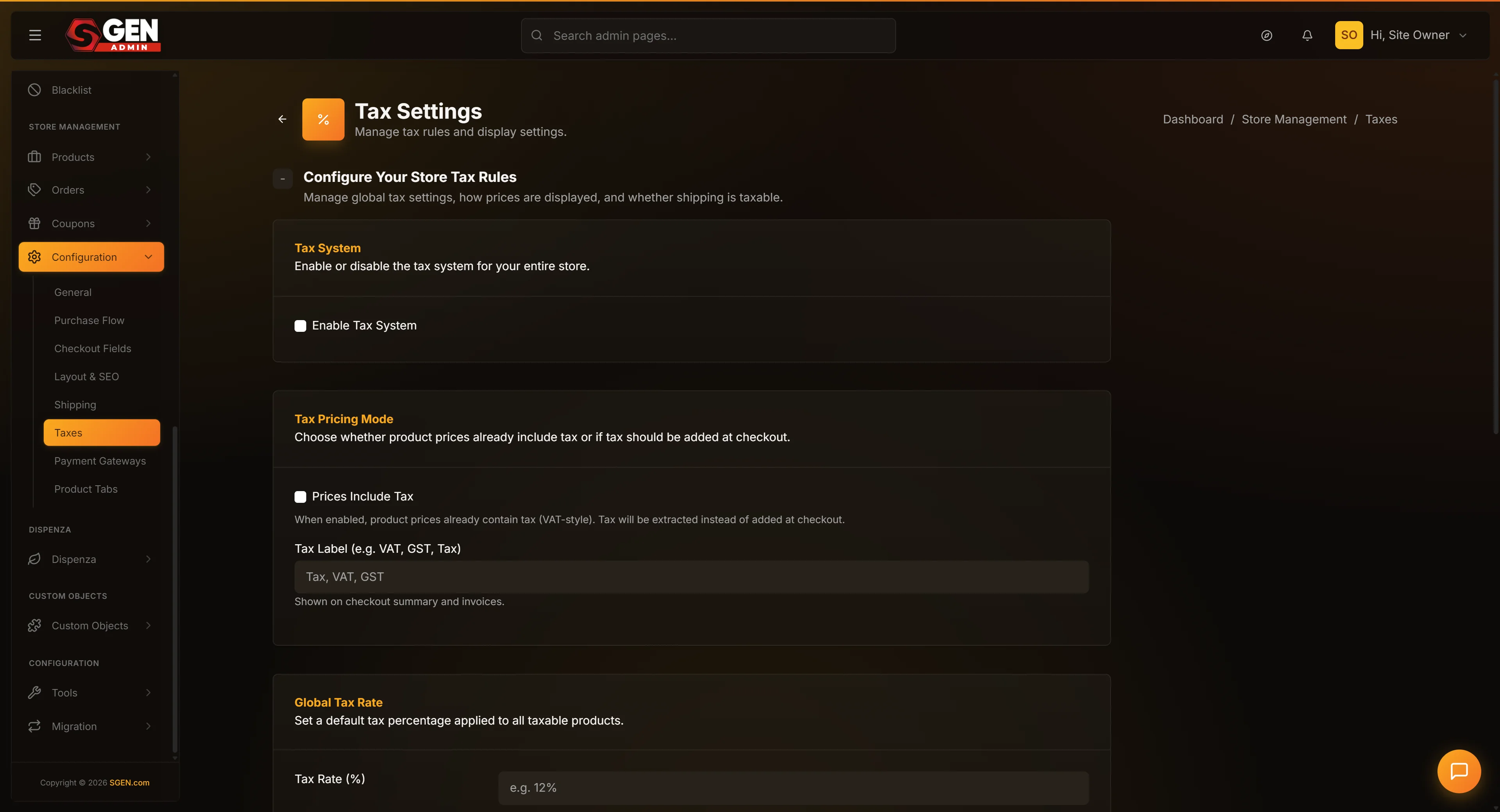
From the admin sidebar, click Settings, then Store Management, then the Taxes tab.
2. Enable the Tax System
At the top of the page, check the Tax System checkbox to enable taxes on your shop.
3. Set the Tax Label
In the Tax Pricing Mode panel, fill in the Tax Label field with a short plain-text name for your tax line. Use only standard letters, numbers, and spaces. Examples: "Sales Tax," "VAT," "GST." Avoid quotation marks, brackets, or any special characters.
4. Set the Global Tax Rate
In the Global Tax Rate panel, enter your rate as a whole number or simple decimal percent. Enter 8 for an 8% rate. Enter 20 for a 20% rate. Enter 8.25 for an 8.25% rate. Avoid entering anything other than a normal positive percent value.
5. Decide on Shipping Tax
In the Shipping Tax panel, check or uncheck the Shipping Taxable checkbox based on your jurisdiction's rule. If unsure, ask your accountant before saving.
6. Save Tax Settings
Scroll to the bottom of the page and click Save Tax Settings. The form refreshes with your new state.
7. Verify on the public checkout
Open your storefront in another tab. Add a product to cart and proceed to checkout. Enter a customer address. At the order summary or payment step, confirm the tax line appears with your chosen label and the correct rate applied to the cart subtotal.
If the tax line does not appear, check that the master Tax System toggle is on. If the rate looks wrong, double-check that you entered a plain percent number (8, not 0.08, and not 8%).
Steps — add a per-state tax rate
1. Enable Location-Based Tax
Open Settings → Store Management → Taxes. Scroll to the Location-Based Tax panel. Check the Location-Based Tax Enabled checkbox.
2. Add a new location row
Click "Add new location" to add a row. The new row has three fields: Country, State, and Rate.
3. Pick a country and a state
In the Country dropdown, pick the country (for example, United States). The State dropdown updates to show the states for that country. Pick the state.
4. Enter the rate
In the Rate field, enter the per-state rate as a plain percent number. For example, enter 9.5 for California's typical sales-tax rate. Stick to standard whole-number or simple-decimal values.
5. Add more locations as needed
If you sell into more than one state with a special rate, click "Add new location" again and fill in another row. You can add as many location rules as your business needs.
6. Save Tax Settings
Click Save Tax Settings. The form refreshes with all your locations saved.
7. Verify on the public checkout
Add a product to cart, proceed to checkout, and enter an address in the location you configured. Confirm the tax line shows the rate from your location override (not the global rate). Then change the address to a different state and confirm the tax line updates to reflect the global rate or a different location's rate.
What success looks like
After you save the Tax settings, the changes apply on the next checkout. Any shopper who reaches the order summary from that moment onward sees the new tax line.
You should walk through your shop once after every change. Open the storefront in another tab, add a product to cart, proceed to checkout, enter an address, and confirm the tax line appears with the right label and the right rate.
The page should also show a green confirmation flash at the top after every save with the message "Ecommerce configuration has been successfully updated."
A well-configured Taxes tab is one where every order's tax line matches what your accountant expects. The label is plain and clear. The global rate covers your default jurisdiction. Location overrides handle the special cases. Shipping tax is set correctly for your jurisdiction. Receipts read clean.
Do double-check the displayed tax on the public storefront after you save, especially if you change Inclusive Pricing or any rate. Watch the receipts on the first few real orders after a change to confirm shoppers see exactly what you expect — the math at the storefront should match the math at your bookkeeping records.
What to do if it does not work
If your changes save but the storefront still shows the old tax behavior, the most common cause is browser caching. Open the storefront in a private or incognito window and you should see the fresh tax line.
If a tax line does not appear at all on the checkout, check that the master Tax System toggle is on. Without the master toggle, no tax line appears regardless of any other setting on this page.
If the tax line shows the wrong rate, walk through the checkout in another window with a known address and compare the rate displayed to what you configured. If the address falls inside a Location-Based rule, that rule's rate applies; if not, the Global Tax Rate applies. A mismatch usually means a location rule has the wrong country or state, or the global rate is set incorrectly.
If the tax label appears but with strange characters or formatting in it, return to the Tax Label field and make sure the text contains only standard letters, numbers, and spaces. Remove any quotation marks, brackets, or special characters and save again.
If you turned on Inclusive Pricing and customers report that prices look higher than they should, switch back to ex-tax (uncheck Inclusive Pricing) and confirm the displayed prices return to normal. Then have your accountant review whether your stored product prices are tax-inclusive or tax-exclusive before re-enabling. Always verify on the public storefront after any change to this setting.
If a customer reports a tax computation that does not match their expectation, look at the address they entered at checkout and trace through the rule that applied. The cart and checkout show the tax in real time as the address is entered; the address determines the rate.
If multiple admins are editing the Taxes tab at the same time, the last save wins. There is no merge or conflict warning. Coordinate with your team if more than one person is configuring this.
If the Shipping Tax setting changed unexpectedly between two saves, that is by design — the toggle is global, not per-method. Saving the Taxes tab applies your latest checkbox state.
If a Location-Based rule does not seem to fire even though the customer is in that state, double-check the location entries are spelled exactly as the dropdown choices list them. The system matches by exact country and state code, not by free-text typing.
If you removed a location and then re-added it but the rate is now stuck at zero, save the page once with the rate field correctly populated. Sometimes a quick edit-and-undo can leave the rate field at its prior value; an explicit save resolves it.
Example — single-state US shop (simple global rate)
Your store sells exclusively to customers in one state. Your accountant says the rate is 9.5%. You want a clean sales-tax line on every US receipt.
Settings: Tax System on · Inclusive Pricing off · Tax Label "Sales Tax" · Global Tax Rate 9.5 · Shipping Taxable off · Location-Based Tax off.
Save, then test: a $50 order at checkout should show a $4.75 Sales Tax line. Done.
Example — multi-state US shop with nexus overrides
Your store has nexus in California, New York, and Texas. For every other state, no tax applies.
Settings: Tax System on · Inclusive Pricing off · Tax Label "Sales Tax" · Global Tax Rate 0 (default no-tax for non-nexus states) · Shipping Taxable off · Location-Based Tax on with three rows:
Verify with three test checkouts: California → 9.5%, New York → 8.875%, a non-nexus state → 0%.
Next steps
- Set up store basics — set Origin Country and Origin State, both of which interact with tax origin logic.
- Configure shipping methods — configure shipping options that interact with the Shipping Taxable setting.
- Configure checkout fields — tune cart and checkout entry behavior.