
How to set up shipping methods — flat, free, pickup, and weight-based
⏱ 90-second answer below · full page ≈ 5 min · skim the bold lead-ins to move faster.
The 90-second answer. The Shipping tab under Settings → Store Management is where you choose what shipping options shoppers see at checkout. Four methods: Flat Rate (fixed charge per order), Free Shipping (free once the cart hits your minimum), Local Pickup (shopper collects in person), and Weight-Based (rate × cart weight in kg). Each method has its own enable toggle. A master Shipping System toggle turns all shipping on or off — useful for digital-only shops. Configure once, test on the live checkout, revisit when your fulfillment changes.
On this page: The four methods · Good use cases · Before you start · Enable Free Shipping · Local Pickup · Weight-Based · Troubleshooting
What is this for?
The Shipping tab (Settings → Store Management → Shipping) decides what shipping options shoppers see at checkout. Each of the four methods has its own enable toggle. A master Shipping System toggle controls whether any shipping step appears at all — turn it off only for digital-only shops. All settings are global: every cart sees the same options.
Scope
Covers the master toggle and the four built-in methods: Flat Rate, Free Shipping, Local Pickup, Weight-Based. Does not cover carrier API integrations, per-product shipping classes, zone-based restrictions, or the Shipping Taxable toggle (that lives on the Taxes tab).
Fields
| Method | Key field | What it does |
|---|---|---|
| Shipping System | Master on/off toggle | Off = no shipping step at checkout (digital-only shops) |
| Flat Rate | Flat Rate Amount | Fixed charge per order, in your store currency |
| Free Shipping | Minimum Order Amount | Cart subtotal must reach this threshold for free shipping to apply |
| Local Pickup | Local Pickup Instructions | Plain-text shown on confirmation page and order email |
| Weight-Based | Rate per kg | Cart weight (kg) × this rate = shipping cost |
Good use cases
- Flat Rate + Free Shipping combined — flat rate as the baseline, free shipping kicks in at your threshold. Gives shoppers a clear path to save on shipping and lifts average order value.
- Local Pickup for a bakery, brewery, or boutique where local shoppers prefer to collect. Include the full address, hours, what to bring, and "free of charge" in the instructions.
- Weight-Based when order weights vary significantly — a 250g sample versus a 50kg bulk order. Flat Rate would under- or over-charge one of them.
- Master toggle off for a digital-only shop. No shipping step appears at checkout; shoppers go straight from cart to billing.
What NOT to use this for
- Not a handling fee — the checkout Shipping line is expected to reflect actual delivery cost. Hidden fees erode trust.
- Not Flat Rate at $0 for always-free shipping — use Free Shipping with a threshold of zero instead. Keeps reporting clean and intent clear.
- Not Weight-Based without auditing product weights — products with no weight set contribute $0, causing undercharging. Check the Products list first.
- Not Local Pickup without written instructions — any shopper can select it; there is no geographic restriction. Instructions are the only guidance they get after placing the order.
- Not Free Shipping with a threshold below your real shipping cost — set it at least 2–3× your average carrier cost so qualifying orders stay margin-positive.
How this connects to other features
| Feature | What to know |
|---|---|
| General Settings | Origin Country/State define the shipping origin. Weight Unit must be kg when using Weight-Based — the rate field is per kilogram. |
| Taxes | The Shipping Taxable toggle lives on the Taxes tab, not here. It adds shipping cost to the taxable subtotal — confirm with your tax advisor. |
| Products | Each product has a weight value used for Weight-Based shipping. Audit weights before enabling that method. |
| Coupons | Free-shipping coupon types override all configured methods for that order — the shopper sees $0 regardless of cart total. |
| Notifications | Order receipts show the selected method, cost, and pickup instructions. Verify your templates handle each method correctly. |
Before you start
- Know your real shipping cost. Box + packing + label + carrier fee — that is the floor your Flat Rate or Weight-Based rate must cover.
- Set a defensible Free Shipping threshold. A typical pattern: free over $50 when your average order is $35. The threshold pulls some carts up; the larger margin covers the shipping cost.
- Audit product weights before enabling Weight-Based. Spot-check ten products in the Products list. Missing weights contribute $0 to the calculation.
- Draft pickup instructions before enabling Local Pickup. Full address, hours, what to bring, and cost. These are the only guidance the shopper gets post-order.
Where to go
In the admin sidebar, click Settings, then Store Management. The Store Configuration page opens. Click the Shipping tab at the top.
Four panels appear — Flat Rate, Free Shipping, Local Pickup, and Weight-Based — each with its own enable toggle and fields. A single Save Shipping Settings button at the bottom commits everything in one go.
Steps — enable Free Shipping over a threshold
1. Open the Shipping tab
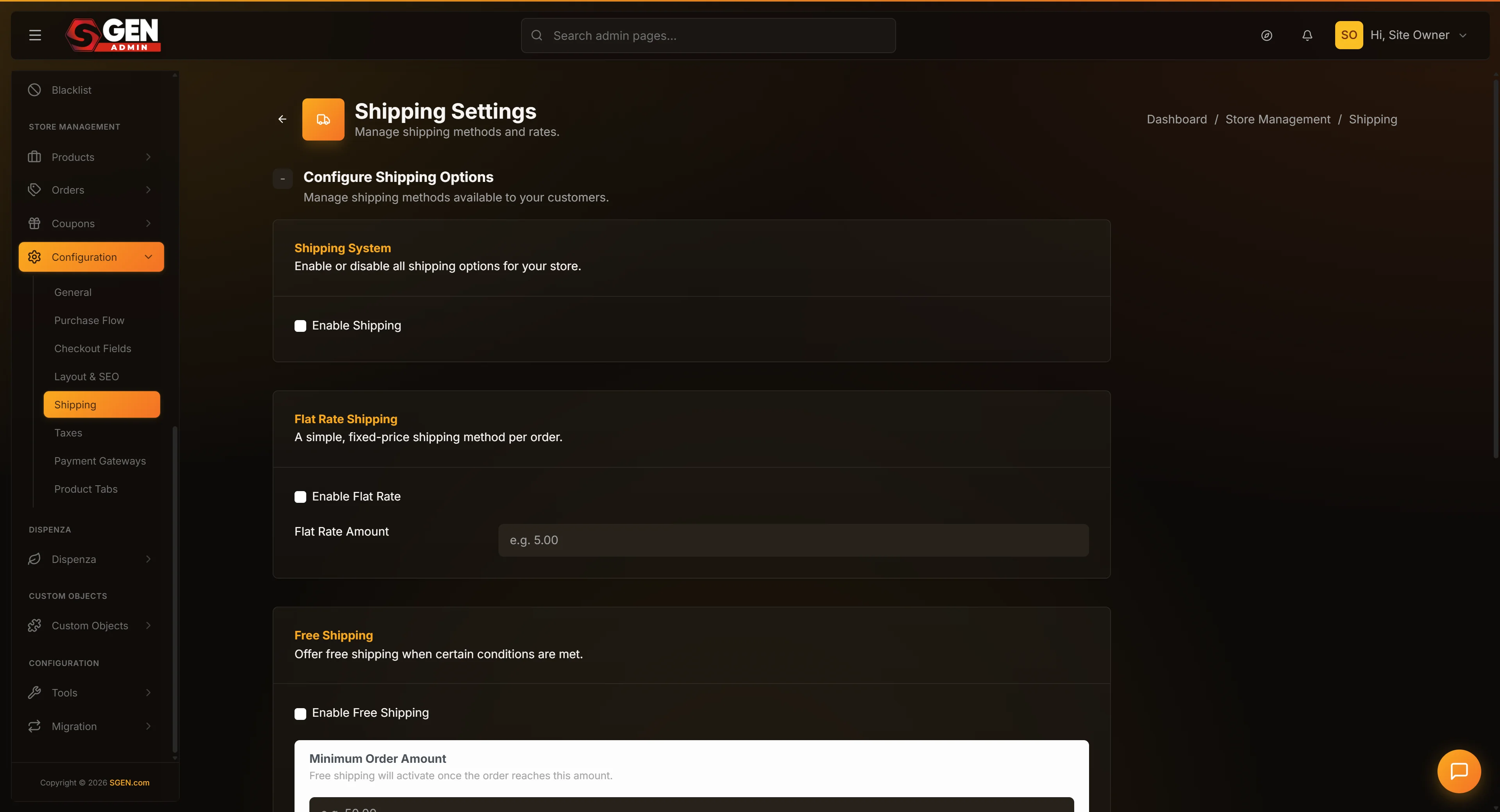
From the admin sidebar, click Settings, then Store Management, then the Shipping tab.
2. Confirm the master Shipping System is on
Scroll to the top. The Shipping System checkbox should be checked. Without the master toggle on, none of the individual methods appear at checkout.
3. Enable Free Shipping
Find the Free Shipping panel. Check the Free Shipping Enabled checkbox.
4. Set the Minimum Order Amount
In the Minimum Order Amount field, enter the cart subtotal threshold above which shipping becomes free. For example, enter 50 to make shipping free on any cart of $50 or more. Enter 0 to apply free shipping on every order.
5. Save Shipping Settings
Scroll to the bottom and click Save Shipping Settings. The form refreshes with your new state.
6. Verify on the public checkout
Open your storefront in another tab. Add products totaling $50 or more to your cart. Proceed to checkout. At the shipping step, confirm Free Shipping appears as one of the options with no charge.
Steps — set up Local Pickup with clear instructions
1. Open the Shipping tab and find the Local Pickup panel
Open Settings → Store Management → Shipping. Find the Local Pickup panel.
2. Enable Local Pickup and write the instructions
Check the Local Pickup Enabled checkbox. In the Local Pickup Instructions textarea, write a short paragraph covering: full pickup address, available hours, what the shopper needs to bring (typically the order number), and "free of charge" if applicable. Two to four sentences is the right length.
3. Save and verify
Click Save Shipping Settings. Open your storefront, add a product to cart, proceed to checkout, and confirm Local Pickup appears with a $0.00 price. Complete a test order and confirm the pickup instructions appear in the order confirmation email.
Steps — configure a Weight-Based shipping rate
1. Audit product weights
Open the Products list and spot-check that the products you sell most often have a sensible weight value. Products with no weight contribute $0 to the cost calculation — fix missing weights before enabling this method.
2. Enable Weight-Based and set the rate
Open Settings → Store Management → Shipping. Find the Weight-Based panel. Check the Weight-Based Enabled checkbox. In the Rate field, enter the per-kilogram rate (for example, 3.00 to charge $3 per kg of cart weight). The rate is per kilogram — confirm Weight Unit is set to kg on the General tab.
3. Save and verify
Click Save Shipping Settings. Add a product with a known weight to your cart, proceed to checkout, and confirm the cost equals cart weight × your rate. Example: a 250g bag at $3.00/kg gives 0.250 × 3.00 = $0.75.
What success looks like
After saving, changes apply on the very next checkout. Walk through your shop after every change: open the storefront in another tab, add a product, enter a shipping address, and confirm the options appear with the right names and prices. A green confirmation flash should appear after every save with the message "Ecommerce configuration has been successfully updated."
What to do if it does not work
Old options still showing after save — browser caching. Open the storefront in a private window to see the fresh state.
Free Shipping not appearing — the cart subtotal must be at or above the Minimum Order Amount. Free Shipping is hidden for carts below the threshold. Also confirm the master Shipping System toggle is on.
Weight-Based shows $0.00 — your products have no weights set. Open Products and audit the weight column.
Weight display mismatch (pounds vs kg) — the Rate field is per kilogram. Set Weight Unit to kg on the General tab to keep display and calculation consistent.
Local Pickup not appearing — confirm the master Shipping System toggle is on. No methods appear at checkout without it.
Shopper charged shipping despite selecting Free Shipping — cart subtotals can change between cart-review and the shipping step (coupon applied, price changed). Free Shipping eligibility is recalculated at the shipping step.
Two admins saved at the same time — last save wins; there is no merge or conflict warning. Coordinate with your team.
Examples
Common shipping postures and the methods they use:
| Shop type | Methods on | Reasoning |
|---|---|---|
| Small online shop, uniform weights | Flat Rate + Free Shipping | One flat fee as baseline; free shipping threshold lifts average order value |
| Digital-only (downloads) | Master toggle off | No shipping step at checkout at all |
| Local bakery or boutique with pickup | Local Pickup + Flat Rate | Pickup for local customers; flat rate backstop for delivery requests |
| Wholesale supplier, wide weight range | Weight-Based only | 250g sample vs 50kg pallet — flat rate would over- or under-charge one |
| Multi-channel (tasting room + national) | All four enabled | Each method earns its place; shoppers see the relevant options |
Next steps
- Store Basics — set Origin Country, Origin State, and Weight Unit, all of which interact with shipping.
- Taxes — decide whether your shipping is taxable (Shipping Taxable toggle lives here, not on the Shipping tab).
- Purchase Flow — tune cart and checkout entry behavior.
- Checkout Fields — choose which billing and address fields appear at checkout.