
How to set up your store basics — status, origin, units, and terms
⏱ Quick answer below · full page ≈ 8 min. Skim the bold field names and the Steps sections to move faster.
In short. The General tab of Store Configuration is your store's control panel for four foundation settings: whether the shop is open or paused (Store Status), where orders ship from (Origin Country / State), what units appear on product cards and shipping labels (Weight and Dimension Unit), and whether shoppers must agree to your terms before purchasing (Terms Checkbox). Configure these once on launch day. Come back when you put the store in maintenance mode, relocate your warehouse, expand to a new market, or publish a new terms page.
On this page: Scope · Fields reference · What it's for · Good use cases · What NOT to do · How it connects · Before you start · Steps · Examples · Troubleshooting
Scope
This doc covers the General tab of Store Configuration only. It does not cover Payment Gateways, Shipping, Taxes, Purchase Flow, Layout & Templates, or Checkout — each has its own doc.
Fields
| Field | Type | Default | What it controls |
|---|---|---|---|
| Store Status | Dropdown | Online | Whether the shop accepts orders (Online), shows a maintenance page (Maintenance), or is fully hidden (Disabled) |
| Origin Country | Dropdown | United States | The country your shop ships from — drives the default tax origin for every product |
| Origin State | Dropdown | (varies) | The state or region your shop ships from — used alongside Origin Country for tax and shipping |
| Weight Unit | Dropdown | Kilograms (kg) | Unit shown on product cards and used in weight-based shipping calculations |
| Dimension Unit | Dropdown | Centimeters (cm) | Unit shown on product dimensions |
| Require Login at Checkout | Dropdown | No | Forces shoppers to create or sign in to an account before purchasing |
| Show Terms Checkbox at Checkout | Dropdown | No | Adds a required I-agree-to-the-terms checkbox to the checkout page |
| Terms URL | Text | — | The URL your terms link points to |
| Terms Checkbox Text | Text | I agree to the {terms_link}. | The label shown next to the checkbox — {terms_link} is replaced with the URL above |
What is this for?
The General tab is the home for store-wide settings that don't belong to any single section like Payments or Shipping. Think of it as the front-desk register for your whole shop — it tells the system whether the store is open, where it ships from, what units it measures things in, and whether shoppers must accept terms before buying.
Configure these settings once during initial setup. You'll come back for specific events: flipping to Maintenance before a repricing, switching Origin State after relocating your warehouse, adding a terms checkbox when you publish a new privacy policy, or turning on Require Login when moving to a B2B model.
Good use cases
- Maintenance before a sale — put the store in Maintenance while you reprice products so shoppers can browse but can't place orders at the wrong price.
- Setting origin on launch day — configure Origin Country and State before any customer adds to cart, so tax calculations across the store know where you ship from.
- Market expansion — switch Weight Unit and Dimension Unit when moving into a new region so product cards and shipping labels match local expectations.
- B2B or wholesale — turn Require Login on so every buyer must have an account before pricing or ordering.
- Terms compliance — add the terms checkbox when you publish a new privacy policy and need recorded consent from every shopper.
- Warehouse relocation — update Origin State after moving your fulfillment address; tax and shipping origin adjust without touching any individual product.
What NOT to use this for
- Taking the whole site offline — Store Status closes the shop only. Your blog, marketing pages, and contact forms keep working. For a full-site blackout, use the Maintenance Mode setting under Settings.
- Customer location — Origin Country and State are the merchant's shipping address, not where any customer lives. Customer addresses are collected at checkout.
- Casual unit changes after launch — switching Weight Unit does not convert existing product data. A product listed as 1.5 kg reads 1.5 lb after a flip — the number stays, the unit label changes. Plan a product-data review alongside any unit change.
- Gating marketing content — Require Login only blocks checkout. Shoppers can still browse, read descriptions, and add to cart without an account.
- Non-legal terms text — keep the Terms Checkbox wording focused on your terms of service or privacy policy. Non-legal text here may confuse shoppers and may not carry the legal weight you intend.
- Double-disabling — don't stack Maintenance and Disabled. Maintenance is a polite pause; Disabled is a quiet hide. Pick the one that matches what shoppers should see.
- A security gate — Store Status pauses checkout but does not stop search engines from indexing product pages or existing customers from accessing order history. It is an operational toggle, not a lock.
How this connects to other features
- Taxes — Origin Country and State become the default tax origin. The Taxes tab uses this as the starting point for any tax rules you define.
- Shipping — Origin drives the from-address used by shipping calculations. Weight Unit feeds into weight-based shipping rules.
- Payments — Disabled status means no payment will run because the storefront is hidden. Maintenance also blocks payments since checkout is closed.
- Checkout — Require Login inserts a login or register screen before any payment fields.
- Pages — Terms URL points to a page on your site. If you rename or delete that page, return here to update the link.
- Products — Each product's weight and dimensions are interpreted using the units configured here. Be cautious switching units after products exist.
- Notifications — Some notification templates reference store-wide values like origin country in the email footer. A change here trickles into those templates on the next send.
Before you start
Have these ready before opening the General tab:
- Your ship-from address — country and state/region of your default fulfillment location. For drop-ship or multi-warehouse operations, use your primary fulfillment address.
- Your preferred units — check how your shipping carrier prints labels to confirm whether you work in kg/cm or lb/in.
- Your terms page URL — if you plan to turn the Terms Checkbox on. If you haven't published a terms page yet, do that first under Pages, then return here.
- Team awareness — the settings here are global and immediate. Flipping to Maintenance or switching units affects the whole store; give your team a heads-up first.
If you're switching Require Login on for the first time, also confirm your account features are ready: registration form under Forms, welcome and password-reset email templates under Notifications, and a visible login link in your header.
Where to go
In the admin sidebar, click Settings, then Store Management. On the Store Configuration page, click the General tab. You can also reach it from the Store Management tile on the dashboard home.
Steps — change Store Status to Maintenance
1. Open the General tab of Store Configuration
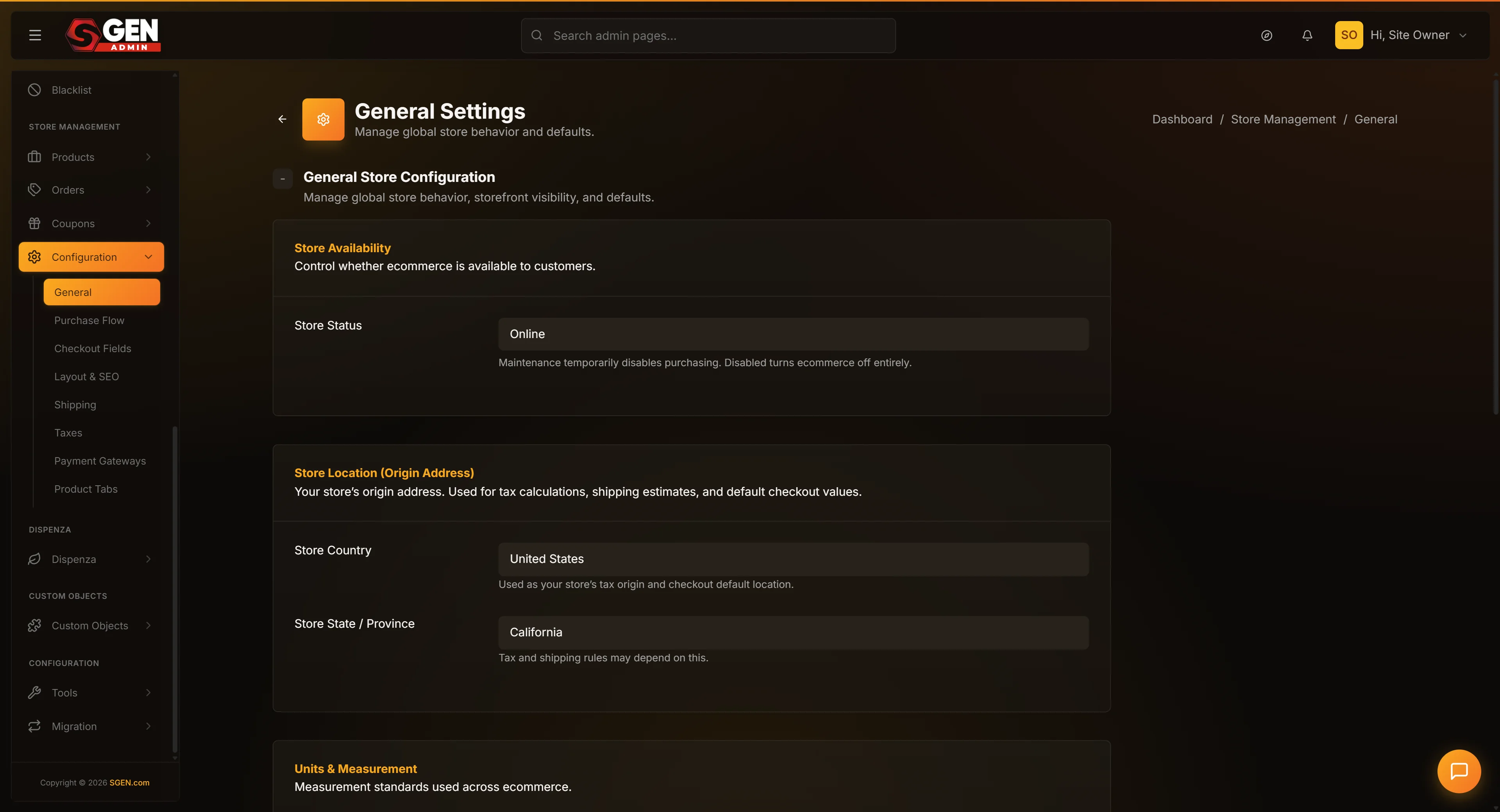 Store Management > Store Configuration, General tab: Store Status, Origin Country/State, Weight/Dimension Unit, Terms checkbox fields" loading="lazy" style="width:100%;max-width:900px;height:auto;border-radius:8px;border:1px solid #e5e7eb;display:block;margin:12px 0">
From the admin sidebar, click Settings, then Store Management. On the Store Configuration page, click the General tab if it is not already selected. The General tab is the leftmost tab and is the default on arrival.
2. Find the Store Status dropdown
Store Status is the first field on the General tab. The dropdown shows the current value — Online for a normal operating store.
3. Choose Maintenance from the dropdown
Click Store Status and pick Maintenance. The three options:
- Online — fully operational. Shoppers can browse, add to cart, and check out.
- Maintenance — open for browsing but checkout is blocked. Shoppers see a banner explaining the shop isn't taking orders.
- Disabled — shop is hidden entirely. No product pages, no cart, no checkout.
4. Click Save Changes
Scroll to Save Changes at the bottom of the page and click it. The page reloads with your new value selected and a confirmation appears at the top.
5. Verify on the public site
Open your storefront in a separate tab. Add a product to cart and click checkout. You should see the Maintenance message instead of the normal checkout page.
To reopen the shop, return here, switch Store Status back to Online, and click Save Changes.
Steps — set the origin country and state
1. Open the General tab
From the admin sidebar, click Settings, then Store Management, then the General tab.
2. Pick the country your shop ships from
Find Origin Country. Click it and pick the country you ship orders from — the country of your warehouse, studio, or home office. The list is alphabetical.
3. Pick the origin state or region
Once you pick a country, Origin State updates to show that country's states or regions. Pick the one you ship from. If your country has no states, the dropdown will be empty — that's expected.
4. Click Save Changes
Click Save Changes. This change becomes the default tax origin across the Taxes tab and the default from-address for Shipping calculations. Existing tax rules you've already configured are not affected — only new defaults going forward.
Steps — switch units of measurement
1. Open the General tab and find the unit fields
Weight Unit and Dimension Unit are in the middle of the General tab.
2. Pick the right units
Choose kilograms or pounds for Weight Unit. Choose centimeters or inches for Dimension Unit. Match what your shipping carrier expects on the label.
3. Save and review existing products
Click Save Changes. Then go to Products and check any product with a weight set. The number does not convert — a 1.5 kg product reads 1.5 lb after a unit switch. After saving, plan time to update the weight values on every product.
Steps — turn on the terms checkbox at checkout
1. Open the General tab and scroll to the terms fields
The Terms fields are grouped at the bottom: Show Terms Checkbox, Terms URL, and Terms Checkbox Text.
2. Set Show Terms Checkbox to Yes
Click the dropdown and pick Yes. This unlocks the two text fields below.
3. Paste the URL of your terms page
In Terms URL, paste the full URL of your terms-of-service or privacy page on your site.
4. Customize the checkbox text
In Terms Checkbox Text, write the sentence shoppers see next to the checkbox at checkout. The default is "I agree to the {terms_link}." The placeholder {terms_link} becomes a clickable link to the URL you pasted. Keep {terms_link} in the sentence or no link appears.
5. Save and verify at checkout
Click Save Changes. Open your storefront, add a product to cart, and proceed to checkout. The terms checkbox appears above the Pay button. Submitting without checking it shows a prompt asking shoppers to agree first.
What success looks like
After saving, the shop reflects new values immediately. A Maintenance switch closes new orders within seconds. An Origin change updates tax and shipping defaults on the next cart calculation. A unit flip propagates to product cards and shipping math on the next page render.
A green confirmation appears at the top of the page after each save, and an entry is added to the activity log noting which fields changed and when.
Examples
Common scenarios — each maps to a different field group:
| Scenario | Fields changed | Key thing to do after |
|---|---|---|
| Launch-day setup | Status → Online, Origin Country + State, Weight + Dimension Unit, Terms Checkbox + URL | Verify on public checkout: terms checkbox visible, correct units |
| Maintenance for repricing | Status → Maintenance | Post a note on social; flip back to Online when done |
| Warehouse relocation | Origin State updated | Walk Taxes tab + Shipping tab to confirm origin updated; update return address in Notifications |
| B2B login wall | Require Login → Yes | Confirm registration form (Forms), welcome email (Notifications), and login link in header are all set up |
| New-market unit switch | Weight Unit + Dimension Unit updated | Walk product catalog and update weight/dimension values — they do not auto-convert |
What to do if it does not work
- No green confirmation after save — scroll up. A validation message may appear near the top, especially if you left Terms URL blank while Terms Checkbox is set to Yes.
- Store doesn't switch to Maintenance — confirm you picked Maintenance in the dropdown before clicking Save. The dropdown can revert if the page reloaded mid-save on a slow connection.
- Origin State doesn't stick after a Country change — save the Country first and let the page reload, then return to set the State. The State dropdown only knows about the states in the most recently saved country.
- Terms checkbox doesn't appear at checkout — refresh the checkout page in a private browsing window. Your browser may have a cached version that predates the change.
- Unit suffix wrong on product cards after a switch — your theme may be caching unit labels. Clear the site cache from Settings, then reload your storefront.
- Page keeps resetting to old values and won't save — log out and back in. A stale admin session can silently reject saves.
- Require Login on, but shoppers can't complete an order even when logged in — check the Notifications tab. If the registration confirmation email is stuck (Email Settings not configured), customers who never received their confirmation can't finish registration.
{terms_link}doesn't render as a link — confirm the exact placeholder{terms_link}is somewhere in the Terms Checkbox Text field.- Shoppers see "shop unavailable" even though Status reads Online — clear any caching layer in front of your site, or wait a few minutes for the cached page to expire.
- A teammate overwrote your change — last save wins; there is no merge. Check the activity log for the most recent edit and re-save if needed.
Next steps
- Connect Payment Gateways — add Stripe or PayPal so the shop can take payments.
- Configure Checkout Fields — choose which billing fields appear on the checkout page.
- Configure Store Layout & SEO — pick custom product-page or product-listing layouts.
Store Configuration General-tab fields
| Field | Type | Default | What it controls |
|---|---|---|---|
| Store Status | Dropdown | Online | Whether the shop accepts orders (Online), shows a maintenance page (Maintenance), or is fully hidden (Disabled) |
| Origin Country | Dropdown | United States | The country your shop ships from — drives the default tax origin for every product |
| Origin State | Dropdown | (varies) | The state or region your shop ships from — used alongside Origin Country for tax and shipping |
| Weight Unit | Dropdown | Kilograms (kg) | Unit shown on product cards and used in weight-based shipping calculations |
| Dimension Unit | Dropdown | Centimeters (cm) | Unit shown on product dimensions |
| Require Login at Checkout | Dropdown | No | Forces shoppers to create or sign in to an account before purchasing |
| Show Terms Checkbox at Checkout | Dropdown | No | Adds a required I-agree-to-the-terms checkbox to the checkout page |
| Terms URL | Text | — | The URL your terms link points to |
| Terms Checkbox Text | Text | I agree to the {terms_link}. | The label shown next to the checkbox — {terms_link} is replaced with the URL above |