
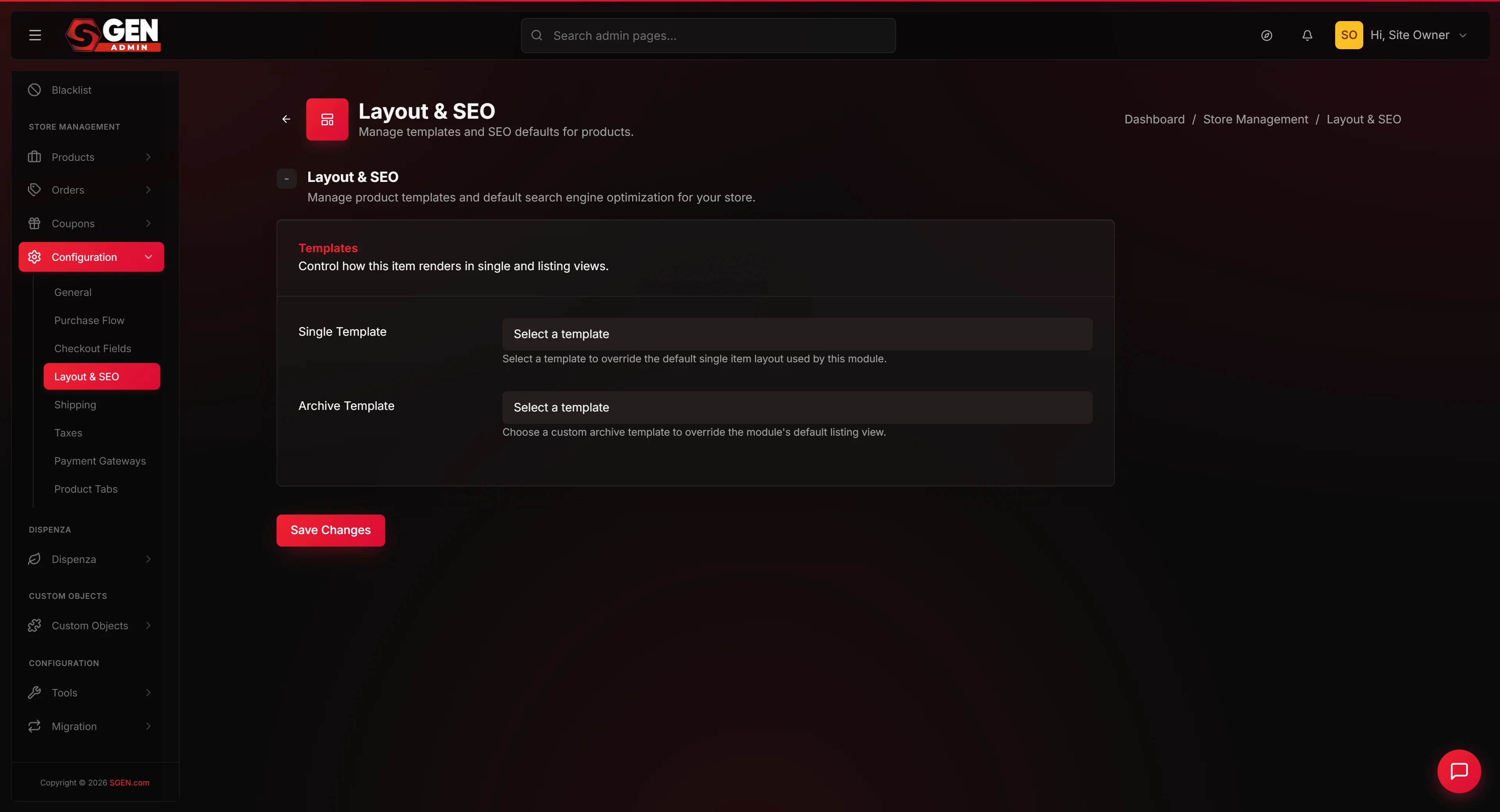
Configure your store layout templates for product and archive pages
⏱ 60-second answer below · full page ≈ 8 min · skim the bold lead-ins to move faster.
In short. The Layout & SEO tab under Store Configuration has two dropdowns — one for your single product page template, one for your product archive template. Pick the published templates you want, click Save Changes, and every product and archive page on your live store updates on the next shopper page load. No per-product editing required. If a template is missing from the list, it has not been published yet — publish it in Appearance → Templates first, then come back.
On this page: Fields · What is this for? · Steps — Assign your templates · Tips for swapping without breaking your store · Troubleshooting
How to assign custom store layout templates to your single product page and your product archive
The Layout & SEO tab under Store Configuration is where you pick the store layout templates that wrap your single product page (for example /product/canvas-tote-bag) and your product archive (for example /products and every /product_category/).
By default, SGEN uses its built-in theme layouts for both — you only come here when you want a custom design applied to every product or category page in one place. The screen has one card, two dropdowns, and a single Save Changes button. There is no separate publish step.
Despite the panel's name, no SEO fields appear here. Per-product and per-category SEO live on each product's or category's own edit page; store-wide SEO defaults live under the SEO area of the admin. This screen is store layout templates only.
Scope
This doc covers the two template-assignment dropdowns on the Layout & SEO tab. It does not cover how to build templates (that is the Templates area), how to override layouts on individual products or categories (each product or category's own edit page), or SEO meta fields (each product's SEO tab and the SEO area).
Fields
| Field | Effect | Where templates come from |
|---|---|---|
| Single Product Page Template | Wraps every /product/ URL | Published templates in Appearance → Templates |
| Product Archive Template | Wraps /products and every /product_category/ | Same published template pool |
| — Default theme layout — (either dropdown) | Reverts to SGEN's built-in layout for that surface | No template required |
Drafts never appear in either dropdown. A template must be published before it can be assigned here. Per-product or per-category overrides always win over the store-wide assignment on this panel.
What is this for?
The Layout panel is your store-template assignment screen — replace SGEN's default product page and archive layouts with a custom design across your entire store in one save. No per-product editing required.
Reach for it when you have built a custom product page template and want it applied to every product, or when you have a premium archive design for category pages and want it as the store-wide default. Saving applies the change to every product and archive on the next shopper page load. Existing product content — titles, descriptions, images, prices — is unchanged; only the surrounding layout swaps.
Here is the populated state after your store has assigned a custom template to both surfaces:
The dropdowns are populated from your Appearance → Templates area. Drafts do not appear — a template must be published before it can be assigned here. The two dropdowns are independent: you can leave Single on Default and pick a custom Archive, or vice versa.
Example use
The four patterns below cover the main reasons stores open this screen. Each is a one-time setup that applies across every product and category.
Example 1: Rolling out a new single-product design. Your store has a new single-product template with a full-bleed hero, sticky Add to Cart, and a product-details block. Open Store Configuration → Layout & SEO, pick it from Single Product Page Template, save. Every product's public page picks up the new layout on the next page load — no individual product edits needed.
The public product page renders with the new wrapper around the same saved product data:
The product's title, gallery, variants, price, and Add to Cart button are unchanged — only the surrounding layout swaps.
Example 2: A curated archive design for a seasonal launch. Build the archive template in the Templates area, then pick it from Product Archive Template and save. Your /products page and every category archive (for example /product_category/apparel) now use the curated layout.
After Save, a confirmation banner reads at the top of the panel:
The save banner names the field group, the timestamp, and the two saved fields so multiple admins can tell whose change just landed.
Example 3: Reverting to the default layout. Pick — Default theme layout — from both dropdowns and save. Your store returns to SGEN's built-in layout on the next page load; no product data changes. The template assignment is metadata — flipping back to Default never undoes product edits, image uploads, or price changes.
The shop archive after the revert — same products, default theme wrapper:
When the Archive template is on Default, SGEN renders the archive with its built-in hero block, default grid card style, and your store's Globals (colours, fonts). The page is functional and on-brand even with no custom template applied.
Example 4: Confirming the swap took store-wide. After saving, scan the Products and Categories lists. Every row should report which template wraps its public page:
The two products with per-product overrides are intentional; every other product inherits the store-wide default. Zero categories on Default means the archive rollout was clean.
After the rollout, a quick view-source on any product page confirms which template wrapped the page — the page emits a body class naming the assigned template:
The body class is your fastest sanity check. template-id-12 matches the value the dropdown saved. If a product page shows a blank or unexpected id, check the per-product override on its edit page.
What NOT to use this for
- Do not use this panel to change per-category archive layouts. These templates apply to every archive store-wide. If you want "Apparel uses Layout A, Accessories uses Layout B," each category's edit page has its own template field for per-category overrides.
- Do not use this panel to edit a template's design. This is an assignment screen — it picks which template applies. Editing the template's actual content, spacing, and components happens in the Templates area.
- Do not expect this panel to change per-product layouts. If one specific product needs its own unique layout different from the store default, each product's edit page has its own template override.
- Do not expect this panel to hold SEO fields for your store. Despite the tab name, per-product and per-category SEO fields live on each product's or category's own edit page, and store-wide SEO defaults live under the SEO area of the admin. This panel is store layout templates only.
- Do not pick a template that was built for headers, footers, or static pages. The dropdowns list every published template — not all of them are designed to wrap product or archive content. Picking the wrong one renders the page with missing slots (no product gallery, no Add to Cart, no grid).
- Do not change templates ten minutes before a flash sale. A template swap is a layout change on every product and every archive at once. Make the swap on a quiet morning, spot-check three products on the public site, and only then announce the sale.
- Do not assume the swap reaches Google immediately. Search engines re-crawl on their own schedule. The template change is live for shoppers on the next page load; cached snippets in search results may take days to refresh.
How this connects to other features
- Templates — the dropdowns here list every template you have built in Appearance → Templates. If the template you want is not in the dropdown, build or publish it in the Templates area first. Drafts do not appear.
- Products — every product's single-product page (for example
/product/canvas-tote-bag) uses the Single Product Page template you assign here. Individual products can override this template on their own edit page; that per-product value wins. - Product Categories — every category archive page uses the Product Archive template you assign here. Individual categories can override on their own edit page; that per-category value wins.
- Purchase Flow — the archive grid density (items per row, card style, sort) is separate from the archive template — those knobs are in Purchase Flow. The template determines the page's wrapper; Purchase Flow determines the grid inside.
- General store settings — the store name, logo, currency, and contact email come from the General tab. Those values stay constant when you swap templates; only the layout around them changes.
- SEO settings — page titles, meta descriptions, and indexing for individual products live on each product's SEO tab. Store-wide SEO defaults live under the SEO area. This panel touches none of that.
- Public store — the live store at your domain renders product and archive pages through whichever template is selected here on the next request.
- Globals (colours, fonts, spacing) — your store's design system applies inside whichever template is wrapping the page. A template change does not change your brand colours; the new layout uses the same Globals as the old one.
Before you start
- You are signed in to SGEN as an Administrator or Site Owner.
- Your custom templates are built and published in Appearance → Templates. A template must exist before it appears in these dropdowns.
- You have a minute to test your public product and archive pages after saving.
- You know which two templates you want to assign — one for single product pages, one for the archive.
- If your store has live traffic, you have flagged the swap to the team so anyone monitoring conversion knows a layout change just shipped.
- You have a private browsing window or a different browser ready for spot-checking the public site, so the check is not biased by admin cookies or old browser cache.
Where to go
- Open the left navigation in your SGEN admin.
- Click Store Management → Configuration → Layout & SEO (or open
/sg-admin/ecommerce/configuration/layout_seodirectly). - The Templates card loads with the two template dropdowns populated by your published templates.
Steps — Assign your templates
1. Pick the single product page template
The Single Product Page Template dropdown lists every template you have built. The top option is — Default theme layout — — leave this selected to use SGEN's built-in single-product layout. Pick any custom template to swap the wrapper for every product's public page.
The template wraps the product — title, image gallery, variants, price, Add to Cart, description, related products — inside your custom layout. The product's data is identical; only the surrounding page changes.
If the template you want is not listed, it has not been published yet. Open Appearance → Templates, publish your template, then come back to this dropdown.
2. Pick the product archive template
The Product Archive Template dropdown works the same way. Leave it on Default for SGEN's built-in archive layout; pick a custom template to apply a curated design to /products and every /product_category/.
The template wraps the archive grid — your density, card style, and sort from the Purchase Flow panel still drive the grid inside. The template controls everything around it: hero, sidebar, before-and-after-grid blocks.
3. Save
The Save Changes button applies your choices. A green success message reads Ecommerce configuration has been successfully updated! at the top of the panel.
4. Verify the layout change on your public store
Open a new browser tab and visit a product page (for example /product/canvas-tote-bag). Confirm the layout wraps the product as your custom template does — hero, sidebar, sticky Add to Cart, whatever your template dictates.
Open /products in the same tab. Confirm the archive is wrapped in your Archive template.
If you picked Default for either, the pages load with SGEN's built-in layout as before.
What each template wraps on the public site
- Single Product Page Template wraps every
/product/URL. The template provides the page chrome (hero, breadcrumb, sidebar, footer); SGEN injects the product gallery, variants, price, Add to Cart, description, and related products into named slots. - Product Archive Template wraps
/productsand every/product_category/. The template provides the archive chrome (hero, filters, before/after-grid blocks); the grid itself is generated by SGEN from Purchase Flow settings. - Default theme layout (either dropdown) — SGEN renders the page with its built-in layout. Your store's colours, fonts, and Globals still apply; only the structural layout falls back to default.
With both dropdowns set to custom templates, the same store serves two different layout surfaces simultaneously — single-product pages get the product hero, archive pages get the archive grid. Category archives inherit the archive template; there is no separate per-category dropdown on this screen.
Tips for swapping templates without breaking your store
A template swap is the riskiest action on this screen. Before you change either dropdown on a store with live traffic, work through this checklist:
- Note your current selection. Open Layout & SEO and screenshot both dropdowns. Save the screenshot somewhere — it is your rollback target if anything goes wrong.
- Pick a low-traffic window. Layout changes apply on the next shopper page load. A quiet morning is safer than a Friday-evening sale.
- Spot-check three products before the swap. Open three different products on the public site and screenshot their current rendering. Save the screenshots — these are your visual diff after the swap.
- Confirm the new template is published, not Draft. Drafts do not appear in the dropdown. If your custom template is not listed, that is the most common cause.
- Save the swap. Pick the new template in the relevant dropdown and click Save Changes. Wait for the green confirmation banner.
- Spot-check the same three products immediately. Open the same three products in a private browsing window. Each should render with the new template wrapping the same product data — same title, same gallery, same price, new layout around it.
- Spot-check the archive. Open
/productsand one category archive (for example/product_category/apparel). The grid should render inside your new archive template. - Roll back if anything looks wrong. Pick — Default theme layout — from the dropdown that broke the page and save. Your store is back on the built-in layout on the next page load. Then debug the template at your own pace before re-assigning.
Tip: swap single-product first, spot-check, then swap archive — that way, if something breaks you know exactly which dropdown caused it. And never swap a template the same hour you push a price or stock change; sequence one change at a time.
What success looks like
- The green
Ecommerce configuration has been successfully updated!message appears after you click Save Changes. - Visiting any product's public page in a new browser tab shows the single-product template wrapping the product.
- Visiting
/productsin a new tab shows the archive template wrapping the grid. - Visiting a category archive (for example
/product_category/apparel) shows the archive template too — categories inherit the archive assignment. - Reverting to — Default theme layout — and saving brings every product and archive back to SGEN's built-in layout immediately.
- The Products and Categories lists show every row using your assigned template, with any per-product or per-category override clearly distinct from the store-wide default.
- A
view-sourceon any product page emits a body class that names the assigned template id, so you can confirm the swap took without opening the admin again.
What to do if it does not work
- My custom template is not in the dropdown. Open Appearance → Templates in another tab. Check that the template is published. If the template is a Draft, it will not show here. Publish it, then reload this panel.
- I saved but my product page still uses the default layout. Hard-refresh the product page in the browser (Ctrl+Shift+R / Cmd+Shift+R). If still wrong, confirm the Single Product Page Template dropdown is set to your custom template and save again.
- My archive page looks broken after I picked a custom template. Your custom template may not have been built for the archive context. Switch Archive back to Default, save, and speak to whoever built the template — they will need to add an archive-specific layout or pick a different template that was designed for archives.
- I see templates in the dropdown that are not meant for product pages. The dropdowns list every published template; some of them may belong to other areas (for example a footer template). Pick a template that was specifically designed as a product page or archive wrapper. If you are not sure which is which, speak to whoever built your templates.
- I want different layouts per category. This panel is store-wide. Open each category's edit page under Store Management → Categories — each has its own template override field for per-category layouts.
- My single-product page renders without a gallery or Add to Cart. The template you picked was probably built for a static Page, not a product page — it has no product slots. Switch back to Default or pick a template the Templates area lists as a product-page template.
- The page tab title shows "Layout & SEO | Checkout". That is a known cosmetic display from a stale label and does not affect the panel's behaviour. The save still writes the templates correctly. The label will update in a future SGEN release.
Next step
- Configure your payment methods
- Configure shipping methods
- Configure taxes
- Back to General store configuration
- Configure your store's purchase flow
Layout template fields
| Field | Effect | Where templates come from |
|---|---|---|
| Single Product Page Template | Wraps every /product/ URL | Published templates in Appearance > Templates |
| Product Archive Template | Wraps /products and every /product_category/ | Same published template pool |
| Default theme layout (either dropdown) | Reverts to SGEN's built-in layout for that surface | No template required |