
Configure your store's general settings
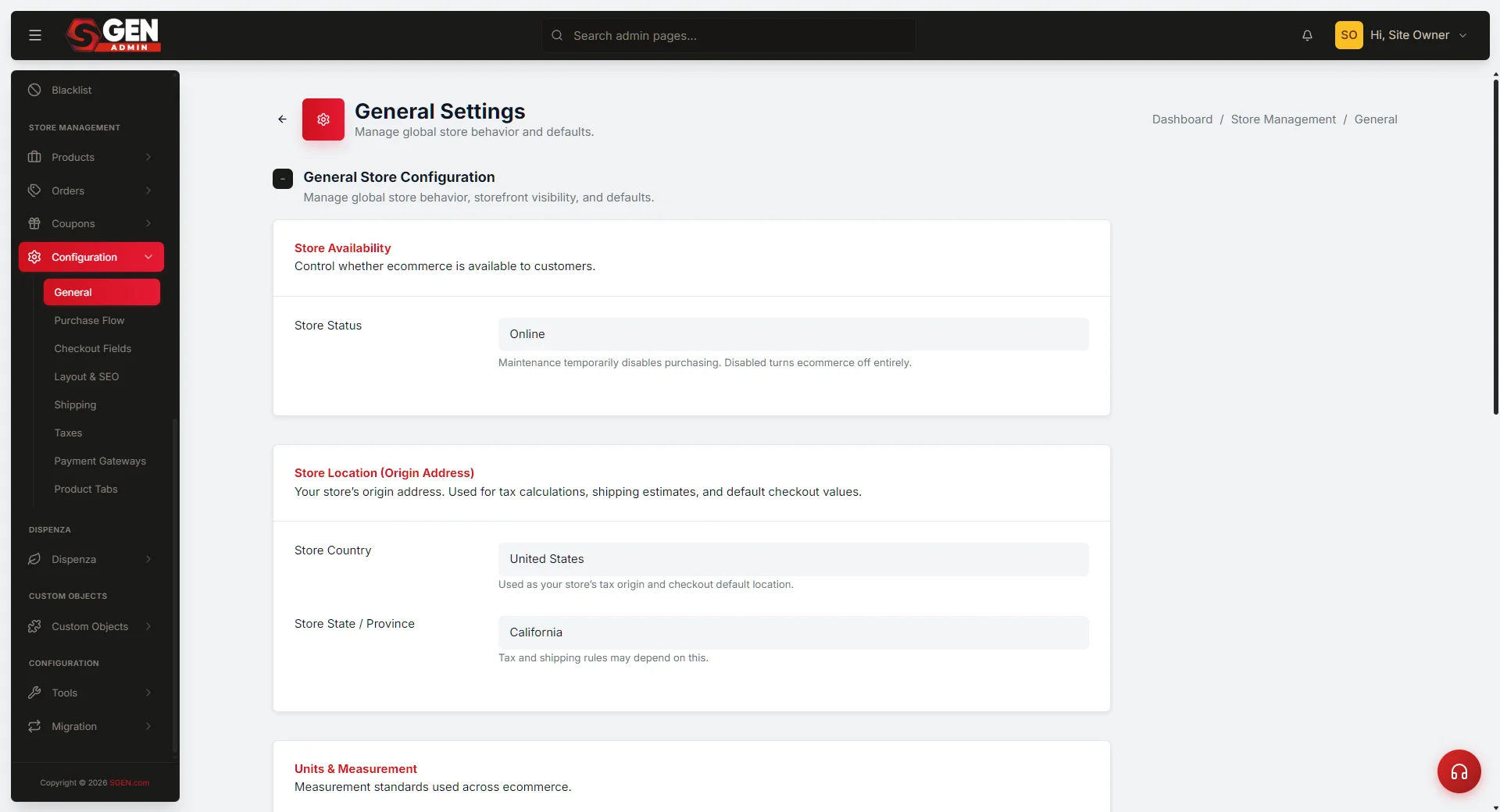 General tab — the five cards (Store Availability, Store Location, Units & Measurement, Account & Login, Privacy & Compliance) with the Save Changes button." loading="lazy" style="width:100%;max-width:900px;height:auto;border-radius:8px;border:1px solid #e5e7eb;display:block;margin:12px 0">
⏱ 90-second answer below · full page ≈ 12 min · skim the bold lead-ins to move faster.
In short. The General tab under Store Configuration is the one place where you record the whole-store facts — whether the store is open for purchasing, the country and state you ship from, whether weights are in ounces or kilograms, whether shoppers must sign in before checkout, and whether a terms-and-conditions checkbox is required at checkout. Set it once at launch; revisit only when something material changes. All five cards save together on a single click — no draft state, no publish queue. Changes are live on the next shopper page load.
On this page: Fields at a glance · Good use cases · Steps · What success looks like · Troubleshooting · Tips
How to set your store's status, origin address, units, login rules, and terms checkbox from one screen
The General tab is for whole-store facts: availability, ship-from origin, measurement units, login rules, and checkout terms. It does not control per-product settings, individual order data, or campaign-level pricing. Settings on other tabs (Payment, Shipping, Taxes, Purchase Flow, Layout, Checkout) are covered in their own reference docs.
Fields
| Field | Where it lives | What it controls |
|---|---|---|
| Store Status | Store Availability card | Online / Maintenance / Disabled — governs whether shoppers can browse and buy |
| Default Ship-From Country | Store Location card | Country your warehouse ships from; pre-fills checkout and anchors tax fallback |
| Default Ship-From State | Store Location card | State/province within the ship-from country |
| Weight Unit | Units & Measurement card | Label on every product Weight field (oz / lb / kg / g) |
| Dimension Unit | Units & Measurement card | Label on product Length, Width, Height fields (in / cm) |
| Require Login for Checkout | Account & Login card | No = guest checkout; Yes = sign-in required before checkout |
| Require Terms Agreement | Privacy & Compliance card | Adds a mandatory tick-box above Place Order |
| Terms Page URL | Privacy & Compliance card | Full https:// URL the terms link points to |
| Checkbox Wording | Privacy & Compliance card | Plain text with {terms_link} placeholder |
The five cards on the panel are:
- Store Availability — one dropdown that turns the whole store on, takes it offline for catalogue work, or hides it entirely.
- Store Location (Origin Address) — country and state your warehouse ships from. Used as a fallback for taxes and shipping.
- Units & Measurement — weight unit and dimension unit labels for every product Shipping tab.
- Account & Login — whether shoppers can check out as guests, or must sign in.
- Privacy & Compliance — the optional terms-and-conditions checkbox that gates the Place Order button.
A quick orientation to the three store-status options — the counts shown are typical traffic for a store running a catalogue rework window:
Good use cases
Example 1: Taking the store offline during a catalogue rework. You are restructuring products and do not want customers placing orders mid-shuffle.
Open Store Configuration → General, switch Store Status to Maintenance, click Save Changes.
The green flash confirms the write:
Your public product pages still render so search engines do not panic, but the Add to Cart button is hidden and /cart shows a "store is temporarily not accepting orders" notice.
Here is what a shopper sees on a product page the moment after you flip to Maintenance:
Flip back to Online when you are done — the Add to Cart button returns on the next page load.
Example 2: Pre-filling the checkout for your shoppers. Set Default Ship-From Country and State to where your warehouse is, then save. When shoppers land on your checkout page for the first time, the State dropdown is pre-positioned at your origin so they are one click away from confirming their address.
Example 3: Matching weight units to your shipping carrier. Set Weight Unit to what your carrier expects — ounces for US Postal, pounds for UPS/FedEx, kilograms for international carriers. Every new product weight field updates its label accordingly. Existing saved weight numbers are unchanged — the unit is a display label, not a converter.
Example 4: Adding a terms checkbox for a GDPR launch. Your legal team has approved the wording and has a /terms page live.
Open the Privacy & Compliance card, switch Require Terms Agreement to Yes, paste https://yourdomain.com/terms into Terms Page URL, and rewrite the checkbox wording if you want something stricter than the default.
The form looks like this once you have filled it in:
Click Save Changes. On the public checkout, every shopper now sees a tick-box — they cannot complete the purchase until they tick it.
The underlying HTML the customer's browser renders looks like this:
Example 5: Confirm weight unit before a shipping-label batch. Before printing labels, open the General panel, glance at the Units & Measurement card, confirm it matches what your carrier's label software expects, and save if needed. Every product's Shipping tab picks up the new label on the next page load.
Example 6: Set origin before configuring shipping thresholds or taxes. Weight-based rate tiers, free-shipping thresholds, and tax fallbacks all reference your ship-from origin. Set it here first, then open the Shipping or Taxes panel. If your origin is wrong, rates and tax lookups will point to the wrong jurisdiction.
Example 7: Tax-rate fallback when a shopper's address is unknown. When a shopper at checkout has not yet entered their address, the tax engine falls back to Default Ship-From Country + State to look up the applicable rate. Set your origin correctly here, then add a matching location rule in Store Configuration → Taxes.
Example 8: International expansion — establish origin before configuring shipping or taxes. If you are shipping from a second fulfilment country, open General, change Default Ship-From Country and State to the new location, and save before you configure any country-specific shipping or tax rules. Currency display (the symbol shown next to prices) is set in the Purchase Flow tab, not here — see Configure your store's purchase flow.
A read-only summary of the saved General settings panel:
What NOT to use this for
- Do not use this panel to set prices, stock, or variants. Per-product fields live on each product's edit page, not here. This screen is for whole-store settings only.
- Do not use Maintenance as a "down for a few seconds during deploy" signal. Maintenance is for planned catalogue work that takes minutes to hours. If you are expecting to be back in under a minute, leave the store Online — the momentary blip most shoppers will not notice is better than a disruption banner.
- Do not use Weight Unit as a conversion tool. If a product has a weight of
4saved under Ounces and you flip the unit to Pounds, the saved value still reads4— only now the label next to it says "lb." Convert weights on each product before flipping the unit, or stay on the unit your source data uses. - Do not assume the Terms checkbox also gates the sign-up form. This is the checkout-specific terms gate. Sign-up and newsletter forms have their own wiring; speak to your developer or support if you need a store-wide click-through terms flow.
- Do not use the Default Ship-From State to set a shopper's tax jurisdiction. This is the fallback for unknown shopper addresses. A shopper who enters their own address overrides this on every line of the order — see Configure taxes for the full tax-rule order.
- Do not flip Store Status to Disabled when you mean Maintenance. Disabled hides every product page from search engines as a 404 — pages re-indexed during the down window can drop from search results. Maintenance is the search-engine-friendly choice.
- Do not paste internal-only paths into Terms Page URL. The URL is rendered into the public checkout HTML; a path like
/wp-admin/somethingwill be visible to shoppers in the page source.
How this connects to other features
- Your public checkout — the Default Ship-From Country and State pre-fill the first visit to
/checkout. If a shopper has already entered their own address on a previous visit, their saved address wins. - Products — every product's Shipping tab shows weight and dimension inputs with labels that match the units you pick here. The Canvas Tote Bag's weight label changes from "oz" to "lb" system-wide when you flip this setting.
- Shipping — the weight-based shipping method displays its rate as "Rate per OZ" (using the unit name you set here).
- Taxes — if you leave a shopper's address unknown, the tax calculation falls back to the Ship-From country and state you set here for rate-matching.
- Your store's public page — Store Status = Maintenance replaces Add to Cart with a notice; Status = Disabled hides the store pages entirely.
- Tracking Consent — if your store ships internationally or handles EU customers, the Tracking Consent panel controls which cookie disclosure banner appears at checkout. The Terms checkbox here (Privacy & Compliance card) is separate from cookie consent — you may need both.
- Users — the Require Login for Checkout toggle here interacts with your Users panel. When set to Yes, shoppers are sent to the sign-in / sign-up screen; the fields on that screen (password requirements, sign-up form layout) are configured in your Users settings, not here.
- Audit log — every save here writes one
ecommerce_configrow in Tools → Logs. Use that log to see who changed what when.
Before you start
- You are signed in to SGEN as an Administrator or Site Owner.
- You know your store's primary shipping origin — the country and state your warehouse ships from.
- If turning on the terms checkbox, you have a published Terms page live and its full URL ready to paste.
- You know which weight and dimension units your shipping carrier expects on labels.
- Your team is aware that the panel saves immediately — there is no draft state. Clicking Save Changes is the publish.
Where to go
- Open the left navigation in your SGEN admin.
- Click Store Management → Configuration → General (or open
/sg-admin/ecommerce/configuration/generaldirectly). - The General panel loads with all five cards populated from your current settings.
Steps
1. Pick the right store status
The Store Status dropdown has three values:
- Online — the default. Shoppers can browse and buy.
- Maintenance — browsing is still allowed (so search engines do not see broken pages), but Add to Cart is hidden and checkout is blocked. Use this when you are restructuring your catalogue, rotating a seasonal set, or doing a bulk price update.
- Disabled — the store is hidden entirely. Every product page returns a "page not available" view. Use this only when you are taking the store offline indefinitely.
You can flip this at any time — the change is live on the next shopper page load.
2. Capture the current status before you flip it
Note the value that Store Status is currently showing — Online, Maintenance, or Disabled — and write it down or screenshot the dropdown. That is your rollback target if anything looks wrong on the public store after you save.
A 30-second screenshot of the panel is the cheapest audit trail when a teammate later asks "did we mean to be in Maintenance for an hour on Tuesday?" Pair the screenshot with the timestamp on the green save flash and the question answers itself.
3. Coordinate the flip with anyone watching the store
If your team monitors conversion, support tickets, or paid traffic, send a one-line heads-up before you flip to Maintenance or Disabled. Maintenance hides Add to Cart on every product page; Disabled hides the product pages entirely. Either change is visible to shoppers and to anyone watching dashboards the moment you click Save Changes.
A short message naming the planned window ("Going to Maintenance at 14:00 for catalogue rework, back Online by 15:30") is enough. When you flip back, share the timestamp from the green save flash.
Store Origin Address
4. Set your ship-from country
The Default Ship-From Country dropdown is a searchable list of every country. Pick the one where your warehouse (or primary shipping location) sits. If you ship from multiple locations, pick the one your shoppers are most likely to order from.
5. Set your ship-from state
The Default Ship-From State dropdown depends on the country you picked — the list of states updates when you change the country. Pick the state your warehouse sits in.
These two fields pre-fill the checkout for first-time visitors. A shopper opening your checkout for the first time sees your Ship-From country and state as the starting values; they can change them to their own address in one click.
Units & Measurement
6. Pick your weight unit
The Weight Unit dropdown offers Ounces (oz), Pounds (lb), Kilograms (kg), or Grams (g). Pick the unit your shipping carrier expects. Every product's Shipping tab shows a Weight field whose label updates to match your choice.
7. Pick your dimension unit
The Dimension Unit dropdown offers Inches (in) or Centimetres (cm). Pick the unit you prefer for measuring packages. Every product's Shipping tab shows Length, Width, and Height fields whose labels update to match.
Account & Login
8. Decide whether shoppers must sign in before checkout
The Require Login for Checkout dropdown is No by default — shoppers can check out as guests without creating an account. Pick Yes if your store is members-only or if you want every shopper to create an account before their first purchase.
If you switch this to Yes, first-time visitors are sent to your sign-in or sign-up screen when they click Add to Cart.
Privacy & Compliance
9. Turn on the terms checkbox
The Require Terms Agreement dropdown is No by default. Pick Yes to add a required tick-box to the checkout page.
Paste your Terms page URL into Terms Page URL — this is where the linked text in the checkbox wording will point.
The Checkbox Wording textarea is a plain text field with one special placeholder: {terms_link}. Anywhere you put {terms_link} in the wording, the Terms page link is inserted at render time.
The default wording reads I agree to the {terms_link}. — on the public checkout that renders as "I agree to the Terms & Conditions" where "Terms & Conditions" is a clickable link to your Terms page.
Save and verify
10. Save all five cards
The Save Changes button sits in the sticky right-hand column and stays visible as you scroll. Click it once — all five cards (Status, Location, Units, Account, Privacy) save together. A green success message reading Ecommerce configuration has been successfully updated! appears at the top of the panel.
11. Verify the changes on your public store
Open a new browser tab and load your store's product archive (for example /products). Confirm:
- If you picked Maintenance, the Add to Cart button is hidden on each product card, and
/cartshows the maintenance notice. - If you changed the ship-from country or state, open
/checkoutin a private browsing window — the country and state dropdowns start at your new values. - If you changed the weight unit, open any product's edit page and confirm the Weight field label now reads "oz" or "lb" as you picked.
- If you turned on the terms checkbox, open
/checkoutin a private browsing window with at least one item in the cart — the checkbox appears above the Place Order button.
Public URLs to walk in order:
What success looks like
- The green
Ecommerce configuration has been successfully updated!message appears at the top of the panel after you click Save Changes. - Flipping Store Status to Maintenance and reloading a product page in a new private browsing window hides the Add to Cart button.
- Flipping to Disabled and reloading any product page shows a "page not available" view.
- Changing the ship-from country and opening the checkout in a private window shows the new country as the default in the country dropdown.
- Turning on the terms checkbox and opening the checkout shows the tick-box above Place Order; un-ticking it disables Place Order.
- The product Shipping tab on each product shows the weight unit you picked next to the Weight field.
- An entry appears in Tools → Logs with
ecommerce_configas the action and your username as the actor. - A round-trip change (flip a value, save, refresh, flip back, save) reads back the original value cleanly with two log entries.
What to do if it does not work
- I saved but shoppers are still seeing Add to Cart. Hard-refresh your browser (Ctrl+Shift+R on Windows, Cmd+Shift+R on Mac). Browser caching often keeps a page's previous version for a few minutes. If Add to Cart is still showing after a hard refresh, confirm the Store Status dropdown on this panel shows Maintenance and save again.
- My ship-from state dropdown is empty. The state list is tied to the country. Pick the country first, wait for the state dropdown to refresh, then pick the state.
- The weight unit changed but my product's weight field still shows oz. Reload the product's edit page in a new tab — the label updates on next page load. If it is still wrong after a hard refresh, confirm the Weight Unit dropdown here is set to your intended value and save again.
- I turned on the terms checkbox and it is not appearing on checkout. Confirm the Require Terms Agreement dropdown on this panel is set to Yes and that Terms Page URL has a value — if the URL is blank, the checkbox may not render. Save again, then reload the checkout in a private browsing window to clear any cache.
- My shoppers are saying the terms link in the checkbox does not open. Check that Terms Page URL is a complete URL starting with
https://(not/termson its own). An absolute URL is the safest choice. - My state dropdown shows the old country's states after I changed the country. Some browsers cache the dependent dropdown. Click the country dropdown, pick another country, then pick your real country again — the state list refreshes.
- The save flash appears but the values revert on the next page load. Sign out of the admin, sign back in, and save again. An expired session can swallow a save while still showing the green flash.
Tips
- Do the General pass before any other Configuration tab. Shipping, Taxes, and Payment Gateways all read values you set here. Setting Shipping rules first and then changing the Ship-From country will make you redo the Shipping work.
- Pick the unit your carrier wants, not the one you measure with at home. US Postal quotes by ounce; UPS and FedEx accept pounds. If you measure in grams on a kitchen scale and your carrier wants ounces, convert the numbers when you weigh — do not flip the unit afterwards expecting numbers to convert.
- Keep one Maintenance window per catalogue release. Stacking back-to-back Maintenance flips trains shoppers to leave the site whenever they see the banner.
- Capture a screenshot of the saved General panel after each change. It is the cheapest audit log when a future "did we always ship from Oregon?" question comes up.
- For multi-warehouse stores, set the General origin to the warehouse closest to the highest share of your shoppers. Per-rule overrides in Shipping handle the others.
- Schedule terms-checkbox launches with your legal team. Once the checkbox goes live, every checkout requires the tick — make sure the wording is final before you flip the toggle.
- Treat the {terms_link} placeholder like a single editable token. It expands to a clickable link at render time; the rest of the wording around it is plain text.
- Pair every General change with a corresponding entry in your internal release notes. Five-minute saves can mean five days of debugging later when "we changed the origin in March, why is tax wrong now?" comes up.
Common settings combinations
| Scenario | Status | Country / State | Weight | Login | Terms |
|---|---|---|---|---|---|
| Standard US small store | Online | United States / your state | oz | No | No |
| Catalogue rework window | Maintenance | unchanged | unchanged | unchanged | unchanged |
| EU GDPR launch | Online | your country | kg | No | Yes |
| Members-only store | Online | your country | any | Yes | optional |
| International expansion (UK) | Online | United Kingdom / region | kg | No | optional |
FAQs
Q: Does flipping Store Status to Maintenance hide my SEO meta tags? No. Maintenance keeps every product page rendering fully, including title, meta description, OG tags, and structured data. Search engines see your store as before; only the Add to Cart action is suppressed.
Q: Can I schedule a Store Status flip in advance? Not from this panel. The status changes on click only. For scheduled maintenance, set a reminder and flip the dropdown manually at the planned time.
Q: My team ships from two locations. Which one goes here? The location your shoppers are most likely to receive from. Per-product or per-rule overrides in Configure shipping methods handle the rest.
Q: Will changing the weight unit re-weigh existing products automatically? No. The unit is a display label only. If you flip from kg to oz, every product's saved weight number stays the same and now reads in ounces — which is wrong by a factor of 35.27. Re-enter weights when you change units.
**Q: I have a Privacy Policy and Terms & Conditions. Can I link both in the checkbox? The checkbox renders one {terms_link}. Common workaround: point Terms Page URL** to a page that links both, with a heading "Terms & Conditions and Privacy Policy."
Q: Where is the audit log of who changed which setting? Tools → Logs. Each save here writes one ecommerce_config row.
Q: Can I require login for some shoppers but not others? No. The Require Login toggle is store-wide. For per-customer behavior, use Customer Groups in your Users panel.
Q: Does Maintenance hide already-placed orders? No. Existing orders, refunds, and customer-account pages stay accessible. Only the public buying flow (product pages' Add to Cart, the cart, the checkout) is blocked.
Q: If I disable the store and then re-enable it later, do my products come back as they were? Yes. The product catalogue, prices, stock counts, and per-product status are all independent of the master Store Status here. Flipping back to Online reveals everything as it was.
Currency and tax interaction
- Currency is set elsewhere. Currency (USD vs GBP vs EUR) lives under Configure your store's purchase flow — see the Currency Position card. The General panel does not control currency at all.
- Tax fallback uses your origin. When a shopper at checkout has not yet typed an address, the tax engine reads
default_shipping_country+default_shipping_statefrom this panel to look up a fallback rate. - Refunds settle in the original transaction currency. A refund issued in November on an October USD order settles in USD even if you change Currency Position before the refund.
- Multi-currency stores override origin per shopper-region. A UK fulfilment centre serving UK shoppers should reflect a UK origin here when you operate UK-only — split-region operations are out of scope for this panel.
Next step
- Configure your store's purchase flow
- Configure the layout of your product and archive pages
- Configure your payment methods
- Configure shipping methods
- Configure taxes
Store status options
| Status | What shoppers can do | Add to Cart |
|---|---|---|
| Online | Browse and buy normally | Visible |
| Maintenance | Browse product pages; cannot order (cart shows 'temporarily not accepting orders') | Hidden |
| Disabled | Store hidden entirely | Hidden |