
How to complete site setup in SGEN
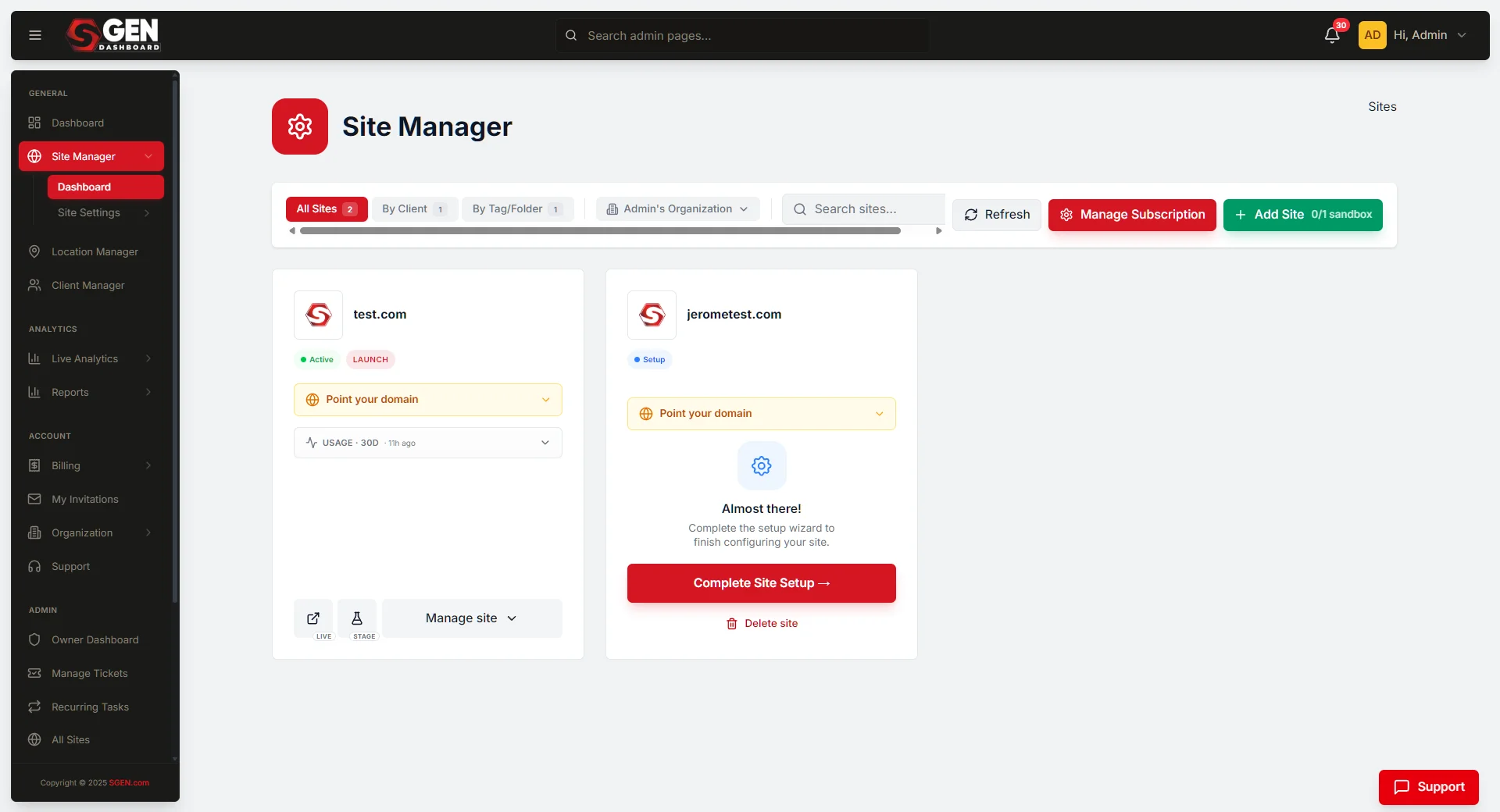
⏱ ~3 min read · the checklist is below · skim the bold lead-ins to move faster.
In short. After creating a site in SGEN, go to SG-Dashboard → Site Manager, find your new site card, and work through five steps in order: Point your domain (DNS), View Staging Site (confirm the build is up), Manage Site Settings (Google integrations, locations, reporting), Add users (invite your team), then access live once DNS has propagated and the certificate is provisioned. Until live is ready, work in staging. That's the whole setup pass.
On this page: Before you start · Steps · Site-card action reference · What success looks like · Troubleshooting · Next steps
Before you start
You need all three of the following before this guide applies:
- A site created successfully — see How to Create a New Site in SGEN if you haven't done this yet.
- Site Manager open — you were redirected here automatically after site creation, or navigate via SG-Dashboard → Site Manager.
- The new site card visible — it appears as a card for the domain you registered.
One rule to know upfront: SGEN creates both staging and live environments automatically when a site is provisioned. Live readiness still depends on DNS propagation and certificate provisioning — this can take minutes to hours. Until then, all setup work happens in staging.
Steps
Work through the site card in this order. Each action corresponds to a site-card button.
Step 1 — Point your domain Click Point your domain on the site card and complete the DNS step. Full detail: How to Point Your Domain in SGEN.
Step 2 — Confirm staging is accessible Click View Staging Site to open your staging build in a new tab. If you need to enter the staging admin directly, use Login to Stage instead.
Step 3 — Configure site settings Click Manage Site Settings to open site-level settings in SG-Dashboard. Review the following setup areas:
| Setting area | What to do |
|---|---|
| Google Integrations | Connect Google Analytics and Search Console |
| Reporting Settings | Enable the reporting you want from day one |
| Locations | Add your business location(s) |
Full detail: How to Manage Site Settings in SGEN.
Step 4 — Invite your team Click Add users to open the invite modal. Enter each team member's email address and send the invite.
Full detail: How to Add Users to a Site in SGEN.
Step 5 — Access live (when ready) Click Visit Live Site or Login to Live only after DNS has propagated. If live is not yet ready, continue working in staging.
Site-card action reference
| Button | What it does |
|---|---|
| Point your domain | Opens the DNS setup flow — use when the domain record still needs updating |
| Visit Live Site | Opens the live site in a new tab — available after DNS propagates |
| Login to Live | Opens the live admin — available when live is ready |
| View Staging Site | Opens the staging build in a new tab |
| Login to Stage | Opens the staging admin — use this for all setup work before live is ready |
| Manage Site Settings | Opens site-level settings in SG-Dashboard |
| Add users | Opens the invite modal to add team members by email |
What success looks like
Setup is on track when all of the following are true:
- Domain — the DNS step is completed or underway.
- Staging — the staging site opens and the admin is accessible.
- Site settings — Google integrations, locations, and reporting settings are reachable and reviewed.
- Users — invites sent to anyone who needs access.
- Live — visible once DNS propagates; not a blocker for the rest of setup.
Troubleshooting
Live is not available yet DNS propagation and certificate provisioning take time — this is expected. Keep working in staging. Check back after 15-60 minutes.
Some dashboard actions are restricted or grayed out Check your billing state. If a subscription is unsettled or lapsed, resolve billing before continuing. See billing overview.
Domain not pointed — live behaves unexpectedly Complete the A-record step in Point your domain before expecting live to work. Full detail: How to Point Your Domain in SGEN.
Next steps
| If... | Go to... |
|---|---|
| Domain is still pending | How to Point Your Domain in SGEN |
| You need to work in staging now | How to Access Staging and Live in SGEN |
| You want to understand staging vs live | Understanding Staging and Live in SGEN |
| You need to add more users later | How to Add Users to a Site in SGEN |
| You want a full Site Manager reference | Site Manager |