
How to Create a New Site in SGEN
⏱ Quick answer below · full page ≈ 5 min · skim the bold lead-ins to move faster.
In short. Go to SG-Dashboard → Quick Actions → Create New Site (or Site Manager → + Add Site). Enter your final production domain and business name. SGEN provisions both staging and live environments and returns you to Site Manager with setup actions ready. Two fields. Under a minute.
On this page: Before you start · Two routes into the flow · Steps inside the create flow · What success looks like · Troubleshooting
Creating a new site provisions both staging and live environments, attaches to your active subscription, consumes one unit of site capacity, and returns you to Site Manager with next setup actions surfaced.
CREATE-SITE FLOW
From dashboard to provisioned site
STEP 01
Confirm preconditions
Subscription · capacity · domain · business name
STEP 02
Open flow
Quick Actions or Site Manager + Add Site
STEP 03
Fill modal
Domain + business name
STEP 04
Provision
Platform creates site + environments
STEP 05
Land in Site Manager
New site card · next setup actions
The five steps from dashboard landing to provisioned site:
Before you start
Confirm all four before opening the create flow.
PRECONDITIONS
All four required before opening the create flow
✓ Account login working at
dashboard.sgen.com✓ Active subscription with at least one unit of available site capacity
✓ Final production domain ready (not a placeholder)
✓ Business name ready (the legal or operating name)
RULE — if any precondition fails · pause · resolve before continuing
Account access
Log in at dashboard.sgen.com. If access is restricted, check billing health (Billing area) and your account-tier role.
Active subscription with available capacity
The account needs at least one unit of available site capacity. If capacity is full, the create flow prompts you to add capacity rather than create the site. See How to Add a Subscription or Site Capacity.
Final production domain ready
Enter the real domain — not a placeholder. The platform uses it for live-environment provisioning. Domain typos are the most common cause of having to archive and recreate a site.
Business name ready
Use the legal or operating name. It seeds downstream surfaces — Site Settings and Locations.
Where to start the flow
Two equivalent routes open the same modal.
TWO ROUTES
Both routes open the same create-site modal
ROUTE 1
Quick Actions
SG-Dashboard → Dashboard → Quick Actions → Create New Site
Use when you arrived intending to create
↔
ROUTE 2
Site Manager
SG-Dashboard → Site Manager → + Add Site
Use when already inside Site Manager
→ SAME CREATE-SITE MODAL
Route 1 — Quick Actions
- Log in to SG-Dashboard.
- Open Dashboard.
- In Quick Actions, click Create New Site.
Route 2 — Site Manager
- Log in to SG-Dashboard.
- Open Site Manager.
- Click + Add Site.
Steps inside the create flow
- Start the flow via Route 1 or Route 2 above.
- Check for a capacity prompt. If capacity is available, the create-site modal opens. If not, you will be routed to add capacity — complete How to Add a Subscription or Site Capacity, then return here.
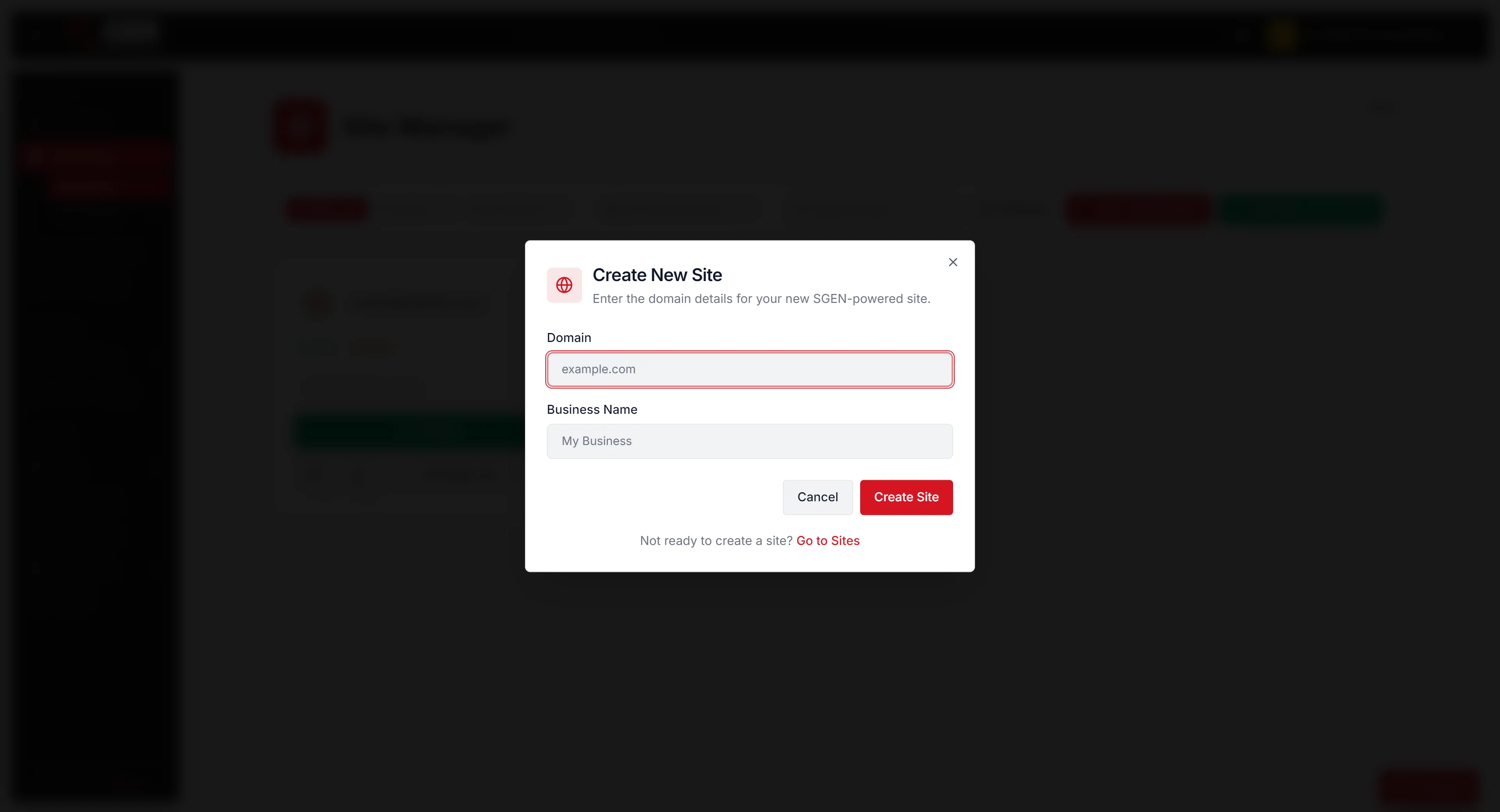
- Enter the Domain. Use the final production domain. Accuracy matters — the platform uses it for live-environment provisioning.
- Enter the Business Name. This seeds downstream identity surfaces.
- Review both fields before submitting. Domain typos are the most common cause of recreating a site.
- Click Create Site.
- SGEN provisions the site record, attaches it to your subscription, and creates both staging and live environments.
- Success message: "Tenant created successfully for site (domain)".
- SGEN redirects you to Site Manager.
- Locate the new site card. Proceed to setup actions: Point Your Domain · View Staging Site · Log in to Stage · Manage Site Settings · Add Users.
CREATE-SITE MODAL
Two fields · review before submit
Create New Site
Provision a new SGEN site against your subscription
Domain *
yoursite.com
The final production domain · used for live environment provisioning
Business Name *
Your Business Name
Legal or operating name · seeds Site Settings + Locations
The two fields inside the create-site modal:
What success looks like
After clicking Create Site, confirm all of the following.
- Success message appears: "Tenant created successfully for site (domain)".
- You land in Site Manager.
- The new site card is visible.
- Setup actions are available on the card: Point Your Domain · View Staging Site · Log in to Stage · Manage Site Settings · Add Users.
If any are missing after the success message, refresh Site Manager. If still missing, treat as a failure and follow the recovery paths below.
WHAT SUCCESS UNLOCKS
Setup actions on the new Site Manager card
Point Your Domain · DNS configuration toward live readiness
View Staging Site · open the staging URL for review
Log in to Stage · open the admin against the staging environment
Manage Site Settings · per-site configuration including integrations and reporting
Add Users · per-site role assignments for teammates
What to do if it does not work
Subscription / capacity prompt instead of the modal
No active subscription or no remaining site capacity. Pause the create flow, open How to Add a Subscription or Site Capacity, complete that, then return here.
"Site provisioning failed" message
Check the domain first — was it valid and not already in use? Retry once with a corrected entry. If failure persists on a clean entry, contact support. Do not loop on retries.
Site was created but live is not ready
Not a failure. Live readiness depends on DNS propagation and certificate provisioning. Continue setup in staging. Live becomes ready once DNS and certificate state resolve.
FAILURE STATES
Three things that can go wrong — and what to do
| State you see | What it means | What to do |
|---|---|---|
| Subscription / capacity prompt | No subscription or no available capacity | Add subscription or capacity · then return here |
| Site provisioning failed | Domain invalid or already in use · platform error | Review + retry once · contact support if persists |
| Site created · live not ready | Not a failure · DNS + cert pending | Continue setup in staging · wait for live readiness |
Examples
First site creation
You confirm all preconditions, open Quick Actions, click Create New Site, fill the two fields, click Create Site, see the success message, and land in Site Manager. Next step: How to Complete Site Setup. Under five minutes.
Capacity prompt mid-flow
You click Create New Site and get the subscription/capacity prompt instead of the modal. Open How to Add a Subscription or Site Capacity, complete that, return — the modal opens normally.
Domain typo
You submit with a misspelled domain. The platform accepts it (no spelling check). You notice in Site Manager, archive the site, and create a clean one. Lesson: review the domain field before clicking Create Site.
Key terms
| Term | Meaning |
|---|---|
| Site creation | The SG-Dashboard operation that provisions a new SGEN site |
| Tenant | Platform-internal name for a provisioned site; appears in the success message |
| Site capacity | The count of sites your subscription can hold; one unit consumed per site |
| Staging environment | Internal-review environment provisioned at create time |
| Live environment | Customer-facing environment; reaches "ready" after DNS + certificate |
| Capacity prompt | Appears when no capacity is available; routes to subscription management |
| Provisioning | Platform-side work of creating the site record and standing up environments |
Related reading
- Getting Started with SG-Dashboard — orientation; read first if this is your first session.
- How to Complete Site Setup — the natural next step after creation.
- How to Add a Subscription or Site Capacity — for capacity prompts.
- How to Point Your Domain — toward live readiness.
- Environments and Site States — the staging-vs-live model.