
How to Point Your Domain in SGEN
⏱ ~2 min read · quick DNS step — add one A record at your registrar and you're done.
In short. To make your SGEN site publicly reachable, add an A record at your DNS provider pointing your production domain to 34.144.203.31. That's the only change required inside your registrar — everything else happens in SGEN automatically as DNS propagates and your SSL certificate provisions. Use staging while you wait; live resolves on its own schedule.
On this page: Before you start · Where to find the setting · Steps · What to expect · Troubleshooting
What this does
This procedure connects your production domain to an SGEN-hosted site so the live environment becomes publicly reachable once DNS propagates and your SSL certificate provisions.
This is a DNS-side change — you make it at your domain registrar, not inside SGEN. SGEN shows you the target A record value; your registrar is where you apply it.
Before you start
You need:
- A site already created in SGEN.
- The final production domain for that site.
- Access to the DNS provider that controls the domain.
Important notes:
- SGEN expects the production domain here — not a subdomain or temporary address.
- SGEN currently requires the domain to be pointed by an A record.
- The A record target value is 34.144.203.31.
Where to go
- Log in to SG-Dashboard.
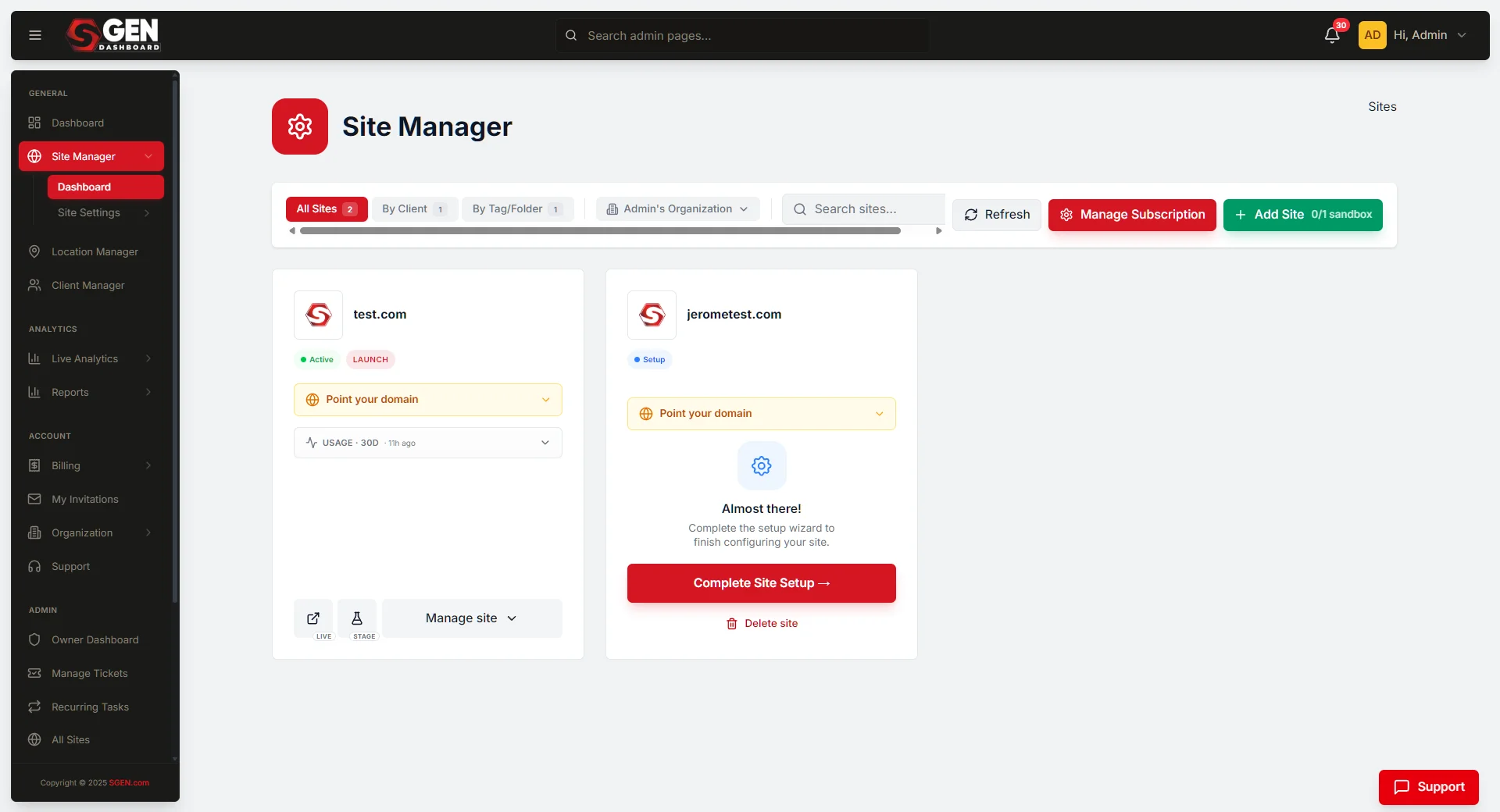
- Open Site Manager.
- Find the relevant site card.
- Click Point your domain.
You complete the DNS change in your registrar portal, not inside SGEN. SGEN gives you the A record value to copy.
Steps
1. Copy the A record value
The target is 34.144.203.31. Copy it from the SGEN panel or note it here.
2. Open your DNS provider portal
Log in to the registrar or DNS host that controls the domain you are connecting.
3. Update the A record
In the DNS management area for the domain, add or update the A record so it resolves to 34.144.203.31. Save the change.
4. Return to SG-Dashboard
Keep the site card open for follow-up checks. You do not need to take any further action inside SGEN — propagation and certificate provisioning happen automatically.
5. Wait for propagation, then verify
Use View Staging Site or Login to Stage while live is settling. Once propagation and certificate provisioning complete, Visit Live Site will open the public site without an error page.
What success looks like
- The A record at your DNS provider is set to 34.144.203.31.
- The live environment resolves correctly after propagation.
- The SSL certificate provisions automatically.
- Visit Live Site opens the correct public site.
What to expect
DNS is not instant. The live environment can take time to stabilize after you make the record change. Until propagation and certificate provisioning complete:
- Staging remains your reliable working environment — use it freely.
- Live may not yet behave like a finished production site — this is normal.
- The live tab may not immediately reflect the final ready state.
No further action is needed on your part once the A record is saved.
What to do if it does not work
Live is still not ready after you updated DNS
- Confirm the A record value is exactly 34.144.203.31 — no extra characters, no typos.
- Confirm you changed the record for the correct domain.
- Allow more time — propagation can take up to 48 hours in some cases.
Your domain is not the production domain
- Use the intended production domain. Subdomains may work in some cases but are not the default documented path — contact support if a non-standard arrangement is required.
Live is resolving but showing unexpected states Full detail: How to Interpret Live vs Maintenance or Unavailable States in SGEN
Next step
Once the domain step is complete or underway, continue with: How to Access Staging and Live in SGEN
Related reading
- How to Complete Site Setup in SGEN — the full first-setup sequence; domain pointing is step 1.
- Understanding Staging and Live in SGEN — how SGEN separates the two environments.
- How to Interpret Live vs Maintenance or Unavailable States in SGEN — what to check if live does not resolve after DNS changes.