
Operations manager SGEN onboarding
⏱ 60-second answer below · full guide ≈ 12 min · skim the bold lead-ins to move faster.
The 60-second answer. As an operations manager on a SGEN site, you own four surfaces: Audit Log (who changed what), Backups (recovery confidence), Integrations (connected-system health), and Settings → Notifications (platform alerts). Every week, spend 30-45 minutes sweeping all four. Every month, compile those findings into a one-page stakeholder report and run a 15-minute escalation drill. You do not build pages, write code, or manage billing — those belong to other roles. That's the entire scope. Read on for the step-by-step cadence.
On this page: Before you start · Your five areas · Weekly cadence · Monthly cadence · Troubleshooting · Other roles
Before you start
Before your first session, confirm the following with your site owner or platform administrator:
- Role access confirmed. Your account needs read access to Audit Log, Backups, and Integrations — standard Editor access does not include these. Check the admin → Users to confirm your role.
- Backup schedule active. If the admin → Backups shows no scheduled backups, your administrator needs to configure one first. Share Activate and verify backups with them.
- Integration list documented. Before your first health sweep, gather the names of every active integration your site depends on — payment gateway, CRM, email service, analytics, webhooks. Keep this list somewhere the whole team can access.
- Escalation contacts confirmed. Collect name, channel, and backup contact for every integration vendor and your internal technical lead before you go live.
- Platform alerts subscribed. Go to the admin → Settings → Notifications and confirm a delivery address is set for platform-level alerts.
If any of the above is missing, share this guide and Manage users list with your site owner before your first solo session.
Your five areas
| Area | What you do there |
|---|---|
| the admin → Audit Log | Row-by-row record of every admin action — who changed what, and when |
| the admin → Backups | Verify backup schedule, confirm last successful run, trigger manual backup if needed |
| the admin → Integrations | Review connection status for every active integration, check last-sync timestamps |
| the admin → Settings → Notifications | Subscribe to platform-status alerts and configure operational notification routing |
| the admin → Users | Assign and revoke roles during onboarding, offboarding, or permission escalation events |
Out of scope: Theme Editor, Custom Codes, Blog, Popups, and Forms belong to your content, marketing, and developer counterparts. If a content team hits a blocker you cannot resolve from the five areas above, your job is to escalate — not to reach into their tooling.
Use this guide when:
- You are newly assigned as operations manager and need a clear starting scope.
- Your team is onboarding a new operations manager and wants a single handoff doc.
- You are auditing your own practice against the right signals and cadence.
- A content team reports a blocker and you need to confirm whether it falls inside your scope.
Do not use this guide to author or publish content, diagnose code-level issues, make design decisions, or manage billing. Full detail: Content editor onboarding · Marketing manager onboarding · Platform admin onboarding.
What success looks like
A healthy practice after one month on this cadence:
- Weekly — you open Audit Log on Monday morning and confirm no unauthorized changes in under five minutes. Integrations are all green, or you have an active escalation ticket for any that are not.
- Monthly — you produce a one-page stakeholder report in under two hours, from data collected during your four weekly sweeps. Escalation runbook drilled within the past 30 days.
- Incidents — when a content team reports a blocker, you classify it as operational (yours), technical (developer), or vendor (external escalation) within 15 minutes, and route it with enough context for the resolver to act without a follow-up call.
A representative monthly health snapshot looks like this:
What to do when something breaks
Audit log shows a gap — records missing for a date range. Audit log entries are written at the point of each admin action and are not retroactive. A quiet range over a weekend is normal. If you expected activity and the log is empty, ask your administrator to confirm your account has read access to all audit-log categories. See Read the Audit Log for filter instructions.
A backup did not run on its scheduled date. Go to the admin → Backups and check the Last run column — a failed run shows a warning indicator. Confirm the schedule is still active (status On). If active and failed, your administrator needs to check storage quota and notification routing. A failed backup with no alert means both are broken — resolve together. See Activate and verify backups.
An integration shows red but no error message. Note the last-sync timestamp. Check whether the vendor's own status page reports an outage. If the vendor is healthy, the problem is in your SGEN credentials or webhook configuration — route to your developer with the integration name, last-sync time, and any error text from the detail panel. Do not reconfigure the integration yourself. See Integration health overview.
Your escalation contact is unreachable. Your runbook should include at least two contacts per vendor and one internal fallback. For SGEN-platform issues, open a support ticket at the admin → Support with the incident description and first-detection timestamp. For vendor issues, use the vendor's support portal. See Platform status and notifications.
Operational dashboard is slow or shows stale data. Use the reload control at the top of the Backups or Integrations list. If stale data persists after reload, check the admin → Settings → Notifications for a maintenance-window banner. If no banner is shown and slowness continues for more than 15 minutes, open a support ticket with a screenshot and current timestamp.
Weekly cadence — site-health sweep
Once a week — Monday mornings work well for most operations managers — complete a four-part site-health sweep. Budget 30-45 minutes. The goal is to detect anomalies, verify dependencies, and confirm the operational baseline before the content team's week begins.
Steps — weekly site-health sweep
1. Review the audit log for the past seven days
Go to the admin → Audit Log. Set the date filter to the past seven days. Scan for any of the following signals: a role change you did not initiate, a settings edit outside your change-window, a bulk delete action, or an admin session from an unrecognized IP address.
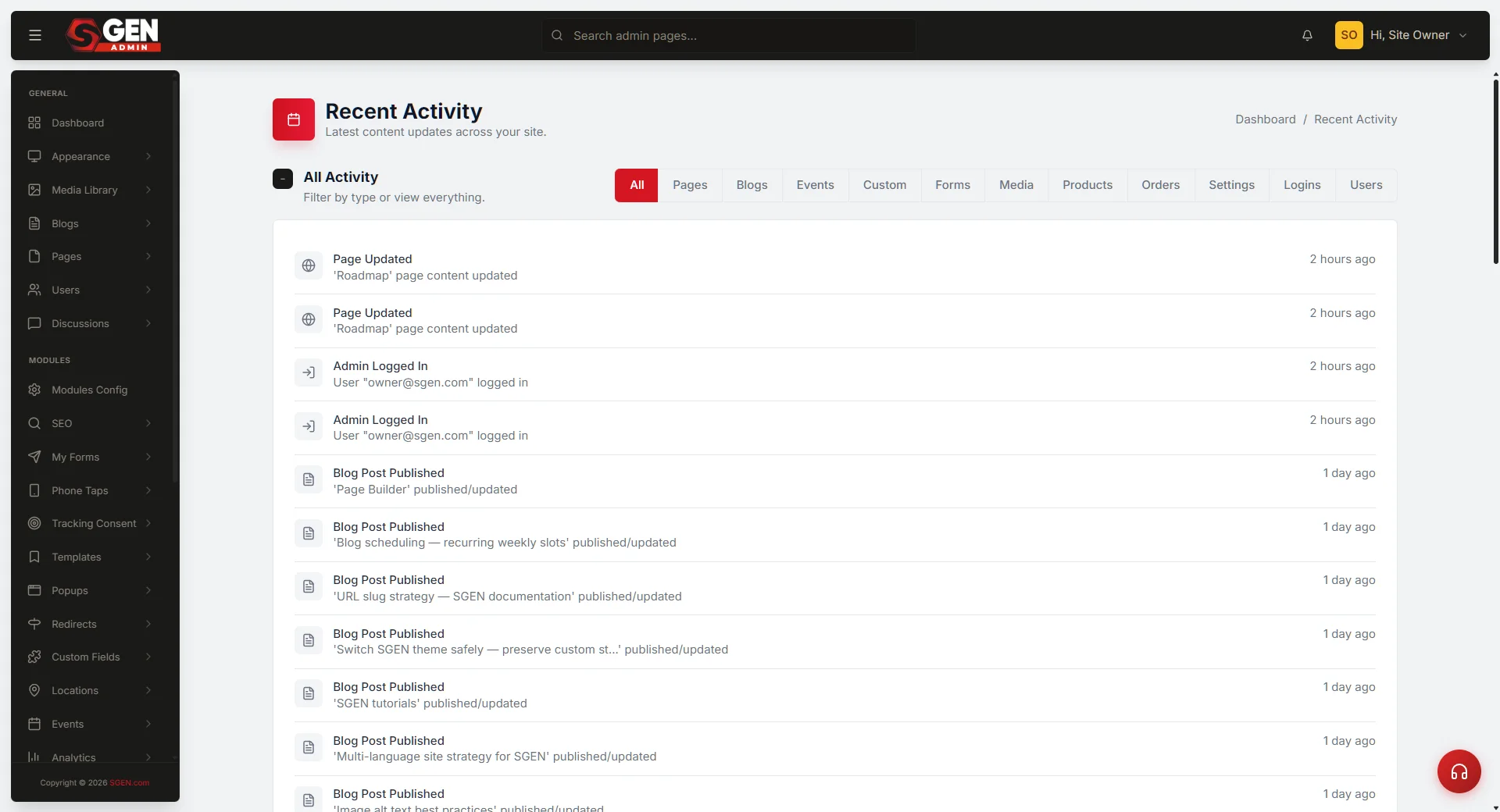
Most weeks the audit log is quiet — a handful of content-publish events, a form-settings edit, a user login. A healthy Monday-morning snapshot — seven days of routine editorial activity with no anomalies — reads like this:
If you spot an anomaly — a settings change from an unrecognized user, a role escalation you did not approve, a bulk-delete action — note the row details (user, timestamp, area, action) and escalate to your platform admin immediately. Do not attempt to reverse the change yourself without confirming the intent with the responsible user first. See Read the Audit Log for category-filter and export instructions.
2. Check integration status across all active connections
Go to the admin → Integrations. Scan the status column for every row. A green indicator means the integration completed its last scheduled sync. A yellow indicator means the last sync completed with warnings — click the row to read the warning detail. A red indicator means the integration failed its last sync and requires action.
Record the last-sync timestamp for every integration flagged yellow or red. This timestamp is your primary evidence when opening a vendor support ticket or briefing your developer.
A healthy integration panel — six active connections, all green, last synced within the expected window — reads like this:
If any integration is in error state, follow the troubleshooting path in the What to do if it does not work section above. See Integration health overview for the detail panel and error-log access.
3. Verify backup status
Go to the admin → Backups. Confirm the most recent backup run completed successfully. Check the Last run timestamp — for a daily schedule, the most recent run should be less than 24 hours ago. For a weekly schedule, the most recent run should fall within the past seven days.
If a run is overdue or shows a failed status, log it immediately and escalate to your platform admin. Do not wait for the next scheduled run to confirm whether the failure was a one-time event.
See Activate and verify backups for the manual trigger and schedule-verification workflow.
4. Confirm notification subscriptions are active
Go to the admin → Settings → Notifications. Confirm your operational email address is still listed as a recipient for platform-status alerts and backup-failure alerts. Notification settings are occasionally reset after a platform update or settings migration. Catching a missing subscription during a routine sweep is far better than discovering it after an outage you were not notified about.
See Platform status and notifications for the notification-settings path and alert category descriptions.
Monthly cadence — stakeholder report and escalation drill
At the start of each month, block two hours. This is the session where you look back at the full prior month of operational data, compile a stakeholder report, and run a lightweight escalation drill.
Steps — monthly deep review
1. Compile the audit-log summary for the prior month
Go to the admin → Audit Log. Set the date filter to the full prior month. Export the log as CSV. Tally the following counts from the export: total events, events by category (Content / Settings / Users / System), and any rows you flagged as anomalies during the four weekly sweeps.
Your monthly stakeholder report needs four numbers from this tally: total events, settings-change count, user-role-change count, and anomaly count. If anomaly count is greater than zero, include a one-sentence description of each and its resolution.
A clean April — 152 total events, four settings changes, two role changes, zero anomalies — reads as a pass.
2. Verify backup history for the prior month
Go to the admin → Backups. Review the run history for the full prior month. Count the number of scheduled runs, successful runs, and failed runs. For a daily backup schedule, a clean month shows 28-31 successful runs and zero failures.
Your monthly report needs three numbers: scheduled count, successful count, and failure count. Any failure requires a one-line explanation and the remediation action taken (for example, "Run failed 2026-04-14 due to storage quota; quota increased same day; confirmed clean run 2026-04-15").
A clean April backup record — 30 scheduled runs, 30 successful, zero failures — reads like this:
3. Review integration uptime for the prior month
Go to the admin → Integrations. For each active integration, check whether any red or yellow status indicators were recorded during your four weekly sweeps. Compile a table: integration name, status for the month (Healthy / Warning / Error), and resolution note if applicable.
Your monthly report needs this table. A stakeholder reading the report needs to see at a glance that all integrations are operational — or that a specific one experienced an issue and it was resolved within your SLA window.
4. Compile user-access delta for the prior month
Go to the admin → Users. Review the Users list and cross-reference against your prior-month baseline. Note any accounts added, any accounts deactivated or moved to Trash, and any role changes.
Your monthly report needs three numbers: accounts added, accounts removed, and role changes. This delta is your operational evidence that access is tightly controlled — no stale accounts, no unintended escalations.
If you discover accounts that should have been removed but were not, escalate to your platform admin immediately and include the finding in your report. See Manage users list for the bulk-action controls and Add or edit a user for individual role changes.
5. Run the monthly escalation drill
An escalation drill takes 15 minutes and prevents a 15-hour incident. Once per month, go through your escalation runbook contact by contact. You do not need to simulate a real incident — a quick message or email confirming that the contact is current and reachable is sufficient.
For each contact in your runbook, confirm:
- Name and role are still current.
- Primary channel (email or phone) reaches a live inbox or line.
- Backup contact is also reachable.
- The scope of escalation they own is still accurate (for example, if your CRM vendor changed their support tier, your runbook escalation path may have changed too).
If any contact is stale, update the runbook immediately. Log the drill completion date in your monthly report.
6. Assemble and distribute the stakeholder report
Your monthly stakeholder report draws entirely from the five steps above. A complete monthly report covers six items in approximately one page:
- Backup status: scheduled vs. successful runs, any failures and resolutions.
- Integration health: uptime table for all active connections.
- Audit log summary: total events, settings changes, role changes, anomaly count.
- User access: accounts added, removed, role changes.
- Escalation drill: completed or skipped, contacts current or stale.
- Outstanding items: anything escalated during the month that is still open.
Distribute the report to your site owner, your technical lead, and any leadership stakeholders who have requested operational visibility. Keep a copy in your operations folder for the following month's comparison.
Things you should NOT need access to
The cadences above cover your complete operational scope in SGEN. The following areas are explicitly out of your lane — if someone routes a ticket to you that requires access to these surfaces, it belongs to a different role.
You should NOT need access to:
- Theme Editor — visual design, typography, layout. Route to your developer or designer.
- Custom Codes — injecting HTML, CSS, or tracking scripts. Code-level changes require developer access.
- Blog and Content areas — editorial publishing, page editing, media library. Route to your content editor or marketing manager.
- Popups and Forms (authoring) — creating or editing popup overlays and lead forms. Route to your marketing manager. Note: you may review form notification settings in Settings → Email as part of an escalation — that is within scope.
- Billing and site provisioning — subscription management, domain setup, plan changes. Route to your platform admin.
You DO need access to:
| Feature | What you do | Reference |
|---|---|---|
| the admin → Audit Log | Weekly review, anomaly detection, monthly export | Read the Audit Log |
| the admin → Backups | Weekly status check, monthly history review, manual trigger on failure | Activate and verify backups |
| the admin → Integrations | Weekly health sweep, escalation on error | Integration health overview |
| the admin → Settings → Notifications | Confirm subscription, update routing on role change | Platform status and notifications |
| the admin → Users | Role assignment on onboarding, revocation on offboarding | Manage users list |
If you find yourself needing access to something not in the table above, flag it to your administrator before acting. Scope creep in admin access is the most common source of accidental site-wide changes.
Examples
Example 1: Weekly audit-log sweep reveals an unexpected settings change. You open Audit Log on Monday morning and spot a row from Friday 15:44 — "Settings edited · SMTP host updated · by admin@yourteam.com." You do not recognize this as a planned change. You check with the platform admin and confirm it was a legitimate credential rotation after the email provider updated their outgoing server. You log the event as Explained in your weekly notes and update the escalation runbook to include a heads-up protocol for settings changes so they are pre-announced before they appear in the audit log. No action required — but the detection happened within 72 hours instead of weeks. See Read the Audit Log for category-filter and user-search instructions.
Example 2: Monthly drill reveals a stale integration-support contact. During the monthly escalation drill, you send a test message to your Mailchimp support contact and receive an automated bounce — the contact left the vendor six months ago. You find the current escalation path in the Mailchimp support portal, update your runbook, and note the correction in the monthly stakeholder report as a runbook hygiene finding. The drill takes 15 minutes. A future Mailchimp outage — now routed correctly — resolves in hours rather than days.
Example 3: Content team reports a form integration that stopped sending to CRM. The marketing manager reports that HubSpot stopped receiving form submissions three days ago. You open Integrations, find HubSpot in a yellow-warning state with a last-sync timestamp from three days prior. You capture the timestamp, the warning message ("API rate limit exceeded — 429 response"), and routes the ticket to his developer with all three data points. You do not attempt to reconfigure the API credentials yourself. The developer updates the rate-limit handling in the integration settings within two hours. You log the detection-to-resolution timeline in the monthly report as: detected Monday 09:15, escalated Monday 09:22, resolved Monday 11:44. See Integration health overview for the detail panel and error-log access.
Day-one and first-week path
Use this table on your first day to establish the operational baseline before running your first weekly cadence session.
| When | Action | Expected outcome |
|---|---|---|
| Day 1 — morning | Open the admin → Audit Log, set range to last 30 days | You have a baseline of admin activity before your tenure |
| Day 1 — morning | Open the admin → Backups, confirm a schedule exists and last run is current | You know the recovery posture before your first week |
| Day 1 — afternoon | Open the admin → Integrations, read the full list and status indicators | You have your integration inventory — note any yellow or red rows |
| Day 1 — afternoon | Open the admin → Settings → Notifications, confirm your address is subscribed | Platform alerts will reach you before users report an issue |
| Day 2 | Draft your escalation runbook — integration vendor contacts + internal technical lead | You have a written escalation path before you need one |
| Days 3-5 | Run the full weekly cadence solo — audit log, integrations, backups, notifications | You complete one full sweep within your first week |
| Week 2 | Brief your site owner on any findings from the first sweep | You establish the reporting relationship and confirm scope expectations |
| Week 4 | Run your first monthly deep review and escalation drill | You produce your first stakeholder report and confirm your runbook is live |
Other roles on this site
Each role on a SGEN site has its own onboarding guide. Use the table below to understand who owns adjacent surfaces — and who to route requests to when something falls outside your operational scope.
| Role | What they own |
|---|---|
| Content Editor | Blog posts, pages, media library, comment moderation |
| Marketing Manager | Analytics, lead forms, popup campaigns, blog publishing cadence |
| Ecommerce Manager | Orders, products, coupons, and fulfillment cadence |
| SEO Specialist | SEO audit grid, redirects, robots.txt, Search Console |
| Developer | Custom CSS, Custom Codes, tracking scripts, integration configuration |
| Support Agent | Read-only admin lookups, ticket triage, escalation paths |
| Platform Admin | Site provisioning, user management, billing, SMTP settings |
| Partner / Agency | Multi-client delivery, white-label, reseller billing |