
SEO Specialist Onboarding in SGEN
Knowing which of SGEN's ten SEO panels to open, in what order, and at which cadence is the whole job. This guide sequences those panels — SEO Manager, Global SEO, Robots.txt, Search Console, Blogs SEO, Post Type SEO, Redirects, Event Logs, and Analytics Reports — into a repeatable rhythm you can run from day one.
Lock foundations first
Global SEO, Robots.txt, and Search Console have site-wide consequences. Complete all three before anything else — a misconfigured indexing toggle quietly undermines every other action you take.
Build a three-cadence rhythm
Daily (15 minutes): Issues scan, 404 sweep, top-entry pages. Weekly: new content audit, broken-link sweep, redirect spot-check. Monthly: full-site export, Search Console review, 404 trend analysis.
The audit grid is home base
SEO Manager puts every page, post, and product in one table with 18 SEO signals per row. Every fix — SEO title, meta description, index status — lands inline without a page reload.
Where to go in SGEN
All SEO panels live under SEO in the left admin sidebar. Analytics panels are under Analytics. Redirects has its own sidebar entry.
SEO
SEO sidebar panels
SEO Manager /sg-admin/seo/ · Global SEO /sg-admin/seo/global_seo · Blogs SEO /sg-admin/seo/blogs · Post Type SEO /sg-admin/seo/post_type · Robots.txt /sg-admin/seo/robots · Google Search Console /sg-admin/seo/search_console · Schema Editor /sg-admin/seo/schema_editor
Analytics & Redirects
Supporting panels
Event Logs /sg-admin/analytics/ · Analytics Reports /sg-admin/analytics/reports · Redirects /sg-admin/redirects/
Step 1 — Lock the foundations (first day)
These three panels have site-wide consequences. Complete them before anything else.
1
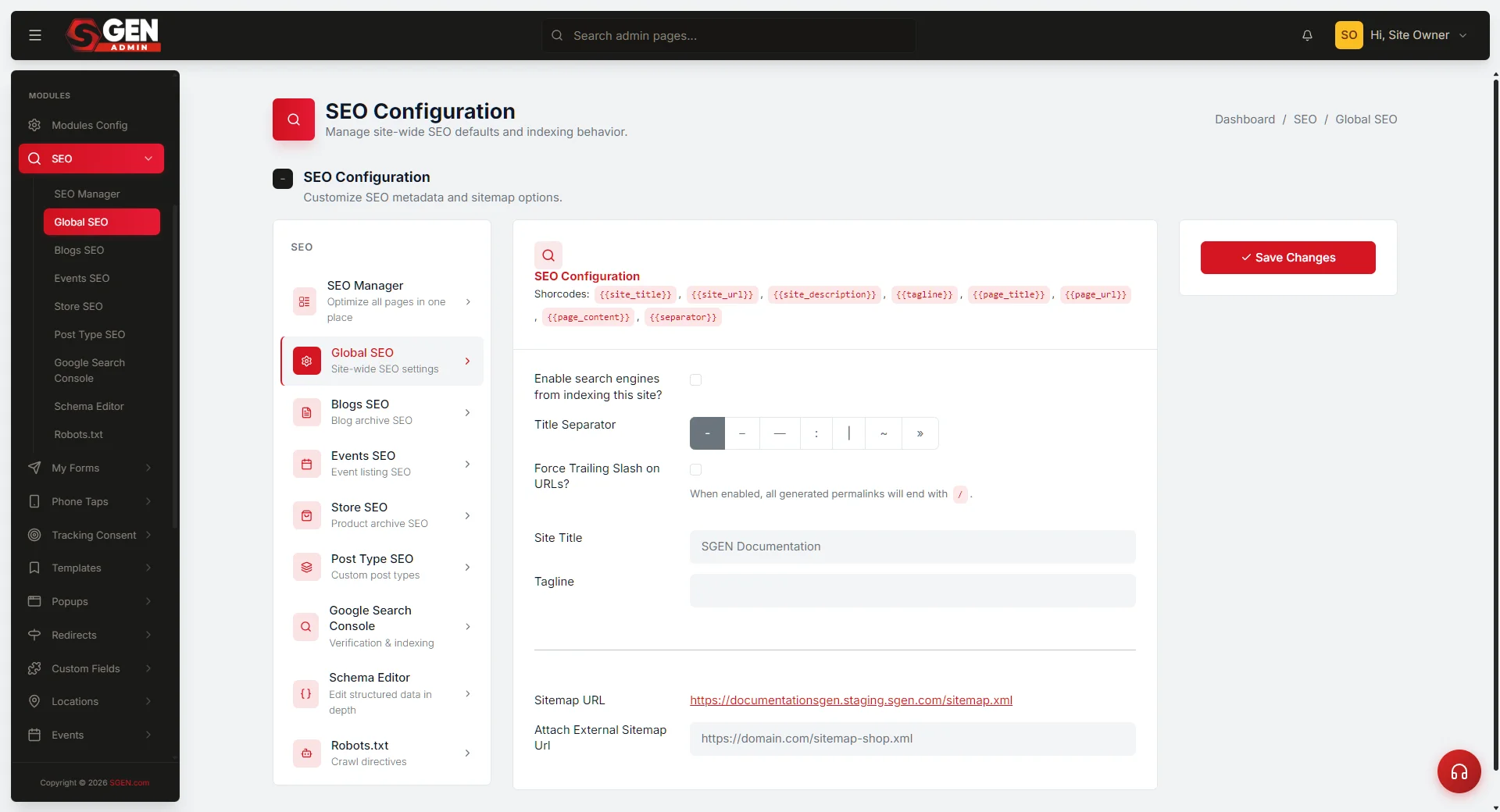
Confirm Global SEO is configured correctly
Open SEO → Global SEO. Confirm four things: Search engines can index this site is toggled ON (unless you are in a deliberate pre-launch hold); Title separator is set to your preferred character (| or – are the two most common choices — every page title inherits this separator); Force trailing slash is on or off (pick one and keep it consistent to avoid duplicate-URL signals); and any External sitemap URLs for separate blog platforms or storefronts on the same domain are added. Note: if you change the separator, some pages may temporarily display the old one while cached versions refresh — open the page editor, save without changes, and recheck the public page to clear it.
2
Review and save Robots.txt
Open SEO → Robots.txt. The editor shows the raw file search engines read before any page on your site. At minimum confirm: /sg-admin/ is in a Disallow block (verify — it should be there by default); your sitemap URL appears as a Sitemap: directive; and no staging or preview paths you intended to block are missing. Example Robots.txt for a site like Your Store (illustrative — use your own domain):
User-agent: *
Disallow: /sg-admin/
Disallow: /preview-fall-2026/
Disallow: /internal-docs/
Sitemap: https://yourdomain.com/sitemap.xml
3
Verify site ownership with Google Search Console
Open SEO → Google Search Console. Paste the long string from inside Google's content=".." HTML verification tag into the verification field and save. Then return to Search Console and click Verify. If Search Console reports it cannot find the tag, open the public site's page source and search for google-site-verification. If the tag is missing, confirm you pasted the content string (not the full HTML snippet) into the SGEN field and that the save completed without a form error.
Step 2 — Set up your daily workspace (first week)
Once the foundations are locked, spend the first week building the 15-minute daily check into muscle memory. Three moves: SEO Manager Issues scan, Event Logs 404 sweep, Analytics Reports top-entry-pages view.
1
Open SEO Manager and run the Issues filter
Open SEO → SEO Manager. Every page, blog post, and product appears in one table with 18 SEO signals per row. Click the Issues chip to filter down to rows with missing fields. Fix each inline: click the SEO Title cell, type, press Enter. Click the Meta Description cell, type, press Enter. Click the Index Status toggle to flip it. The whole loop �� scan, click, type, Enter — runs without a single page reload. For example, at Your Store, the Canvas Tote Bag product page was published overnight with no SEO title or meta description. Clicking the SEO Title cell and typing "Canvas Tote Bag | Your Store" then pressing Enter resolved it in under a minute.
2
Check Event Logs for 404s
Open Analytics → Event Logs. Set the type filter to 404. Any path appearing here is a broken URL your visitors hit during the last day. Cross-reference with your Redirects list — if a path has 3 or more hits and no redirect in place, add one. At Your Store, a link from an older blog post pointed to /bags — a URL that had been renamed. Adding a 301 redirect from /bags to /canvas-tote-bag cleared it from the next day's sweep.
3
Check Analytics Reports for top entry pages
Open Analytics → Reports. Set event type to Page View and date range to Yesterday. The doughnut chart shows your top paths by volume. If a page that should be ranking is not appearing here, investigate its SEO title and index status back in the audit grid.
Step 3 — Build the weekly audit rhythm
Run the weekly audit on every piece of new content published that week, and sweep for structural redirect issues.
Content
SEO audit on new content
Filter SEO Manager by the Issues chip. Fix missing SEO titles and meta descriptions inline. If a post needs structured data — an article schema for a blog post, a product schema for a store item, a how-to schema for a guide — click the Schema cell in its row to open the Schema Editor. Important: the admin confirms the save, but you must verify the application/ld+json block appears in the public page source. This is a known open issue — re-check after every SGEN platform update.
Redirects
Broken-link sweep + redirect spot-check
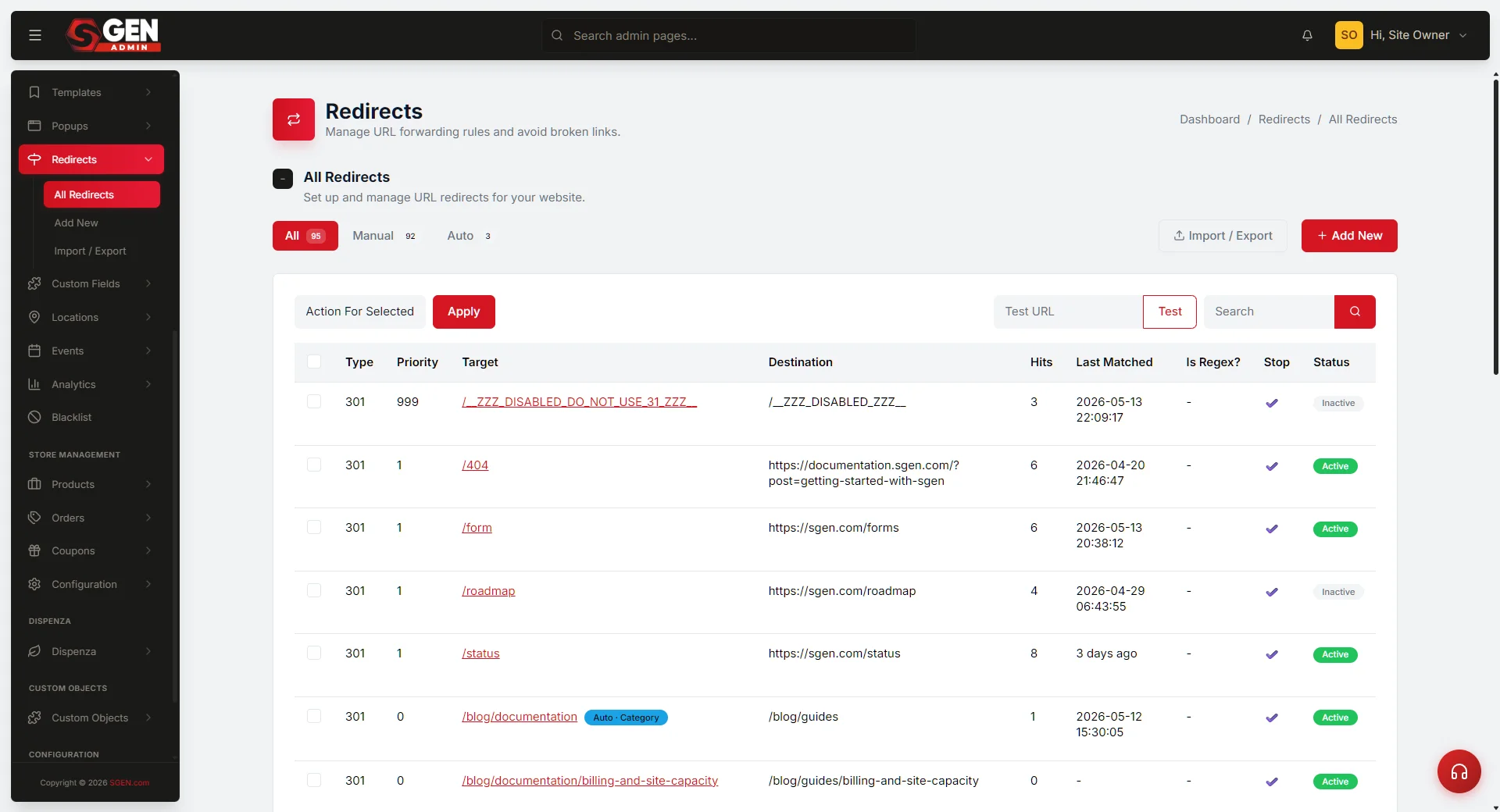
Open Event Logs, filter by 404, date range Last 7 Days. For every path with 5 or more hits: check whether a page still exists at that URL; if it was moved or deleted, open Redirects and create a 301 Permanent redirect. Then review the full Redirects list for: 302 Temporary redirects older than 30 days (flip to 301 if the destination is permanent); redirect chains A→B, B→C (collapse to A→C); redirect loops A→B, B→A (delete one leg).
Archive
Blog archive SEO review
Open SEO → Blogs SEO. After publishing new blog posts, confirm the archive SEO Title and Meta Description still reflect your current content focus. The archive page is often one of the highest-traffic pages on a site — it earns its own SEO treatment.
Post Types
Per-type SEO hub check
If you added a new content type this week (a new event series, a product category, a custom post type), open SEO → Post Type SEO to confirm a SEO screen exists for it and archive defaults are set.
Step 4 — Run the monthly full-site audit
Once a month, step back from daily and weekly maintenance and run the deeper checks that keep the site in good structural shape over the medium term.
Full-site SEO export and review
Open SEO → SEO Manager, remove all filters, and click Export to download the full CSV. Scan for: pages with duplicate SEO titles (competing against each other in search results); meta descriptions over 160 characters (search engines truncate them); pages set to No-index that should be indexed (commonly happens when a draft was toggled no-index and never flipped back); and pages indexed with thin or no content worth ranking. Near-duplicate titles (differing only in punctuation or trailing spaces) may not be flagged automatically — do a manual visual scan of the title column sorted alphabetically.
Google Search Console review
Log into Search Console for your domain. Check three areas: Coverage — any pages newly excluded, errored, or listed as "Crawled — currently not indexed"?; Performance — top queries and impressions vs. last month; Core Web Vitals — any regressions since last month? Cross-reference any Coverage errors against the 404 log in Event Logs. If Google is hitting a 404 on a URL you care about, you likely need a redirect in SGEN.
404 trend analysis
Open Analytics → Event Logs, filter by 404, date range Last 30 Days, and export. Compare this month's 404 paths against last month's list. New paths with 10 or more hits in the month indicate: a third-party site linking to an old URL that was not redirected; a blog post or product deleted without a redirect; or a URL structure change not communicated to the SEO team. For each, add a 301 redirect in Redirects.
What success looks like after four weeks
After four weeks running this rhythm, you should see all four of these markers.
Issues
SEO Manager Issues chip reads 0
At the start of every weekly audit, every published page has an SEO title and meta description set.
404s
Monthly 404 export is flat or declining
No single new path accounts for more than 10 hits in the month.
Coverage
No unintentional Search Console exclusions
Any no-indexed pages were no-indexed deliberately. New content published in the last 30 days is indexed with SEO title and meta description set.
Redirects
No stale 302s or redirect chains
The Redirects list has no 302 entries older than 30 days and no chains longer than one hop.
Known caveats and troubleshooting
Six common problems and what to do about each.
Indexing toggle has no effect
If the site is still blocked after toggling indexing on and saving, check whether a noindex meta tag has been added via Custom Codes or in the theme. Global SEO controls the SGEN-generated tag; a manually inserted tag elsewhere overrides it.
Robots.txt changes not picked up by Google
Google may cache the previous Robots.txt for up to 24 hours after a change. If the issue persists past 48 hours, use the URL Inspection tool in Search Console to request a fresh crawl of /robots.txt directly.
Search Console verification fails
Open the public site's page source and search for google-site-verification. If the tag is missing, confirm you pasted the content string (not the full HTML snippet) into the SGEN field and that the save completed without a form error.
Issues chip shows a count but no rows appear
Filter state from a previous session may have combined with the Issues chip to produce zero results. Clear all filters first, then click the Issues chip again.
Redirect not firing — visitors still see a 404
Confirm the From path starts with / (relative path, not a full URL). Plain, literal paths are required — regex patterns save without error but do not fire on the current version.
Schema Editor save confirmed but JSON-LD missing from public page
This is a known open issue. The admin save succeeds but the structured data block does not appear in the public page source. Verify the page source after every schema save and re-check after each SGEN platform update.
Heads up Store SEO is not available at this time. Do not attempt to save ecommerce SEO defaults via the Store SEO panel — manage product-level SEO titles and meta descriptions via the SEO Manager grid or by editing each product page individually. SGEN's Event Logs and Analytics Reports complement Google Search Console; they do not replace it. Crawl coverage, index status, and Core Web Vitals live in Search Console.