
Create a discount coupon
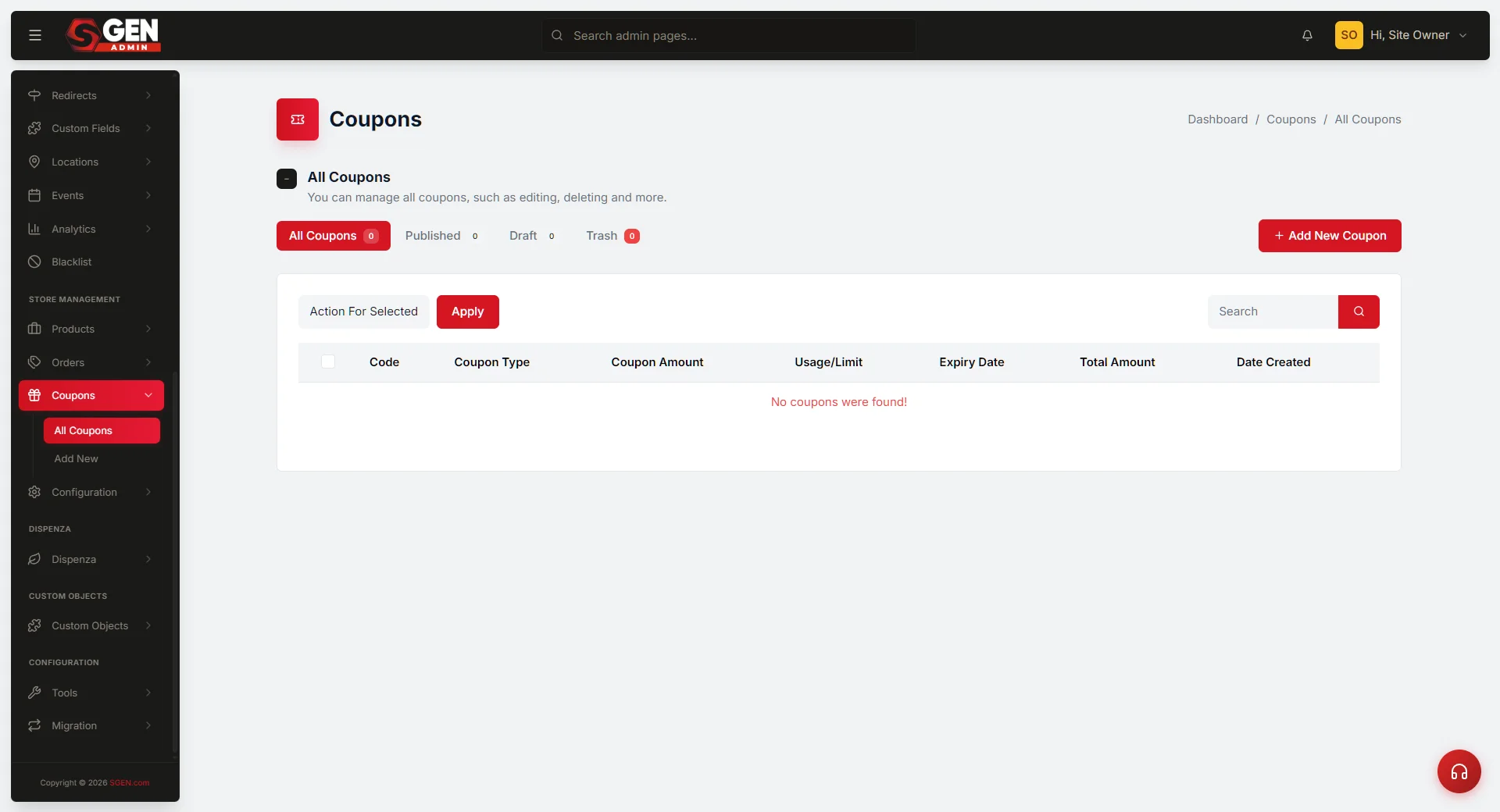 Coupons): Coupon Code, Discount Type, Coupon Amount, usage limits, Allowed user, Status, Create a Coupon button." loading="lazy" style="width:100%;max-width:900px;height:auto;border-radius:8px;border:1px solid #e5e7eb;display:block;margin:12px 0">
⏱ 60-second answer below · full page ≈ 12 min · skim bold lead-ins to move faster.
In short. Go to Store Management → Coupons → Add New Coupon. Enter a code (e.g. WELCOME15), pick Fixed cart discount, enter the dollar amount, optionally cap redemptions or restrict to specific customers, set Status to Publish, and click Create a Coupon. The code works on your store's cart immediately. Use Draft status to stage a code before a campaign launches. Avoid the Percentage discount type and leave the Expiry Date blank — both have known issues being addressed.On this page: Steps (9 fields) · Field reference · Common examples · Known issues / What NOT to use · Troubleshooting · Orders + audit trail
How to set up a fixed-dollar promo code your customers can enter at checkout
The Coupons screen is where you create the discount codes shoppers type into their cart to knock a set number of dollars off their order. The checkout form shows a Have a coupon? field; a customer types the code, clicks apply, and the cart subtotal drops by whichever fixed dollar amount you set. Setting up a single reliable promo code — a WELCOME15 for email subscribers, a FREESHIP50 for orders over a threshold, a VIP25 for your newsletter regulars — takes about two minutes here.
The Coupons area keeps a running count of every code you have created, so you can see at a glance how many are live, how many are staged as drafts, and how many have been retired to trash:
What is this for?
The Coupons screen is your promo-code builder. Reach for it whenever you run a promotional campaign — an email sign-up reward, a partner referral code, a thank-you for a support ticket, a seasonal sale, a one-off loyalty credit.
Publish makes a code live immediately. Draft saves it but keeps it off the cart — use Draft to stage a campaign before launch day.
Every coupon has nine fields. Five are the core: Coupon Code, Discount Type, Coupon Amount, Description (optional but recommended), and Status. The remaining four are optional restrictions: total redemption cap, per-customer cap, an allowed-customer list, and an expiry date. You only need those when your campaign has rules attached.
Scope
The Coupons screen covers creating and managing promotional discount codes redeemable at the storefront checkout. Both Percent-off-cart and Fixed-cart-discount types are in scope. The nine form fields (Code, Description, Discount Type, Coupon Amount, Usage limit per coupon, Usage limit per user, Allowed user, Expiry Date, Status) are all managed here.
What this covers:
- Creating new coupons (Add New Coupon form).
- Editing existing coupons (Edit row-action from the listing).
- Saving coupons as Publish (live) or Draft (staged).
- Setting usage caps and per-customer caps.
- Restricting a coupon to a named customer account (Allowed user field).
- Setting an expiry date range.
- Tracking redemption count and total discount given per coupon.
What this does not cover:
- Automatic rule-based discounts (e.g. "10% off all orders over $50" without a code) — those are set in Orders/Pricing rules, not here.
- Coupon codes delivered by a third-party email or loyalty platform — SGEN coupons are created here and distributed externally by you.
- Product-level discounts set per-product in the product editor — those are separate from cart-level coupons.
- Bulk coupon import — the Coupons screen does not support CSV import; each code is created individually.
Examples
Example 1: Welcome reward for email subscribers. Your Store sets up WELCOME15 — Fixed cart discount, $15 off, Usage limit per user: 1, Status: Publish. They include the code in their welcome email sequence. A new subscriber uses the code on checkout, gets $15 off their first Canvas Tote Bag order. The redemption count climbs to 1 on the listing.
Example 2: Seasonal sale staged in advance. Your Store creates SUMMER2026 — Fixed cart discount, $10 off, Status: Draft — on May 25, two weeks before the campaign starts. On June 8 (launch day) the marketing manager opens the listing, clicks Edit on SUMMER2026, flips Status to Publish, saves. The code goes live for shoppers without any advance notice to customers.
Example 3: Service-recovery code for a specific customer. A customer reports a fulfillment error on their Canvas Tote Bag order. The site owner creates APOLOGY-20 — Fixed cart discount, $20 off, Usage limit per user: 1, Allowed user: that customer's account. They email the code directly. The code works only for that one account and cannot be shared or redeemed again after first use.
Reference
| Field | Required | Purpose | Notes |
|---|---|---|---|
| Coupon Code | Yes | The string customers type at checkout | Must be unique across all statuses including Trash. Case-insensitive at cart. |
| Description | No | Internal note | Recommended for audit trail. Min 3 chars if filled. |
| Discount Type | Yes | Percent or Fixed cart | Percent = % off subtotal. Fixed = flat dollar off. |
| Coupon Amount | Yes | Discount size | Percent: 1–100. Fixed: dollar amount. No negatives. |
| Usage limit per coupon | No | Total redemption cap | Blank = unlimited. Once hit, code stops working. |
| Usage limit per user | No | Per-customer cap | Blank = unlimited per user. Typical: 1 for welcome codes. |
| Allowed user | No | Restrict to one customer account | Blank = any customer. Useful for service-recovery codes. |
| Coupon Expiry Date | No | Date range or end date | Blank = no expiry. Code stops working after end date. |
| Status | Yes | Publish = live / Draft = staged | Draft codes rejected at storefront cart. |
Good use cases
Every coupon follows the same nine-field form. The choices that vary across campaigns are the Coupon Amount, the Usage limit per user, and whether you fill in Allowed user. The reference block below shows exact settings for four common your business campaigns — scan the one closest to your scenario and adapt the Code and Amount for your store:
Example 1: Welcome reward — WELCOME15. Your store runs a newsletter pop-up promising "$15 off your first order." Create WELCOME15, Fixed cart discount, Amount 15, Usage limit per user 1, Status Publish. A new subscriber adds two items ($33.99 total) and applies the code — subtotal drops to $18.99. Because Usage limit per user is 1, the same customer cannot reuse the code; the cart shows "Coupon code does not exist" on any second attempt even though the coupon remains Published for other new subscribers.
Example 2: Seasonal sale staged in advance — SUMMER2026. Your store wants the code ready before the campaign launches. Create SUMMER2026, Fixed cart discount, Amount 10, Status Draft — saved but not redeemable. On campaign day, open the coupon, flip Status to Publish, save. The code goes live instantly. When the sale ends, set Status back to Draft — the code stops working on the next cart load, with no deletion needed.
Example 3: Service-recovery code for a specific customer. A customer reports a fulfillment error. Create APOLOGY-20, Fixed cart discount, Amount 20, Usage limit per user 1, Allowed user set to that customer's account, Status Publish. The code works only for that account and cannot be shared or redeemed again after first use. Every other shopper sees "Coupon code does not exist."
What NOT to use this for
- Do not use percentage discounts for now. The coupon form offers a Percentage discount type — do not pick it. Dollar-amount coupons (Fixed cart discount) work reliably; percentage coupons have a known issue being addressed. If you need a "10% off" promotion, work out the typical basket size and offer a fixed-dollar equivalent (a $5 OFF for a typical $50 order is 10%), or hold off until the percentage path is fixed.
- Do not set an expiry date for now. The Coupon Expiry Date field has a known issue that prevents coupons with dates from working as expected. Leave the field blank so your coupon remains valid until you manually move it to Draft or Trash. When you are ready to end a campaign, edit the coupon and flip its Status from Publish to Draft — that is an immediate and reliable way to turn a code off.
- Do not use the coupon amount to give a specific product away free. Setting a $30 OFF coupon against a $30 Tote Bag does zero the cart subtotal — but if the customer also has a $3.99 Sticker Pack in the cart, they pay $3.99, not $0. The discount applies to the cart subtotal, not to a specific item. If you want to give one specific product away, issue an order refund or contact the customer directly.
- Do not use coupons to restrict by category or product. The coupon form has no product or category picker — every coupon applies to the entire cart subtotal. If you want an "Apparel-only $10 off" promotion, coupons cannot do that today.
- Do not use the same code for unrelated campaigns. Coupon codes are unique — if marketing creates
SPRINGfor a spring sale and a partner team usedSPRINGlast year, the save will fail with "Coupon code is already exists". Use a differentiating suffix:SPRING-MKT,SPRING-P1. - Do not rely on coupons as a minimum-order-amount gate. The coupon form has no minimum purchase field. The code applies regardless of cart size. A customer can use
FREESHIP50on a small order and take the full amount off. Communicate the minimum in your campaign copy and monitor redemptions through the Orders screen. - Do not expect coupons to auto-apply. There is no auto-apply flag on the coupon form — customers must type the code into the Have a coupon? field themselves. If you want a discount to apply without a code, that is a pricing configuration, not a coupon.
How this connects to other features
- Ecommerce → Configuration → Purchase Flow — the coupon input field on the public cart is controlled by the Enable coupons on cart setting in Purchase Flow. If that toggle is off, customers do not see a coupon box at all, even if your coupons are published. Check that setting if you have created a coupon and customers report they cannot find where to type it.
- Your public cart page — when Status is Publish, the code you created works immediately on the cart (
/cart/). A customer types the code into the Have a coupon? field, clicks apply, and the subtotal drops by the dollar amount. Only one coupon can be applied per cart. - Ecommerce → Orders — every order records which coupon was used and the dollar amount discounted. If you want to see which codes are driving sales, that information lives on each order record. Changes you make to a coupon do not retroactively change orders already placed.
- Users — if you pick specific customers in Allowed user, only those accounts can apply the code. Everyone else sees "Coupon code does not exist" when they try. Customers must be signed in for this restriction to take effect.
Before you start
- You are signed in to SGEN as an Administrator or Site Owner.
- Your store currency is set under Ecommerce → Configuration → General. The coupon amount is in your configured store currency — a coupon of "15" means fifteen currency units.
- The Enable coupons on cart toggle is on under Ecommerce → Configuration → Purchase Flow (on by default on a fresh install).
- At least one product exists in your store so customers have something to add to cart and apply the coupon on.
Where to go
- Open the left navigation in your SGEN admin.
- Click Store Management → Coupons (or open
/sg-admin/ecommerce/couponsdirectly). The coupons list loads. - Click the Add New Coupon button in the top-right of the list. The create form opens.
Steps
1. Enter a code your customers will type
The Coupon Code field is the string a customer types into their cart. Keep it short, memorable, and uppercase by convention — WELCOME15, SUMMER2026, VIP25. Characters allowed are letters, numbers, and hyphens. Do not include spaces — the form will reject them with "Spaces are not allowed in your coupon code".
For broadcast codes (emails, social posts): type the code yourself so it is readable and on-brand. WELCOME15 is easy to type on a mobile keyboard; a random string like R7KP2QX4 is prone to typos and meaningless to customers.
For single-use codes (apology credits, service recovery): click the Generate Code button to fill in a random 8-character string automatically. The customer can copy-paste it, so readability matters less. Clicking Generate Code again overwrites with a fresh random value.
2. Add an internal description
The Description field is a note only you see. Customers never see it. Use it to record why a coupon exists, where it was distributed, and when you plan to retire it. Good description habits keep your coupons list readable 6 months later.
A description like this takes 15 seconds to write: "$15 off first order — newsletter welcome series — auto-email Q2 2026 — retire after Sep 30."
Key things to include:
- The campaign name and the channel where the code was distributed.
- The intended end date even though the Expiry field is not used — it becomes the cue to flip to Draft later.
- Who approved or requested the code if your team coordinates across multiple people.
3. Pick the discount type — use Fixed cart discount
The Discount Type dropdown has two options:
- Fixed cart discount — a dollar amount comes off the cart subtotal (for example,
15= $15 off). Use this one. - Percentage discount — not reliable right now. Avoid until further notice.
Pick Fixed cart discount every time until the percentage path is confirmed fixed.
4. Enter the dollar amount
The Coupon Amount is a dollar figure subtracted from the cart subtotal before tax and shipping are applied. Common values: 5, 10, 15, 25. You can enter decimal amounts like 7.50 if your prices end in odd amounts.
If a customer's cart subtotal is less than the coupon amount, the cart total becomes $0.00 — they pay nothing for the items but shipping, tax, and any surcharges still apply depending on your store's configuration.
Sanity check before saving: a coupon with Amount 25 gives $25 off, not 25% off. If you intended a percentage equivalent, calculate the dollar value first — 25% off a typical $50 order is $12.50, so Amount would be 12.50 for that scenario, not 25.
5. Optionally, cap how many times the coupon can be redeemed
Two separate limit fields control redemption volume:
- Usage limit per coupon — total redemptions across all customers combined. Leave blank for unlimited. Set to
100if you want the first 100 people to redeem and then the code to auto-disable. - Usage limit per user — how many times the same customer can use this code. Leave blank for unlimited. Set to
1if this is a one-per-customer promotion (standard for welcome codes likeWELCOME15).
These two limits work independently — you can set both, and the stricter one fires first. A Usage limit per coupon of 100 plus Usage limit per user of 1 means first 100 customers, one redemption each. Once either limit is hit, the code auto-disables for that customer or globally — no manual action needed.
6. Optionally, restrict to specific customers
The Allowed user multi-select is for coupons that should only work for named customer accounts — a support-recovery coupon for a specific complaint, a loyalty reward for a defined VIP list, a win-back code for a churned customer, or a goodwill credit for a delayed order.
Click the field to get a searchable dropdown of every customer in your Users list. Pick one or more. Only those customer accounts can redeem the code, and only when signed in. Leave the field empty to let anyone with the code redeem it.
If you need to add or remove accounts from the Allowed user list after creation, edit the coupon and change the selection — the change takes effect on the next cart that attempts the code.
7. Leave the expiry date blank
The Coupon Expiry Date field has a known issue being addressed. Leave it blank — your coupon stays active until you manually move it to Draft or Trash. When a campaign ends, return to the coupon list, hover the row, click Edit, set the Status to Draft, and save — the code stops working immediately.
To retire multiple codes at once when a campaign wraps up, use the bulk-action Move to Draft from the Coupons list — select the codes you want to retire, pick Move to Draft, and apply.
8. Set Status to Publish
The Status dropdown in the right-hand sidebar has two values:
- Publish — the coupon is live; customers can use the code right away.
- Draft — the coupon is saved but not usable on the cart. Use Draft while composing a campaign you are not ready to launch yet.
SUMMER2026can sit as Draft until campaign day, then be flipped to Publish in one click.
Leave Status on Publish for a ready-to-go code. Set it to Draft if you are setting up a future campaign.
9. Click Create a Coupon
The Create a Coupon button in the sidebar saves the code. The screen refreshes to the edit form for your new coupon with a green Coupon has been successfully created! message at the top. The form is now in edit mode — any further changes use the Update a Coupon button.
What success looks like
- The green Coupon has been successfully created! message appears at the top of the edit form after you click Create a Coupon.
- Returning to the Coupons list via the back arrow (or Store Management → Coupons) shows your new code as a row with the type, dollar amount, usage count, and status.
- Opening your store in a fresh browser window, adding products to a cart, typing your code into the Have a coupon? field at
/cart/, and clicking apply shows the discount line and a reduced total.
A $15 OFF code on a two-item cart looks like this on the your business store — the green confirmation banner, the discount line in the order summary, and the updated total:
Finding and editing your coupons later
Every coupon you save sits in one list at Store Management → Coupons. The list shows all coupons at once — tab counts at the top read Published (4) / Draft (2) / Trash (1). To edit a coupon, click its code to open the edit form, change whichever fields you want, and click Update a Coupon in the right-hand sidebar.
Common edits after a coupon is live:
- Flip Status from Publish to Draft when a campaign ends, then back to Publish if the campaign returns next season.
- Tighten Usage limit per coupon downwards when a code goes more viral than expected — the new cap applies to future redemptions; past ones are not reversed.
- Change the Coupon Amount mid-campaign — new customers get the new amount; past orders keep the amount they paid at the time of redemption.
- Add or remove accounts from Allowed user as your VIP list changes. The change takes effect on the next cart that tries the code.
When a campaign wraps up and you have two or more codes to retire, select them in the list, choose Move to Draft from the bulk-actions menu, and apply. The confirmation shows how many codes were moved and what each status bucket now contains:
Tips for effective coupons
A coupon that works on day one is a coupon you can trust on day 100. A few habits help.
Name codes for the campaign, not the discount amount. WELCOME15 tells you at a glance that this is your welcome-series code and roughly what it gives. CODE1 tells you nothing six months later when you are reviewing the list. The code is also what customers type and remember — short and descriptive wins.
Use Usage limit per user set to 1 for any one-time code. Welcome codes, birthday rewards, apology credits — anything intended as a single use per customer should have this field set. Without it, a customer can share the code with friends or reuse it themselves on future orders.
Stage seasonal codes as Draft before the campaign starts. Create SUMMER2026 with all the right settings now, leave it as Draft, and publish it on campaign day with a single Status flip. This avoids the rush of building a coupon under pressure when your campaign email is already scheduled to go out.
Keep the Description field current. The Description is your internal audit trail. Write the campaign name, the channel where the code was distributed, and the intended end date. When a code outlives its campaign, this note tells you whether it is safe to trash.
Check redemption counts after a campaign. The Coupons list shows total dollar amount given out, but the Orders screen shows which customers redeemed, what they ordered, and what the basket size was. That data helps you decide whether a flat discount or a free-shipping code drove more meaningful orders next time.
Draft is your off switch; Trash is permanent. Move a code to Draft to pause it — you can re-publish it later. Only trash a code when you are certain you will never reuse it. A trashed code frees the name for a new code, but its history disappears from the list.
Test every new code before distributing it. After creating a coupon, open your store in a separate browser window, add something to cart, and enter the code. Confirm the discount line appears and the total changes correctly. One minute of testing avoids customer-facing failures.
What to do if it does not work
- "Coupon code does not exist" at checkout even though I just created it. Check the coupon's Status in the admin — it must be Publish, not Draft. A Draft coupon does not work on the public cart. Re-save with Status set to Publish.
- "Coupon code does not exist" but I know the code is Published. If you picked specific customers under Allowed user, only those customer accounts can redeem the code, and the customer must be signed in. Either unset Allowed user (to let everyone use the code) or have the customer sign in to their account first.
- "Coupon code is already exists" when I click Create a Coupon. Another coupon (possibly a Draft or a trashed one) already uses that exact code. Pick a new code, or go to the list, switch to the Trash tab, and permanently delete any trashed coupon with the same code to free the name.
- "Spaces are not allowed in your coupon code". Remove any space characters from the code. Use hyphens (
SUMMER-2026) or run the words together (SUMMER2026). - Customer reports the cart subtotal going to $0 when they apply a small coupon. If the coupon's Discount Type is set to Percentage, this is the known issue being addressed — switch the coupon to Fixed cart discount or move it to Draft until the percentage path is fixed.
- I cannot find the coupon field on my public cart. Check Ecommerce → Configuration → Purchase Flow → Enable coupons on cart — that toggle must be on. If it is off, your coupons exist but customers never see where to type them.
- A customer says the code worked once but now says it does not exist. If Usage limit per user was set to
1, the customer has already redeemed it. This is expected behavior. If you want to grant them an additional use, create a one-off code for that customer specifically (for exampleWELCOME15-B) and set Allowed user to their account. - I edited the Coupon Amount on a live code and existing orders look wrong. Coupon changes do not retroactively apply to orders already placed. Each order stores the discount amount at the time of redemption. Only future carts pick up the updated amount.
- The coupon applies but the discount is more than expected. Confirm the Coupon Amount field — it is a raw dollar value, not a percentage. A coupon with Amount
25gives $25 off. If you intended a percentage equivalent, calculate the dollar value and enter that instead. - Two team members created coupons with the same code at the same time and one save failed. Coupon codes must be unique across Published, Draft, and Trash. Whichever save landed second will show "Coupon code is already exists." Rename the duplicate with a distinguishing suffix (for example
WELCOME15-B) and save again. - The Coupons list shows a higher redemption count than your campaign tracking tool reports. The count on the Coupons list includes every successful cart application, including orders that were later refunded or cancelled. Cross-reference against the Orders screen filtered to your campaign date range for a net-revenue figure.
Coupons and orders — what gets recorded
Every order that uses a coupon carries a permanent record of that coupon's code and the dollar amount discounted at the time of purchase. You can see this information on the order detail screen under Ecommerce → Orders — look for the Coupon Code and Coupon Discount fields in the order summary.
A few things this means in practice:
- Changing a coupon does not change past orders. If you raise the amount on
WELCOME15from $15 to $20 after 50 orders have already redeemed it, those 50 orders still show $15 discounted. Only future orders will show $20. - Deleting or trashing a coupon does not affect past orders. An order that used
SUMMER2026will still showSUMMER2026and the discount amount in its record, even after you trash the coupon from the Coupons list. - You cannot bulk-apply a coupon retroactively. There is no "apply this coupon to all orders from last week" action. Coupons are applied at checkout by the customer; they cannot be back-applied to orders already placed.
- The Total Given column on the Coupons list is a running sum. It adds up the dollar value of every redemption. A code that gave $15 off on 38 orders shows $570.00 in Total Given. This is a useful quick-check for campaign ROI — if you spent $200 on an email campaign that drove $570 in discounts, you can evaluate whether the additional revenue from those orders justified the spend.
If you need a full redemption report — which customers used which code, on which orders, and for how much — export your orders from the Orders screen and filter by the Coupon Code column in your spreadsheet tool.
One useful audit workflow: at the end of every campaign, open the Orders screen, filter by the campaign date range, and scan the Coupon Code column. Any order showing a code you retired (like BLACKFRIDAY25) but placed after you drafted the coupon signals that the customer had the code cached or pre-applied before you retired it. These edge cases are rare but worth knowing about when reconciling campaign budgets.
Note that the Orders screen does not have a "filter by coupon code" dropdown — you will need to export and filter in a spreadsheet if you want to isolate every order that used a specific code. The coupon code column is included in the default orders export.
The Total Given figure on the Coupons list resets if you permanently delete and recreate a coupon with the same code. If you archive a code to Trash and then restore it, the Total Given is preserved. This matters for year-end reporting — trash and restore, do not recreate from scratch.
Field reference — all nine coupon fields
The table below summarizes every field on the coupon form. Use it as a quick reference when you are reviewing an existing coupon or onboarding a colleague to the Coupons screen.
| Field | Required | What it controls | Common values |
|---|---|---|---|
| Coupon Code | Yes | The string customers type at checkout | WELCOME15, VIP25, SUMMER2026 |
| Description | No | Your internal campaign note — customers never see it | "Newsletter welcome — retire Sep 30" |
| Discount Type | Yes | Fixed cart discount (use this) or Percentage (avoid) | Fixed cart discount |
| Coupon Amount | Yes | Dollar value subtracted from cart subtotal | 10, 15, 25, 7.50 |
| Usage limit per coupon | No | Total redemptions across all customers before auto-disable | 100, 250, or blank for unlimited |
| Usage limit per user | No | Redemptions per customer account | 1 for one-time codes, blank for unlimited |
| Allowed user | No | Named customer accounts that can redeem — everyone else is blocked | an editor, a teammate |
| Coupon Expiry Date | No | Leave blank — known issue being addressed | (always blank for now) |
| Status | Yes | Publish (live) or Draft (saved but not active on cart) | Publish or Draft |
Fields marked Required must be filled to save the coupon. Leaving Discount Type on the default (Fixed cart discount) and filling Coupon Code, Coupon Amount, and Status is the minimum viable coupon.
The four optional fields — Usage limit per coupon, Usage limit per user, Allowed user, and Coupon Expiry Date — layer restrictions on top of the base coupon. You only need them when your campaign has rules attached to it. A simple broadcast discount code for your whole audience needs none of them.
How the limits interact in practice. Say you set Usage limit per coupon to 200 and Usage limit per user to 1. The coupon turns off globally once 200 different customers have redeemed it — OR a customer who has already redeemed it once finds it blocked on their next attempt, whichever happens first. The per-coupon cap and the per-user cap are independent guards; both run on every cart application.
What "Allowed user" blocks. When Allowed user is set, any customer NOT in that list sees "Coupon code does not exist" — the same message they see for a completely wrong code. There is no way for a blocked customer to know whether the code is restricted to other accounts or does not exist. This is intentional: it prevents fishing attempts where someone tries a code and adjusts their approach based on a more informative error.
Draft vs Trash. Draft pauses the coupon — it can be re-published. Trash archives it — it can be restored from the Trash tab, or permanently deleted. Permanently deleting a trashed coupon frees its code name. Until you permanently delete it, the name is still taken.
Managing your coupon list at scale
A few habits keep the list readable as your store grows.
Archive old campaigns promptly. Flip codes to Draft on the last day of a campaign. A customer who finds an old BLACKFRIDAY25 in a cached email and applies it to a current order will get the discount — with no easy way for you to know it was unintentional.
Use a consistent naming convention. Prefix by type — WELCOME, SUMMER2026, VIP — so the Search by code box on the list acts as a real-time filter. Typing VIP shows all VIP-tier codes instantly.
Review Trash once a quarter. Trashed codes still block the name. A SPRING code in Trash prevents creating a new SPRING — the save fails with "Coupon code is already exists." Permanently delete retired codes to keep the namespace clean.
One code per campaign rate. If you change SUMMER2026 from $10 to $5 mid-flight, customers holding the original email expect $10 off and will contact support. Create a new code for the new rate and draft the old one.
Keep an external record for high-stakes codes. For partner contracts or service-resolution codes, add a note in your CRM or ticketing system. The Coupons list records whether a code is live — it does not record why it was created or who approved it.
Watch the Total Given column. If FREESHIP50 shows $800 given after two weeks on a $400 budget, the code is spreading further than planned. Set a Usage limit per coupon cap or draft it and relaunch with a tighter scope.
What the coupon experience looks like to a customer
The coupon experience on the public cart is deliberately minimal. When Enable coupons on cart is on, the cart page shows a text label Have a coupon? near the order summary. Clicking it reveals a text input and an Apply Coupon button.
Three outcomes are possible after a customer clicks Apply:
- Success — a green confirmation message appears, the cart gains a Discount line showing the code and the dollar amount, and the Order Total updates immediately. The Apply button is replaced by a Remove coupon link.
- Code not found — a notice reads "Coupon code does not exist." This covers: wrong code, misspelled code, code in Draft, code over its usage limit, and code restricted to a different customer account. The customer cannot tell which of these applies — the message is the same for all failure reasons.
- Already applied — the cart shows a notice that only one coupon can be applied per order. Customers cannot stack two codes on the same cart.
Understanding how the cart presents failures helps you write better campaign copy. If a code is one-use-per-account, say so in your email — "valid for one use per account" — so customers are not confused when a second attempt fails with "does not exist." If the code is restricted to signed-in users, tell them to sign in before checkout.
Next step
- Configure your store's purchase flow — make sure Enable coupons on cart is on.
- Configure your store's general settings — set your store currency before creating coupons.
- Manage every product in your store from one list — add something for customers to apply the coupon to.
Coupon fields
| Field | Required | Purpose | Notes |
|---|---|---|---|
| Coupon Code | Yes | The string customers type at checkout | Unique across all statuses incl. Trash; case-insensitive at cart |
| Description | No | Internal note | Recommended for audit trail; min 3 chars if filled |
| Discount Type | Yes | Percent or Fixed cart | Percent = % off subtotal; Fixed = flat dollar off |
| Coupon Amount | Yes | Discount size | Percent: 1-100; Fixed: dollar amount; no negatives |
| Usage limit per coupon | No | Total redemption cap | Blank = unlimited; once hit, code stops working |
| Usage limit per user | No | Per-customer cap | Blank = unlimited per user; typical 1 for welcome codes |
| Allowed user | No | Restrict to one customer account | Blank = any customer |
| Coupon Expiry Date | No | Date range or end date | Blank = no expiry |
| Status | Yes | Publish = live / Draft = staged | Draft codes rejected at storefront cart |