
Manage every product in your store from one list
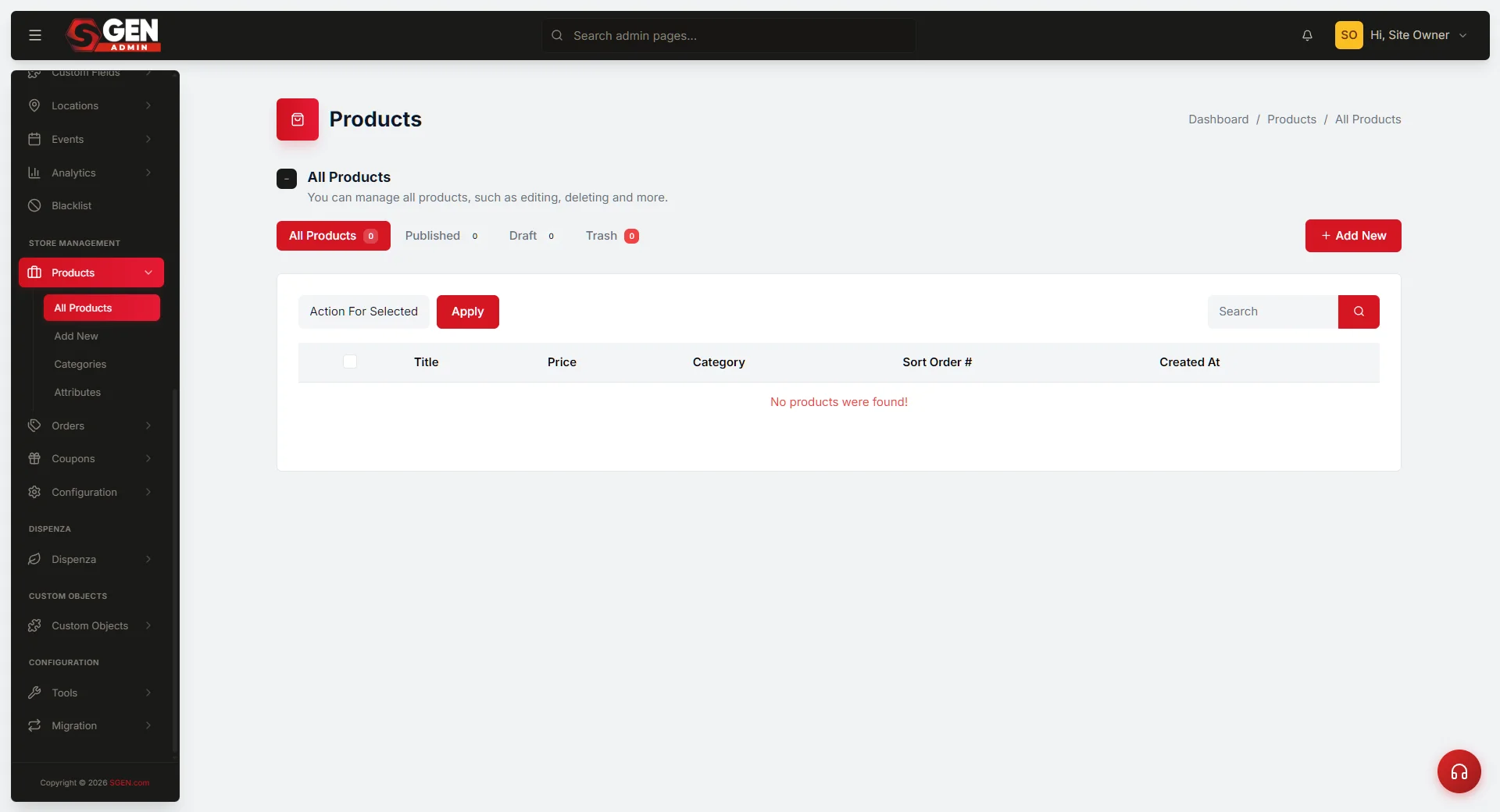 Products > All Products (/sg-admin/ecommerce/products): status pills (Published/Draft/Trash), Title/Price/Category/Sort columns, row actions, bul" loading="lazy" style="width:100%;max-width:900px;height:auto;border-radius:8px;border:1px solid #e5e7eb;display:block;margin:12px 0">
⏱ 60-second answer below · full page ≈ 8 min · skim the bold lead-ins to move faster.
In short. The Products list is one table where every item in your store sits side by side. From here you can filter by status (Published / Draft / Trash), search by title, bulk-move products between statuses, quick-edit a title, slug, status, or sort order without opening the full page, and duplicate a product to launch a variant fast. A catalog audit, a pre-launch publish run, or a seasonal Trash pass each take about 5 minutes here. For price, stock, and variant changes, click through to the full edit page.
On this page: What it is · Audit and filter · Row actions · Bulk-manage · Reference · FAQs
How to see, filter, search, and bulk-manage the products you sell
What is this for?
The Products list is your catalog command station — the one screen where every product in your store sits side by side regardless of status. Its job: let you see everything you sell in one place and handle everyday catalog-management tasks (filtering, searching, bulk-moving, quick-editing) without opening each product's full edit page.
Rows on this screen show the four things you check most often: Title, Price, Category, and Sort Order. Everything else (price, stock, inventory, variants, SEO) waits behind a click into the full edit page.
What it covers
The Products list surfaces every product record in your store across four statuses: Published, Draft, Trash, and the combined All Products view. It covers:
- Reading the catalog — scanning title, price, category, sort order, and creation date for every product at once.
- Filtering and searching — narrowing to a status or finding a product by title.
- Bulk actions — moving multiple products between Published, Draft, and Trash in one click.
- Quick Edit — changing a product's title, slug, status, or sort order inline without a page reload.
- Row actions — View (public page), Edit (full edit page), Duplicate, Quick Edit, Trash.
It does not cover: editing price, stock, inventory, variants, attributes, images, or SEO copy. Those live on the individual product edit page.
Examples
The four status pills across the top carry a live count for each state — a fast at-a-glance health check.
Pre-launch publish run. Click the Published pill and scan down. Every row is what visitors will land on at /products — prices, categories, and sort order visible without opening each product individually.
Swapping a seasonal product. Tick the product's checkbox, pick Move to Draft from the bulk action dropdown, click Apply. The product vanishes from /products instantly; all its reviews, images, and variants stay intact for when you bring it back.
Quick-editing a title typo. Hover a row, click Quick Edit, fix the title, click Update. The row refreshes in place — no full page reload.
Batch launch from Draft. On launch day, tick all draft products, pick Move to Publish, click Apply. All move in one action and appear on /products immediately.
Auditing stale drafts. Click the Draft pill. Tick stale rows, move to Trash, then permanently delete from the Trash pill.
What NOT to use this for
- Do not change prices or stock from this list. Click Edit to open the full edit page where price, stock, inventory, variants, and SEO all live.
- Do not treat Trash as permanent delete. Trash hides the product from your store but keeps it recoverable. Use the Trash pill to see trashed items; pick Delete Permanently from inside Trash for actual removal.
- Do not rely on the search box for SKU lookup. Search matches product titles only, not SKUs or descriptions.
- Do not bulk-delete products with active orders. Permanent deletion removes the product record — past orders keep their line-item text but lose the clickable product link. Move retired SKUs to Draft instead.
- Do not use Quick Edit to change a product type. Switching simple to variable (or vice versa) requires the full edit page. Quick Edit handles title, slug, status, and sort only.
How this connects to other features
- Add or edit a product — + Add New opens the product create form; any row's title or Edit opens the full edit page. See Create a simple product and Create a variable product.
- Categories — the Category column shows each product's primary category. New categories live under Products → Categories — see Manage categories.
- Ecommerce → Configuration — the currency symbol in the Price column comes from your store configuration. Change currency there, not here.
- Public store — Published products appear on
/productsand/product/. Drafts and Trash are hidden from visitors. - Product reports — once you have orders, each product's Edit page shows a View product customers button. See View per-product reports.
- Media — thumbnails come from the Media library; assign them on the product edit page. The Products list doesn't show thumbnails.
- Pages — custom landing pages and products are independent. Link from a page to
/product/to connect them. Renaming a slug breaks existing links — audit landing pages after any slug change. - SEO — each product has its own SEO card on the full Edit page. The slug in the Products list is the same slug that powers the public URL.
- Ecommerce → Orders — move retired products to Draft rather than permanently deleting them if orders reference them.
Before you start
- You are signed in to SGEN as an Administrator or Site Owner.
- Your store currency is set under Ecommerce → Configuration (otherwise the Price column shows a default symbol).
- Optional: at least one category exists under Products → Categories. Products without a category save fine but show an empty Category cell.
Where to go
- Open the left navigation.
- Click Store Management → Products → All Products (or open
/sg-admin/ecommerce/productsdirectly).
Steps — Audit and filter
1. Read the status pills
A row of pills sits at the top of the screen, each with a live count:
- All Products — every product regardless of status.
- Published — products currently visible on your public store.
- Draft — products saved but not yet public.
- Trash — products in the trash; not visible, not sellable.
Glance across the counts. If you expect 10 Published items and see 7, something is worth investigating.
2. Click a pill to narrow the list
Clicking any pill narrows the table to that single status. The pill turns red to show it is active. Click All Products to go back to everything.
3. Search by title
Type part of the title into the Search products.. box and click Search. Results narrow to products whose title contains the search term. Search respects the active pill — click a status pill first to search within that status.
4. Read the Price column
Each row shows price the way a visitor sees it:
- Simple product:
$30.00. - Variable product: a range like
$25.00 – $29.00(lowest to highest variant price). - Product on sale: the original price struck through alongside the sale price in brand color.
5. Read the Sort badge
The Sort column is a colored badge showing catalog position priority:
- Green (
1) — highest priority; leads the catalog. - Yellow (
2–5) — top of list. - Blue (
6–15) — mid-priority. - Purple (
16–20) — lower priority. - Red (
21and above) — far down the catalog.
Use Quick Edit to change sort without opening the full edit page.
Steps — Row actions
Hover any row to reveal five action links under the title:
1. View → public page
Opens the product's public page in a new tab — exactly what a visitor sees.
2. Edit → full edit page
Opens the full product edit page with all tabs (General, Inventory, Shipping, Linked Products, Attributes, Variations, Advanced) and the sidebar (Status, Thumbnail, Categories, Sort). For everything beyond title / slug / status / sort, this is where you go.
3. Duplicate → create a Draft copy
Creates a Draft copy and opens its edit page. The duplicate always starts as Draft regardless of the original's status.
4. Quick Edit → inline title / slug / status / sort
Opens an inline form on the same row with four fields: Title, Slug, Status, and Sort. Click Update and the row re-renders in place — no full page reload.
5. Trash → move to Trash
Moves the product to Trash immediately. It disappears from the active list and your public store. From the Trash pill you can restore or permanently delete.
Steps — Bulk-manage products
1. Check the products you want to act on
Every row has a checkbox. Use the header checkbox to tick or clear every row on the current page.
2. Pick an action from the dropdown
The Bulk Action dropdown sits above the table. Three actions are always available:
- Move to Publish — make selected products active on your public store.
- Move to Draft — hide selected products from the public store without deleting them.
- Move to Trash — move selected products to Trash.
A fourth action, Delete Permanently, appears only when you are on the Trash pill. It removes product rows entirely and cannot be undone.
3. Click Apply
The page reloads reflecting the new state. A success message confirms how many products were updated.
4. Restore from Trash
Click the Trash pill. Tick the rows you want back, pick Move to Publish (or Move to Draft if not ready to go live), and click Apply.
What success looks like
- The table loads with every product as one row, and the pill counts at the top add up correctly.
- Clicking any pill narrows the table immediately; the active pill turns red.
- Typing in the search box and clicking Search narrows results to matching products.
- Ticking rows and applying a bulk action shows a success confirmation; the Trash pill count rises by the number of trashed rows.
- Clicking Edit opens the full edit page. Clicking View opens the public product page. Clicking Quick Edit opens the inline form.
What to do if it does not work
- The list is empty. You haven't created any products yet — click + Add New to start. If filtered to a specific status, click All Products to widen the view.
- A bulk action reports nothing was updated. Make sure at least one row is checked. The header checkbox only affects rows on the current page — act one page at a time for large catalogs.
- Search returns no matches. Search matches titles only, not descriptions or SKUs. Try a shorter query, or click All Products to widen the result set.
- Quick Edit doesn't save. The Slug field enforces uniqueness. If the target slug is already in use, the save fails silently. Verify the row after a slug change to confirm the new value stuck.
- A product I trashed isn't in the Trash pill. Refresh the page. If still missing, a teammate may have permanently deleted it — check Site Tools → Audit log for a
product.delete_permanentlyevent. - The price displays rounded up. If a product saved at $29.99 shows as $30.00 in the Price column, contact support — this is being addressed.
- Stock appears one less than I entered. Contact support — this is being addressed.
- A restored product is in Draft, not Published. Restore always lands in Draft. Tick its checkbox and pick Move to Publish to make it live.
Tips
- Use Quick Edit for the four most common changes. Title, slug, status, and sort order cover most catalog tweaks. Reserve full Edit for price, stock, variants, images, and SEO copy.
- Set Sort once, then leave it alone. Flagship at
1, mid-list at5–10, long-tail at20+. - Duplicate before destructive edits. Publish the new version once it looks right, then Trash the old one.
- Archive seasonal products as Draft, not Trash. Draft preserves all variants, reviews, and order history references.
- Run a monthly catalog audit. A 5-minute pass over the Published tab catches stale pricing and products that should have moved to Draft.
- Train the team on Trash vs Delete Permanently. Trash is reversible; Delete Permanently is not.
Reference
| Column | What it shows |
|---|---|
| Title | Product name; also a link to the full edit page. Row-action links (View · Edit · Duplicate · Quick Edit · Trash) appear on hover. |
| Price | Displayed as the visitor sees it — single price, range (variable), or struck-through original + sale price. |
| Category | Primary category. Set on the product edit page. |
| Sort | Colored badge: green = 1 (leads catalog), yellow = 2–5, blue = 6–15, purple = 16–20, red = 21+. Edit via Quick Edit. |
| Created | Date the product row was created (not the publish date). Duplicates get a fresh timestamp. |
| Bulk action | Effect |
|---|---|
| Move to Publish | Products become visible on /products and /product/ immediately. |
| Move to Draft | Products are hidden from the public store; all data (reviews, variants, images) is preserved. |
| Move to Trash | Products move to the Trash status; reversible via Move to Publish or Move to Draft. |
| Delete Permanently | Trash-tab only. Removes product records irreversibly. Past order line-items keep their text but lose the clickable product link. |
| Quick Edit field | Notes |
|---|---|
| Title | Product name displayed on store and in orders. Safe to rename — order history references product id, not title. |
| Slug | URL path (/product/). Must be unique. A duplicate-slug save fails silently — verify the row after saving. |
| Status | Published / Draft / Trash. Change takes effect immediately on your public store. |
| Sort order | Lower number = higher position on /products. |
FAQs
Q: Can I rename a product without losing its order history? Yes. Order line-items reference the product by id, not title. Rename freely.
Q: Can I bulk-edit prices from this list? No. Price is not a Quick Edit field. Open each product's edit page, or use a CSV product import for large catalogs.
Q: How do I export the product list to a spreadsheet? Use Ecommerce → Reports → Products for a CSV (title, price, category, stock). The Products list itself does not export.
Q: What happens to product reviews when I move a product to Draft? Reviews stay attached. When you move the product back to Published, every review is visible again.
Q: Can two products share the same slug? No. Slug uniqueness is enforced at save time. A duplicate-slug Quick Edit fails silently — always verify the row.
Q: How long do trashed products stay recoverable? Indefinitely. Trash is not auto-purged until a site admin uses Delete Permanently.
Q: Does Duplicate copy product reviews and orders? No. Duplicate copies product configuration only — title, price, description, variants, attributes, SEO. Reviews and orders stay with the original.
Q: Can I assign a product to multiple categories? Yes. Open the product's edit page and pick multiple Categories in the sidebar.
Q: Why doesn't the Sort column let me drag rows? Sort is set per product via Quick Edit or the full edit page. There is no drag-to-reorder on this list.
Q: Where does the "Created" column come from? It is the date the product row was created — not the publish date. Duplicates receive a fresh Created timestamp.
Cross-area considerations
- Products and Orders. Order line-items snapshot product id, title, and price at purchase time. Trashing or permanently deleting a product later does not change historical orders.
- Products and Pages. Custom landing pages can link to
/product/. Renaming a slug breaks that link — audit landing pages after slug changes. - Products and Reports. Per-product reports group sales by product id. Permanently deleted products drop out of new reports but remain in historical ranges as
(deleted product)line items. - Products and Categories. Empty categories still appear in the Categories admin — clean them up under Products → Categories.
- Products and Attributes. Variable products reference global attributes (Size, Color). See Manage attributes.
- Products and Media. Deleting an image from Media does not delete it from the product, but the public store will show a broken image until you replace it on the product edit page.
Performance notes
- The Products list paginates at 20 rows per page. Stores with more than 200 products should use search and status pills to narrow the working set.
- Status pill counts are computed live on every page load. A half-second delay before counts settle is normal on large catalogs.
- Quick Edit, Duplicate, Trash, and Restore all run as inline updates — the row refreshes without a full page reload.
- Bulk actions over 100 rows may take 2–3 seconds. The page reloads when finished with a success message.
Catalog hygiene schedule
A monthly pass keeps the catalog clean and reports meaningful:
- Week 1 — review the Published tab. Confirm flagship products lead the Sort order; archive items that should have moved to Draft.
- Week 2 — open each Variable product's Variations tab. Confirm in-stock counts and pricing for every variant.
- Week 3 — sweep the Draft tab. Decide "still in progress" or "abandoned"; Trash the abandoned ones.
- Week 4 — empty Trash for products older than 60 days with no order references. Confirm via the per-product report before clicking Delete Permanently.
Backup and export
- Use Ecommerce → Reports → Products for a CSV snapshot (id, title, price, stock, category).
- Site-level backups under Site Tools → Backup include the full product table including Trash and Draft items.
- For migration to another SGEN site, use the per-product Export action on the edit page (JSON with full configuration including variants, attributes, and SEO fields).
- Bulk export of every product definition is available via the bulk-action menu — pick Export selected.
Audit history
The audit log captures every product lifecycle event: product created, status flipped, duplicated, permanently deleted, Quick Edit changes, and bulk action submissions with row count and target status. Open Site Tools → Audit log and filter to the Products area.
Next step
- Create a simple product
- Create a variable product with variants
- Manage categories
- Manage attributes
- View per-product reports
Products list row actions
| Row action | What it does |
|---|---|
| View | Opens the public product page |
| Edit | Opens the full product edit page |
| Duplicate | Creates a Draft copy |
| Quick Edit | Inline edit of title, slug, status, sort order (no page reload) |
| Trash | Moves the product to Trash (recoverable) |