
Manage your organization in SG-Dashboard
⏱ ~10 min read · quick answer above the fold · full reference below.
In short. Your organization is the top-level container in SGEN that holds every site, subscription, and team member under one account. The Organization area atdashboard.sgen.com/account-settings/organization/membersis where you invite team members (Owner or Administrator role required), assign roles (Owner / Administrator / Editor), change roles, and remove access. Adding someone to the organization gives them SG-Dashboard access — it does NOT automatically add them to any individual site's admin panel. For per-site access, use that site's/sg-admin/usersarea separately. Both access layers must be managed independently.
On this page: What this is for · Scope · Role definitions · Steps · Examples · Troubleshooting · Reference
How to manage your organization members
What is this for?
The Organization area controls who has access to your SGEN account — and at what level. Use it to invite team members, assign roles, change roles, and revoke access. Organization-level access (SG-Dashboard) is separate from site-level access (each site's /sg-admin area) — adding someone here does not put them inside any individual site's admin panel.
Scope
| In scope | Out of scope |
|---|---|
| Inviting people to the organization | Managing front-end customer accounts (site-level) |
| Assigning and changing account-level roles | Configuring site-specific content permissions |
| Removing or revoking account-level access | Per-site /sg-admin/users management |
| Viewing pending invitations | Billing plan changes |
| Understanding dashboard vs site-admin access | Domain or hosting configuration |
| Per-site access isolation (multi-site accounts) | Custom role creation |
How this connects to other features
- My Invitations — when you send an invitation from the Organization area, the recipient sees it in their own dashboard's My Invitations section.
Pending invitations you have sent are also visible there for tracking. See Manage your invitations.
- Site Manager — Organization manages who belongs to the account.
Site Manager manages the sites themselves. You often need both: add a new team member in Organization, then confirm which site they can reach via Site Manager. See Manage sites in Site Manager.
- SG-Admin → Users — each individual site has its own
/sg-admin/usersarea that controls who can log into that site's admin panel.
Changes in Organization do not automatically ripple into /sg-admin/users. For per-site access, use the site-level Users area. See Manage users on your site.
- Billing → Subscriptions — the number of seats available depends on your plan.
If you hit a seat ceiling when inviting, check SG-Dashboard → Billing → Subscriptions or visit pricing.
Before you start
- Sign in to SG-Dashboard (
dashboard.sgen.com) as the account Owner or an Administrator.
Editors and below cannot manage organization members.
- Know the email address of the person you want to invite — invitations are sent to an email.
- Confirm the role you intend to assign before sending the invitation.
Role definitions are in the reference table below — choose before inviting, because the invitation carries the role.
- If you are near a seat limit on your plan, check
SG-Dashboard → Billing → Subscriptionsfirst.
An invitation may fail if no seats remain.
Where to find it
- Sign in to
dashboard.sgen.com. - Locate the ACCOUNT navigation group in the left sidebar.
- Click Organization (or navigate directly to
dashboard.sgen.com/account-settings/organization/members). - The organization overview loads, showing your current team members and their roles.
Role definitions
SGEN has four fixed roles. Roles at the organization (dashboard) level control access to SG-Dashboard features. Roles at the site level (/sg-admin/users) control access to that site's admin panel. The two role layers are separate — the same person can hold different roles in each.
| Role | What they can do |
|---|---|
| Site Owner | Full control: account settings, billing, all sites, all team management. Only one Owner per account. |
| Administrator | Manages the whole site admin — content, settings, and users — but sits below the Owner on billing and account transfer. |
| Editor | Creates and edits content. Cannot access admin settings, billing, or user management. |
| Customer | A registered front-end visitor account on a site. Not typically an organization-level role. |
Steps
1. Invite a new team member
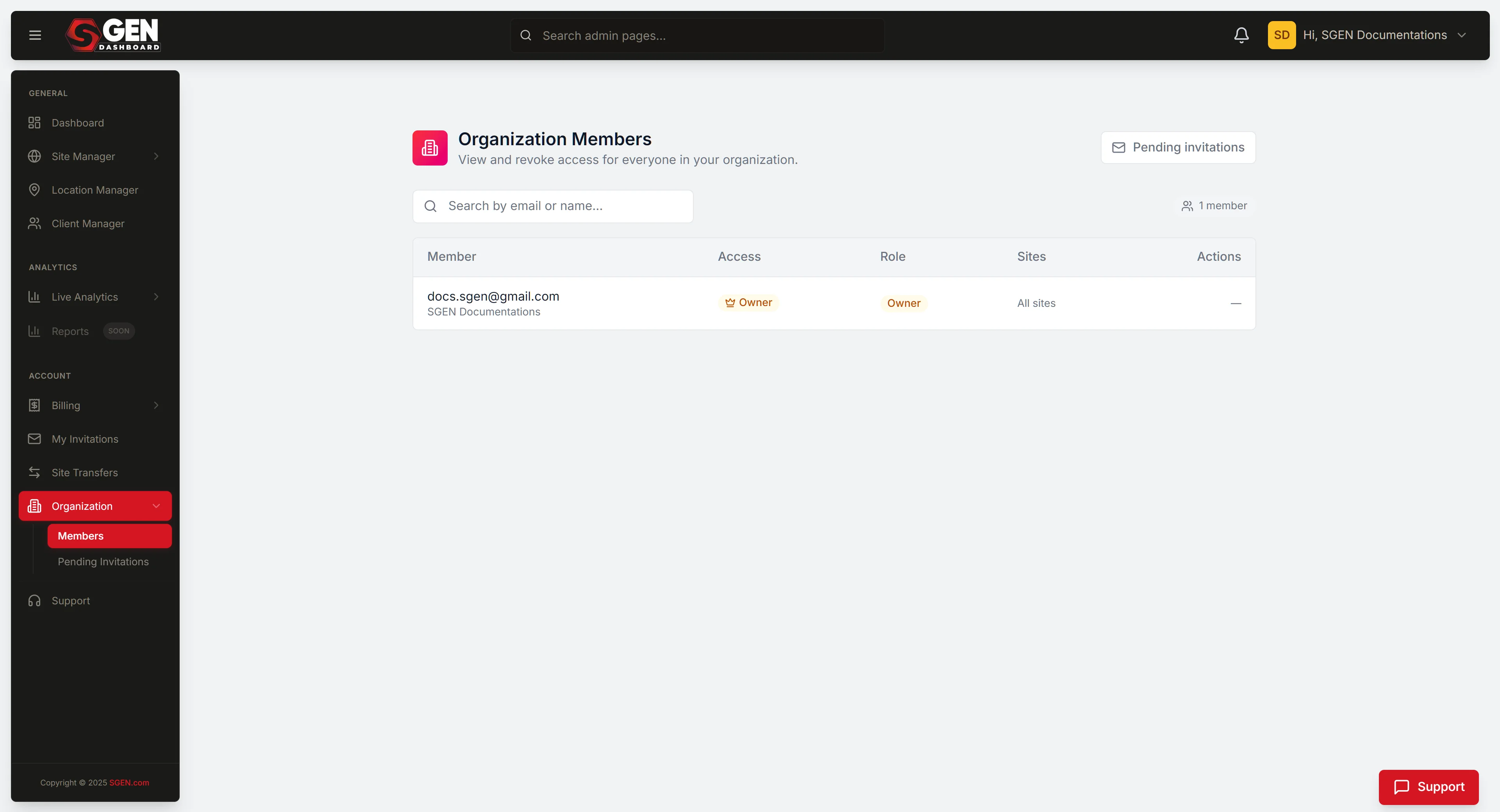
- Open the Organization area (
dashboard.sgen.com/account-settings/organization/members). - Click + Invite Member (top-right corner of the team list).
- Enter the person's email address.
- Select the role to assign: Administrator or Editor.
- Click Send Invitation.
An invitation email is sent to that address. The recipient's name appears in the team list with status Pending until they accept. You can see and cancel pending invitations from the My Invitations area.
2. Check pending invitations
- Open the Organization area or navigate to My Invitations (
dashboard.sgen.com/invitations). - Review the list of invitations you have sent.
- Invitations with status Pending have not yet been accepted.
- To cancel an outstanding invitation, use the Cancel or Revoke action on the row.
The recipient can also see and accept the invitation from their own dashboard's My Invitations section. If they have not received the email, confirm the address you used and ask them to check their spam folder.
3. Change a team member's role
- Open the Organization area (
dashboard.sgen.com/account-settings/organization/members). - Find the team member in the list.
- Hover the row and click Edit Role (or click the member's name to open their profile).
- Select the new role from the dropdown.
- Click Save.
The change takes effect immediately. The member sees updated access on their next page load or login.
4. Remove a team member
- Open the Organization area (
dashboard.sgen.com/account-settings/organization/members). - Find the team member in the list.
- Hover the row and click Remove.
- Confirm the removal in the dialog that appears.
The person loses dashboard access immediately. Their account is not deleted — they retain their SGEN login and any other organizations they belong to. Removing them from the organization does not remove them from individual site /sg-admin/users lists. If you need to revoke site-level access too, do that separately from each affected site's Users area.
5. Accept an invitation (incoming)
- Open the invitation email sent to your address.
- Click the invitation link in the email.
- If you do not have a SGEN account, you will be prompted to create one.
- After signing in or registering, the organization appears in your dashboard.
You can also find incoming invitations at dashboard.sgen.com/invitations (My Invitations). Invitations you have not yet accepted appear there with an Accept button.
What success looks like
- Invited — new member shows in the team list as Pending; invitation appears in My Invitations.
- Accepted — status flips to Active; member can log in to
dashboard.sgen.com. - Role changed — Role column updates immediately; member sees new access on next page load.
- Removed — row disappears; dashboard access revoked immediately. Per-site admin access is unchanged — remove separately from each site's
/sg-admin/usersif needed.
Examples
Example 1: Onboard a new content editor at your agency. Your team brings on a new hire who will write blog posts across three client sites. You open the Organization area, click + Invite Member, enter their work email, and assign the Editor role. They receive the invitation email, create their SGEN account, and the organization appears in their dashboard. The next step is adding them in each relevant site's /sg-admin/users area so they can log into those specific admin panels.
Example 2: Promote an editor to administrator. A team member has been with the organization for six months. You want them to manage users and settings, not just content. You open their row in the Organization list, click Edit Role, change Editor to Administrator, and save. The role column updates immediately. They log out, log back in, and their dashboard now shows the additional management options they previously could not reach.
Example 3: Off-board a contractor at the end of a project. A freelancer's engagement has ended. You remove them from the Organization area — they immediately lose dashboard access. You then visit each site they worked on, open /sg-admin/users, and remove their account there too. Both access layers are now clean. No credentials were shared, no password changes were required. Their SGEN account still exists — they can use it for other organizations they belong to, but they have no view into yours.
Example 4: Give a client access to their own site only. You have built a site for a client and the handoff is ready. You want them to log into their own site's admin — but not into your entire SG-Dashboard. Rather than inviting them to the organization, you add them directly in that site's /sg-admin/users area as an Administrator. They get a site-admin login. They never see your other clients or your billing. The organization member list stays clean.
Example 5: Multi-site account — isolate teams per site. You run three brand sites under one account. Brand A has its own editorial team. Brand B has a different set of writers. Brand C is handled by a third group. None of the teams should see each other's content or settings. You add all team members to the organization at the Editor role. Then, in each site's /sg-admin/users, you add only the relevant team. Brand A's editors cannot see Brand B or Brand C — because they were never added there. The organization-level membership gives them dashboard access; the per-site membership controls what admin panels they can enter.
What to do if it does not work
The Organization item is not in the ACCOUNT nav group. Confirm you are signed in as the account Owner or Administrator. Editors do not see the Organization management area. If you believe your role should give you access, ask the account Owner to verify your role.
The invitation email was not received. Confirm the email address entered is correct. Ask the recipient to check their spam or junk folder. If the problem persists, cancel the pending invitation, then re-send with the correct address.
The invitation link in the email does not work. Invitation links expire after a set period. Cancel the existing pending invitation in My Invitations and send a new one.
The seat limit was reached when trying to invite. Your plan has a cap on the number of organization members. Open SG-Dashboard → Billing → Subscriptions to review your current limit. Remove inactive members first if there are seats held by people who no longer need access. Upgrade your plan if more seats are needed.
A removed member still has access to a site's admin. Removing from the organization revokes dashboard access only. Open that site's /sg-admin/users area and remove the person there separately.
An existing member's role change did not take effect. Ask the member to sign out and sign back in. Role updates are applied at authentication time. If the problem persists, contact SGEN support.
Reference — organization roles
| Role | Dashboard access | Billing | Team management | Site admin access |
|---|---|---|---|---|
| Owner | Full | Yes | Yes | Yes (all sites) |
| Administrator | Full | No | Yes | Yes (assigned sites) |
| Editor | Limited | No | No | Only if added per-site |
| Customer | None | No | No | No |
Roles at the organization level and roles at the site level (/sg-admin/users) are separate. A person can be an Administrator at the dashboard level and an Editor at a specific site, or vice versa.
FAQs
Q: How many team members can I have? Seat limits depend on your plan. Check SG-Dashboard → Billing → Subscriptions or visit pricing for your current limit. Upgrading your plan or exploring an Enterprise arrangement are the options if you need more seats.
Q: Can I transfer ownership of the account? Ownership transfer cannot be done via the standard Edit Role form. Contact SGEN support if you need a full ownership transfer.
Q: What does an Editor see in the dashboard? Editors can see the sites list but cannot access billing, team management, or account settings. They can only enter a site's admin panel if they are also added in that site's /sg-admin/users area.
Q: We are an agency — how do we keep client sites separate? Use per-site /sg-admin/users to isolate access per site. The Client Manager area (dashboard.sgen.com/clients) is designed for agencies managing many client sites. See Manage clients in Client Manager.
Q: Can I re-invite someone after removing them? Yes. Removing someone does not delete their SGEN account. You can invite the same email address again at any time to create a fresh membership.
Related reading
- Manage your invitations — view, accept, and cancel pending invitations from the dashboard
- Manage sites in Site Manager — control which sites are live, staging, and active in your account
- Manage users on your site — manage site-level access in the
/sg-admin/usersarea
Organization roles
| Role | Dashboard access | Billing | Team management | Site admin access |
|---|---|---|---|---|
| Owner | Full | Yes | Yes | Yes (all sites) |
| Administrator | Full | No | Yes | Yes (assigned sites) |
| Editor | Limited | No | No | Only if added per-site |
| Customer | None | No | No | No |