
Manage sites in Site Manager
⏱ ~10 min read · quick answer above the fold · full reference below.
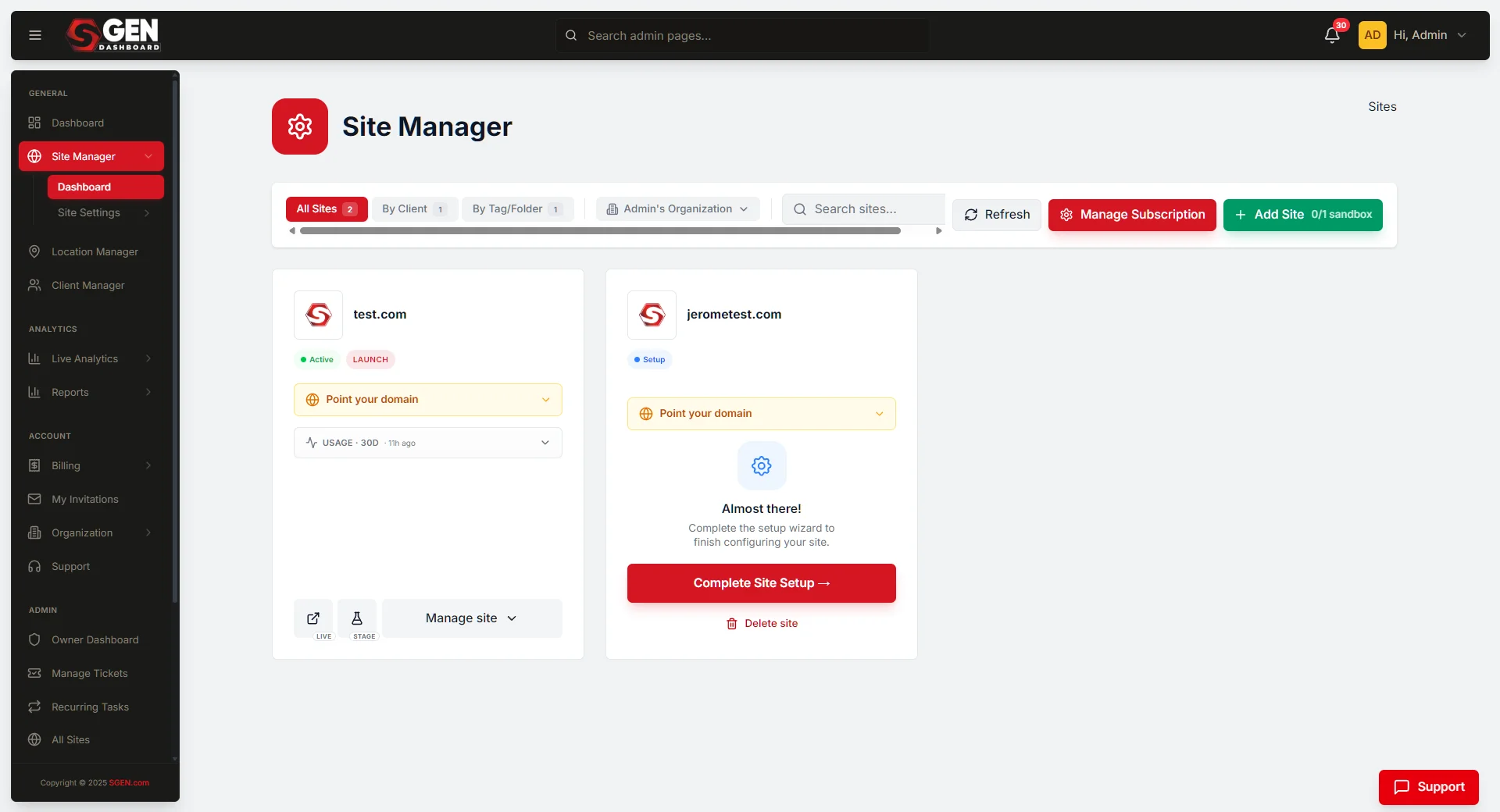
In short. Site Manager lives at dashboard.sgen.com/sites under the GENERAL navigation group. Each site on your account appears as a card showing its name, environment badges (ACTIVE / SANDBOX), 30-day usage for Bandwidth, Cache Hit, and Storage, and four action buttons: Publish (pushes live), LIVE (opens production in a new tab), STAGE (opens staging in a new tab), and Manage site (dropdown to SG-Admin and SG-Builder). Toggle the Prod | Stage switch on the usage panel to compare environment figures. Click Publish only when you are ready to push — LIVE and STAGE are navigation shortcuts only, not publish triggers.On this page: What this is for · Scope · Steps · Examples · Troubleshooting · Reference
What is this for?
Site Manager (dashboard.sgen.com/sites) is the screen inside SG-Dashboard where every site on your account appears as a card — one login, all your sites.
Each card shows the site's logo, name, environment badges (ACTIVE / SANDBOX), and three 30-day usage metrics — Bandwidth, Cache Hit, and Storage — each shown against your plan quota. A Prod | Stage toggle switches the figures between production and staging without leaving the card.
The four action buttons sit directly on the card face: Publish (green — pushes a live publish), LIVE (opens production in a new tab), STAGE (opens staging in a new tab), and Manage site (dropdown to SG-Admin and SG-Builder).
Site Manager belongs to SG-Dashboard, the multi-site control center — not to any individual site's admin panel.
Scope
| In scope | Out of scope |
|---|---|
| Viewing and reading the site card list | Editing page content or site design |
| Checking 30-day Bandwidth, Cache Hit, and Storage usage | Real-time traffic monitoring |
| Toggling between Prod and Stage usage figures | Managing user roles or team access |
| Publishing the production site | Per-site billing configuration |
| Opening the production or staging URL | Creating or deleting sites |
| Accessing SG-Admin and SG-Builder from the Manage site dropdown | Account-level team management |
Examples
Example 1: Confirm a publish went live. Open Site Manager, find the site card, click LIVE — the production site opens in a new tab for instant verification.
Example 2: Check bandwidth headroom before a campaign. Toggle the usage panel to Prod, read Bandwidth against the quota. If headroom looks thin, open SG-Dashboard → Billing → Subscriptions before you launch.
Example 3: Share the staging URL with a client. Toggle to Stage, click STAGE — the staging URL opens in a new tab. Copy it and send it directly; no hunting for the subdomain.
What NOT to use this for
- Editing content or design. Site Manager is a control panel, not an editor. For content edits use SG-Admin; for layout use SG-Builder — both accessible from Manage site.
- Real-time traffic monitoring. The usage panel shows 30-day rolling totals on a pipeline cadence, not live counters. Use the analytics tools inside your site's admin for live data.
- Publishing via LIVE or STAGE. Those buttons are navigation shortcuts — they open the URL in a new tab. Only the Publish button pushes a new live version.
- User or team management. Per-site user roles live in SG-Admin → Users; account-level team management lives in SG-Dashboard → Team.
How this connects to other features
- Location Manager — lives in the same GENERAL group. Site Manager = site controls; Location Manager = account-level address data. Full detail: Manage locations in Location Manager.
- Billing → Subscriptions — the quota denominators in the usage panel (e.g. 1.00 GB) are set by your plan. If a meter is approaching its limit, open Billing → Subscriptions or visit pricing before you hit the cap.
- SG-Admin and SG-Builder — both are one click away via the Manage site dropdown. Site Manager is the launchpad; per-site work happens inside those surfaces.
Before you start
- Sign in to SG-Dashboard (
dashboard.sgen.com) as a site admin or account owner.
Editor-role and below may not see Site Manager. If the menu item is missing from the GENERAL group, ask your account admin to confirm your role.
- Confirm you are on the correct account context.
If you manage multiple client accounts in SG-Dashboard, verify the account switcher (if present) is showing the right account before acting.
- Know whether you intend to act on the production or staging environment.
The Prod | Stage toggle on the usage panel and the LIVE / STAGE buttons are distinct. Make sure you are reading and acting on the right environment.
Where to find it
- Sign in to
dashboard.sgen.com. - In the left navigation, find the GENERAL group.
- Click Site Manager (or navigate directly to
dashboard.sgen.com/sites). - The site card list loads.
Steps
1. Read your site's current usage
- Open Site Manager (
dashboard.sgen.com/sites). - Find your site's card in the list.
- Locate the USAGE / 30D section on the card.
- Read the three metrics — Bandwidth, Cache Hit, and Storage — each showing current use against the plan quota.
- Toggle Prod | Stage to switch between production and staging environment figures.
The usage panel shows 30-day rolling totals for each environment independently. Bandwidth measures data transferred to visitors. Cache Hit measures data served from the CDN cache layer. Storage measures the total disk footprint of the site's files. On Sandbox tier, each metric has a 1.00 GB quota.
2. Toggle between Prod and Stage usage
- Open Site Manager (
dashboard.sgen.com/sites). - On the site card, find the Prod | Stage toggle in the USAGE / 30D section.
- Click Stage to view the staging environment's 30-day figures.
- Click Prod to return to production figures.
Production and staging environments have separate bandwidth counters. Storage is shared between both environments from the same file pool; the storage figure reflects the total for the site, not per-environment.
3. Publish a new live version
- Open Site Manager (
dashboard.sgen.com/sites). - Find your site's card.
- Click the green Publish button on the card.
- Wait for the publish confirmation.
The Publish button pushes your current content state to the production environment. Use it after completing content edits in SG-Admin or layout changes in SG-Builder.
4. Open the production or staging site
- Open Site Manager (
dashboard.sgen.com/sites). - Find your site's card.
- Click LIVE to open the production URL in a new browser tab.
Click STAGE to open the staging URL in a new browser tab.
Both buttons navigate away from the dashboard to the respective environment. Neither button triggers a publish. LIVE opens whatever is currently deployed to production; STAGE opens the current staging state.
5. Access Manage site options
- Open Site Manager (
dashboard.sgen.com/sites). - Find your site's card.
- Click the Manage site dropdown button on the card.
- Select the option you need from the menu that appears.
The Manage site dropdown contains navigation shortcuts to per-site tools (for example, SG-Admin and SG-Builder). The exact list of dropdown items requires live verification at dashboard.sgen.com/sites.
What success looks like
After opening Site Manager:
- One card appears per site on your account.
- Each card shows the site logo and name.
- The ACTIVE and SANDBOX badges are visible on each card.
- The USAGE / 30D section shows three metrics (Bandwidth, Cache Hit, Storage) with quota denominators.
- The Prod | Stage toggle responds and the metric values update when clicked.
- The Publish, LIVE, STAGE, and Manage site controls are visible and accessible on each card.
After clicking Publish:
- A confirmation message appears indicating the publish completed.
- Clicking LIVE immediately after opens the production site with the newly published state.
After toggling from Prod to Stage:
- All three metric figures change to reflect the staging environment's 30-day usage.
- The active toggle state is visually indicated.
What to do if it does not work
Site Manager is not visible in the GENERAL nav group. Confirm you are signed in as a site admin or account owner. Editor-level roles and below may not have access to Site Manager. Ask your account admin to check your role. If you are on the correct role and the item is still missing, try a hard refresh (Ctrl+Shift+R on Windows, Cmd+Shift+R on Mac).
The site card shows zero usage figures even though the site is active. Usage figures are 30-day rolling totals computed on a pipeline cadence — they do not update in real time. A brand-new site, or a site with very low traffic, may show 0.00 GB legitimately. If you expect higher figures and are seeing zero, wait until the next pipeline update and refresh.
The Prod | Stage toggle does nothing or shows the same values for both environments. If both environments show identical figures, it may indicate that the staging environment has not been used in the current 30-day window. Staging traffic is counted separately; zero usage on Stage is normal for sites where staging is rarely visited.
The Publish button is greyed out or unresponsive. Confirm your role allows publishing. Account owners and site admins can publish; lower roles may not. If you have the correct role and the button remains unresponsive, refresh the page and try again. If the issue persists, contact SGEN support with the URL from your address bar.
Clicking LIVE or STAGE opens a blank page or error. The production or staging environment may be in a state that prevents rendering — for example, a failed previous publish or a configuration error. Open Manage site and navigate to SG-Admin to check for any error notices on the admin dashboard. Contact SGEN support if no obvious cause is visible.
Site Manager shows the wrong account's sites. If you manage multiple client accounts, check whether an account switcher is available at the top of SG-Dashboard. Select the correct account and refresh Site Manager.
Tips
- Toggle Prod/Stage before every publish. A quick bandwidth check before you push avoids surprises if a traffic spike pushes you over quota mid-month.
- Bookmark
dashboard.sgen.com/sites. It's the fastest single screen for Publish, LIVE, STAGE, and Manage site — no nav required. - Click STAGE before Publish. What you see on staging is what goes live.
- Use Manage site instead of typing a URL. One click from Site Manager drops you straight into SG-Admin.
FAQs
Q: What is the difference between Site Manager and SG-Dashboard? SG-Dashboard is the entire multi-site control center at dashboard.sgen.com. Site Manager is one screen inside it — the site card list and per-site actions.
Q: Who can access Site Manager? Site admin or account owner. Roles below site admin may not see the menu item — ask your account admin to verify your role if it is missing.
Q: Is Site Manager included in my plan? Yes — it is part of SG-Dashboard, included on every SGEN plan. Quota values displayed on cards vary by tier; see SG-Dashboard → Billing → Subscriptions for your plan's specifics.
Q: What do the ACTIVE and SANDBOX badges mean? ACTIVE — the site is live and serving traffic. SANDBOX — the site is on a Sandbox plan tier, with a 1.00 GB quota per metric.
Q: Can I have multiple sites in Site Manager? Yes — one card per site on your account. The number of sites available depends on your plan.
Q: Does Publish affect staging? No. Publish pushes to production only; staging remains unchanged.
Q: Are bandwidth and storage limits shared between Prod and Stage? Bandwidth is separate — each environment has its own 30-day total. Storage is shared: both environments draw from the same file pool, so the Storage figure is site-wide.
Reference — site card elements
| Element | What it shows | Notes | |
|---|---|---|---|
| Site logo | The site's branding image | Pulled from the site's identity settings | |
| Site name | The site's display name | Configured in SG-Admin settings | |
| ACTIVE badge | Site is currently active | Verified from app tree | |
| SANDBOX badge | Site is on Sandbox plan tier | Verified from app tree | |
| USAGE / 30D — Bandwidth | Data transferred to visitors in the last 30 days | Prod and Stage tracked separately | |
| USAGE / 30D — Cache Hit | Data served from CDN cache in the last 30 days | Prod and Stage tracked separately | |
| USAGE / 30D — Storage | Total disk usage for the site | Shared between Prod and Stage | |
| Prod \ | Stage toggle | Switches the three usage metrics between environments | Toggle state is per-card, not global |
| Publish button (green) | Pushes current state to the production environment | Requires site admin role or above | |
| LIVE button | Opens the production URL in a new tab | Navigation shortcut — does not publish | |
| STAGE button | Opens the staging URL in a new tab | Navigation shortcut — does not publish | |
| Manage site dropdown | Opens shortcuts to per-site tools | Contents require live verification |
Reference — usage metrics
| Metric | Counted for | Quota (Sandbox tier) | Reset cadence |
|---|---|---|---|
| Bandwidth | Prod environment | 1.00 GB | 30-day rolling |
| Bandwidth | Stage environment | 1.00 GB | 30-day rolling |
| Cache Hit | Prod environment | 1.00 GB | 30-day rolling |
| Cache Hit | Stage environment | 1.00 GB | 30-day rolling |
| Storage | Whole site (Prod + Stage combined) | 1.00 GB | Continuous (not rolling) |
Related reading
- Manage locations in Location Manager — manage account-level location records from the same GENERAL group in SG-Dashboard
- Manage billing and subscriptions — review plan quotas, upgrade bandwidth or storage, manage your live-site count
Site card action buttons
Button What it does Publish (green) Pushes current state to the production environment LIVE Opens the production URL in a new tab (navigation only, does not publish) STAGE Opens the staging URL in a new tab (navigation only, does not publish) Manage site Dropdown to per-site tools (SG-Admin, SG-Builder)