
Manage your invitations in SG-Dashboard
⏱ ~4 min read · quick answer above the fold · full reference below.
In short. My Invitations lives at dashboard.sgen.com/account-settings/invitations. Every pending invitation sent to your email appears here — click Accept to join the site or organization, or Decline to remove it without joining. You do not need the original email; this list is the authoritative source. Once accepted, the site appears in your SG-Dashboard navigation. Declining is reversible — the sender can re-invite at any time.On this page: What this is for · Scope · Steps · Examples · Troubleshooting · Reference
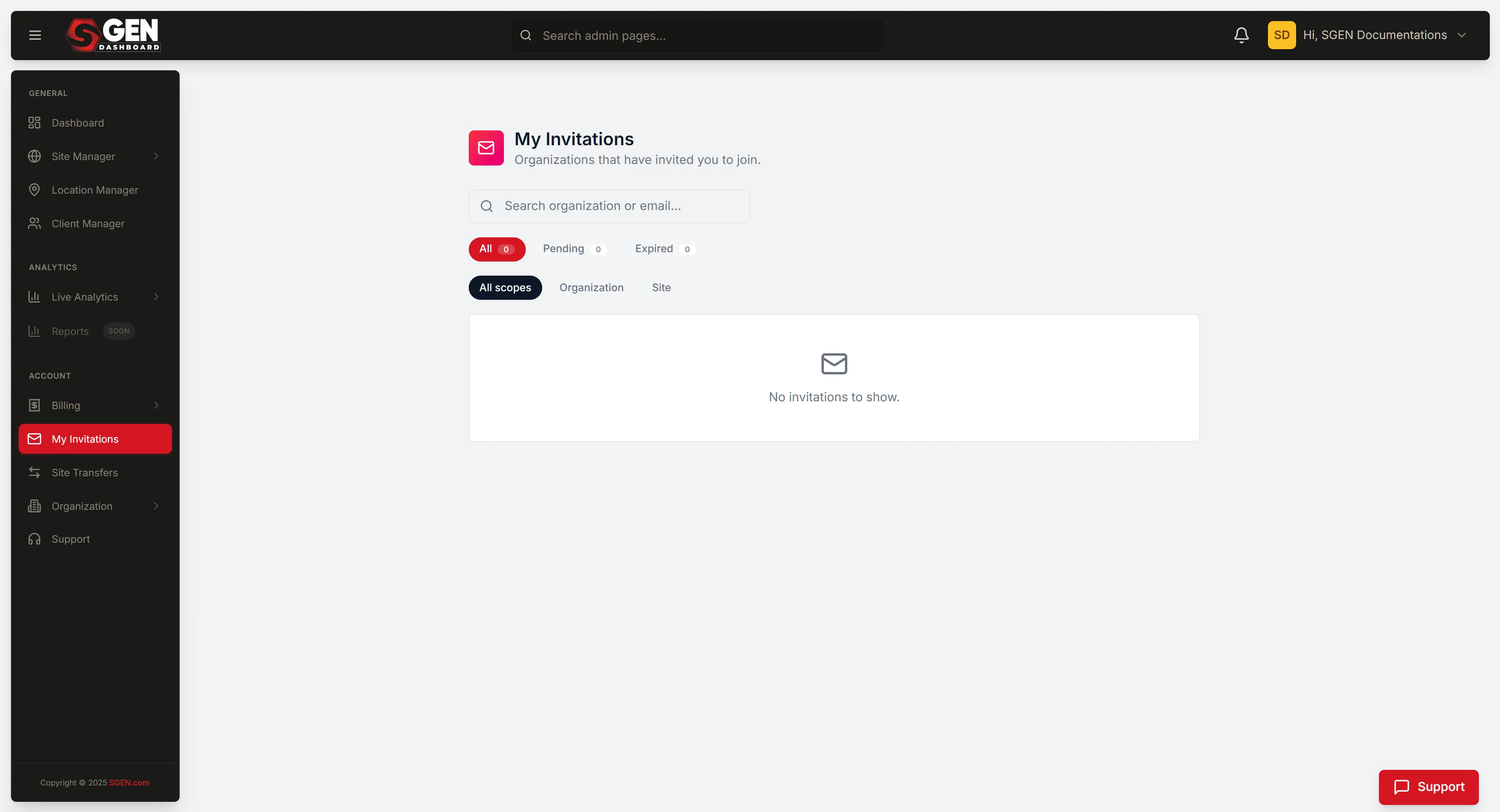
Your pending invitations — accept or decline from one screen
My Invitations is the screen inside SG-Dashboard where every pending invitation waiting for your response lives, under your account settings at dashboard.sgen.com/account-settings/invitations.
What is this for?
My Invitations is the single place where incoming invitations to SGEN sites and organizations land. When an account owner adds your email to their team, SGEN sends an email and adds a row here — you can act on it either way.
Each invitation row shows:
- Who sent it — the account owner or admin who added your email.
- What you are being invited to — a specific site or organization.
- Your options — Accept or Decline.
Once you accept, the site or organization appears in your SG-Dashboard. Declining removes the row without joining; the sender can re-invite at any time.
My Invitations is account-level — it is not specific to any one site.
Scope
| In scope | Out of scope |
|---|---|
| Viewing your pending invitations | Sending invitations to others |
| Accepting or declining an invitation | Managing team members on a site you own |
| Checking whether an invitation is still pending | Editing your own account profile |
| Troubleshooting a missing invitation | Revoking an invitation you sent |
How this connects to other features
- SG-Dashboard → Account Settings — My Invitations lives here alongside profile, password, and notification screens.
- SG-Dashboard → Site Manager — after you accept, the new site appears in Site Manager. Full detail: Manage locations in Location Manager.
- Inviting others — outbound invitations come from the site-level admin, not from here. Full detail: Manage every user on your site.
- Organization invitations — accepting an organization invitation grants access to all sites the organization includes. Organization settings are managed by the organization's owner.
What NOT to use this for
- Sending an invitation. My Invitations is a receiving inbox only. Send from the site-level admin or organization settings.
- Managing your role after joining. Once accepted, role adjustments are handled by the site's owner.
- Accessing sites you have already joined. Accepted sites appear in your SG-Dashboard navigation, not here.
Invitations do not expire on a fixed schedule — a row sitting in your list for weeks is still actionable until you act or the sender withdraws it.
Before you start
- Sign in to SG-Dashboard (
dashboard.sgen.com) with the account that received the invitation. The invitation is tied to the email address the inviting party used — if you manage multiple SGEN accounts, confirm you are in the right one. - No special role or plan is required. My Invitations is available to any signed-in SGEN account holder.
Where to go
- Sign in to
dashboard.sgen.com. - Open Account Settings (your profile menu or the dedicated settings link).
- Click My Invitations — or navigate directly to
dashboard.sgen.com/account-settings/invitations. - The invitations list loads.
The invitations list — what you see
Each row represents one invitation and shows the inviting party, the site or organization name, the invitation date, and Accept / Decline buttons. Status tabs (All, Pending, Accepted, Declined) let you filter the list.
If the list is empty, no invitations are currently pending against your account.
Steps
1. Accept an invitation
- Open My Invitations (
dashboard.sgen.com/account-settings/invitations). - Find the row for the site or organization you want to join.
- Click Accept on that row.
- Confirm the action if a prompt appears.
The site or organization appears in your SG-Dashboard navigation. The invitation row moves out of the Pending tab.
2. Decline an invitation
- Open My Invitations (
dashboard.sgen.com/account-settings/invitations). - Find the row for the site or organization you want to decline.
- Click Decline on that row.
- Confirm the action if a prompt appears.
The invitation is removed from your list. You are not added to the site or organization. The sender can re-invite at any time.
3. Check the status of an invitation
- Open My Invitations (
dashboard.sgen.com/account-settings/invitations). - Review the status column or use the tab filters — Pending rows are awaiting your response; Accepted rows are already processed.
- If an expected invitation has not arrived, ask the sender to confirm the email address and that they have not withdrawn it, then refresh the page.
4. Handle an empty invitations list
If My Invitations shows no rows, no invitations are currently pending. The sender may have withdrawn the invitation, or it may have been sent to a different email address. Ask the sender to confirm and resend if needed.
What success looks like
| Outcome | What you see |
|---|---|
| Invitation accepted | Row moves to Accepted tab; site appears in SG-Dashboard navigation |
| Invitation declined | Row removed from Pending tab; your existing access is unaffected |
| Pending list empty | All invitations have been accepted, declined, or withdrawn |
Examples
Example 1: Agency adds you to a client site. Your agency contact invites your SGEN account email. Open My Invitations, find the pending row, and click Accept. The client site appears in your navigation immediately — no separate login needed.
Example 2: Multiple invitations at once. Your new employer adds you to three sites: a live site, a staging environment, and the company's brand organization. Open My Invitations, review all three rows, and accept each. All three appear in your dashboard without a specific order required.
Example 3: Unrecognized sender. A row appears from an email you do not recognize for a site you have never heard of. Verify through a separate channel — not through SGEN. If you cannot confirm the origin, click Decline. Declining does not affect any sites you already belong to.
Example 4: Accepted but site is missing. You accepted an invitation but the site is not visible in SG-Dashboard. Sign out and sign back in to refresh the session. If it still does not appear, contact the site's owner to confirm your account was added at the correct access level.
What to do if it does not work
My Invitations is not appearing in Account Settings. Navigate directly to dashboard.sgen.com/account-settings/invitations. If that redirects to the login screen, sign in and try again.
I received an invitation email but see nothing in My Invitations. Confirm you are signed in to the account matching the email address the invitation was sent to. If you manage multiple SGEN accounts, switch to the correct one and refresh.
The invitation email never arrived. Open My Invitations directly — invitations appear in the list regardless of email delivery. If no row appears, ask the sender to confirm the email address and resend. Check your spam folder as a secondary step.
An expected invitation is not in the list. The sender may have withdrawn it before you responded. Ask them to confirm and resend if needed, then refresh the page.
I accepted but the site is not showing in my dashboard. Sign out and sign back in. If the site still does not appear, contact the site's owner to verify your account is correctly added.
The Accept or Decline buttons are not responding. Try a hard reload (Ctrl+Shift+R / Cmd+Shift+R). If they remain unresponsive, contact SGEN support and include the URL from your browser address bar.
I am a site admin and cannot find My Invitations. My Invitations lives under your personal account settings, not under a site's admin panel. Navigate to dashboard.sgen.com/account-settings/invitations, not to /sg-admin/ on any site.
Tips
- Verify the sender before accepting. Each row names the person who sent the invitation. If the sender looks unfamiliar, confirm through a separate channel before accepting.
- Declining is reversible. The sender can re-invite at any time. Decline when you need more time to confirm legitimacy.
- Refresh after a sender re-sends. The list updates on page load — reload before concluding an invitation is missing.
- Check the right account. An invitation to
your-work-email@domain.comonly appears when signed in to that account. Switch accounts rather than asking for a re-send.
FAQs
Q: Who can access My Invitations? Any signed-in SGEN account holder. No special plan or role required.
Q: Is My Invitations included in my plan? Yes — it is part of the Foundation Pack included on every plan. There is nothing extra to add. See pricing or SG-Dashboard → Billing → Subscriptions for your plan details.
Q: Can I accept without receiving the email? Yes. Open dashboard.sgen.com/account-settings/invitations directly — invitations appear regardless of email delivery.
Q: What if I decline by mistake? Contact the sender and ask them to resend. There is no undo from your side.
Q: What is the difference between My Invitations and Site Manager? My Invitations shows incoming invitations you have not yet acted on. Site Manager shows sites you have already joined. Once accepted, the site moves into your navigation — the two do not overlap.
Q: Does accepting give me admin access? The role the inviter specified determines your access level. If you need a different role, contact the site's owner after joining.
Reference — invitation status values
| Status | What it means | Visible in |
|---|---|---|
| Pending | Waiting for your response | Pending tab, All tab |
| Accepted | You joined the site or organization | Accepted tab (if shown), All tab |
| Declined | You declined; not added to the team | All tab (if retained) |
Next step
- Manage every user on your site — if you are a site owner and want to invite others to your team
- Add or edit a user — manage an existing team member's profile and role after they join
- Manage locations in Location Manager — another SG-Dashboard account-level management task
Invitation status values
| Status | What it means | Visible in |
|---|---|---|
| Pending | Waiting for your response | Pending tab, All tab |
| Accepted | You joined the site or organization | Accepted tab, All tab |
| Declined | You declined; not added to the team | All tab |