
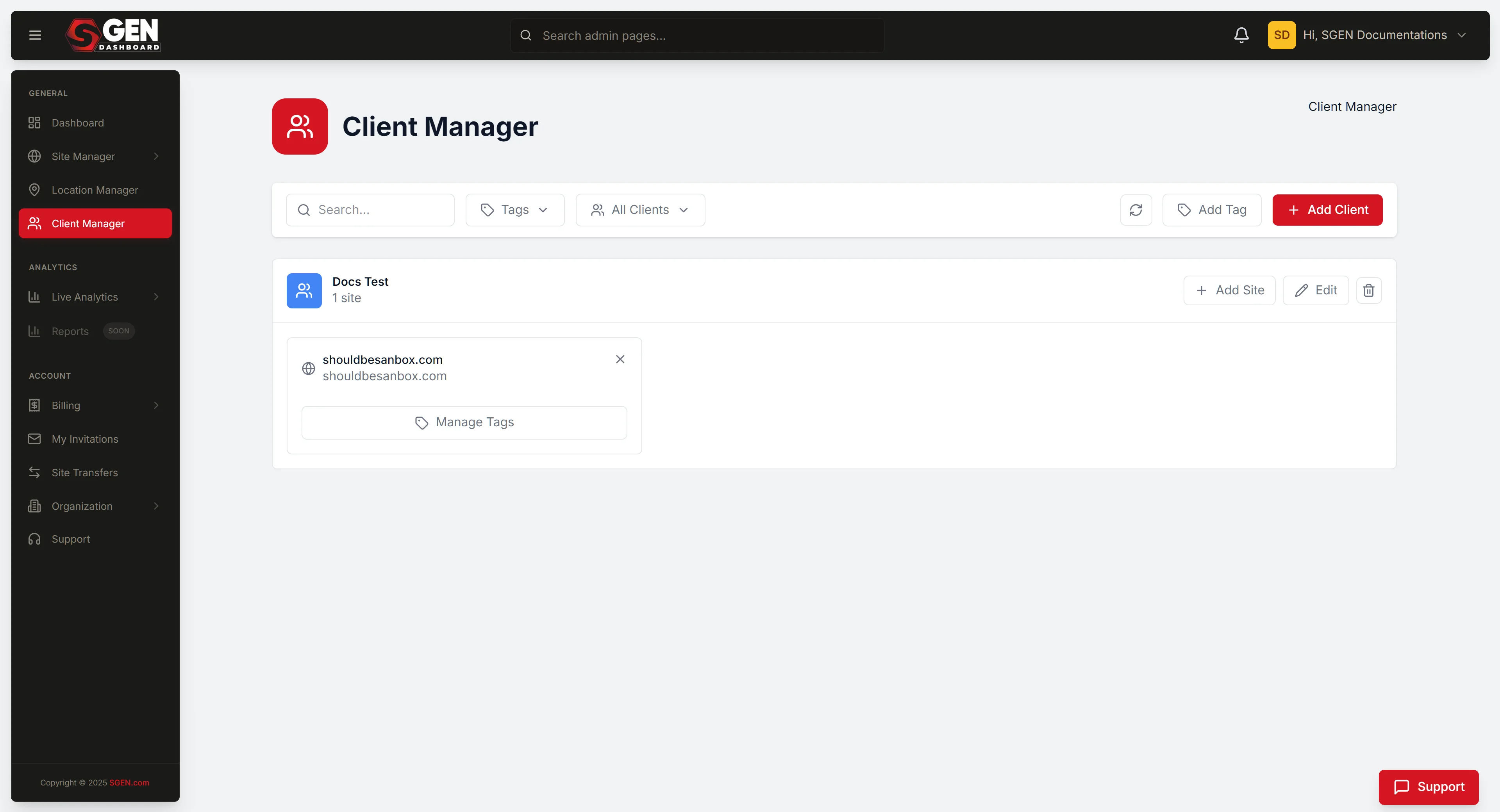
Manage clients in Client Manager
⏱ ~9 min read · quick answer above the fold · full reference below.
In short. Client Manager lives at dashboard.sgen.com/clients under the GENERAL navigation group in SG-Dashboard. Each row in the list is one client account — click Open to switch into that client's context (no separate login needed), or Manage to change the account status between Active and Inactive. Setting a client Inactive preserves all their site data; it just removes them from the Active tab. Use Client Manager whenever you need to onboard a new client, jump into a client's admin to diagnose an issue, or mark a completed engagement inactive. All changes to actual site content happen inside the client's site admin after you switch context — Client Manager is the door, not the room.On this page: What this is for · The list view · Steps · Examples · Troubleshooting · FAQs
What is this for?
Client Manager is the account-level screen where each row represents one client relationship. Each entry is a grouping container — behind it sits the client's site (or sites), their own admin context, and any modules active on their account. Client Manager gives you access to all of those without requiring a separate login credential per client.
You reach for Client Manager at the start of an engagement when onboarding a new client. You return when a client calls with a question and you need to drop into their admin context fast. You come back again when a client's project is finished and you need to offboard or archive that context. For agencies running ten, twenty, or fifty client sites, Client Manager is the single surface that holds the map of all of them.
Client Manager belongs to SG-Dashboard, not to any individual site's admin. That distinction matters: Client Manager is an account-level organizing layer. Changes to a client record here affect the grouping and access structure. Changes to a client's actual site content are made inside that site's own admin once you switch context.
Scope
| In scope | Out of scope |
|---|---|
| Viewing the list of client accounts on your dashboard | Managing content inside any individual client's site |
| Switching into a specific client's site context | Editing a client site's theme or pages |
| Understanding which clients are active on your account | Billing management per client |
| Navigating back to your own account after switching | Setting up or configuring Module Suites for a client |
| Checking access and role requirements | Creating sub-admin users inside a client's site |
| Troubleshooting Client Manager access issues | Google Business Profile or external integrations |
How this connects to other features
- SG-Dashboard → Site Manager — Site Manager handles the staging vs live switch and the top-level account context. Use Site Manager to orient first, then Client Manager to navigate into a client. The two tools operate at different layers: Site Manager is about which instance you're operating on; Client Manager is about which client relationship you're stepping into.
- SG-Dashboard → Location Manager — once inside a client context, Location Manager (
/locations) manages any physical-address records attached to that client's account. See Manage locations in Location Manager. - Billing → Subscriptions — your plan determines how many client accounts you can group and whether advanced agency features are available. Check
SG-Dashboard → Billing → Subscriptionsorpricingif you see a capacity or access notice when adding a client. - Modules Config — some capabilities within a client's account depend on Module Suites being active on that account's plan. If a feature you expect is missing after switching into a client context, check that client's Modules Config, not your own.
What NOT to use this for
- Do not use Client Manager to edit client site content. Client Manager gives you the route into a client's context. The actual editing — pages, blog posts, product listings, media — happens inside that client's site admin after you switch context. Client Manager is the door, not the room.
- Do not use Client Manager to manage your own account's sites. If you are working on your own site (not a client's), use Site Manager or navigate directly to your site admin.
- Do not confuse Client Manager with a client-facing portal. Clients do not log in through Client Manager. Client Manager is an agency-side tool. Your clients access their own sites through their own login credentials.
- Do not rely on Client Manager as a billing or invoicing surface. Account-level billing lives in
SG-Dashboard → Billing. Client Manager does not show payment status, invoice history, or subscription details. - Do not use Client Manager to assign admin roles inside a client's site. User roles and permissions inside any given site are managed from within that site's admin panel, not from Client Manager.
Before you start
- Sign in to SG-Dashboard (
dashboard.sgen.com) as a site admin or account owner. If you manage clients on behalf of an agency, confirm you are signed in under the agency account, not a personal account. - Confirm your role includes access to Client Manager. Editor-level and below may not see the Client Manager menu item. If the item is missing, ask your account admin to verify your role and plan.
- Know which client you need to access before opening the list. Having the client name ready speeds up navigation significantly on accounts with many clients.
Where to find it
- Sign in to
dashboard.sgen.com. - In the left navigation, find the GENERAL group.
- Click Client Manager (or navigate directly to
dashboard.sgen.com/clients). - The client list loads.
The list view — what you see
The list view is the central screen for everything in Client Manager. From here you can see every client account grouped or listed, scan names, and navigate into any individual client's context.
The list carries:
- Status tabs — filtering options to view active, inactive, or all client accounts.
- Search or filter — locate a specific client by name or identifier.
- Row actions — options to access or manage each listed client account.
- Client name and site details — each row shows the client name and the site(s) associated with that account.
Steps
1. Open Client Manager
- Sign in to
dashboard.sgen.com. - In the left navigation under the GENERAL group, click Client Manager.
- The client list loads at
dashboard.sgen.com/clients. - Scan the list for the client you need.
If the GENERAL group is collapsed, click it to expand. Client Manager is the agency-facing tool — it only appears if your role and plan include it.
2. Find a specific client
- Open Client Manager (
dashboard.sgen.com/clients). - Scan the list, or use the search or filter options to locate the client by name.
- Click the status tab that matches — All, Active, or Inactive — if you know the client's current status.
On accounts with many clients, using the filter tab alongside a name search narrows the list to the right row faster. Each row shows the client name and the associated site URL so you can confirm you have the right one before acting.
3. Switch into a client's site context
- Open Client Manager (
dashboard.sgen.com/clients). - Locate the client row.
- Click Open or the client name to switch into that client's context.
- The dashboard reloads in the context of that client's account.
- Navigate to the client's site admin from there.
Switching context does not log you out of your own account. You can return to your own account context using the account-switcher or by navigating back to SG-Dashboard and selecting your own account.
4. Manage client account status
- Open Client Manager (
dashboard.sgen.com/clients). - Locate the client row.
- Click Manage or open the row's action menu.
- Change the status — Active or Inactive — as needed.
- Save the change.
Moving a client to Inactive does not delete the client's site or data. It marks the account as inactive in your Client Manager list. The client's site data remains intact on SGEN's infrastructure. Reactivate at any time by reversing the status.
5. Troubleshoot Client Manager access
- Confirm you are signed in as a site admin or account owner in SG-Dashboard.
- Check you are on the correct account (your agency account, not a client sub-account).
- Navigate directly to
dashboard.sgen.com/clientsand refresh the page. - If a required module is off, open Modules Config on your account and enable it, then retry.
- If the menu item is still missing after the above steps, ask your account admin to verify your role and plan.
Access to Client Manager depends on your role and your plan. If your plan does not include multi-client management capabilities, the screen may not be available. See SG-Dashboard → Billing → Subscriptions or pricing for plan details.
Examples
Example 1: Agency onboards a new client and switches into their admin for the first time. Your agency has signed a new client. Their site has been provisioned on SGEN. You open Client Manager, confirm the new client row is listed, and click Open to switch into their site context. From there you navigate to their site admin to configure their initial settings, upload their brand assets, and set up their home page. You return to your own account context when the session is done — no re-authentication required.
Example 2: Support call — quickly dropping into a client's admin to diagnose an issue. A client calls: their blog page is showing a layout error. You open Client Manager, find the client row in under ten seconds, and click Open to load their context. You navigate to their site admin, reproduce the issue in their blog settings, and resolve it. The whole jump from call to active diagnosis takes less than two minutes. No password reset, no shared credential, no context confusion.
Example 3: Project ends — marking a client inactive without losing their data. An engagement has concluded. The client's site is handed off; you no longer actively manage it. You open Client Manager, find the row, click Manage, set status to Inactive, and save. The row moves to the Inactive tab. The client's site and all its data remain intact on SGEN's infrastructure. If the client returns for follow-on work next quarter, one status flip brings the account back to Active.
Example 4: Agency PM audits the full client roster before a quarterly review. It is the end of the quarter. The PM opens Client Manager and clicks All to see every client row — active and inactive — in one list. Seven active clients, one inactive. The PM cross-references the list against the agency's CRM to confirm every engaged client has a matching row and every completed project is marked Inactive. No spreadsheet needed. The list is the record.
What success looks like
After opening Client Manager and switching into a client:
- The dashboard reloads in the context of that client's account.
- Navigation reflects the client's site and its active features.
- The account-switcher or breadcrumb shows you are operating inside a client context, not your own.
- Returning to your own account is a single navigation action.
After changing a client's status to Inactive:
- The row moves off the Active tab.
- The Inactive tab counter increments.
- The row remains visible on the All tab.
- The client's site data is preserved — no content is removed.
- A success confirmation banner appears stating the client status has been updated.
What to do if it does not work
Client Manager is not in the GENERAL nav group. Confirm you are signed in as a site admin or account owner. If your role does not include access to Client Manager, the menu item does not appear. Ask your account admin to verify your role and plan. If plan access is the issue, review your subscription at SG-Dashboard → Billing → Subscriptions or pricing.
The list shows no clients. Confirm you are on the correct account context in SG-Dashboard. If you are signed in under a client sub-account rather than your agency account, Client Manager on that sub-account will reflect that account's clients, not your full roster. Navigate to your agency account and reopen Client Manager.
Clicking Open on a client row does nothing or shows an error. Refresh the page and try again. If the error persists, confirm the client's site context is still active and correctly provisioned. Contact SGEN support if the error repeats, and share the URL from your address bar.
A feature I expect inside a client's site is not showing after switching context. Some capabilities depend on Module Suites being active on the client's plan, not your own. After switching context, open that client's Modules Config to confirm the required module is enabled.
My role changed and I can no longer see Client Manager. Role changes take effect on next sign-in. Sign out and sign back in. If Client Manager still does not appear, ask your account admin to confirm the role update was applied correctly.
Tips
- Navigate by client name, not by memory. On accounts with many clients, the filter tabs plus the row's site URL column are faster than scrolling. Use the Active tab to cut inactive rows from the view before searching.
- Switch context, do not share credentials. Client Manager exists specifically so agencies do not need to share login credentials with client accounts. Use the context switch; avoid storing client passwords in a shared doc.
- Use Inactive as a soft off-switch. Inactive preserves every piece of site data. Reserve actual removal conversations for situations where a client formally requests data deletion — that is a support-level operation, not a Client Manager operation.
- Return to your own context after every client session. Before switching to another task, navigate back to your own account using the account-switcher so subsequent actions land in the right place.
- Match your naming convention to your CRM. Consistency between systems reduces lookup time and prevents duplicate rows.
FAQs
Q: What is the difference between Client Manager and SG-Dashboard? SG-Dashboard is the broader multi-site control center. Client Manager is one specific screen within SG-Dashboard — the one designed for agencies to organize and access client accounts.
Q: Who can access Client Manager? Access depends on your role and plan. You need to be signed in as a site admin or account owner in SG-Dashboard. If the menu item is missing, ask your account admin to confirm your role includes Client Manager access and that your plan covers multi-client management.
Q: Is Client Manager included in my plan? Client Manager is part of SGEN's Foundation Pack, which is included on every plan. Advanced agency capabilities — such as higher client counts or white-label features — may come as Module Suites or as part of an Enterprise plan. See pricing or SG-Dashboard → Billing → Subscriptions for the specifics of your plan.
Q: Do my clients log in through Client Manager? No. Client Manager is an agency-side tool inside your SG-Dashboard. Your clients access their own sites through their own credentials on their own site admin.
Q: If I set a client to Inactive, does it affect their live site? Setting a client to Inactive in Client Manager marks the account in your list. Confirm with SGEN support or your plan documentation whether Inactive status has any effect on the client's live site availability before applying it to an active engagement.
Q: Can I manage multiple clients at the same time? You operate in one client context at a time. If your team has multiple people, each person signs in under their own credentials and can be in different client contexts simultaneously.
Q: What happens to a client's site data if I remove or deactivate the client? Setting a client to Inactive in Client Manager preserves the client's site data. Permanent removal of a client account and its data is a support-level operation. Contact SGEN support to initiate a formal data deletion request.
Reference — client account status values
| Status | Visible in active list | Data preserved |
|---|---|---|
| Active | Yes — Active and All tabs | Yes |
| Inactive | Inactive and All tabs only | Yes |
Reference — where Client Manager fits in SG-Dashboard
| Tool | Layer | Use it for |
|---|---|---|
Client Manager (/clients) | Account grouping | Viewing and navigating client accounts |
| Site Manager | Instance switching | Staging vs live, account context |
Location Manager (/locations) | Content data | Physical address records per account |
| Billing → Subscriptions | Plan + billing | Plan details, Module Suites, capacity |
Next step
- Manage locations in Location Manager — physical-address records per account once inside a client context
- Review
pricingfor plan details on multi-client and agency capabilities - Contact SGEN support for account provisioning or data deletion operations
Client account status values
| Status | Visible in active list | Data preserved |
|---|---|---|
| Active | Yes — Active and All tabs | Yes |
| Inactive | Inactive and All tabs only | Yes |