
Import form templates
⏱ ~3 min read · steps below · skim the bold lead-ins to move faster.
In short. Upload a JSON file — exported from any SGEN site — and SGEN creates every form in the file on this site in one shot. Fields, mail settings, and integration destinations all come through. Each imported form gets a new id, lands in Draft, and is ready for review before you publish it.
On this page: What this is for · Scope · How to import · Steps · Schema · Troubleshooting · See also
How to import
Upload a JSON file from Forms → Import & Export and SGEN creates every form in one click. Each imported form gets a new form id — update any shortcodes that referenced the source id after import.
Preview: Import & Export forms — a screenshot of this screen will be added here.
What is this for?
Import is your form migration tool. Reach for it when:
- You built a form on staging and want to copy it to production.
- You're moving to a new SGEN site and need to bring your forms along.
- A colleague shared a form template as a JSON file.
- A new site needs a starter pack of forms loaded in one click instead of built by hand.
- A form was accidentally purged and you have a backup JSON.
No submissions are imported — only the form definition and its configuration.
Before you start
- You have a JSON file exported from SGEN's form export (this site or another SGEN site).
- You are signed in as an Administrator on the destination site.
- The file is a few hundred kilobytes or less. A typical one-form export is 4–8 KB; ten forms rarely exceeds 100 KB.
- You know the new form ids will not match the source ids. List any pages on the destination that reference the source shortcodes — they need a one-line edit after import.
Where to go
The Import screen lives at Forms → Import & Export — same screen as the Export tab:
- Open the left navigation.
- Click Forms → Import & Export.
- Make sure the Import tab is active (it is by default).
Steps — Import forms from a JSON file
1. Pick your file
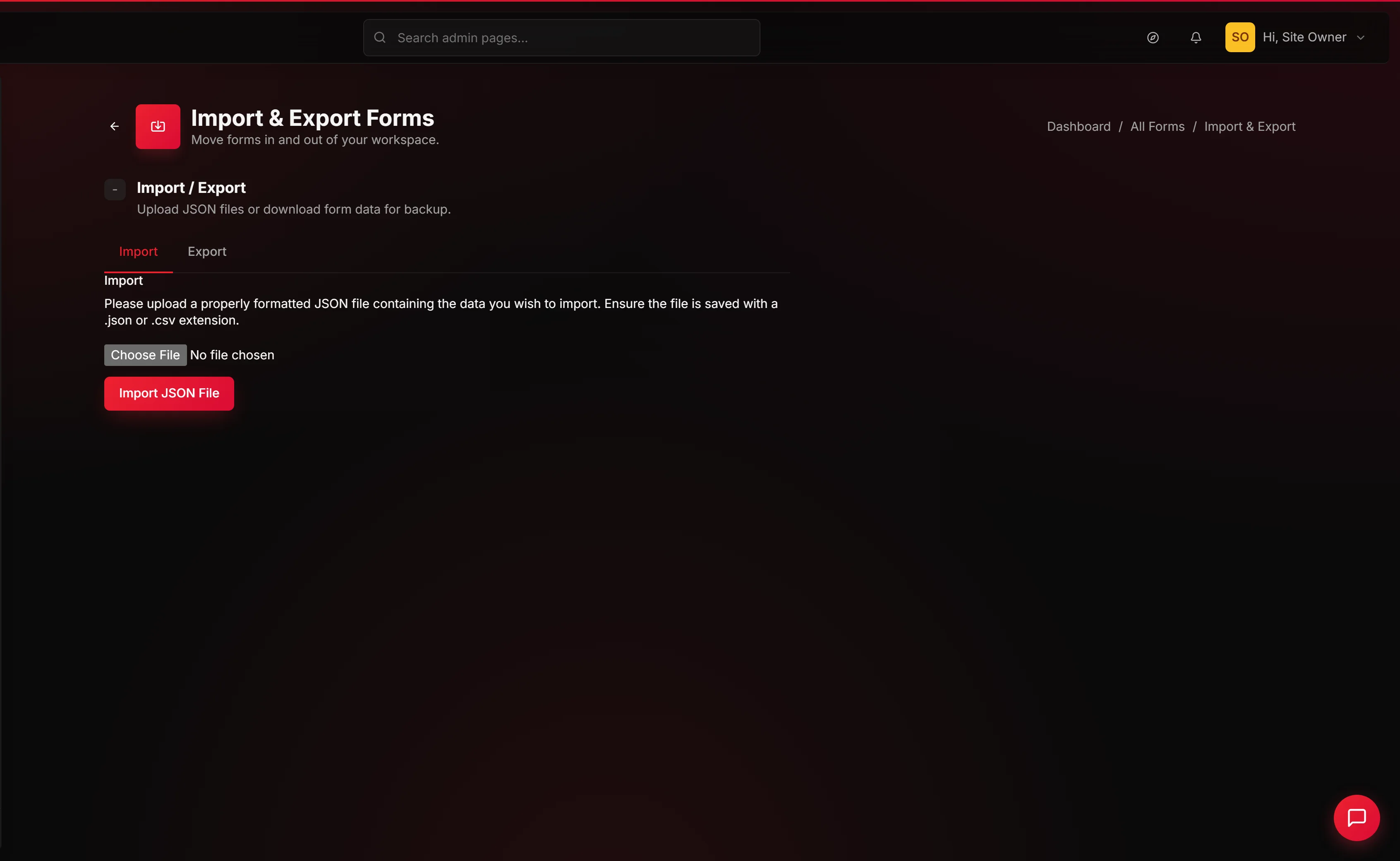
Click Choose File (or the file drop area). Select your .json file from your computer.
2. Click Import JSON File
The page uploads your file and processes it. On success, a green banner reads "Import Summary: Inserted Forms: N" where N is the count of forms imported.
Visit Forms → All Forms to see the new rows.
3. Confirm the import
Open Forms → All Forms. Your imported forms are in the list, each with a new shortcode like Err: Form not found!.
The new row arrives in Draft. Open it, confirm the fields and mail settings look right, then flip Status to Publish.
4. Repoint shortcodes on pages (if relevant)
If pages on the destination still reference the old shortcode, change Err: Form not found! to Err: Form not found!. An unrepointed id renders nothing.
5. Review Mail Settings
Imported Mail Settings carry over exactly — including the original admin inbox. If the destination is a different environment or team, open the form and update the Mail To field.
6. Review Integrations
If the source form had per-form integrations (webhooks, CRM, Slack), those destinations are imported. Test one before trusting it — credentials may need updating for the destination environment.
What success looks like
- A green "Import Summary: Inserted Forms: N" banner appears immediately after upload.
- Forms → All Forms lists each new form with its own shortcode, in Draft.
- Opening any imported form shows fields, mail settings, and integration destinations as they were on the source.
If the count in the banner is lower than the count of forms in your file, the importer skipped some — usually a malformed entry in the array. Open the file in a text editor, validate it, then re-run the import.
What to do if it does not work
- "No forms were inserted" after upload. The file is not valid SGEN form-export JSON. Open it in a text editor — it should start with
[{. CSV, HTML, or anything else won't parse.
- Generic warning banner after clicking Import. The file is JSON but the shape doesn't match your current SGEN version. Try a more recent export from the source site, or rebuild the form manually.
- The form imported but fields or mail settings look wrong. The source file may be from an older SGEN version. Open the imported form, re-check each tab, and fix in place.
- Page shows nothing after pasting the new shortcode. The imported form may be in Draft. Open it, flip Status to Publish, save, reload the public page.
- The same form appeared twice in the list. The importer has no de-duplication. If you re-uploaded the same file by mistake, trash the duplicate — its shortcode has a different id, so trashing it won't break the other copy.
- Images or attachments didn't come through. Form-export JSON does not bundle media. Field labels and HTML survive the round-trip; media stays on the source site. Re-upload media on the destination and update field references.
- The Forms list still shows the old count after import. Refresh the page — the list count in the left navigation updates on the next full page load.
- Your partner reports "No forms were inserted" on the file you sent. Some email clients re-encode
.jsonattachments to UTF-16 with a byte-order mark, which the importer rejects. Re-send via a shared drive instead of email. - Submissions go to the wrong inbox after import. The mail recipient carried over from the source. Open the imported form, go to Mail Settings, and update Mail To to the correct inbox.
Scope
What carries across the round-trip — and what doesn't.
| Carries across | Does not carry across |
|---|---|
| Form title | Submissions |
| Every field — text, email, textarea, select, radio, checkbox, file upload — with label, name, default value, validation, and required flag | Media files (image fields and attachment URLs stay on the source) |
| Mail Settings — recipient, subject, redirect URL, default status | The form's id (destination assigns its own) |
| Form metas — submit-button label, success message, captcha toggle, custom CSS class | Reports and charts (destination starts at zero submissions) |
| Per-form integration destinations — webhooks, Slack channels, CRM connections | Page shortcode references (pages referencing the source id need a manual update) |
| Published status (imported forms land in Draft regardless of source status) |
Full detail on exporting submissions: Export form submissions.
Examples
Staging to production. You finish building and testing a lead capture form on staging. Export it from staging, import the JSON on production. Update the shortcode on the production landing page from the old id to the new one. Done — no rebuilding by hand.
Partner template sharing. A partner sends you a pre-built contact form as a JSON file. Before importing, open the file in a text editor and replace the webhook URL in the destinations block with your own. Import, review Mail Settings, publish.
Restore from backup. You accidentally trashed a form. If you have a previous export JSON, import it — the form definition comes back. Submissions do not; those live only in the database.
Schema
The import file is a plain JSON array — one object per form. Five top-level keys per entry:
\",\n \"redirect_url\": \"/thanks\",\n \"status\": \"draft\"\n },\n \"form_metas\": [\n { \"meta_key\": \"submit_label\", \"meta_value\": \"Get a quote\" },\n { \"meta_key\": \"success_message\", \"meta_value\": \"Thanks — we'll be in touch.\" },\n { \"meta_key\": \"captcha_enabled\", \"meta_value\": \"1\" },\n { \"meta_key\": \"custom_css_class\", \"meta_value\": \"yourstore-lead-form\" }\n ],\n \"form_destinations\": [\n { \"type\": \"webhook\", \"url\": \"https://hooks.yourdomain.com/leads\", \"on_event\": \"submit\" },\n { \"type\": \"slack\", \"channel\": \"#leads\", \"webhook_url\": \"https://hooks.slack.com/..\", \"on_event\": \"submit\" }\n ]\n }\n]","height":520,"maxWidth":820}}}
| Key | Contains |
|---|---|
form_title | The label shown in the Forms list |
form_content | The rendered HTML — every input, label, and submit button |
form_settings | Mail recipient, subject, redirect URL, and default status |
form_metas | Key/value pairs: button label, success message, captcha toggle, custom CSS class |
form_destinations | Integration list: webhooks, Slack channels, CRM connections |
You don't need to author this shape by hand — exporting from any SGEN site produces it. Hand-editing is useful when stripping integration credentials before sharing with a partner, or when generating a bulk template from a spreadsheet.
Tips for a clean import:
- Strip credentials before sharing. Find the destinations block in the file, replace webhook URLs and Slack tokens with placeholders before sending to a partner.
- Validate the JSON first. Any online JSON validator catches a missing comma or unescaped quote — the importer rejects malformed files without pointing at the broken line.
- Test on staging first. Before loading a starter pack on production, confirm the JSON parses on staging.
- Note form ids right after import. The banner reports a count, not the ids. Open Forms → All Forms immediately and note each new id — shortcodes need updating before those forms go live.