
Manage every form on your site from one list
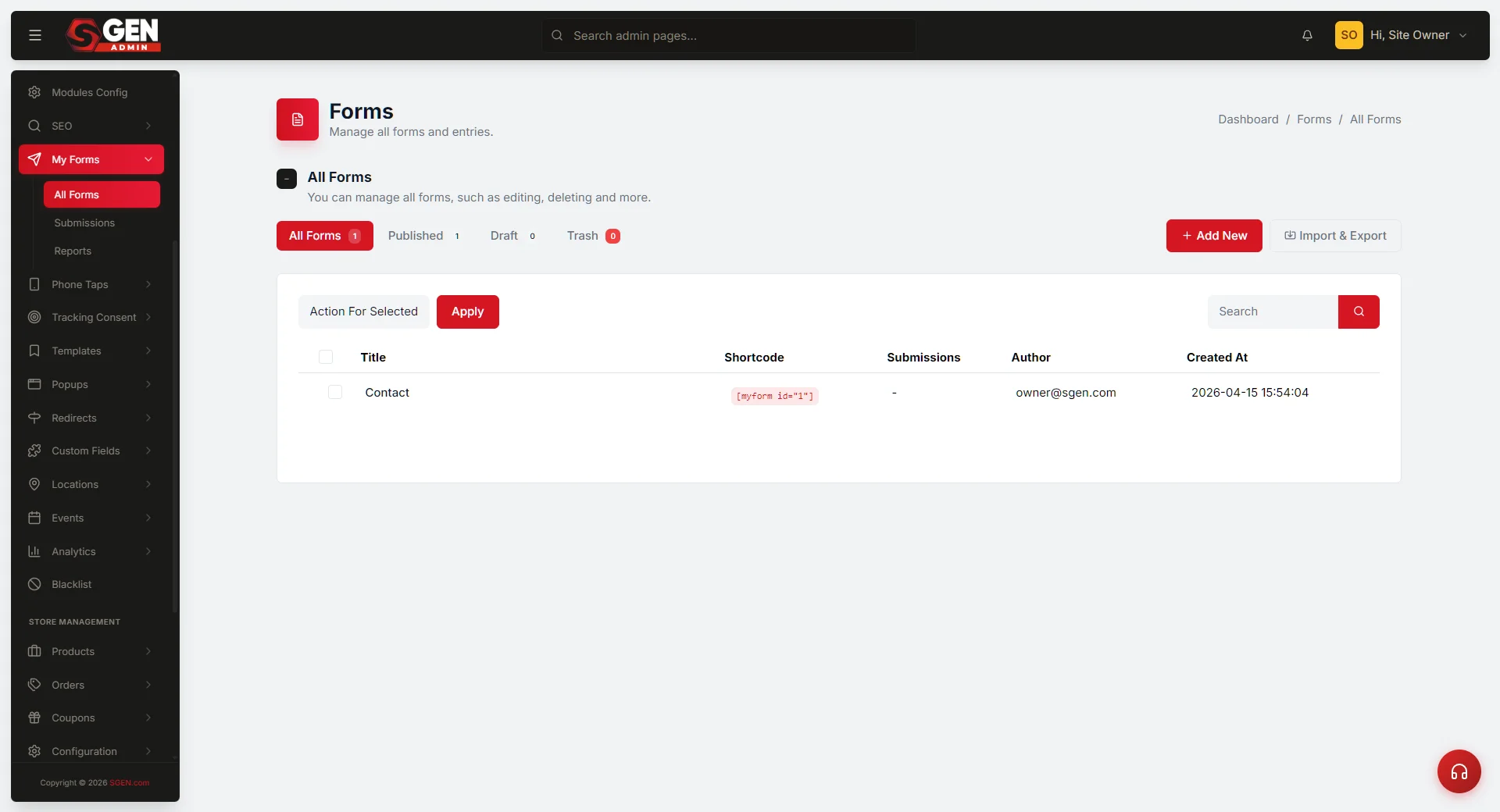 All Forms) with the status pills (All / Published / Draft / Trash) across the top, Shortcode + Submissions columns, and a hovered row showing E" loading="lazy" style="width:100%;max-width:900px;height:auto;border-radius:8px;border:1px solid #e5e7eb;display:block;margin:12px 0">
⏱ ~2 min answer below · full page ≈ 8 min · skim the bold lead-ins to move faster.
In short. The Forms list is one table where every form on your site sits side by side — contact forms, lead-capture forms, newsletter signups. From here you can audit status at a glance, filter to Published/Draft/Trash, grab a shortcode to paste onto a page, bulk-move stale forms, and duplicate a form as a starting point. You rarely need to open individual forms just to manage their lifecycle — this screen handles it.
On this page: How to use it · Status pills · Row actions · Bulk actions · Troubleshooting
How to see, filter, and organize the forms you've built
What is this for?
The Forms list is your form inventory — every form on your site in one table. Use it to audit status at a glance, filter to Published/Draft/Trash, grab a shortcode to embed a form on a page, bulk-move stale forms, or duplicate a form as a starting point. Each row shows: Title (click to open the builder), Shortcode, Submissions count, and Author.
Good use cases
The four status pills across the top are your at-a-glance audit of your form inventory — each carries a live count:
Grabbing a shortcode to embed on a page. Find the form's row — the Shortcode column shows . Copy it, paste into a Text block on the page, and save. The shortcode renders the live form when visitors load the page:
Pre-launch audit. Click the Published pill — every row visible is live to visitors. Check that Submissions counts look believable: zero for a newly-live form is normal; zero for a form that's been on your homepage a month probably isn't.
Seasonal cleanup. When a promotion ends, tick the row, pick Move to Draft, and click Apply. The form disappears from public pages; submissions are preserved:
Duplicating for a second location or variant. Build the first form, publish it, hover its row, and click Duplicate. SGEN creates a Draft copy with the same fields and mail settings. Rename it, adjust what differs, and publish. Each copy gets its own shortcode id:
Cross-module: submissions also trigger a Notification email to your inbox (configured in the form's Mail Settings inside the builder). Referral source per submission is tracked under Forms → Reports.
Tracking Consent: when Tracking Consent is enabled (GDPR / CCPA mode), submission data is still stored when the visitor consents; session attribution columns (referrer, pages visited) are blank for visitors who declined.
Empty state
A brand-new SGEN site shows an empty Forms list with a prompt to create your first form. Click + Add New to open the form builder.
What NOT to use this for
Viewing submission data. Go to Forms → Submissions — this list shows submission counts per form, not the individual responses.
Permanent deletion via Trash. Moving to Trash hides the form from the live site and keeps it recoverable. Nothing is purged until you explicitly run Empty Trash.
Cross-site shortcodes. A shortcode id is unique to the site where the form was created — it will not resolve on a different site.
Searching submission content. The search box matches form titles only. To search names, emails, or message text, go to Forms → Submissions.
Before you start
- You are signed in to SGEN as an Administrator.
- You have at least one form saved. A brand-new site shows a starter "Contact" form.
Where to go
- Open the left navigation.
- Click Forms → All Forms (or open
/sg-admin/forms/). - The Forms list loads with every form in one table, filtered to All Forms by default.
How this connects to other features
- Pages / Posts — the Shortcode column gives you the
Err: Form not found!snippet you paste into a page. Unpublished forms render nothing even when the shortcode is in place.
- Submissions — the Submissions count in each row links into Forms → Submissions filtered to that form.
- Reports — once you have submissions, Forms → Reports breaks them down by traffic source and over time.
- Notifications / Email — each form has Mail Settings that send an email to a chosen admin inbox on every submission. Configure the recipient per-form inside the builder.
- Form Integrations — the Integrations row action opens per-form dispatch settings (Airtable, Slack, webhook). Duplicating a form does not carry Integrations over — reconnect on the copy.
- Tracking Consent — session attribution columns (referrer, pages visited, scroll depth) are only populated for visitors who accepted tracking cookies. Form storage and submission data are not affected by consent state.
- User roles — Form creation and editing requires the Editor role or higher. Contributors can view the list but cannot publish or trash forms.
Steps — Audit and filter
1. Read the status pills
A row of pills sits at the top, one per status, each with a live count:
- All Forms — every form on your site regardless of status.
- Published — forms currently usable on public pages. Their shortcode renders a working form.
- Draft — forms saved but not yet available to visitors. Their shortcode renders nothing.
- Trash — forms currently in trash. Hidden from the public.
Glance across the counts. If a form you expect to be Published is showing under Draft, open it and flip the status.
2. Click a pill to narrow the list
Clicking any pill narrows the table to that single status. The pill turns red to show it is active. The count badge on each pill is not affected by your active search — it always reflects the full site-wide total for that status.
3. Search by title
Type part of a form title into the Search forms.. box and click Search. Matches narrow the table. Search respects the active status pill — click Published first, then search to find only published forms matching your term.
4. Read each row
Each row shows:
- Title — clickable, opens the form builder.
- Shortcode —
Err: Form not found!. Click to select; copy and paste into any page or post. - Submissions — a colored badge counting submissions received.
- Author — the admin who created the form.
- Created — relative time since the form was created.
Steps — Row actions
Hover any row to reveal action links under the title:
1. Edit → open the builder
Clicking Edit (or the form title) opens the full form builder where you can change the title, content, mail settings, success message, and redirect. See Build and edit a form.
2. Integrations → per-form dispatch
Clicking Integrations opens the per-form Integrations page — webhook or CRM destinations that fire every time a visitor submits.
3. Duplicate → copy as a new Draft
Clicking Duplicate creates a copy with the same title plus "(Draft)", marks it as Draft, and opens the new copy's builder. The copy brings form fields, mail settings, and other build details with it. Form Integration destinations are not copied — reconnect those on the copy under its own Integrations row action.
4. Trash → move to trash
Clicking Trash moves the form out of the active list immediately — no separate confirmation dialog. The Trash pill count increases by one. Shortcodes for the trashed form render nothing on public pages; submissions already collected remain in your Submissions page. To undo, switch to the Trash pill and use Restore.
To remove permanently: switch to the Trash pill, select the row, and choose Delete Permanently from the bulk-action dropdown. This action cannot be undone:
Steps — Bulk-manage forms
1. Check the forms you want to act on
Tick the checkbox at the start of each row. Use the header checkbox to tick or clear every visible row on the current page.
2. Pick an action from the dropdown
The Bulk Action dropdown sits above the table. Three actions are always available:
- Move to Publish — make selected forms live on public pages.
- Move to Draft — unpublish selected forms without removing them.
- Move to Trash — move selected forms to the Trash pill.
A fourth action, Delete Permanently, appears only when you are on the Trash pill.
3. Click Apply
Click Apply. The list refreshes with the new state. If nothing visible changed, the most common cause is that no row checkboxes were ticked — bulk actions silently no-op when nothing is selected.
What success looks like
- The table loads with every form as one row, and pill counts at the top add up correctly.
- Clicking any pill narrows the table immediately; the active pill turns red.
- Typing in the search box and clicking Search narrows the table to matching forms.
- Ticking rows and applying a bulk action updates the list.
Rows moved to Draft leave the Published pill; the Draft pill count goes up by the number you moved.
- Copying a Shortcode and pasting it into a page makes the form appear on that page's public view after you save.
- After a bulk action, the page reloads with the active pill still selected.
The rows that moved to a different status are gone from this view; the destination pill count has gone up.
- Clicking Restore on a Trash row returns the form to its previous status (Published or Draft).
The Trash count drops by one; the form reappears in its prior pill.
- The active filter is reflected in the address bar — bookmarking the URL returns you to the same filtered view.
What to do if it does not work
The list is empty. You have not saved any forms yet — click + Add New. If filtered to a specific status, click All Forms to see everything.
A form is in the list but doesn't show on the page where I pasted the shortcode. The form's status is probably Draft. Open it, flip Status to Publish, and save.
The shortcode appears as literal text on the page instead of a form. The page is rendering it as plain text. Paste the shortcode into a content block that renders shortcodes — a Text block, not an HTML or code block that escapes brackets.
Search returns no matches when I expect some. Search matches form titles only — not field labels or submission content. If your form is titled "Contact Us" and you search "contact", it matches. Searching for a field name or submission text won't work here.
I picked a bulk action and clicked Apply, but nothing changed. No row checkboxes were ticked. Bulk actions silently no-op when nothing is selected. Tick the rows first, then re-pick the action and click Apply.
A page that worked yesterday now shows nothing where the form used to be. Someone may have moved the form to Trash. Open Forms, click the Trash pill, find the row, and use Restore — the page renders the form again on the next visit.
The Restore button is missing from a Trash row. Forms imported directly into Trash may not carry a previous status. Move them to Draft via the bulk action instead.
The Submissions count seems wrong. Form integrations can forward submissions to external destinations without storing them locally — the list count reflects locally-stored submissions only. Check the form's Integrations if you suspect forwarded submissions are not being counted.
A form I duplicated is missing its integrations. Duplicate intentionally does not carry Form Integrations — open the copy's Integrations row action and reconnect the destinations.
A form id keeps changing across staging and production. Form ids are per-site. The same form exported and imported into a second site gets a new id on that site. Embed shortcodes per site, not from a master copy.
FAQs
Q: Can I rename a form without losing submissions? Yes. The shortcode id is what binds submissions to the form, not the title. Rename freely from the form builder.
Q: Can I export a form to use on another SGEN site? Yes — open the form in the builder and use Export in the actions menu. Import the JSON file on the destination site. The imported form receives a new id on that site; update any shortcodes on that site's pages accordingly.
Q: How long do trashed forms stay recoverable? Indefinitely until a site admin runs Empty Trash from the Trash tab. There is no time-based auto-purge.
Q: When I delete a form permanently, are its submissions also deleted? No. Permanent-delete removes the form row only — submissions remain in the Submissions store, still searchable by visitor email or message text. The Form column shows the original form name with no live link.
Q: Can two forms share an id? No. Each form has a unique Err: Form not found! issued at create time. Duplicate makes a fresh form with a fresh id; Restore brings back the original id of the trashed form.
Q: I see a form on the All pill but not on Published — why? Its status is Draft or Trash. The All pill shows every status; the Published pill is filtered. Click the form's row to see its current status in the builder.
Tips
- Audit monthly. A 5-minute scan tells you which forms are stale, which are converting, and which need a Mail Settings update.
- Duplicate before testing changes. Duplicate the form, edit the copy, test on a hidden page — the original keeps collecting submissions while you test. Promote the copy when satisfied.
- Export before Delete Permanently. Once purged from Trash, the row is gone. Submissions remain as orphan rows — still searchable, but no longer linked to a form name. Export the form definition first to keep a recipe to rebuild from.
- Duplicate copies fields, not connections. A duplicated form carries the field layout, validation rules, and Mail Settings — but Form Integrations (Slack, Airtable, webhook destinations) are intentionally not copied. Reconnect them on the copy under its Integrations row action.
Next step
- Build and edit a form
- View and manage submissions
- View form reports
- Export submissions
- Import form templates
Form status pills
| Status pill | Meaning | Shortcode behavior |
|---|---|---|
| All Forms | Every form on your site regardless of status | - |
| Published | Forms currently usable on public pages | Shortcode renders a working form |
| Draft | Forms saved but not yet available to visitors | Shortcode renders nothing |
| Trash | Forms currently in trash; hidden from the public | Shortcode renders nothing |