
How to Export Form Submissions
Go to Forms → Submissions, click Export, and your browser downloads exported-submissions.zip — one spreadsheet per form. Open it in Excel, Numbers, Google Sheets, or LibreOffice. Use this for monthly sales handoffs, GDPR data requests, pre-deletion backups, and CRM imports.
One click, all forms
The export covers every submission across all your active forms — or scoped to one form if you filter first. No configuration required.
Ready-to-open spreadsheets
Each form becomes a CSV file inside the ZIP, with one row per submission and one column per field. Opens in any spreadsheet tool without transformation.
Export first, act second
Always run an export before bulk-deleting submissions. The dated ZIP is your safety net for privacy requests, migrations, and year-end records.
Where to go
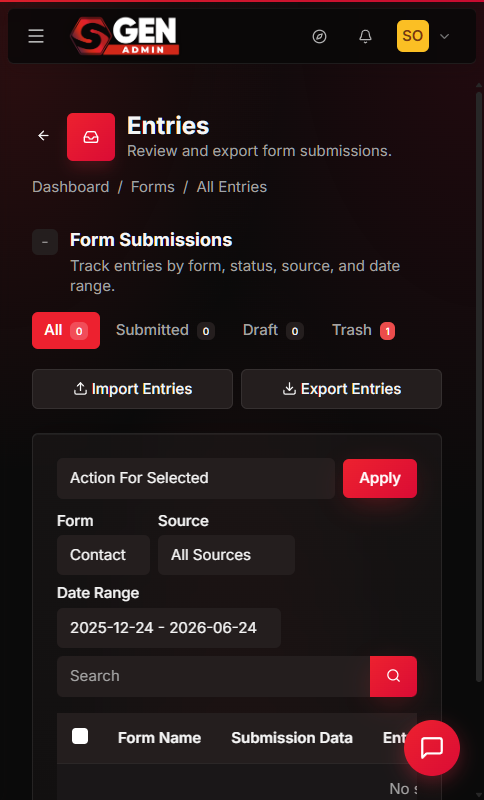
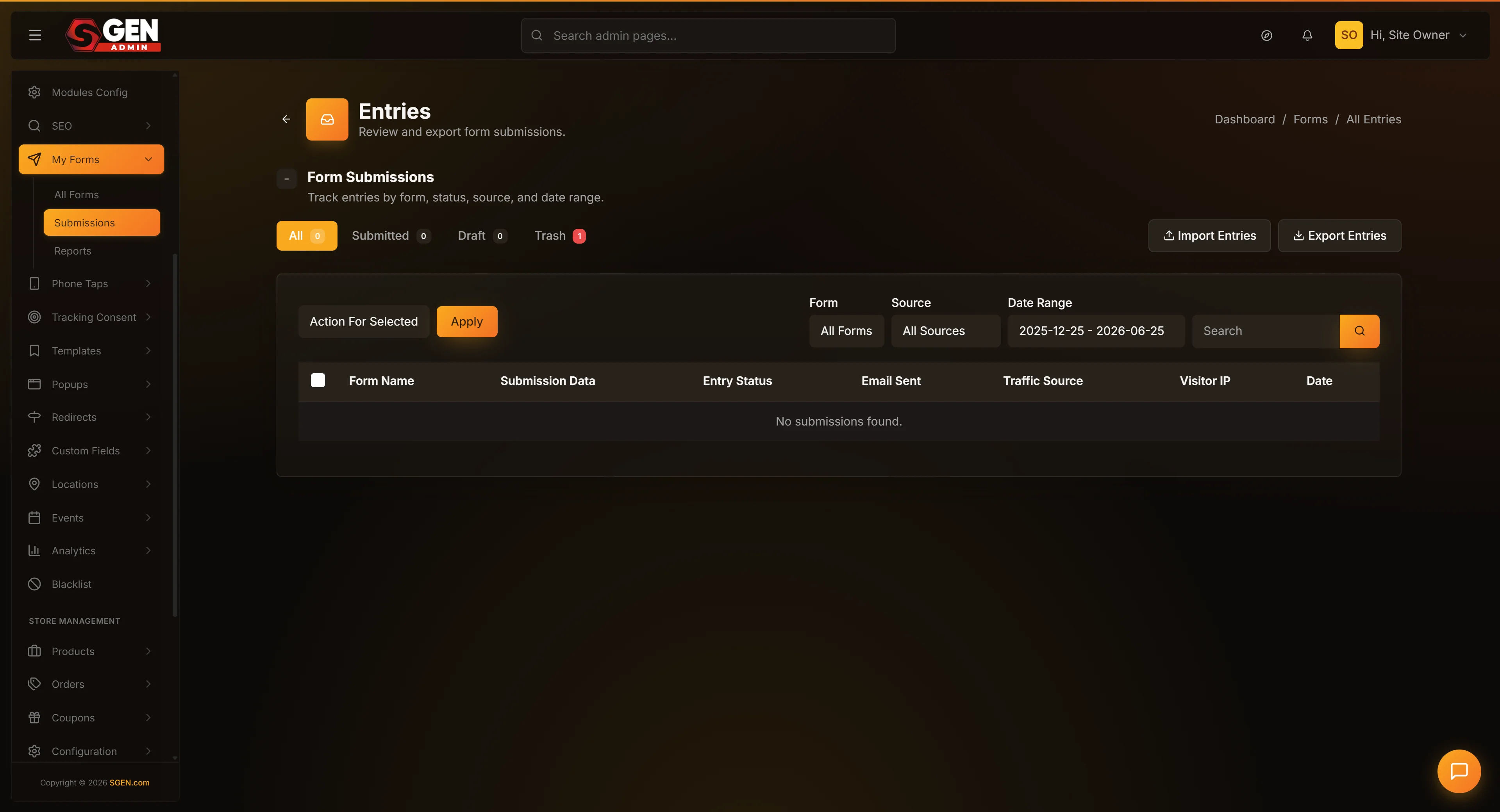
From your admin, click Forms in the sidebar, then click Submissions. You land on the combined list of every submission — most recent first — each row tagged with its form name. To scope the export to one form, click that form's name in the form picker before you export. The Export respects whatever filter is active. Leave the screen unfiltered to export all forms at once.
Steps — export submissions
The full process takes under three minutes for most sites.
1
Open the Submissions screen
From your admin Dashboard, click Forms in the sidebar, then click Submissions. You see every submission, most recent first, each row tagged with its form name. To scope the export to one form, click that form's name in the form picker. The Export respects whatever filter is active.
2
Click Export
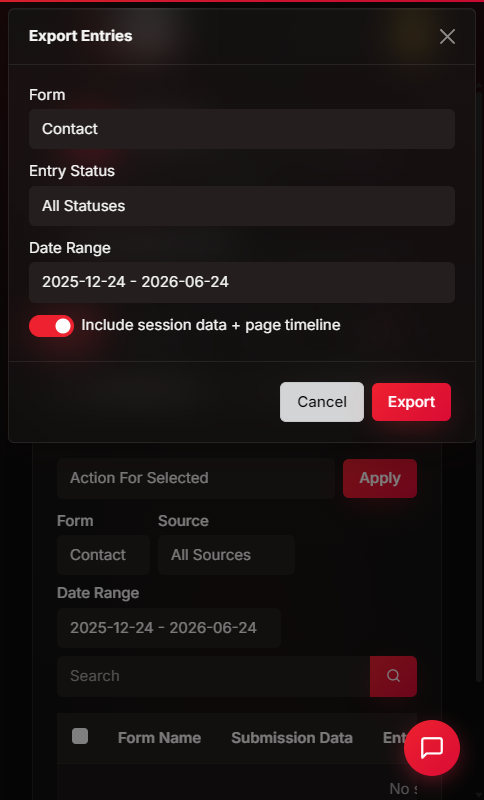
Find the Export or Export submissions button — usually top-right of the list, or in the page actions menu. Click it. Your browser begins preparing the download. Expect one second for small sites, up to ten seconds for thousands of submissions.
3
Save the file
Your browser offers to save exported-submissions.zip. Accept the default (Downloads folder) or pick a specific location. The file is a standard ZIP — unzip with File Explorer on Windows or Finder on Mac.
4
Open the spreadsheets inside
Double-click the ZIP to extract. You will find one spreadsheet per form, named like Contact_Us_7.csv and Wholesale_Inquiry_3.csv. The number is the form's internal identifier. Open any of them in Excel, Numbers, Google Sheets, or LibreOffice.
What you get
The export is a one-time snapshot — not a live feed. Each CSV opens immediately in any spreadsheet tool.
Contents
What's inside the ZIP
One ZIP file — exported-submissions.zip. One CSV per form, named with the form title and its internal ID (e.g. Contact_Us_7.csv). Each CSV has one row per submission and one column per field, plus system columns for date, form name, form ID, and sent status.
Scope
What's included vs excluded
Included: active, read, and unread submissions currently visible on the Submissions screen. Not included: permanently deleted submissions, trashed form submissions, and form structure (fields, rules, layout). For form structure, use the Forms backup action.
When to use the export
The export is the right tool any time you need form data outside the admin.
Monthly lead handoff
Filter to your contact form, click Export, and email the spreadsheet to your sales team — no admin access required on either side.
GDPR / privacy data request
Export all forms, unzip the result, and search each spreadsheet for the visitor's email. Extract matching rows, then send them as the data-subject response. Log the request date and response date in your privacy log.
Pre-deletion backup
Always export before bulk-clearing submissions. Rename the file with the date — e.g. forms-export-2026-Q1-pre-delete.zip — and move it to your business records folder before you delete anything.
CRM or email platform import
Bridge historical form data into a new tool. The CSV maps directly to standard import fields with no transformation.
Year-end records
Keep a dated snapshot alongside your other annual business records. A quarterly export schedule covers most needs.
Reporting
Pull submission counts or contact details into a weekly or monthly report by opening the CSV in your spreadsheet of choice.
Column reference
Every CSV in the export ZIP shares the same column layout. System fields come first, then your custom form fields.
System
Built-in columns
Form ID — internal identifier matching the number in the filename.
Form Name — display name of the form as it appears in your admin.
Is sent? — Y if the notification email was delivered; N if not.
Date — submission timestamp in YYYY-MM-DD HH:MM format.
Fields
Your custom columns
Every field you defined on the form appears as a column, prefixed with ** for easy identification — for example, **Name, **Email, **Message. This prefix makes it easy to distinguish your data columns from system columns in the spreadsheet.
Empty cells. Fields added to the form after a submission was collected show an empty cell for older rows. The data was never captured at the time of submission — this is expected, not an error.
What to do if it does not work
Most issues have a quick fix.
No file appeared
Check your browser's download bar for a blocked-download warning. Click the warning and confirm you want to keep the file. Some browser configurations block automatic downloads — allow it when prompted.
File says "0 KB" or is empty
No submissions matched your current filter. Confirm you have the right form selected (or leave unfiltered), then try again.
File will not open / says "corrupted"
Download again. A network interruption during a slow export can produce a partial file.
Wrong characters where letters should be
Character encoding issue common with Excel on Windows. Go to Data → From Text/CSV and choose UTF-8. Numbers, LibreOffice, and Google Sheets open correctly by default.
A column is empty for older rows
Expected. You added that field after those submissions were collected, so earlier rows have no data for it.
Excel security warning about formulas
Always choose Disable formulas. This is a standard spreadsheet safety prompt — not a SGEN error. If this appears often, your form may be receiving submissions with formula-injection attempts.
ZIP contains only one file when you expected several
A form filter was active before you clicked Export. If you filtered to a single form, only that form's CSV is included. Clear the filter and export again to get all forms.
Download starts but stops
Try again on a stable connection. If it persists, contact support — an unusually large submissions table may need a different approach.
Some form names are cut off in the filename
SGEN trims long form names in the filename to stay within filesystem limits. The Form Name column inside the CSV always contains the full name.
Heads up The export is a snapshot of submissions visible at the moment you click Export. It does not include permanently deleted submissions, trashed-form submissions, or form structure. Always export before bulk-deleting — deletions are permanent and cannot be recovered from the admin.