
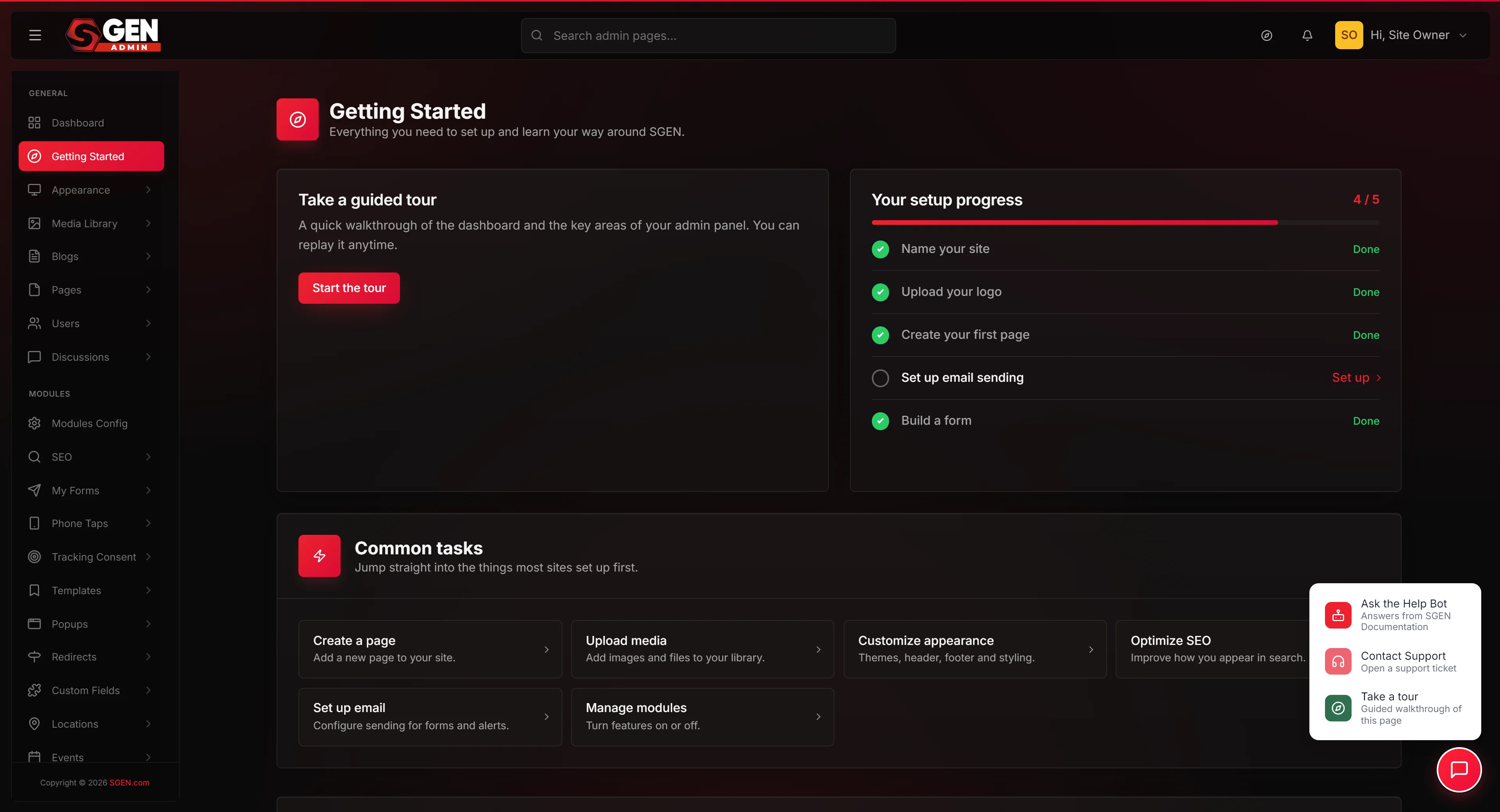
Guided Tour and Help Bot in SG PANEL
Every page inside the SG PANEL admin carries a help launcher fixed to the bottom-right corner. One click expands two options: ask the Help Bot a question answered directly from SGEN Documentation, or start a guided tour of the page you are on. No setup required — the launcher is present on every admin screen from day one.
Always one click away
The circular Help button is fixed in the bottom-right corner of every admin page. It stays in position as you scroll and does not require navigating anywhere special.
Two forms of help, one place
Ask the Help Bot draws answers from SGEN Documentation. Take a tour walks you through the controls on the current page. Both are available from the same launcher widget.
No changes, ever
Neither the Help Bot nor the guided tour modifies your site. Closing either at any point returns you to exactly the admin page you were on, with all settings unchanged.
What the help launcher is
The help launcher is a small circular button labelled Help that sits in the bottom-right corner of every SG PANEL admin screen. It uses the brand's dark-red colour, stays in position as you scroll, and is present whether you are on the Dashboard, a Pages list, Blog editor, Media library, Forms, Settings, or any other admin area. Opening it reveals exactly two actions.
Action
Ask the Help Bot
Sub-label: "Answers from SGEN Documentation." Type a question about a feature, field, or workflow. The bot draws its answer from the published SGEN Documentation. It is a read-only reference tool — it does not make configuration changes or submit forms on your behalf.
Action
Take a tour
Sub-label: "Guided walkthrough of this page." Starts a step-by-step walkthrough of the admin page you are currently on. Each page has its own tour content. The Getting Started area notes that you can replay it at any time. Closing the tour at any point does not affect saved data or active settings.
Where to find the launcher
The help launcher is not reached through a menu. It is a fixed element present on every admin page — you do not need to navigate to a specific section to find it.
Position
Fixed in the bottom-right corner of any admin screen, above the browser chrome. Stays in the same spot whether you are on the Dashboard, Pages, Settings, or any other admin area.
Appearance
A small circular button. Label: Help. Colour: the brand's dark-red colour. Stays in position as you scroll.
Admin-only
The launcher is only visible inside the SG PANEL admin. It does not appear on your public-facing site.
No plan restriction
Available to all admin users on the instance regardless of subscription tier. No specific SGEN plan level is required.
How to use the help launcher
No setup is required. You must be logged in to the SG PANEL admin. Follow these steps from any admin page.
1
Open the help launcher
Locate the circular Help button in the bottom-right corner of any admin page. Click it. The launcher expands to show two options.
2
Choose your support option
Two options appear after the launcher opens. Select the one that matches what you need.
3
Ask the Help Bot (if chosen)
Type a question about a feature, field, or workflow on the page you are on. Use the exact label as it appears in the admin for clearer matching — for example, "What does SMTP Host mean?" rather than "what is the email field?". The bot draws answers from SGEN Documentation. When you are done, return to your page. The survey did not run a Help Bot conversation, so the exact wording of answers and the in-chat layout are not documented here.
4
Use the guided tour (if chosen)
Choosing Take a tour starts a guided walkthrough of the page you are currently on. The tour is scoped to the current page. The Getting Started area notes that the tour is replayable: "You can replay it anytime." If you move to a different page mid-tour, open the launcher again and start a new tour from there. The survey did not step through the tour, so the individual steps and on-screen controls are not documented here.
5
Close and continue working
When you are done, close the chat or the tour overlay. You return to the same page you were on before opening the launcher. No changes are made to your site during a Help Bot session or a guided tour.
Scope and limits
Understanding where each option applies helps you get the most out of the launcher on any page.
Help Bot
SGEN Documentation only
The Help Bot answers questions derivable from SGEN Documentation. Questions about topics not yet documented will return a response noting the gap. The bot does not make configuration changes, submit forms, or act on your site in any way. It is a read-only reference tool.
Tour
Current page only
The guided tour is scoped to the page you are on when you open the launcher. Each page has its own tour content. Not all pages are guaranteed to have tour content — if no tour starts, use the Help Bot option instead, or consult SGEN Documentation directly.
Do not use the Help Bot as a substitute for SGEN support
The bot answers from SGEN Documentation. For account issues, billing, or problems the docs do not cover, contact SGEN support directly.
Do not use the guided tour to verify live data
The tour walks through the controls on a page. It does not display or check the actual values your site has saved.
Do not rely on the Help Bot for configuration changes
The bot provides information only. It does not make changes to your site on your behalf.
Good use cases
The launcher is most useful in these situations.
Exploration
You are on a new page and unsure what a field does
Open the launcher, choose Ask the Help Bot, and type your question. The bot responds with content drawn from SGEN Documentation — without you leaving the page.
Setup
You are setting up a feature for the first time
Open the launcher, choose Take a tour, and step through the controls on that specific page to understand what each one does before you configure it.
Mid-task
You need a quick answer without leaving your current page
The launcher is available on every admin screen. You do not need to open a new tab or navigate to an external site to get an answer.
Onboarding
You are orienting a new team member
Direct them to the help launcher on any page. They can run the guided tour at their own pace, then ask the Help Bot follow-up questions — without needing a screen-share session or a separate walkthrough document.
Tips for getting the most out of the Help Bot
A few habits that improve the quality of answers you get.
Use field labels exactly as they appear in the admin
The Help Bot matches questions against documentation content. If a field is labelled "SMTP Host" in the admin, asking "What is SMTP Host?" returns more targeted results than "What is the email server field?"
Ask one question at a time
Short, specific questions return more focused answers than multi-part ones. If you have several questions about a page, ask them in sequence rather than bundling them.
Use the tour before the bot on an unfamiliar page
The guided tour gives you a map of the page's controls. Once you know what each control is called, you can ask the Help Bot targeted questions about specific fields.
Run the tour again after major updates
If a page has changed since you last used it, a new tour pass re-orients you to any new or moved controls.
What to do if it does not work
The most common issues and how to resolve them.
The launcher button is not visible
Confirm you are logged in to the admin panel — the launcher only appears inside the admin, not on the public site. If you are logged in and the button is still absent, try a hard refresh (Ctrl + Shift + R on Windows, Cmd + Shift + R on Mac).
The launcher opens but the tour does not start
Not every admin page has a tour configured. If no tour starts, use the Help Bot option instead, or consult SGEN Documentation directly.
The Help Bot returns no answer or an unhelpful answer
Rephrase your question using the exact name of the feature or field as it appears in the admin. The bot matches against documentation content — using the label as shown in the UI gives better results.
The launcher opens but the chat interface does not load
Try a different browser or disable browser extensions that may block pop-up elements. Testing in a private or incognito window with extensions disabled isolates whether an extension is the cause. If the issue continues, contact SGEN support.
Clicking either option does nothing
A browser content-security policy or extension may be blocking the launcher's interaction handlers. Test in a private or incognito window with extensions disabled. If the problem persists, contact SGEN support.
The "Need a hand?" prompt on Getting Started
The Getting Started page closes with a "Need a hand?" note. It points you to the same help button in the bottom-right corner and describes it as the place to ask the help bot, contact support, or replay a tour. That guidance is page copy on Getting Started; the help button itself expands to the same two actions — Ask the Help Bot and Take a tour.
Heads up The survey confirmed the launcher's two action labels and sub-labels, and that it is present on every admin page. The exact flow inside a Help Bot conversation and the individual steps of any guided tour were not stepped through during the survey — behaviour may vary by page and topic.