
Configure your site identity, business info, and age gate
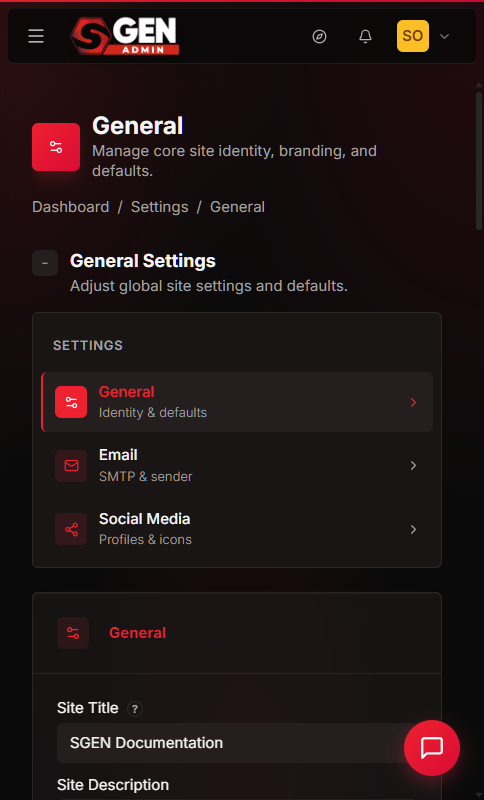
General Settings is the one screen that defines who your site is. Set your site title, logo, favicon, timezone, homepage, business address, and optional age gate — all in a single form. Click Save Changes once and every change goes live on the next page-view. No redeploy needed.
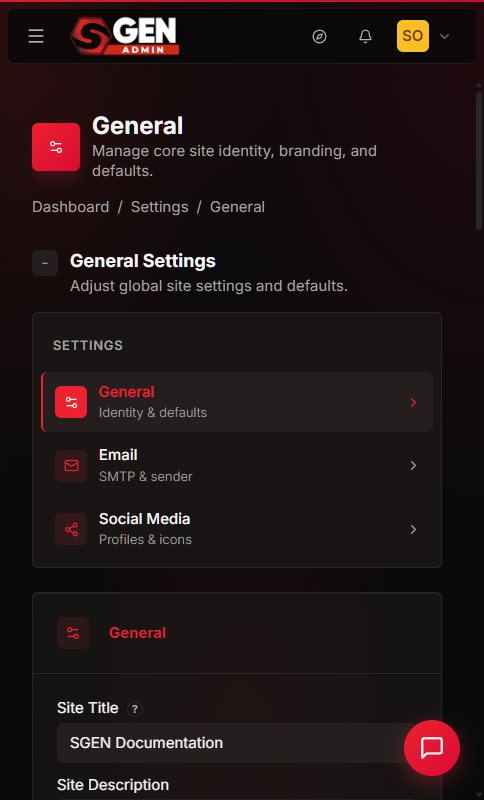
One screen, three cards
Identity, Business Information, and Age Verification stack top to bottom on a single form. One Save Changes click persists all three together.
Live immediately
Changes go live on the next page-view — no cache warmup, no redeploy. Your site title, logo, footer contact info, and age gate update the moment you save.
Every other feature reads this
Site Title flows into email From Names, SEO fallbacks, and og:title. Business address populates your footer and LocalBusiness JSON-LD. Logo and favicon appear on every public page.
What this screen covers
Open Settings → General from the left navigation in your SGEN admin. The General tab loads by default. A small sidebar on the left of the panel offers three tabs: General, Email, and Social Media. The General panel scrolls top to bottom through three cards.
Identity
Site-wide brand and routing
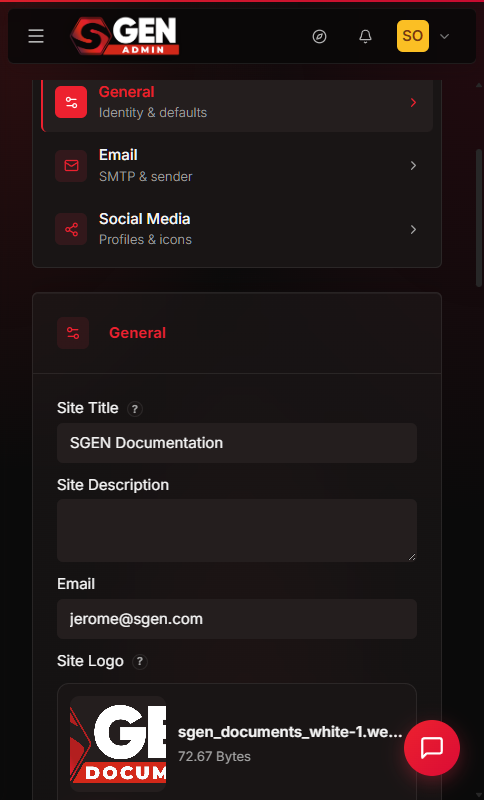
Site Title, Tagline, Site Email, Site Logo, Favicon, Logo link, Timezone, Language, Homepage, 404 Page, and the public sign-up toggle.
Business
Contact info and local SEO
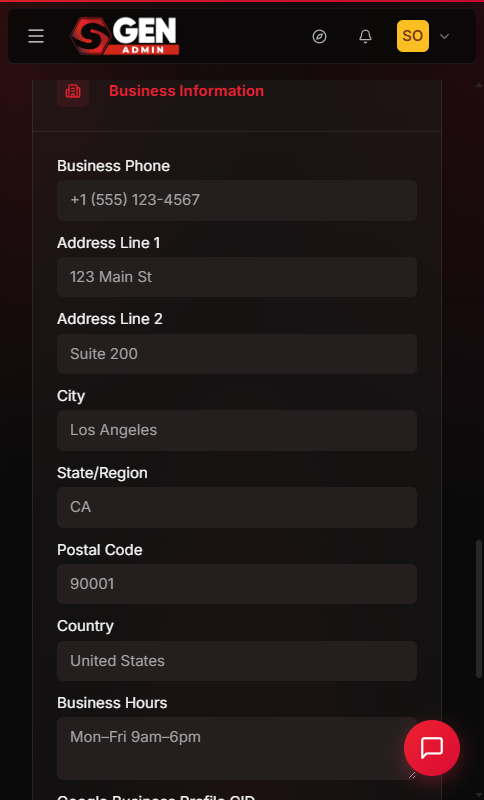
Phone, Address lines 1–2, City, State, Postal code, Country, Opening hours, and Google Business CID. Surfaces in your footer and in the LocalBusiness structured data your site emits for search engines.
Age Gate
Optional sitewide age verification
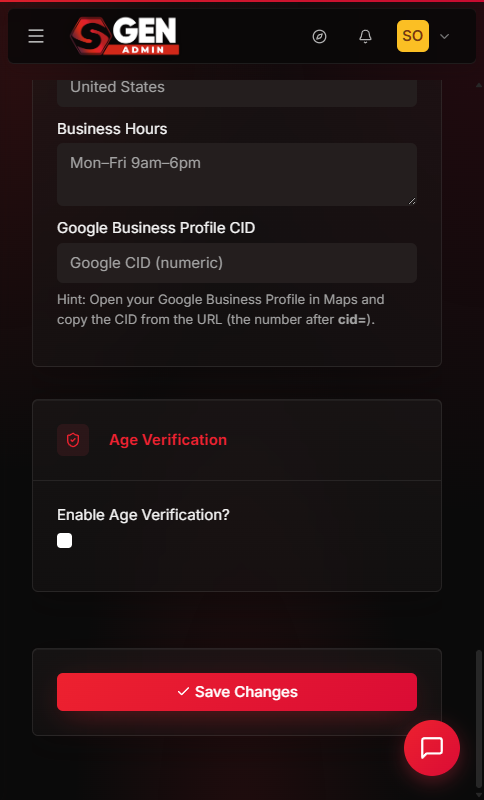
Enable toggle, Expiration days, View as (Popup or Landing page), Verification logo, Disclosure HTML editor, and Yes/No button text and redirect URLs.
Scope
What this screen does not cover
SMTP credentials live in Settings → Email. Social profile URLs live in Settings → Social Media. SEO title templates live under SEO → Global SEO. Analytics IDs live in Settings → Integrations.
Field reference
Every field on the General Settings screen, grouped by card, with its type and effect on your site.
Identity
Branding and routing fields
Site Title — browser tab, email From-Name, og:title fallback.
Tagline — fallback SEO description and og:description fallback.
Site Email — From address on all system emails.
Site Logo — header and footer logo on every public page (Media picker).
Favicon — browser tab icon, 32×32 PNG (Media picker).
Logo link — where clicking the header logo navigates to.
Timezone — applies to every timestamp on the site (select).
Language — built-in labels and date formatter locale (select).
Homepage — page loaded at the root URL (page picker).
404 Page — page loaded when a URL does not resolve (page picker).
Anyone can register — shows or hides the public /register route (checkbox).
Business + Age Gate
Contact and verification fields
Phone — footer and LocalBusiness JSON-LD.
Address lines 1–2 — footer and LocalBusiness JSON-LD.
City / State / Postal / Country — footer and LocalBusiness JSON-LD.
Opening hours — footer display, one line per day (textarea).
Google Business CID — links site to Google Business Profile.
Enable age verification — sitewide gate before any content (checkbox).
Expiration days — days a Yes click is remembered in cookies.
View as — Popup overlay or Landing page (select).
Disclosure HTML — gate message shown to visitors (rich editor).
Yes / No button text — button labels on the gate.
Yes / No redirect — where each button click navigates.
Before you start
Gather these before opening General Settings to move through the form without interruption.
Admin access
Sign in to SGEN as an Administrator or Site Owner.
Logo and favicon files
Upload your logo and favicon to the Media Library first, or have them ready to upload during this flow. A horizontal PNG or SVG at 2x render size is the safe bet for the logo; 32×32 PNG on a transparent background works for the favicon on both light and dark browser themes.
Business details written out
Have your business address, phone, and opening hours written the way you want them to read in your public footer. Opening hours is a textarea — one line per day reads cleanly.
Timezone decided
Pick the zone your business operates in — not the zone your hosting server runs in. Every timestamp on your site renders in this zone. Changing timezone does not re-timestamp historical data.
Homepage and 404 pages built and published
If you plan to set a custom homepage or 404 page, the pages must already be set to Publish before they appear in the dropdowns. Only published pages appear in those pickers.
Age gate disclosure prepared
If you plan to enable age verification, have your disclosure HTML ready and a redirect URL picked for visitors who decline. The SGEN default of https://google.com is rarely the right destination — choose a parent-friendly site or an industry help page.
Steps — Identity card
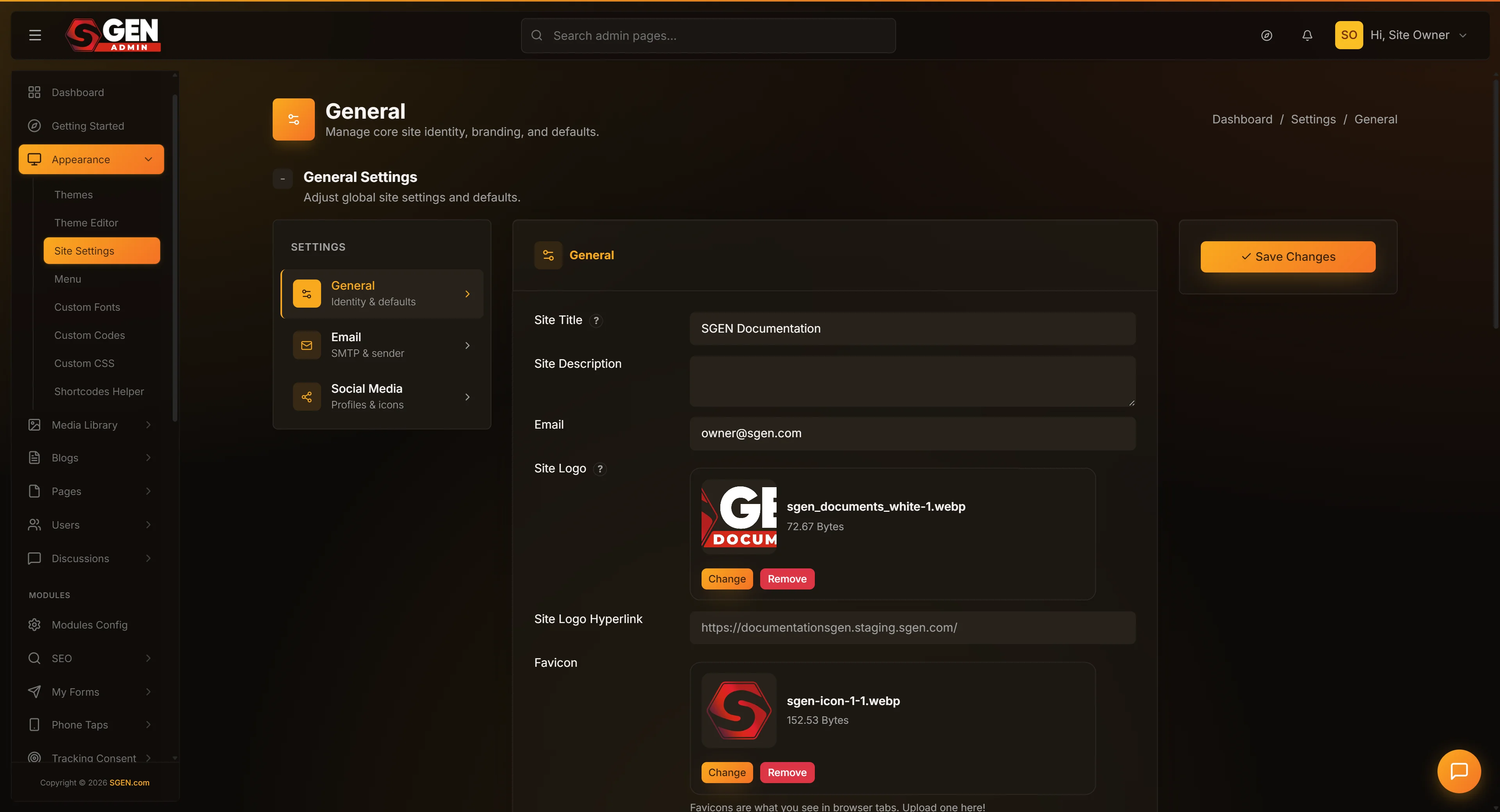 General screen showing the Identity, Business Information, and Age Verification cards with the Save Changes button" loading="lazy" style="width:100%;max-width:900px;height:auto;border-radius:8px;border:1px solid #e5e7eb;display:block;margin:12px 0">
Walk the Identity card top to bottom. Site Title and Site Email are the only fields that affect system-critical behaviour if left empty.
1
Write your site title and tagline
Site Title appears in every browser tab, at the top of every transactional email, and in the admin top bar. Write your real business name — roughly 60 characters is the safe upper bound for narrow browser tabs. Tagline is a one-sentence summary. Pages with no SEO description of their own fall back to this tagline in search results and social shares.
2
Set your site email
Site Email is the From address on confirmation emails, password resets, and form notifications. Use a real, monitored inbox. Leaving it empty risks system emails going out with no visible sender — many email providers treat that as spam. This field is the From address only; SMTP delivery settings live in Settings → Email.
3
Upload the site logo and favicon
Click Choose Image next to Site Logo — your Media Library opens as a modal. A horizontal PNG or SVG at 2x render size stays sharp on high-DPI screens. Repeat for Favicon (32×32 PNG on a transparent background works for both light and dark browser themes). If you want the header logo to link somewhere other than the root, type the URL into Logo link. Leave it blank and clicking the logo sends visitors to /. Do not paste an external image URL into either field — the picker reads from your Media Library by ID, and an external URL renders a broken image on every public page.
4
Set your timezone and language
Pick your business's primary timezone from the Timezone dropdown (grouped by region, with live search). Every timestamp — blog post dates, order timestamps, comment times — displays in that zone. Changing timezone does not re-timestamp historical data; a post published at 3pm UTC displays at 4pm BST after switching to Europe/London, but the underlying time is unchanged. Language controls SGEN's built-in labels and date formatter only, not your authored content.
5
Pick the homepage and 404 page
Homepage lists every published page plus a Default option. Leave at Default and the root URL shows the latest-posts list; pick a page and the root URL shows that page (the posts list moves to /blog). 404 Page works the same way — pick a published page to replace the default view. A well-built 404 page has navigation back to the homepage, a search box, and links to popular content so visitors can recover rather than bounce.
6
Decide whether to allow public sign-ups
Anyone can register controls whether the public /register page is reachable. Leave it off for administrator-only account creation; tick it on for membership and ecommerce sites. When off, /register returns a not-found response. This toggle hides the public sign-up page only — an administrator can still create accounts from the Users panel, and existing users can still sign in.
Steps — Business Information card
The Business Information card has nine fields: Phone, Address line 1, Address line 2, City, State, Postal code, Country, Opening hours, and Google Business CID. All are optional — fill in what you want visible in your footer and in LocalBusiness structured data.
7
Fill in the business details
The values appear in two places: your site footer (wherever the theme template calls for contact info) and in the LocalBusiness structured data that search engines consume. A complete set — at minimum City and Country — helps search engines show your location in map results. With both City and Country empty, SGEN omits the LocalBusiness schema block entirely rather than emitting an incomplete one.
Opening hours is a free-text textarea. One line per day reads cleanly in the footer and parses into the LocalBusiness schema correctly. Google Business CID (optional) links your site to a Google Business Profile; find it in the Profile URL as the numeric string after ?cid=.
Do not paste sensitive information — tax IDs, account numbers, or personal identifiers — into any Business Information field. These fields render verbatim in your public footer.
Steps — Age Verification card
Age verification is off by default. Turn it on only if your industry requires it. All age-gate fields are inactive until you tick Enable.
8
Turn on age verification
Tick Enable age verification. Additional fields appear: Expiration days (how long a Yes click is remembered in cookies — the SGEN default is 1, meaning every day; 30 is a more typical production value), a verification logo picker, the disclosure HTML editor, Yes/No button text fields, Yes/No redirect URL fields, and a View as select. If Enable is off, none of the age-gate fields affect your public site.
9
Pick the view mode
Popup overlays the gate on top of the requested page — lighter touch, suitable when only some pages are age-sensitive. Landing page replaces the entire page until the visitor confirms — stricter, suitable when the whole catalog is age-sensitive.
10
Write the disclosure and configure the buttons
The disclosure field is a rich editor that accepts HTML. Keep it short — one paragraph naming what the visitor is about to see and what the law requires. The SGEN default reads <h2>ARE YOU 21<br>OR OVER?</h2> — change the age figure to match your jurisdiction (18 in the UK and EU, 21 in most US states for alcohol).
Set the No button redirect to an appropriate destination. The SGEN default of https://google.com is rarely the right choice — send visitors who decline to a parent-friendly site or an industry help page. The Yes button redirect is optional — leave blank and the visitor stays on the page they came for.
Age verification in SGEN is a self-declaration prompt. A visitor who lies about their age still gets through. If your industry requires real age proof (ID upload or credit-card check), pair SGEN with a dedicated age-verification service.
Save and verify
All three cards share one Save Changes button. Navigating away before you click it loses all unsaved edits across all three cards simultaneously.
11
Save the whole form
The Save Changes button sits in the sticky right-hand column and stays visible as you scroll. Click it once — all three cards save together. A green message reading Site settings has been successfully updated! confirms the write. If you edited fields in both the Business card and the Age Verification card, a single Save Changes persists both.
12
Verify the changes on your public site
Open a new browser tab and confirm: browser tab shows your new Site Title; header shows your logo; favicon appears in the tab corner. Footer shows your business phone, address, and hours wherever the theme surfaces them. Post dates and comment times are in your chosen timezone. Age gate (if enabled) appears in an incognito window; Yes dismisses it, No redirects to the URL you set. Page source contains a LocalBusiness JSON-LD block (from Business Information) and og:title / og:description tags (from Site Title and Tagline).
What not to use this for
General Settings covers site identity and the age gate. Several related tasks belong to dedicated screens.
SMTP and email delivery
The Site Email field on this screen is only the From address shown on system emails. SMTP host, port, username, and password live in Settings → Email.
SEO title templates and meta descriptions
Your Site Title flows into SEO as a fallback, but the full SEO control surface — title templates, separator, social cards — lives under SEO → Global SEO.
Social media profile URLs
Social profiles live in a dedicated Settings → Social Media panel with one field per platform. Do not paste social media account URLs into the Business Information card.
Age verification as full regulatory compliance
Age verification in SGEN is a self-declaration click. A visitor who lies about their age still gets through. If your industry requires real age proof (ID upload, credit-card check), pair SGEN with a dedicated age-verification service.
Blocking sign-in for existing accounts
The Anyone-can-register toggle hides the public sign-up page only. Existing accounts can still sign in, and administrators can still create accounts from the Users panel.
External image URLs for logo or favicon
The Site Logo and Favicon pickers read from your Media Library by ID. Pasting an external URL into either field renders a broken image on every public page until you re-pick from the library.
How this connects to other features
General Settings is upstream of most other areas in SGEN. Changes here flow through to email, SEO, the public footer, and ecommerce receipts.
Email
System email From name and address
When your site sends a system email — form notification, password reset, order confirmation — the From Name defaults to your Site Title and the From Email defaults to your Site Email if you have not configured per-email settings under Settings → Email.
SEO
Fallback title and description
Your Site Title is the fallback title shown in browser tabs and search results when a specific page has no SEO Title of its own. Your Tagline is the fallback meta description. The full SEO control surface is under SEO → Global SEO.
Media Library
Logo, favicon, and age gate logo
The Site Logo, Favicon, and Age Verification Logo pickers all open your Media Library modal. Deleting a media file that one of these fields points at leaves a broken image on every public page until you re-pick a replacement.
Pages
Homepage and 404 page dropdowns
The Homepage and 404 Page dropdowns list every page with status Publish. Moving a page to Draft or Trash removes it from those dropdowns; the public site falls back to the SGEN default until you pick a new one.
Users
Public sign-up toggle
The Anyone can register toggle controls whether your public /register page is reachable. When off, new customer accounts can only be created by an administrator from the Users panel.
Ecommerce
Business address in receipts
Your business address and phone surface in order receipts and shipping notifications. A correct Business Information card here means correct customer-facing emails everywhere orders are confirmed.
Troubleshooting
The most common issues after saving General Settings and how to resolve each one.
Logo uploaded but not showing in the header
Reload the public site with a hard refresh (Ctrl+Shift+R on Windows, Cmd+Shift+R on Mac). Browser caching often keeps the old logo for a few minutes. If still missing, re-open Settings → General, confirm the Site Logo field shows your chosen image thumbnail, and click Save Changes again. If the field shows a number rather than a thumbnail, the Media Library entry was deleted — re-pick the image from the library.
Favicon did not change after uploading a new one
Browsers cache favicons aggressively — sometimes for days. Hard-refresh the page, then try the site in an incognito window or a different browser. Once your browser cache expires (typically within 24 hours) the new favicon appears in normal tabs.
Browser tab still shows the old site title
Hard-refresh. If the title is still wrong, confirm the Site Title field holds your new name and save again. A stubborn tab title is almost always browser cache.
Timestamps are in the wrong time zone
Confirm the Timezone field is set to the right zone and click Save Changes. Timestamps update on the next page-view — no migration is needed. If the dropdown is at UTC, that is the SGEN default — pick your real timezone and save.
Homepage dropdown does not list the page you want
Only published pages appear. If your page is in Draft or Trash, move it to Publish first under Pages, then return to this screen.
Custom 404 set but unknown URLs still show the default
Clear your browser cache, then retry in an incognito window. If the default still shows, confirm the page you picked is in Publish status — a 404 page moved to Draft falls back to the SGEN default.
Age verification is on but visitors do not see the gate
Hard-refresh the site in an incognito window. A normal window that already passed the gate once will not show it again until the remembered-days window elapses or the visitor clears cookies for your domain. Confirm Expiration days is set — the SGEN default of 1 prompts every day, but a missing or zero value can cause unpredictable gate behaviour.
Age gate appears but the No button does nothing
The No button redirect is empty or points at a broken URL. Open the Age Verification card, fill in a real URL in the No button redirect field, and save.
JSON-LD structured data missing from page source
Confirm the Business Information card has values in at least the City and Country fields. With both empty, SGEN omits the LocalBusiness schema block rather than emitting an incomplete one. Fill in both fields and save.
A change reverted after the success flash appeared
Confirm you are on the General tab (sidebar highlighted as General) rather than Email or Social Media — the three tabs are separate forms. Re-edit on the correct tab and save again.
Heads up The General panel is one form — one Save Changes click persists Identity, Business Information, and Age Verification together. Navigating away before you click Save loses all unsaved changes across all three cards. The Anyone-can-register toggle hides the public sign-up page only; it does not prevent administrators from creating accounts or existing users from signing in.
What to do next
General Settings field reference
| Field | Card | Type | Effect on your site |
|---|---|---|---|
| Site Title | Identity | text | Browser tab, email From-Name, og:title fallback |
| Tagline | Identity | text | Fallback SEO description and og:description |
| Site Email | Identity | text | From address on all system emails |
| Site Logo | Identity | Media picker | Header and footer logo on every public page |
| Favicon | Identity | Media picker | Browser tab icon, 32x32 PNG |
| Logo link | Identity | text | Where clicking the header logo navigates to |
| Timezone | Identity | select | Applies to every timestamp on the site |
| Language | Identity | select | Built-in labels and date formatter locale |
| Homepage | Identity | page picker | Page loaded at the root URL |
| 404 Page | Identity | page picker | Page loaded when a URL does not resolve |
| Anyone can register | Identity | checkbox | Shows or hides the public /register route |
| Phone | Business | text | Footer and LocalBusiness JSON-LD |
| Address lines 1-2 | Business | text | Footer and LocalBusiness JSON-LD |
| City / State / Postal / Country | Business | text | Footer and LocalBusiness JSON-LD |
| Opening hours | Business | textarea | Footer display, one line per day |
| Google Business CID | Business | text | Links site to Google Business Profile |
| Enable age verification | Age Gate | checkbox | Sitewide gate before any content |
| Expiration days | Age Gate | number | Days a Yes click is remembered in cookies |
| View as | Age Gate | select | Popup overlay or Landing page |
| Disclosure HTML | Age Gate | rich editor | Gate message shown to visitors |
| Yes / No button text | Age Gate | text | Button labels on the gate |
| Yes / No redirect | Age Gate | text | Where each button click navigates |