
Events
⏱ 60-second answer below · full page ≈ 5 min · skim the bold lead-ins to move faster.
In short. The Events module is the per-site surface for managing event records — name, date range, venue, capacity, and optional registration. Each published event appears in the public listing and moves automatically through three lifecycle states: upcoming → live → past. Pair an event with a Forms form to capture registrations against a cap, or link to an external registration system. Venues come from Locations records or can be entered as free text.
On this page: What this is for · How to add your first event · Lifecycle and archive · Registration · Troubleshooting · Related
What is this for?
Use Events when your site needs occurrence-centered records — entries whose meaning shifts based on whether the event is upcoming, in progress, or over. This is distinct from a page with a date on it: Events gives you a listing that sorts by date, a registration cap that counts down, and a venue linked to Locations records that stay in sync automatically.
| Use Events when... | Use Pages when... |
|---|---|
| Visitors need to know if the event is upcoming, live, or past | The record is informational and date-independent |
| You want registration tied to a capacity cap | No registration is needed |
| The venue is a stored Location record | No venue linkage matters |
| The listing should sort and filter by date automatically |
How this connects to other features
- SG-Admin Overview — parent surface.
- Locations — store venue records; event displays link address, hours, and GBP pairing automatically.
- Forms — pair a form with an event so visitor submissions become registrations counted against capacity.
- Templates — public event listings render through a template the site author can adjust.
Before you start
Have the following ready before adding events to a site for the first time:
- The list of upcoming events — name, date range, location reference, and capacity for each.
- A registration decision: collected via a Forms form, linked to an external system, or none (walk-in).
- A listing decision: should past events remain visible in an archive, or filter to upcoming only?
- Cover image and gallery assets uploaded to the Media Library.
Where to find it
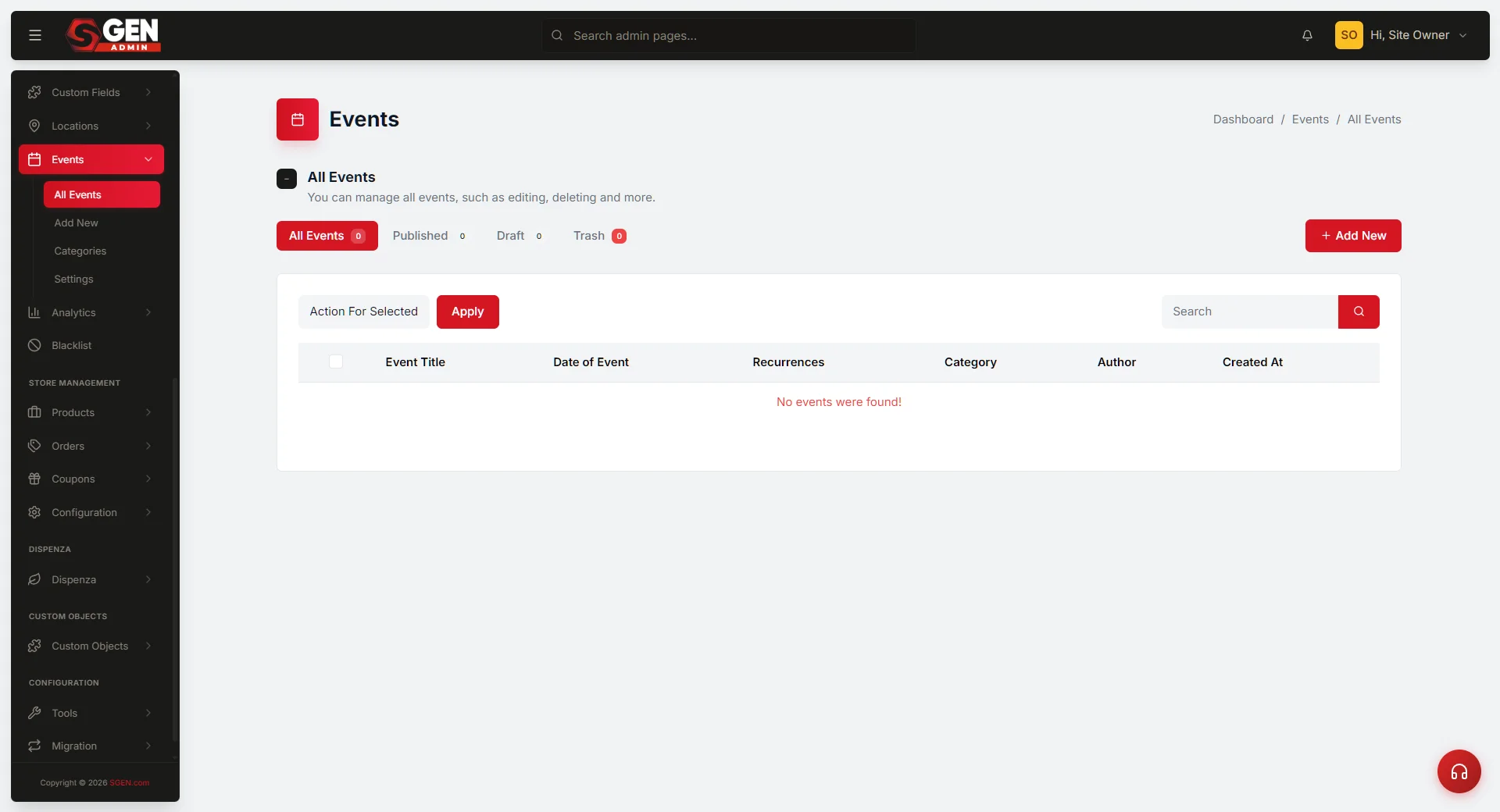
Events lives in SG-Admin under the content group, alongside Blogs and Pages.
Create event form — field reference
The Add New form groups fields across these panels:
| Field group | What you configure |
|---|---|
| Basics | Title · Permalink slug (auto-fills on first save) · Date & Time range · Address |
| Content | Body text via SGEN text editor or SG-Builder switch |
| Recurrence | Repeat type (Daily / Weekly / Monthly / Yearly) · End condition (date or count) |
| Banner | Per-event hero block: headline, CTA buttons, background image, colors |
| SEO | Per-event SEO title, description, canonical, search-engine visibility |
| Sidebar | Status · Category · Thumbnail |
Status options:
| Status | Effect |
|---|---|
| Publish | Event visible immediately on the public archive |
| Draft | Saved, visible only to admins; hover the row and click Preview to share a draft URL |
| Private | URL accessible only when logged in as admin |
| Password Protected | URL accessible to anyone with the password — useful for invite-only events |
Recurrence — set Repeat type (Daily / Weekly / Monthly / Yearly) and an end condition (a specific date or after N occurrences). The event appears once on the public archive but expands into individual sessions on the calendar. Do not use a single record to represent a recurring series — duplicate the record with the new date per occurrence so each occurrence has its own lifecycle state and registration count.
Banner block — toggle on to add a per-event hero above the body content: headline, subheadline, one or two CTA buttons, and a background image. Use it for any event where you want visitors to RSVP before reading the full description.
SG-Builder content — switch the Editor select on the form sidebar to SG-Builder for a visual layout (sections, columns, embedded video). The plain content area collapses into a launch button; click it to open SG-Builder scoped to this event. Publish from inside SG-Builder when done.
Steps
The steps below cover adding and publishing your first event.
1. Open Events and add a new event
Open SG-Admin, go to Events, and choose Add new event. Fill in the name, slug, and description.
The name is the public title visitors see in the listing. The slug becomes the URL fragment — keep it short and descriptive, as it persists for the life of the event.
2. Set the date range and location
Set the start and end date/time. The platform uses this range to compute the lifecycle state: upcoming before the window, live during it, past after.
For location, pick a stored Locations record if the venue is already in your system — address, hours, and GBP pairing link automatically. For a one-off venue, enter the details as free text.
3. Configure registration
Registration form: pair the event with a Forms form. Visitor submissions count against the capacity if one is set.
External link: enter the external URL in the registration field if you're directing visitors off-site.
No registration (walk-in): leave the registration field unset.
4. Publish and confirm the listing
Publish the event. It appears in the upcoming listing immediately. Confirm the date format matches your other listings, the location reference renders clearly, and the registration link or form opens correctly.
What success looks like
- Upcoming events appear in the public listing in chronological order.
- During the event window, the event status reads as live.
- After the end date, the event moves to past and remains visible (unless the listing is filtered to upcoming only).
- Registration submissions appear in the paired Forms form; capacity counts down as submissions arrive.
- Linked Locations records stay in sync — if address or hours change in the Location record, all events referencing it update automatically.
What to do if it does not work
- The event does not appear in the public listing. Confirm the event is published, not draft. Confirm the listing is not filtered in a way that hides upcoming events.
- The registration form is not collecting submissions. Confirm the form is published (under Forms) and paired correctly to the event.
- Capacity count looks wrong. Capacity counts down from the configured cap as submissions arrive. If submissions existed before capacity was set, the count may need a manual reconcile.
- The date display looks wrong. Confirm the site's time zone setting matches the event location's time zone.
- Past events disappear but should stay visible. The listing is filtered to upcoming only; switch the filter or expose a past-events archive view.
Examples
Regular recurring workshop. Set title, date = next session, start/end time, Recurrence = Weekly with no end date. The event appears once on the archive and expands into every weekly instance on the calendar. Visitors see all upcoming dates, not just the first.
One-off event. Set title, date, time, address, and body description. Leave Recurrence at n/a. Publish. The event appears at its own URL immediately — share in email and social.
RSVP-driven banner event. Toggle the Page Banner block, set a headline, a subheadline, and a CTA button labelled "Reserve Your Spot" linking to your registration form. The banner renders above the event content and looks like a landing page.
Draft for team review. Set Status = Draft. Hover the row on the Events list and click Preview to share a draft URL. Flip to Publish when approved.
Invite-only preview. Set Status = Password Protected. The URL works, but visitors must enter the password to see the event — useful for partner previews and pre-launch sessions.
Event record + lifecycle
An event record carries: name, slug, start/end date, location reference (or free-text venue), description, capacity, registration form linkage, and a lifecycle state.
Records flow upcoming → live → past automatically based on the date range. Past events remain visible by default — visitors searching for recap content and inbound links both depend on the page staying live. If your site prefers an upcoming-only listing, the listing filters to upcoming while the records themselves stay indexed and reachable by direct link.
Registration
Events pair with a Forms form record for registration capture. Submissions count toward the event's capacity cap. When capacity is reached, you can close registration manually or expand the cap.
For recurring series (weekly classes, monthly meetups), duplicate the event record with the new date rather than treating the series as one record. Each occurrence has its own lifecycle state and registration cap — a single record with a recurrence rule would obscure per-occurrence registration counts.
Past-event archive
Time zone
Event dates and times are interpreted in the site's configured time zone. For online events reaching multiple time zones, name the time zone in the event description — the platform does not auto-convert to the visitor's local time.
Vocabulary
| Term | Meaning |
|---|---|
| Lifecycle state | upcoming / live / past — computed automatically from the date range. |
| Capacity | The per-event registration cap; counts down as form submissions arrive. |
Related reading
- SG-Admin Overview — parent surface.
- Locations — venue records.
- Forms — registration forms.
- Templates — public listing templates.
Create event form — field reference
| Field group | What you configure |
|---|---|
| Basics | Title · Permalink slug (auto-fills on first save) · Date & Time range · Address |
| Content | Body text via SGEN text editor or SG-Builder switch |
| Recurrence | Repeat type (Daily / Weekly / Monthly / Yearly) · End condition (date or count) |
| Banner | Per-event hero block: headline, CTA buttons, background image, colors |
| SEO | Per-event SEO title, description, canonical, search-engine visibility |
| Sidebar | Status · Category · Thumbnail |