
Templates
⏱ ~2 min read · reference page — what templates are, the four types, and how admin and builder stay in sync.
In short. The Templates module is SG-Admin's master list of site-wide layout templates. Every page, post, product, and custom-object record points at a template; that template controls default rendering. SG-Builder Templates Library is the visual picker that reads from this same list — edits flow both ways.
On this page: What a template is · The four template types · Admin / Builder relationship · Where to find it · Common tasks
What a template is
A template is a site-wide layout structure. It carries an identity, a type (page / post / product / custom object), a layout shape, and per-template configuration. Records reference a template for default rendering; SG-Builder per-page composition overrides that default when needed.
SG-Admin Templates is the single source of truth. SG-Builder Templates Library is the visual surface that references this list — not a second list.
The four template types
| Type | Applies to |
|---|---|
| Page templates | Page records — Homepage, Landing, Standard, and any custom page layouts |
| Post templates | Blog post detail pages |
| Product detail templates | Store product detail pages |
| Custom Object detail templates | Custom Object detail pages where the object type carries page rendering |
Site · SG-Admin · Templates — master list
| Template | Type | Records using | Updated |
|---|---|---|---|
| Homepage | Page | 1 | 4d ago |
| Landing | Page | 14 | 2d ago |
| Standard | Page | 52 | 9d ago |
| Post detail | Post | 340 | 1d ago |
| Product detail | Product | 156 | 3d ago |
SG-Admin / SG-Builder relationship
The admin holds the canonical list; SG-Builder reads from it. Editing a template in SG-Admin propagates to every record using it. Saving a template from SG-Builder writes back to this list. Both surfaces reflect the same state — there is no separate "builder-only" template.
Where to find it
Open SG-Admin for your site. Templates appears in the sidebar under the design or appearance group. The master list, template type filters, and per-template usage counts are all visible from this surface. Admin access is required to create or modify template definitions.
Common tasks
| You want to | What to do |
|---|---|
| Edit the layout of the post detail page | Open Templates → Post detail → edit layout |
| Create a new landing page variant | Create a new Landing template; assign pages to it |
| See which pages use a template | Check the usage count column in the master list |
| Add or swap a template in the editor | Use SG-Builder Templates Library — it reads from this list |
Navigating the Templates list
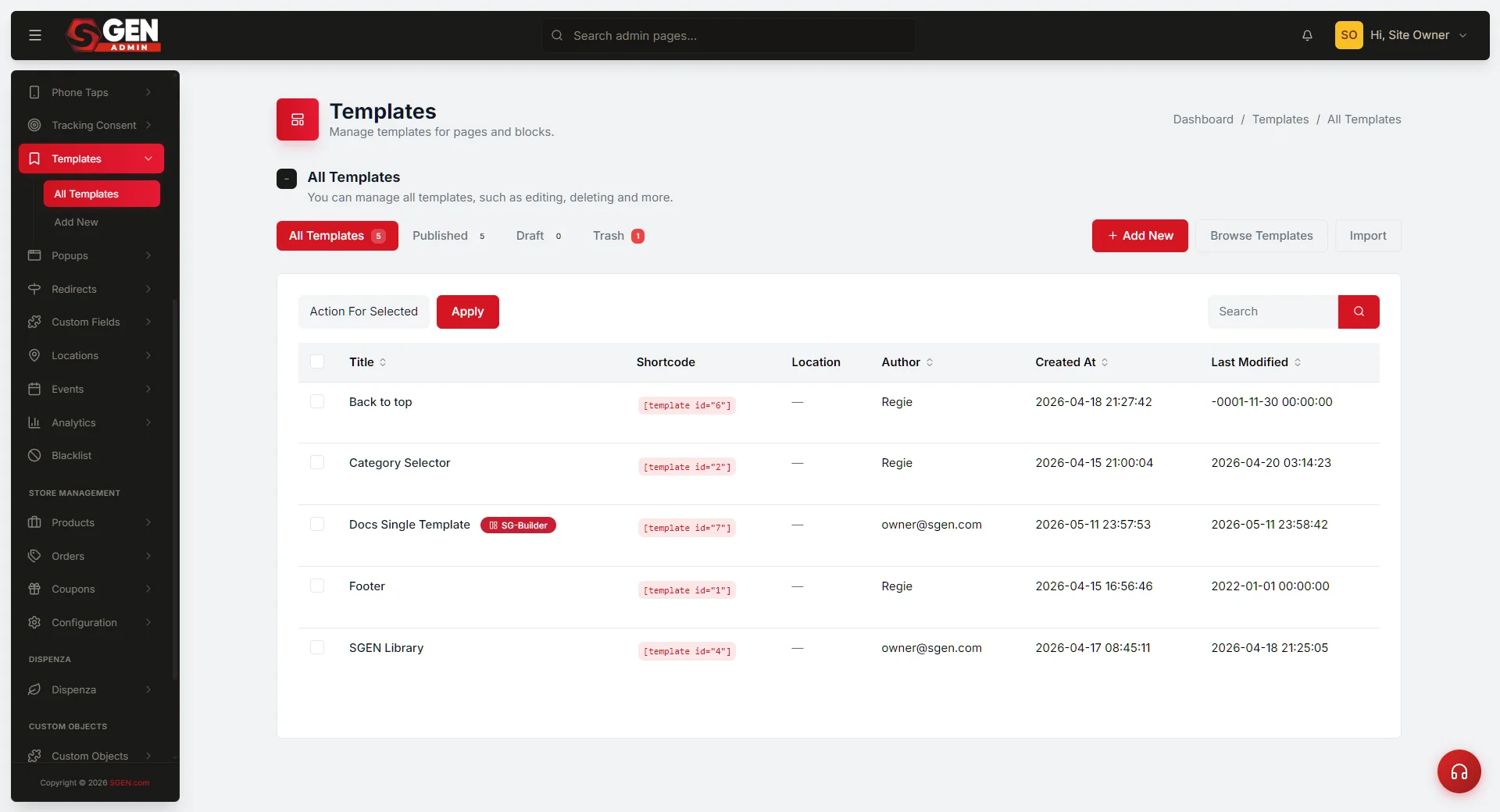
The Templates list is at SG-Admin → Templates. Key UI elements:
| Element | What it does |
|---|---|
| All / Published / Draft / Trash tabs | Filter the list to that status. Trash tab shows soft-deleted templates — recoverable or permanently deletable from there. |
| Title column | Click any title to open the Edit page for that template. |
| Shortcode column | Shows Err: Template not found! — copy and paste into any page or post to render the block. |
| Per-row actions | Edit · Duplicate · Trash · Export (downloads one template as JSON). |
| Search field | Substring match on template titles. |
| Add New button | Opens the Create Template form. |
| Import / Export button | Opens the bulk JSON import/export page. |
Bulk-managing templates
To act on multiple templates at once:
- Open the Templates list and select the status tab for the templates you want to change (All, Published, Draft, or Trash).
- Check the rows you want to act on (or check the header checkbox to select all visible rows).
- Open the Action for Selected dropdown and choose: Move to Publish, Move to Draft, or Move to Trash.
- Click Apply. A green banner confirms the action.
Note: changing the filter tab clears your row selections. Always pick the tab first, then check rows, then apply.
For permanently deleting trashed templates: switch to the Trash tab, select the rows, choose Delete Permanently, and click Apply. This cannot be undone — export a backup first.
Exporting templates as JSON
Export is a read-only snapshot — it changes nothing in your dashboard.
Export one template: from the Templates list, click the Export row action on that template's row (or open the template's Edit page and click the Export button at the top right). A JSON file downloads to your browser.
Export all templates: go to Templates → Import / Export → Export tab, click Export All. The file contains every template at every status (Published + Draft + Trash). Use this as a full-catalog backup before bulk-permanently-deleting or before a site migration.
The exported file is plain text — open it in any text editor to inspect contents. Import it back via Templates → Import / Export → Import tab.
Related reading
- SG-Admin Overview — parent surface
- Pages — page records reference templates
- SG-Builder Templates Library — in-editor counterpart