
Forms in SGEN
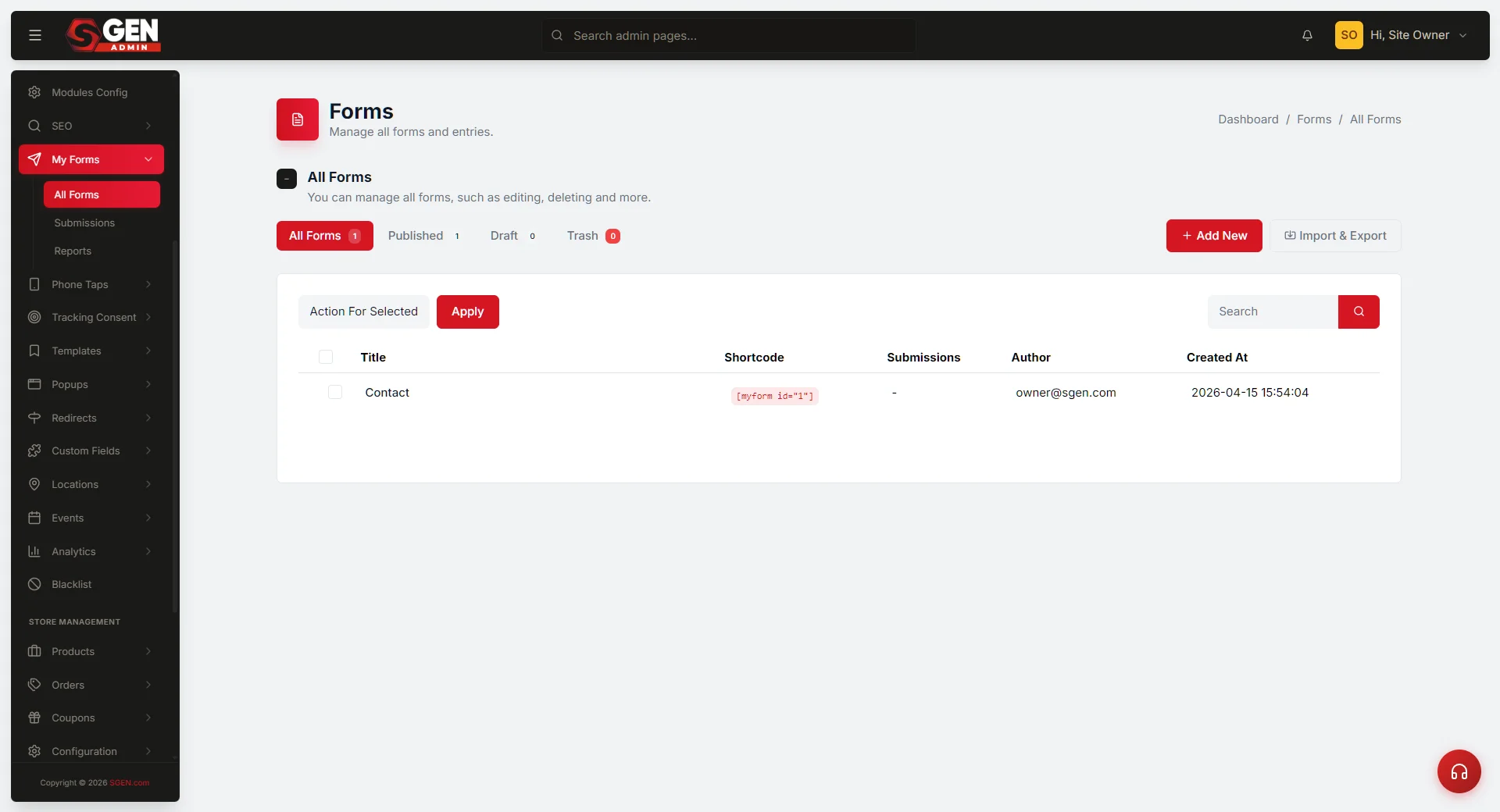 All Forms list (title, shortcode, submission count, status tabs, Add New / Import & Export) — the entry surface this reference describes." loading="lazy" style="width:100%;max-width:900px;height:auto;border-radius:8px;border:1px solid #e5e7eb;display:block;margin:12px 0">
⏱ ~5 min read · reference page — skim the tables to find what you need fast.
In short. SGEN's Forms system is built into every plan — no plugin required. You build forms in My Forms inside SG-Admin, choose from 15 field types, configure post-submit behaviour (success message or redirect), set up email notifications per form, and embed the form anywhere via a shortcode like Err: Form not found!. Submissions are stored in SGEN and exportable. Spam protection uses Google reCAPTCHA (keys wired once in Tools → Google Integrations). That's the core — the rest of this page is the full field and settings reference.On this page: System structure · Field types · Settings, Config & Mail · Submissions & export · reCAPTCHA & autosave · Embedding · Common mistakes · Route map
How the Forms system is structured
The Forms system lives at My Forms in the SG-Admin sidebar. It has three sub-pages:
| Sub-page | Path | What it does |
|---|---|---|
| All Forms | /sg-admin/forms | List of every form — title, shortcode, submission count, status tabs (All / Published / Draft / Trash). Add New and Import & Export live here. |
| Submissions | /sg-admin/forms/submissions | Shared inbox for all form entries. Filter by form or date range. |
| Reports | /sg-admin/forms/reports | Aggregated submission volumes across all forms. |
The form editor
Opening a form (via Edit or Add New) takes you to /sg-admin/forms/edit/N. The editor has four areas:
- Field Palette (right panel) — click a type to add it to the form
- Form Builder (centre) — live field list; each row has Move / Duplicate / Delete controls, a Required flag, and a column-width setting
- Settings / Config / Mail Settings (panels below) — post-submit behaviour, button options, and notifications
- Update a Form (bottom) — saves all changes
SGEN assigns a shortcode — e.g. Err: Form not found! — to each form at creation. The shortcode is shown in the All Forms list and at the top of the editor.
The Field Palette — every field type
Clicking a type in the palette adds it to the Form Builder. Source: live-verified 2026-06-02.
| Field type | Input rendered | Typical use |
|---|---|---|
| Text | Single-line text box | Name, company, short answers |
| Textarea | Multi-line text area | Messages, comments |
| Email input (browser-validated) | Contact address | |
| Tel | Telephone input | Phone number |
| Number | Numeric input | Quantity, age, year |
| Password | Masked text box | Password confirmation, PIN |
| Select | Drop-down list | Country, category, single-choice |
| Checkbox | Checkbox | Agreement / yes-no |
| Radio Group | Radio button set | Multiple choice, single answer |
| Date | Date picker | Preferred date, date of birth |
| Time | Time picker | Preferred time, appointment |
| Button | Clickable button | Intermediate actions inside the form |
| Hidden | Hidden input (not shown to visitor) | Pass metadata or tracking values with the submission |
| File Upload | File picker | Résumé, image, document attachment |
| HTML Block | Static HTML rendered in the form | Inline instructions, section headings, consent text |
Each field row can be set as Required and given a column width (default col-12 — full width; narrower classes place fields side by side). Labels and placeholders are set inside the field's settings row.
Form settings — Settings, Config, and Mail Settings
Three panels below the Form Builder control what happens after submit, how the button behaves, and where notifications go.
Settings
| Setting | What it controls |
|---|---|
| Enable recaptcha? | Google reCAPTCHA spam protection for this form. Keys must be set up first at Tools → Google Integrations. |
| Success Message | Text shown on the page after a successful submission. |
| Redirect to | Optional URL — sends the visitor elsewhere after submit. Leave empty to show the Success Message instead. |
| Status | Publish or Draft. Draft forms do not appear on the front end even if the shortcode is embedded. |
| Template | Rendering mode: Default (single page), Step Form (multi-step wizard), or Custom HTML (raw HTML override). |
Config
| Config option | What it controls |
|---|---|
| Extra Classes | CSS class names added to the form wrapper, for styling via Custom CSS. |
| Autosave entry? | Saves partial entries as the visitor types, before submit. |
| Enable submit button? | Show or hide the submit button. |
| Submit Button Text | Label on the submit button — e.g. "Send Message" or "Book Now". |
Mail Settings
Notification emails are per-form — there is no site-wide notifications screen.
| Field | What it controls |
|---|---|
| Enable notification? | Master toggle. Off = no emails sent on submission. |
| Subject | Email subject line for the notification. |
| From Name | Sender name shown in the notification email. |
| Recipient Email | Address that receives the notification. |
| Additional Headers | Extra headers (Reply-To, CC, BCC) in raw header format. |
| Message | Notification email body. Supports merge tokens (see below). |
Merge tokens for notification messages:
| Token | Inserts |
|---|---|
| `` | Your site's name |
[all_fields] | All submitted field values as a formatted list |
[field name="fieldname"] | The value of a specific named field |
Submissions, Reports, and data export
All form submissions are stored in SGEN at /sg-admin/forms/submissions. The view is filterable by form and date range. From the form editor, View Entries opens the same page pre-filtered to that form's entries (?form_id=N) — the fastest path to a specific form's inbox.
Import & Export (/sg-admin/forms/import_export) handles bulk data moves — exporting submission data or copying form configurations between sites.
reCAPTCHA and spam protection
reCAPTCHA
Two steps to enable reCAPTCHA on a form:
- Add keys — Go to Tools → Google Integrations (
/sg-admin/tools/google_integrations), enter your Google reCAPTCHA Site Key and Secret Key. - Enable on the form — In the form editor, go to Settings → Enable recaptcha?, save with Update a Form.
Both keys must be present. The key setup is in Tools, not in the Forms area.
reCAPTCHA is not gated by the Tracking Consent module — it serves a security function independent of analytics. Whether it counts as tracking technology under privacy regulations is a legal question for your adviser. See Accessibility and Consent for the reCAPTCHA and consent interaction.
Autosave entries
The Autosave entry? toggle in Config saves partial submissions as the visitor types, creating draft entries in the Submissions view. If the Tracking Consent module is active and the visitor has not yet consented, draft entry saving is suppressed until consent is given.
Embedding and displaying forms
Shortcode embed
Every form has a unique shortcode: Err: Form not found!. Find it in the All Forms list (Shortcode column) or in the form editor header.
To embed: copy the shortcode, paste it into any page, blog post, or popup content area, and save. SGEN renders the form at that location. Multiple forms can appear on the same page.
SG-Builder Form block
In SG-Builder, the Form block (Extra blocks category) embeds a saved form directly into the page layout — no shortcode needed. Create the form in My Forms first, then select it in the block's settings. Full detail: SG-Builder Concepts.
Embedding in popups
A form shortcode in a popup's content works identically to a page embed. Popups are managed under Modules → Popups in SG-Admin.
Duplicate for reuse
Use the Duplicate row action on the All Forms list to copy a form — including all its fields and settings — as a new draft. Each copy gets its own unique ID and shortcode.
Common mistakes
| Mistake | What happens | Fix |
|---|---|---|
| Forgetting to publish the form | Shortcode is in place but form does not appear on the front end | Form editor → Settings → Status → Publish → Update a Form |
| Setting both Redirect and a Success Message | Visitor is redirected and never sees the message | Choose one: use Redirect to URL, or leave it empty and use Success Message |
| Enabling reCAPTCHA before adding keys | Form may break or show a config error | Set keys at Tools → Google Integrations first, then enable on the form |
| Expecting a central notifications screen | There is none — notifications are per-form | Each form → Mail Settings → Enable notification? → set Recipient Email |
| Using the wrong shortcode ID | Wrong form renders (or nothing, if ID doesn't exist) | Copy the shortcode from the All Forms list — do not type the ID manually |
| Leaving notification disabled | Submissions stored but no email sent | Form → Mail Settings → check Enable notification? → set Recipient Email |
| No instructions for File Upload accepted types | Visitors attempt unsupported uploads | Add an HTML Block field above the File Upload with accepted type guidance |
| Deleting a form still embedded on pages | Shortcode renders nothing on those pages | Move to Trash first; remove or update the shortcode on pages before deleting |
Where to find each control
| Goal | Where to go | Route |
|---|---|---|
| Create a new form | My Forms → All Forms → Add New | /sg-admin/forms/add_new |
| Add fields | Form editor → Field Palette | /sg-admin/forms/edit/N |
| Set success message | Form editor → Settings → Success Message | /sg-admin/forms/edit/N |
| Redirect after submit | Form editor → Settings → Redirect to | /sg-admin/forms/edit/N |
| Set up email notifications | Form editor → Mail Settings → Enable notification? | /sg-admin/forms/edit/N |
| Enable spam protection | Tools → Google Integrations (keys), then form Settings → Enable recaptcha? | /sg-admin/tools/google_integrations |
| Enable autosave | Form editor → Config → Autosave entry? | /sg-admin/forms/edit/N |
| Change submit button label | Form editor → Config → Submit Button Text | /sg-admin/forms/edit/N |
| View all submissions | My Forms → Submissions | /sg-admin/forms/submissions |
| View one form's submissions | Form editor → View Entries | /sg-admin/forms/submissions/?form_id=N |
| Export submission data | My Forms → Import & Export | /sg-admin/forms/import_export |
| Embed a form on a page | Copy shortcode from All Forms list; paste into page content | /sg-admin/forms |
| Make a multi-step form | Form editor → Settings → Template → Step Form | /sg-admin/forms/edit/N |
| Connect an integration | All Forms list → Integrations row action | /sg-admin/forms/N/integrations |
Related
- Accessibility and Consent — reCAPTCHA and Tracking Consent interaction; Draft form entries exclusion.
- SG-Builder Concepts — Form block in the Extra blocks panel.
- KB: Fields — kb-cx-form-field · kb-vforms-add-field · kb-vforms-required · kb-vforms-file-upload
- KB: Embed — kb-cx-myform-shortcode · kb-where-do-i-embed-a-form · kb-vforms-embed
- KB: Submissions — kb-where-do-i-find-form-submissions · kb-vforms-view-submissions · kb-vforms-export
- KB: Notifications — kb-where-do-i-set-form-notification-emails · kb-vforms-notification
- KB: After-submit — kb-vforms-success-message · kb-vforms-redirect
- KB: Spam / reCAPTCHA — kb-vforms-recaptcha
- KB: Multi-step — kb-vforms-multistep
- pricing — every plan includes Forms; see current plans.