
How SGEN Support Tickets Work
Every support request in SGEN follows the same path: open a ticket from SG-Dashboard, let the platform attach context automatically, and receive the resolution through an in-platform notification and email. This page is the reference definition of that workflow — from the moment you click Open Ticket to the moment the issue is closed.
One entry point
All tickets start in SG-Dashboard under Support. The platform handles routing from there — you do not need to know the internal queue structure.
Context attaches automatically
Account plan, affected site, recent operator activity, and browser details are captured at open time so support can engage without asking you to repeat yourself.
Two resolution channels
The support reply arrives both as an in-platform notification and by email. The full ticket history stays in SG-Dashboard for review at any time.
Opening a ticket from SG-Dashboard
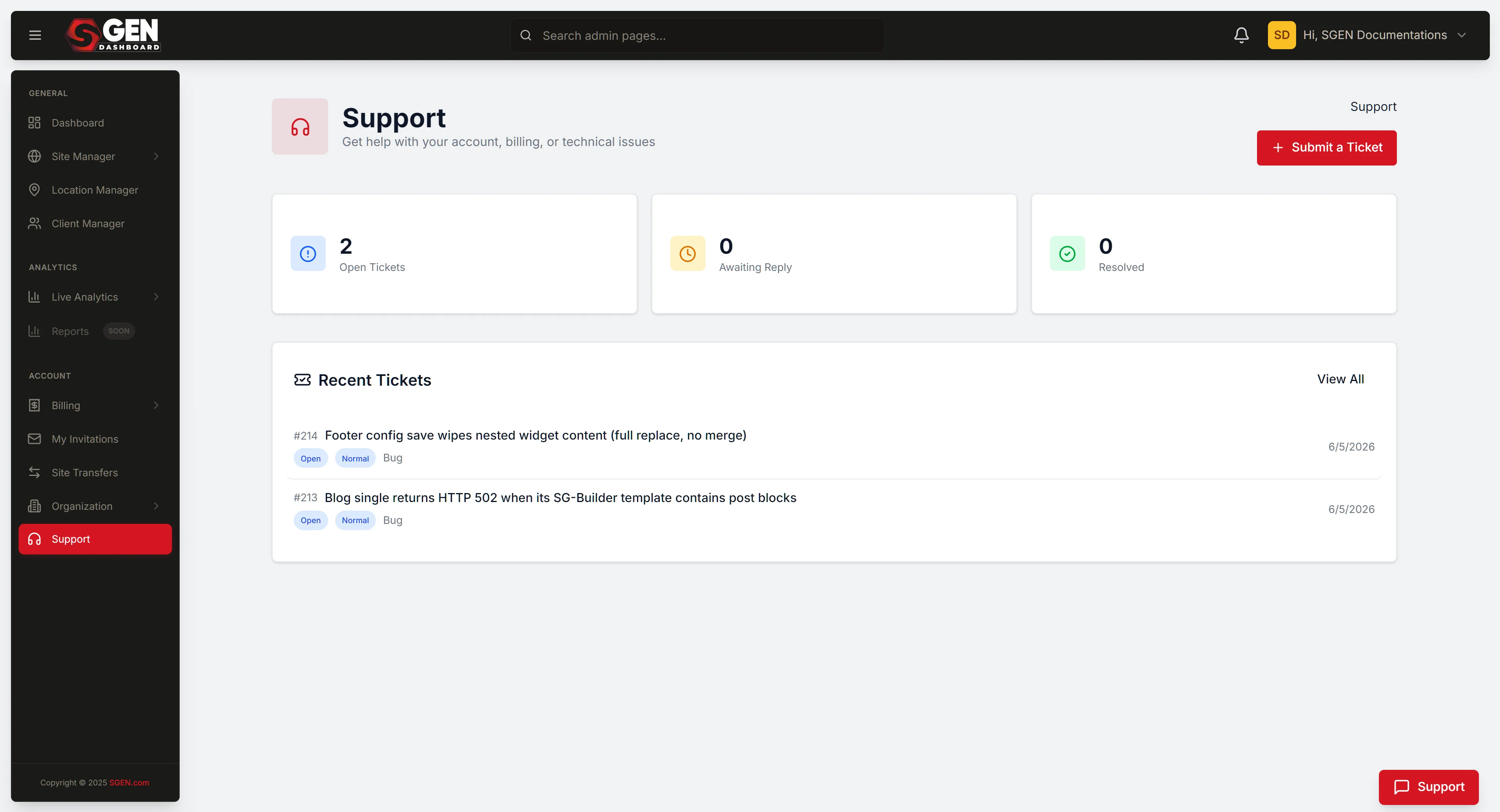
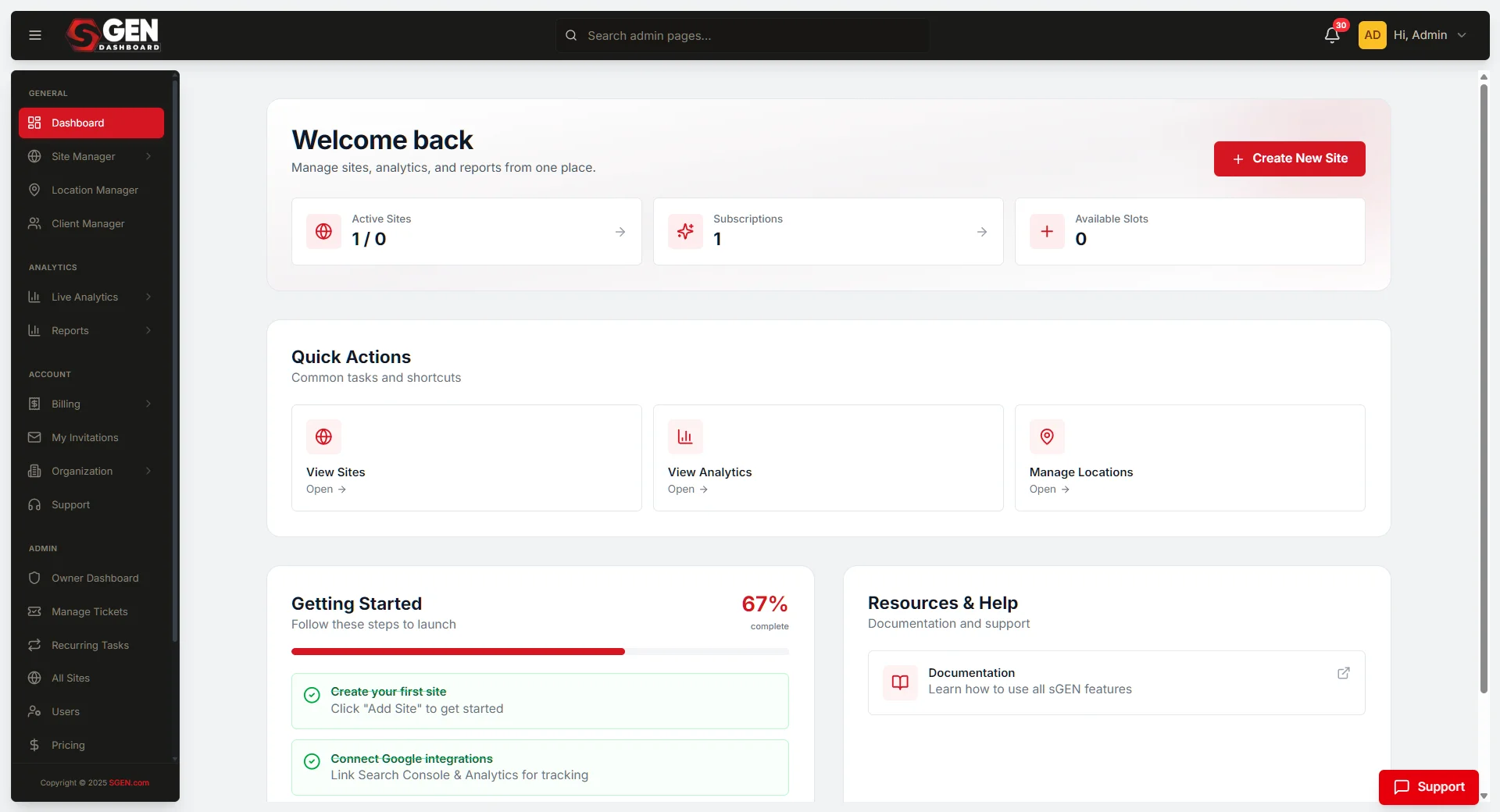
The ticket entry point is SG-Dashboard. Open the dashboard, click Support in the left sidebar, then click Open Ticket. A form appears with a subject field, a description field, and — where applicable — a category selector. Fill in what you know and submit. The platform handles the rest.
Dashboard
SG-Dashboard Support
The primary entry point. Click Support in the sidebar, then Open Ticket. This is the path for all operator-initiated requests.
Email
Email-to-ticket
Sending to support@sgen.com creates a ticket from the inbound message. The same routing and context rules apply once the ticket is created.
What the platform attaches automatically
When a ticket is opened, SGEN captures context from your account and session so the support team can engage with full background. You do not need to copy-paste account numbers or describe your plan tier — the platform attaches those details at open time.
Account
Account identity
Account name, plan tier, and recent billing state. Support sees your tier immediately and can check plan-specific behaviour without asking.
Site
Site context
The site (or sites) you were working in when the ticket was opened, including the reproduction URL where the issue surfaces.
Activity
Recent operator actions
A slice of your recent admin actions across the platform — for example, a theme change made minutes before the issue appeared. This is the audit-log slice attached to each ticket.
Environment
Browser and OS
Browser name, version, and operating system are auto-collected. A status-surface snapshot at the time of the report is also included so support can rule out platform-wide incidents.
Working a ticket end-to-end
For support users and account owners with ticket-handling access, the inbox lives at dashboard.sgen.com/support. The workflow is three steps.
1
Open the support inbox
From SG-Dashboard, navigate to Support in the left sidebar. The inbox lists tickets by queue with status, subject, requester, and last-update time.
2
Triage and claim
Filter by your queue. Sort by Created ascending so the oldest unaddressed ticket comes first. Click a ticket to open it. Use Assign to me to claim the ticket and prevent duplicate work.
3
Resolve and close
Reply with the resolution. Set status to Resolved when the customer's blocker is cleared. Add an internal note if follow-up is needed before close. Status Closed is final — set it once the customer confirms or 48 hours passes without reply.
How resolution reaches you
When support replies or closes a ticket, the resolution arrives through two parallel channels. Both fire on every status change — you do not need to check the dashboard manually.
In-platform notification
Notification Logic delivers an in-app alert inside SG-Dashboard when support replies or closes the ticket. The notification links directly to the ticket detail view.
Email
The support reply also arrives via email through the platform's Email and SMTP transport. The from address is the support channel configured for your account.
Ticket history
The full thread — your open, every support reply, follow-ups, and the final resolution — stays in SG-Dashboard under Support for review at any time.
Common ticket-workflow issues
Most ticket problems are routing or permission related. Check the matching item below before opening a separate request.
Routing
Submitted ticket not in inbox
Confirm the ticket reached the correct queue — some submission paths route by category. Check the Spam/Filtered tab if your inbox has filtering rules active.
Delivery
Reply not delivered to customer
Verify the customer's email on the ticket. If correct, check Mail Settings on the support channel — a wrong From address causes silent reply failure.
Access
Assignment dropdown empty
Your role lacks ticket-assignment permission. Ask your support lead or an Owner to grant it via User management in SG-Dashboard.
Notes
Internal note visible to customer
Notes marked Public post to the customer. Edit the note, toggle to Private, and save. If the note already sent, follow with a Public correction.
Reopening a closed ticket
If a ticket was closed before the issue was fully resolved, or new information arrived after close, you can reopen it without starting over.
Reopen from ticket detail
Click Reopen at the bottom of the closed ticket. Status flips back to Open and both the customer and assignee are notified automatically.
Wrong assignee
Use Unassign, then assign correctly. Both actions are recorded in the audit log with actor and timestamp.
Wrong status set
Manually flip the status via the status dropdown. The history pane shows who changed it and when, so the record stays accurate.
Ticket record shape
When reading audit logs that reference the ticket surface, a ticket record carries the following shape end-to-end. Field names shown are illustrative — confirm exact attribute names against the live system before scripting against them.
{ "ticket_id": "TKT-2026-04881", "site": "yoursite.com", "requester": "operator@yoursite.com", "subject": "Checkout failing on Canvas Tote", "status": "open", "queue": "support", "assigned_to": "support-agent@sgen.com", "created_at": "2026-04-22T14:03:00Z"
}
Illustrative shape — verify exact field names against the live system before use.
Heads up Ticket access is scoped to the account, not to individual sites. Account owners and operators who have been granted support access can open and view all tickets on the account.