
SGEN dashboard tour
⏱ ~10 min to complete the tour · skim bold lead-ins to move faster · the TL;DR below is the 60-second version.
In short. The SG-Admin dashboard has a left sidebar (all navigation), a top bar (site switcher + your account), and a main content area that changes per section. The sidebar groups are: Pages · Blog · Forms · Media (content), Custom Objects · SG-Builder (structure), Settings · Users (config, admin-only). This tour walks each section in order, takes about ten minutes, and ends with you setting bookmarks for the sections you will use most.
On this page: Home view · Sidebar walkthrough · Pages · Blog · Forms · Media · Custom Objects · SG-Builder · Settings · Bookmarks · Troubleshooting
How to orient yourself in the admin dashboard in 10 minutes
The SGEN dashboard is straightforward, not complex. A left sidebar holds all navigation; each section corresponds to exactly one job — publishing pages, writing posts, handling form submissions, managing media, configuring the site. None overlap.
This guide walks the dashboard in a single session — home view to the last sidebar section — and tells you what each area is for and which tasks belong there.
When to use this guide
- First-week orientation — you have logged in and need the spatial map before you start working.
- New-hire training — a structured reading assignment or walkthrough script before a new team member touches content.
- Refresher after a hiatus — recalibrate your mental map after an update or a gap.
- Stakeholder demo — a logical sequence for showing the platform section by section.
For the full platform picture (all five surfaces, not just the admin), see Platform overview. For role-specific onboarding after this tour, see For your role.
Before you start
Three things need to be true:
- You are logged in — dashboard fully loaded with the left sidebar visible. If not: Account setup and first login.
- The dashboard loads completely — no blank sections or error messages. If you see them, hard-refresh first (Ctrl+Shift+R on Windows, Command+Shift+R on Mac), then re-login if the issue persists.
- You have a basic role assigned — your role controls which sidebar sections you can see. If large parts are missing, ask your account admin to confirm your access level.
Where to start
Navigate to yoursite.com/sg-admin. After login you land on the dashboard home view — that is where this tour begins. Every step happens within the dashboard.
Steps — Tour every section of the admin dashboard
Work through these steps in order. Click into each section, spend about one minute orienting yourself, and move on. Do not make changes.
1. Orient yourself on the home view
Before clicking anything, look at the three structural areas:
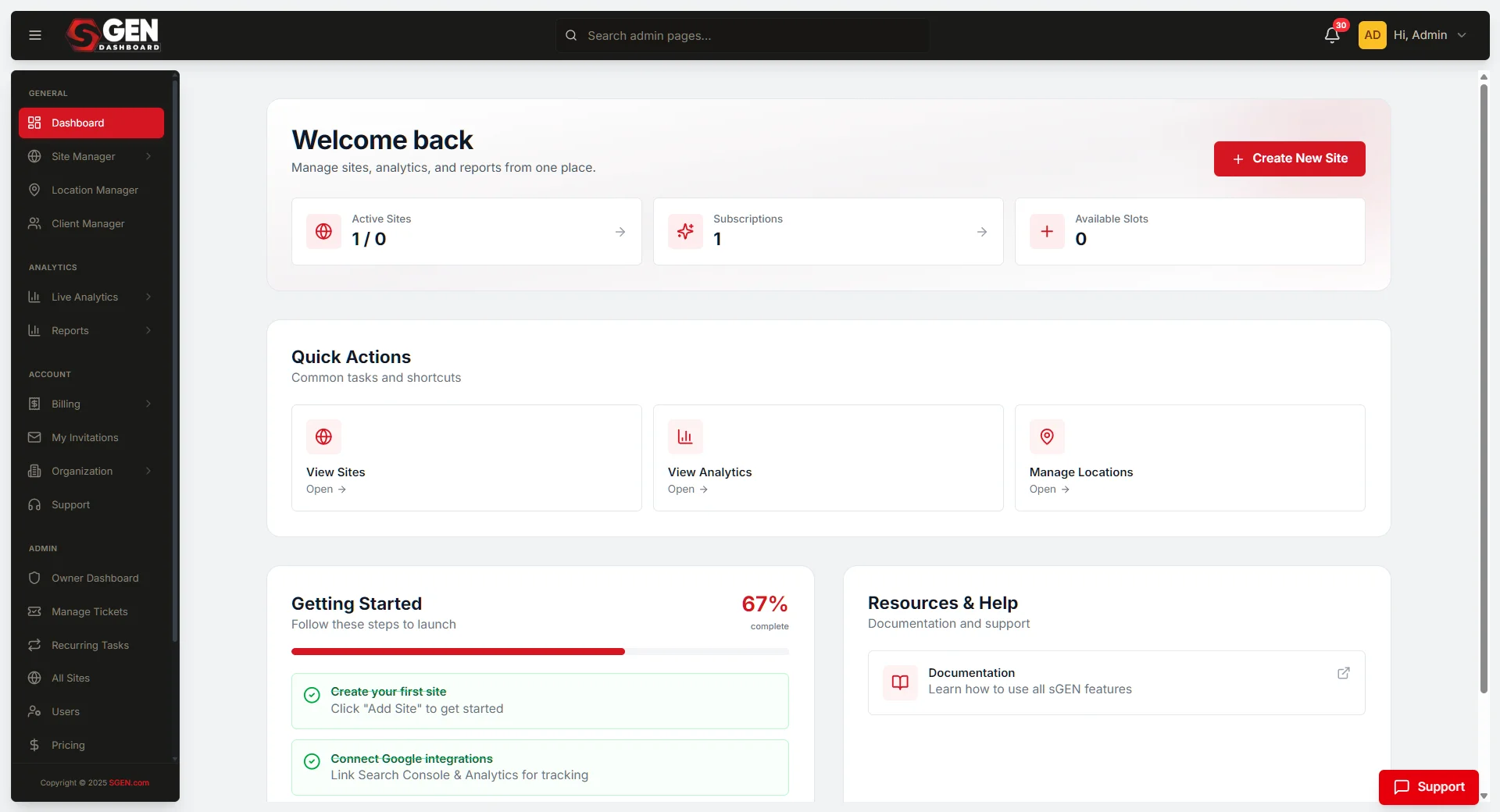
The left sidebar — main navigation, always visible. Groups: content sections at the top (Pages, Blog, Forms, Media), structural sections in the middle (Custom Objects, SG-Builder), and configuration at the bottom (Settings, Users). Your role and plan determine which ones appear.
The top bar — site name on the left (a fast sanity check when managing multiple sites), notification bell and account avatar on the right. Click the avatar for your profile, notification settings, and logout.
The main content area — on the home overview shows an activity summary: recent posts, form submissions, pages modified recently, and quick-link buttons. This is your starting point each session.
Note the numbers in the activity summary — published pages, total posts, form submissions. These reflect your site's actual state.
After 30 seconds, move to Step 2.
2. Walk through the left sidebar — top to bottom
Click each sidebar item from top to bottom. Spend about 15 seconds on each before moving to the next. You are building a mental map — not reading every detail.
Pages — every page on your site: published, draft, scheduled. Columns: title, status, last modified, who modified it. Filter by status or search by title. Create, edit, publish, or unpublish pages here.
Blog — all posts, same column structure as Pages plus category and tag columns. A secondary menu or tab holds Comments (if enabled). All post creation and publishing happens here.
Forms — two views: a list of forms you have created, and a submissions view showing everything visitors have sent. Some accounts split these into separate sidebar items.
Media — the central asset library. Grid or list of every image, document, and file uploaded to your account. Filter by type, search by filename, upload from this screen. Every image used in a page, post, or form comes from here.
Custom Objects — structured content types you define beyond pages and posts (product catalogs, team directories, location lists). May be empty if no types have been configured. Advanced area — do not make changes during the tour.
SG-Builder — the visual layout editor. Lists pages built with or eligible for SG-Builder. Clicking a page title opens the full-screen editor. Do not click into the editor during this tour — note where it is.
Settings — site-wide configuration with sub-items (General, Brand Kit, Users, Integrations, Custom CSS). Admin-only. Covered in Step 9.
Users — admin-only. Everyone with dashboard access, their roles, last login. Invite new users and change roles here. May appear under Settings depending on your SGEN configuration.
After clicking through each item, return to the home overview. Move to Step 3.
3. Preview the Pages section
Click Pages in the left sidebar.
Look at the columns: page title, status (published, draft, scheduled), last modified date, who last modified it. The search bar at the top filters by title; the status filter shows only drafts or only published pages.
Add Page (top right) creates a new page — note its location without clicking it.
Review the list for about one minute. Move to Step 4.
4. Preview the Blog section
Click Blog in the left sidebar.
The column structure mirrors Pages, but Blog adds Category and Tag columns. Look for a Categories or Tags link in the sidebar or a secondary menu — that is where you manage taxonomy. Note its location without clicking.
Add Post creates a new post. Note its location.
Spend about one minute reviewing. Move to Step 5.
5. Preview the Forms section
Click Forms in the left sidebar.
Two main views:
- Forms list — every form on your site (contact, signup, inquiry, event registration), its name, the page it appears on, and submission count. Clicking a form opens its configuration.
- Submissions view — every form submission received. Filter by form, date range, or review status. This is the authoritative list even if your account also sends email notifications.
If your account shows Forms and Submissions as separate sidebar items, click both and spend 30 seconds in each.
Review the Forms section, then move to Step 6.
6. Preview the Media section
Click Media in the left sidebar.
Grid view shows thumbnail previews; list view shows filename, type, size, upload date, and uploader. The filter bar narrows to images, documents, or a specific type. The search bar finds files by name.
Files uploaded to Media are available everywhere in the dashboard — in page content, blog post content, form attachments, and SG-Builder sections. The library is shared across the whole account.
Note the Upload Files button. SGEN supports WebP, JPEG, PNG, GIF, PDF, DOCX, and other common formats. Toggle WebP conversion and compression before uploading to optimize file sizes.
Review for about one minute. Move to Step 7.
7. Preview the Custom Objects section
Click Custom Objects in the left sidebar. If it is not visible, your role does not include access — note that and move to Step 8.
Custom Objects is a structured data layer for content types beyond pages and posts: product catalogs, team member directories, location lists, event schedules. Each type has defined fields; each entry is a record.
If the section is empty, no types have been defined yet. If types exist, you will see a list on the left and records when you click into a type. Schema setup is typically done by a platform admin or developer; content teams populate records.
Do not make changes here during the tour. Spend about one minute, then move to Step 8.
8. Preview the SG-Builder section
Click SG-Builder in the left sidebar.
This lists every page built or eligible to be built in the visual layout editor. Clicking a page title from this list opens the full-screen SG-Builder canvas. Do not click into the editor during this tour — it is a separate environment with its own workflow. Note where it is and what the page list looks like.
If you do not have admin or builder-level access, you may see a read-only view or no access at all.
Review the page list for about 30 seconds. Move to Step 9.
9. Preview the Settings section
Click Settings in the left sidebar. If it is not visible, your role does not include settings access — note that and continue.
Settings is a section with sub-items, not a single screen. Core sub-items:
| Sub-item | What it controls |
|---|---|
| General | Site name, primary URL, timezone, language, default SEO meta patterns |
| Brand Kit | Colors, fonts, logo — the visual foundation; propagates to global styles |
| Users | Invite, manage roles, deactivate accounts (admin-only; may also appear as a top-level sidebar item) |
| Integrations | Email service, analytics, CRM connections — active or paused |
| Custom CSS | Design-system-level style overrides — advanced; do not change during this tour |
Look through each sub-item without making changes. Move to Step 10 when done.
10. Set bookmarks for the sections you will use most
You now know every major section of the SG-Admin dashboard. Before finishing, bookmark the sections you will return to most.
To bookmark on Windows (Chrome / Edge): navigate to the section, then press Ctrl+D. Name it by site and section — "Your Site — SGEN Blog" is more useful than "Blog" when you have multiple dashboards.
To bookmark on Mac (Chrome / Safari): navigate to the section, then press Command+D. Same naming convention.
Suggested bookmarks by role:
| Role | Bookmark these sections |
|---|---|
| Platform admin | Home, Pages, Blog, Forms, Media, Settings |
| Content editor | Home, Pages, Blog, Media |
| Form or operations staff | Home, Forms (+ Media if handling attachments) |
| Marketing manager | Home, Blog, Media, Forms |
Set at least five bookmarks before finishing. You can always add more.
What success looks like
After the tour, you should be able to:
- Name every section in the left sidebar and describe in one sentence what it is for.
- Answer "where do I go for this?" for any common task — publishing a page, writing a post, reviewing submissions, uploading an image, inviting a team member, adjusting a site setting.
- Have at least five bookmarks named clearly enough to pick out of a list that also contains your other work sites.
- Know which sections are restricted by your role and which ones to ask your admin about if you need access.
What to do next: Platform admins should confirm General settings and Brand Kit are fully configured — Getting started with the SG-Admin. Content editors and marketing managers should open Blog or Pages and start working. If your team has a role-specific onboarding guide, follow that next — For your role.
What to do if it does not work
Sections are missing from the left sidebar. Your user role controls which sections are visible. Editors typically cannot see Users or Settings; contributors may only see Blog and Media. If sections your colleagues can see are absent, ask your account admin to review your role in the Users section — they can update access without requiring you to log out.
A section is labeled differently than this guide describes. SGEN updates sometimes rename or reorganize sections. If you see "Content" instead of "Pages," or "Submissions" as a standalone item — the function is the same. Click the section that seems most relevant; the screen contents will confirm you are in the right place.
The search bar does not find what you typed. Each section's search bar searches that section only. A page title typed in Pages search will not return blog posts. Confirm you are in the correct section, and check that you are searching by the right field — some sections search title only, not content or category.
The dashboard is slow on first load. A slow first load after login is usually temporary — SGEN caches the view after the first load. If every section takes more than five seconds, try a hard refresh (Ctrl+Shift+R on Windows, Command+Shift+R on Mac). Persistent slowness across multiple sessions on different networks is worth a message to your SGEN support team.
You cannot find your way back to the home view. The SG-Admin home is always at yoursite.com/sg-admin. Clicking the site name in the top bar also returns you to the home overview.
The main content area shows an error or blank screen. Hard-refresh first. If the error is limited to one section (Forms loads an error but Pages loads normally), log out and back in, then try again. If it persists, contact support with the URL and a screenshot of the error.
A few habits that make the tour stick
Start every session on the home overview. The activity summary shows what has happened on your site since you last logged in — new submissions, page changes, anything that needs attention. Bookmark the dashboard home, not a section-specific URL.
Use the sidebar, not the browser back button. The back button can return you to unexpected states. The left sidebar is always visible, always accurate, and never puts you in a broken state.
Name bookmarks by site and section. If you manage more than one site, "Blog" is not a useful bookmark name. "Your Site — Blog" is.
Note which sections are restricted and why. If Settings or Users is not in your sidebar, that is a deliberate access restriction. When you need access to a restricted section, the conversation with your admin is faster when you can name the exact section and explain why you need it.
Re-run the tour after a major SGEN update. Updates sometimes add new sections, rename existing ones, or reorganize the sidebar. A quick three-minute re-run recalibrates your mental map before a change catches you mid-task.
Settings sub-items
| Sub-item | What it controls |
|---|---|
| General | Site name, primary URL, timezone, language, default SEO meta patterns |
| Brand Kit | Colors, fonts, logo — the visual foundation; propagates to global styles |
| Users | Invite, manage roles, deactivate accounts (admin-only; may also appear as a top-level sidebar item) |
| Integrations | Email service, analytics, CRM connections — active or paused |
| Custom CSS | Design-system-level style overrides — advanced; do not change during this tour |