
Getting Started with the SGEN Admin
⏱ Quick answer below · full page ≈ 6 min · skim the bold lead-ins to move faster.
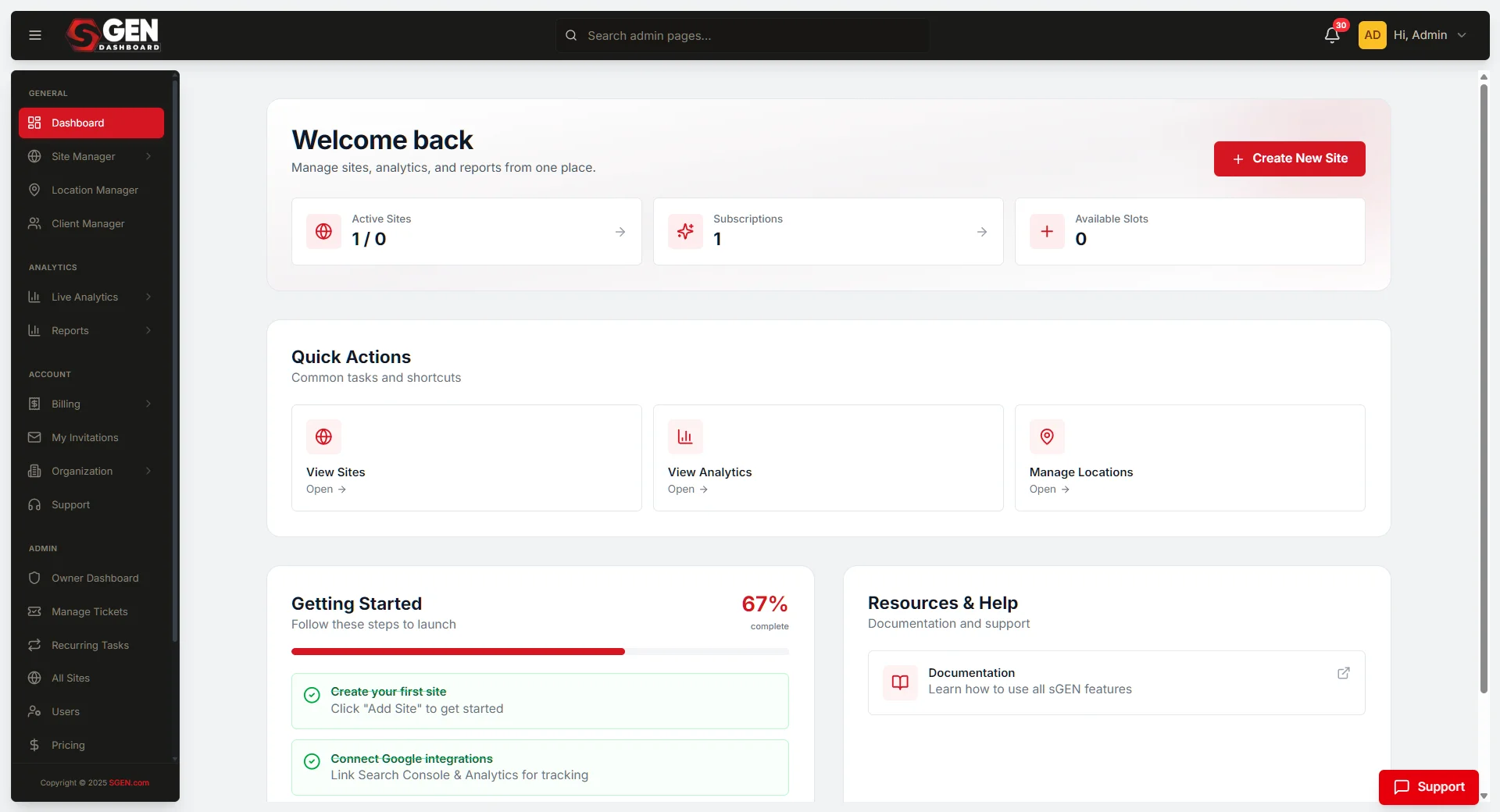
In short. Log in atyour-site.com/sg-adminand you land on the Dashboard. The left sidebar is your navigation — every module (Pages, Posts, Forms, SEO, Analytics, Settings) is reachable from there. Your role controls which entries appear. Use breadcrumbs at the top to move back up. For your first session: look around, try one safe action (open a page in the editor without saving, upload a test image), and close. Only deliberate save-and-publish actions affect your live site — exploring is always safe.
That's the gist — everything below fills in the depth.
On this page: Walk the admin (5 steps) · What success looks like · Core concepts · What's different from other tools · Roles · Common questions
The SGEN admin should feel navigable on the first session. Know where you land after login, how the sidebar is organized, what your role controls, and which actions are safe to try first. This is the first-session orientation for the admin surface — pair it with Getting Started with SGEN for the platform-level read.
How to use the SGEN admin on your first session
1. Land on the Dashboard
After login, the SGEN admin lands you on the Dashboard — recent activity, quick links to common surfaces, system status when relevant.
For a brand-new site the Dashboard is mostly empty. The value on day one is knowing where it is. As the site fills up, it becomes a useful at-a-glance read of what changed recently. No configuration needed.
2. Read the sidebar
The left sidebar is the main navigation. Every module — Pages, Posts, Forms, SEO, Analytics, Settings, Templates, Custom Fields — is reachable from there. Sections expand to show sub-pages (Pages → All Pages / Add New / Categories; Forms → All Forms / Submissions / Reports).
Scroll the sidebar end to end on the first session. You don't need to memorize every entry — recognizing the shape is enough.
3. Confirm your role and access
Your role controls what the sidebar shows. A site owner sees every module; a marketing operator sees a subset; a content editor sees a more limited subset.
If a sidebar entry seems missing, it's almost always a role-based limitation, not a technical issue. Contact the site administrator to confirm your role. See Roles below for the default mapping.
4. Walk the breadcrumbs
The top of every surface shows clickable breadcrumbs — click a parent crumb to move up a level without hunting through the sidebar. Especially useful once you're three or four clicks deep into a module.
Note: The SG-Builder editor surface replaces the breadcrumb bar with editor controls. Breadcrumbs return when you exit the editor.
5. Try one safe action
Before closing the first session, try one of these — none of them affect the live site:
- Settings — open, look at the values, close without saving.
- Pages — open a page in the editor, look at the canvas, close without saving.
- Media Library — upload a small test image, confirm it appears in the library.
- Forms — click Add New, look at the form-creation surface, close without saving.
- Analytics — open it, look at the empty state; data fills in after the site goes live.
The admin is not fragile. Only deliberate save-and-publish actions affect the live site.
What success looks like
A successful first admin session:
- You logged in and reached the Dashboard.
- You recognize the shape of the sidebar even if you don't remember every entry.
- You understand that your role controls which entries are visible.
- You used breadcrumbs at least once to move up a level.
- You tried one safe action without changing the live site.
When all five hold, the admin will feel familiar in subsequent sessions. Real work can begin.
What to do if something doesn't work
| Symptom | Most likely cause | Next step |
|---|---|---|
| Login page won't accept credentials | Wrong URL or password | Verify URL is your-site.com/sg-admin; check for a password-reset email |
| Sidebar entries are missing | Role-based limitation | Contact the site administrator to confirm your role |
| Dashboard is empty | Expected on day one | No action needed — it fills up as the site does work |
| Breadcrumbs disappear | You're in the SG-Builder editor | Exit the editor; breadcrumbs return in the regular admin |
| Admin feels overwhelming | Normal for first session | Walk five surfaces only: Dashboard, Pages, Forms, Analytics, Settings |
Core concepts that matter early
These terms recur across every module. You don't need to memorize them — just recognize them when they appear.
| Term | What it is |
|---|---|
| Page | A standalone site page. Created in Pages, edited in SG-Builder, published with an explicit publish action. |
| Post | A blog or article entry. Same shape as a Page, biased toward chronological content. Lives under /blog/ by default. |
| Form | A structured input surface that captures submissions. Embedded on pages by referencing the form ID. |
| Submission | One filled-out form. Stored in the Forms admin under its corresponding form. |
| Shortcode | A reusable snippet that displays dynamic items (a form, a related-posts list) inside content. Resolves at render time. |
| Draft | Saved but not published. Visible in the admin, not to visitors. |
| Published | Live. Visible to visitors. |
| Trash | Soft-deleted. Hidden from main views, recoverable for a configurable window. |
The concepts compose: a Page embeds a Form via Shortcode; the Form captures Submissions; a Page can be in Draft, Published, or Trash. Operators who absorb the concepts early read the rest of the admin without confusion.
What's different from other admin tools
If you're arriving from WordPress or another CMS, a few things are intentionally different:
| What you might expect | How SGEN does it |
|---|---|
| Auto-save / auto-publish | Saves to Draft by default; requires an explicit publish action |
| Plugins for forms, SEO, redirects, popups | Native modules — no install step; already in the sidebar |
| Separate content editor and template editor | One editor (SG-Builder) for both pages and templates |
| Settings scattered across plugins | One centralized Settings module |
| Separate analytics setup | Analytics built in; no setup required |
| External backup plugin | Backups module built in; runs on a configurable schedule |
| Performance stack assembly | Image optimization, caching, and CDN on by default |
| Multi-site via separate installs | Switch between sites from the dashboard chrome; one click |
Full structural comparison: How SGEN replaces your WordPress stack.
Admin interface conventions
These patterns recur across every module:
- Sidebar on the left — always visible; modules grouped by area; sub-pages expand under their parent.
- Action buttons top-right — Add New, Save, Publish. Secondary actions (Filter, Export, Bulk Edit) appear above the list.
- Status pills — Draft, Published, Scheduled, Trash, Archived. Consistent color per status across modules.
- Search and filter inline — search reads from titles by default; filter chips narrow by status, category, date range.
- Bulk actions on selected — select rows via checkbox; bulk-action dropdown reveals Delete, Restore, Change Status, Export.
Every module follows the same pattern. Learning one teaches you the shape of the others.
Roles and what they typically can do
The exact role mapping is configurable per site; this is the default starting point.
| Role | Access |
|---|---|
| Super admin | Every surface, including user management and role assignment |
| Site owner | Every content and configuration surface, plus billing where applicable |
| Editor | Content surfaces (Pages, Posts, Forms, Media Library), publishing rights, with limited access to Settings and SEO defaults |
| Contributor | Draft-only authoring. Cannot publish; submissions go through editor review |
| Viewer / Reporter | Read-only access to selected modules (typically Analytics and Submissions) |
If the role is wrong, a super admin can adjust it from the user-management surface.
Common questions
Where do I create a new page? Sidebar → Pages → Add New. Save as Draft until ready to publish.
Where do I find form submissions? Sidebar → Forms → Submissions. Per-form filtering is available.
Where do I configure global SEO? Sidebar → SEO → Global SEO. Per-page SEO is set on each page record.
Where do I add a redirect? Sidebar → Redirects → Add New. Each redirect is a from-URL / to-URL pair with an optional permanent / temporary toggle.
Where do I see analytics? Sidebar → Analytics. Event Logs is the raw view; Reports is the aggregated view.
Where do I upload media? Sidebar → Media Library → Upload. Uploaded media is reused across the site.
Where do I set the contact email? Sidebar → Settings → primary email field. This value flows into form-submission notifications by default.
Related reading
- Getting Started with SGEN — platform-level orientation.
- How to Build Your First Site in SGEN — build sequence after orientation.
- SG-Admin Overview — full admin module reference.
- Pages — the engine surface most editors work against.
- How SGEN replaces your WordPress stack — structural migration framing.