
Personalize Your Admin Theme in SG PANEL
SG PANEL lets you choose your admin's accent color and overall panel style from inside Settings. Eight color themes and two visual treatments — Flat and Glassy — apply to the admin only, leaving your public site untouched. Both controls live on a single page: Settings → General.
Admin only
Admin Theme and Styles changes how SG PANEL looks to you. Nothing on your public site — colors, fonts, layout, or content — is affected.
Two controls, one page
The Admin Theme dropdown and the Style dropdown both live on Settings → General. No separate menus or tabs to navigate.
Eight colors, two styles
Pick from Default (Crimson), Amber, Emerald, Indigo, Ocean, Rose, Teal, or Violet. Pair with Flat (light surfaces) or Glassy (dark glassmorphism).
What Admin Theme and Styles does
Admin Theme and Styles lets you change how the SG PANEL admin looks for your session. Two controls sit on the Settings → General page: Admin Theme sets the accent color, and Style sets the overall visual treatment of the panel surface. Neither control affects your public website.
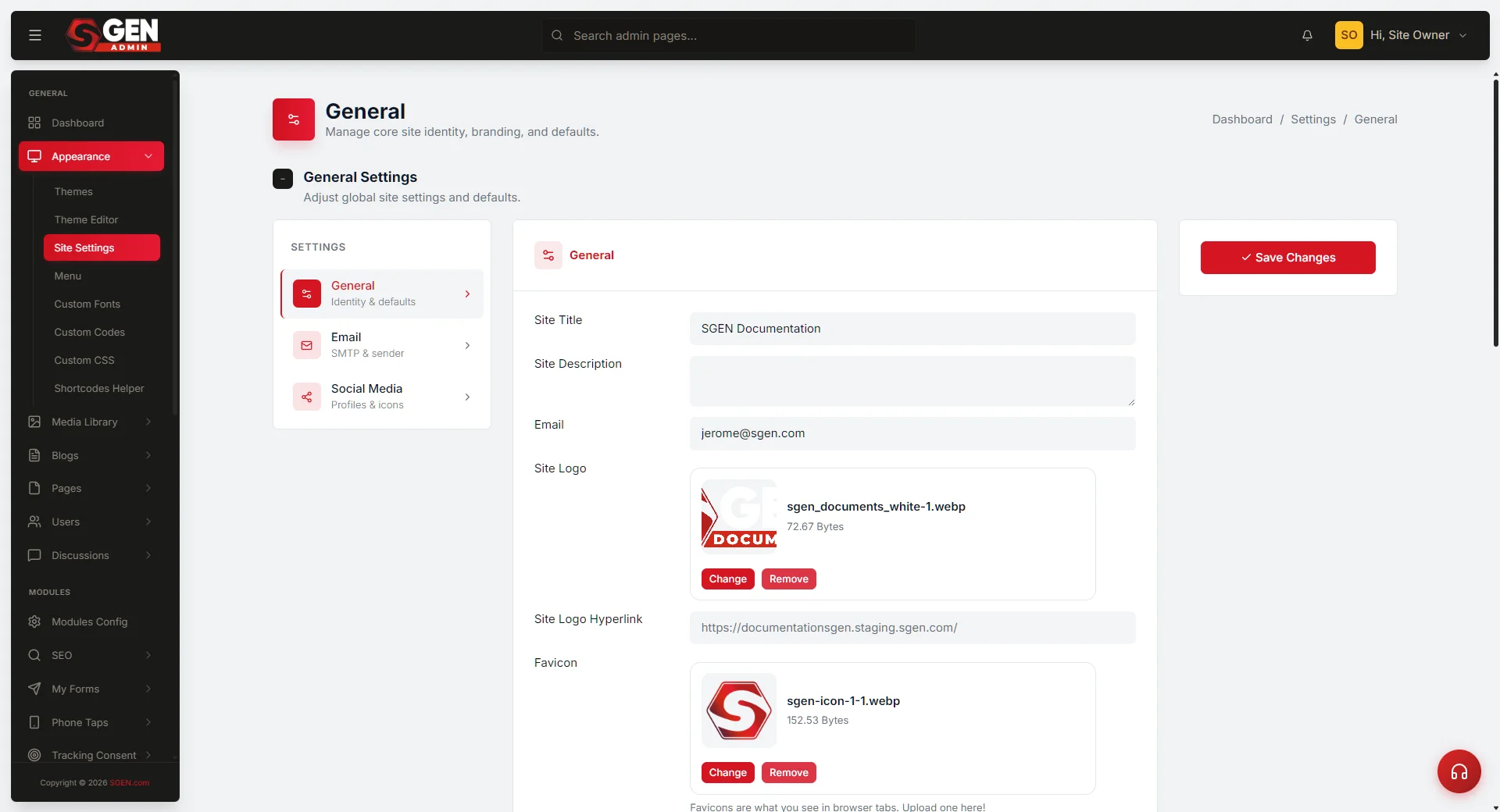
The two fields
Admin Theme and Styles exposes exactly two fields, both on Settings → General. Each is a select dropdown.
Accent Color
Admin Theme
Sets the admin panel's accent color. Default is Default (Crimson). Eight options: Default (Crimson), Amber, Emerald, Indigo, Ocean, Rose, Teal, Violet.
Panel Style
Style
Sets the overall visual treatment of the panel surface. Default is Flat (clean light surfaces, no effects). Alternative is Glassy (dark glassmorphism, gradient background, glow highlights).
The eight accent color options at a glance:
The two Style options at a glance:
Where to find it
Navigate to Settings → General inside SG PANEL. The Admin Theme and Style dropdowns live on the General settings page — not under Email Settings or Social Media, which are separate Settings pages. Scroll down the General settings page until you reach the two dropdowns.
How to set your admin theme and style
Five steps from Settings to a saved look.
1
Open Site Settings
Click Settings in the SG PANEL sidebar. The General settings page opens by default. Email Settings and Social Media are separate Settings pages, so you can stay on the General settings page to find Admin Theme and Style.
2
Locate the Admin Theme and Style fields
Scroll down the General settings page until you reach the two dropdowns stacked together: Admin Theme (first) and Style (directly below).
3
Select your Admin Theme
Click the Admin Theme dropdown. Choose one of the eight options: Default (Crimson), Amber, Emerald, Indigo, Ocean, Rose, Teal, or Violet.
4
Select your Style
Click the Style dropdown. Choose Flat (clean light surfaces, no effects — the default) or Glassy (dark glassmorphism with gradient and glow).
5
Save your changes
Scroll to the Save button on the General Settings page and click Save Changes. General Settings saves all fields on the page at once — not just Admin Theme and Style. Review any other fields you may have changed before clicking Save.
After saving, a success banner confirms General Settings were committed.
What not to use this for
Admin Theme and Styles is scoped to the SG PANEL admin. Three things it does not do.
Public site colors or layout
Admin Theme and Styles changes the SG PANEL admin only. To change what your visitors see, use Appearance → Themes, Appearance → Theme Editor, and Custom CSS. Selecting Emerald in Admin Theme does not make your public site green.
Confirmed per-user personalization
The survey this guide is based on did not confirm whether the saved theme and style apply to your login alone or to the whole admin panel. Do not rely on Admin Theme and Styles as a private, per-account preference — treat it as a Settings → General choice whose reach across logins was not observed.
Branding for client handoffs
Because the apply-scope was not verified, do not assume a saved theme will or will not carry over to a client who logs in to the same admin. There is no separately documented per-client control on this page.
Troubleshooting
Most issues resolve by confirming you are on the correct settings page or by reloading after save.
Save button does not respond or no success banner appears
Confirm you are on the General settings page inside Settings. Check that your browser is not blocking page scripts. Reload the Settings page, re-select your choices, and try saving again.
Admin Theme or Style dropdown does not appear
Admin Theme and Style live on the General settings page. Email Settings and Social Media are separate Settings pages and do not contain these dropdowns. Confirm you opened the General settings page, not one of those other pages.
Panel look does not change after saving
Navigate away from Settings and return to another admin page. Hard-reload your browser (hold Shift while clicking Reload). If the change still does not appear, log out of SG PANEL and log back in.
Saved theme reverted to Default (Crimson)
General Settings saves all fields at once. If another browser tab had the Settings page open with unsaved changes, saving from that tab afterward overwrites your selection. Re-open Settings, re-select your preferred Admin Theme and Style, and save.
You cannot access Settings
Confirm your account has admin-level access. Contact the account owner to verify your permissions if Settings is not visible in your sidebar.
Examples
Three common scenarios showing Admin Theme and Style in practice.
Comfort
Switching to Indigo for a calmer working environment
The default SG PANEL uses Crimson. If the red accent feels visually busy during long content sessions, open Settings → General, select Indigo from Admin Theme, leave Style as Flat, and click Save Changes. The admin panel's accent color switches to Indigo. Your public site is unaffected.
Multi-site
Enabling Glassy style on a second site
When you manage two sites, giving each a visually distinct look helps you stay oriented. On the second site, keep Admin Theme as Default (Crimson), switch Style to Glassy, and click Save Changes. The second site's admin shows the dark glassmorphism panel. Switching between the two admin sessions is immediately visually distinct.
After saving Indigo as the theme, the General settings page reflects the new selection:
Heads up The survey evidence used to build this guide did not capture whether the theme change applies on the same page reload or requires navigating away. If the panel does not appear to have updated, navigate to another admin page and return — this forces the new theme to render.
What to do next
Admin Theme & Style controls
| Field | Type | Options | Default | Effect |
|---|---|---|---|---|
| Admin Theme | Select dropdown | Default (Crimson), Amber, Emerald, Indigo, Ocean, Rose, Teal, Violet | Default (Crimson) | Sets the SG-PANEL admin accent color (admin only; public site unaffected). |
| Style | Select dropdown | Flat, Glassy | Flat | Flat = clean light surfaces, no effects; Glassy = dark glassmorphism with gradient background and glow. |