
Track Conversions in SGEN End-to-End
SGEN fires analytics events automatically — form submissions, phone taps, page views. Connect GA4 through Tracking Consent, confirm those events appear in SG-Admin → Analytics → Event Logs, then mark the relevant ones as conversions in GA4 Admin. Done: your conversion data appears in both SGEN Analytics Reports and GA4's Conversions report, and feeds Google Ads campaign optimization. This guide walks the full 9-step sequence with verification at each stage.
Events fire automatically
SGEN fires form_submit, phone_tap, page_view, and popup events without any configuration. They appear in Event Logs the moment they fire.
GA4 is where you mark conversions
SGEN Analytics counts events. Marking them as GA4 conversions — for Google Ads optimization and conversion reports — happens in GA4 Admin, not in SGEN.
Consent shapes the counts
SGEN Analytics counts events at the platform level regardless of consent state. GA4 only counts events from consenting visitors — a gap between the two counts is expected and correct.
Before you start
Three things need to be in place before the steps in this guide are meaningful.
GA4
Connect GA4 first
GA4 must be connected through Tracking Consent and already receiving page_view events from your site. Complete the Set Up GA4 guide before this one. If GA4 Realtime is not showing page_view events, stop here and resolve that first.
Access
GA4 Editor or Admin role
Marking events as conversions requires Editor or Admin access to the GA4 property. If the conversion toggle is greyed out, contact the GA4 property owner to grant the appropriate role before proceeding.
Scope
Know your conversions first
Write a list of the actions that matter before opening any panel — for example: contact form submitted, phone number tapped, wholesale inquiry submitted. Having the list prevents over-configuring (too many conversions dilutes the signal) and under-configuring.
Realtime
Open GA4 Realtime in a second tab
You will use GA4 Realtime to verify event firing in Steps 4 and 5. Open it before starting so it is ready to receive events from your test triggers.
Identify and verify your conversion events
The first phase confirms that SGEN is firing the events you care about and that they are reaching GA4. Do not configure GA4 conversions until both checks pass.
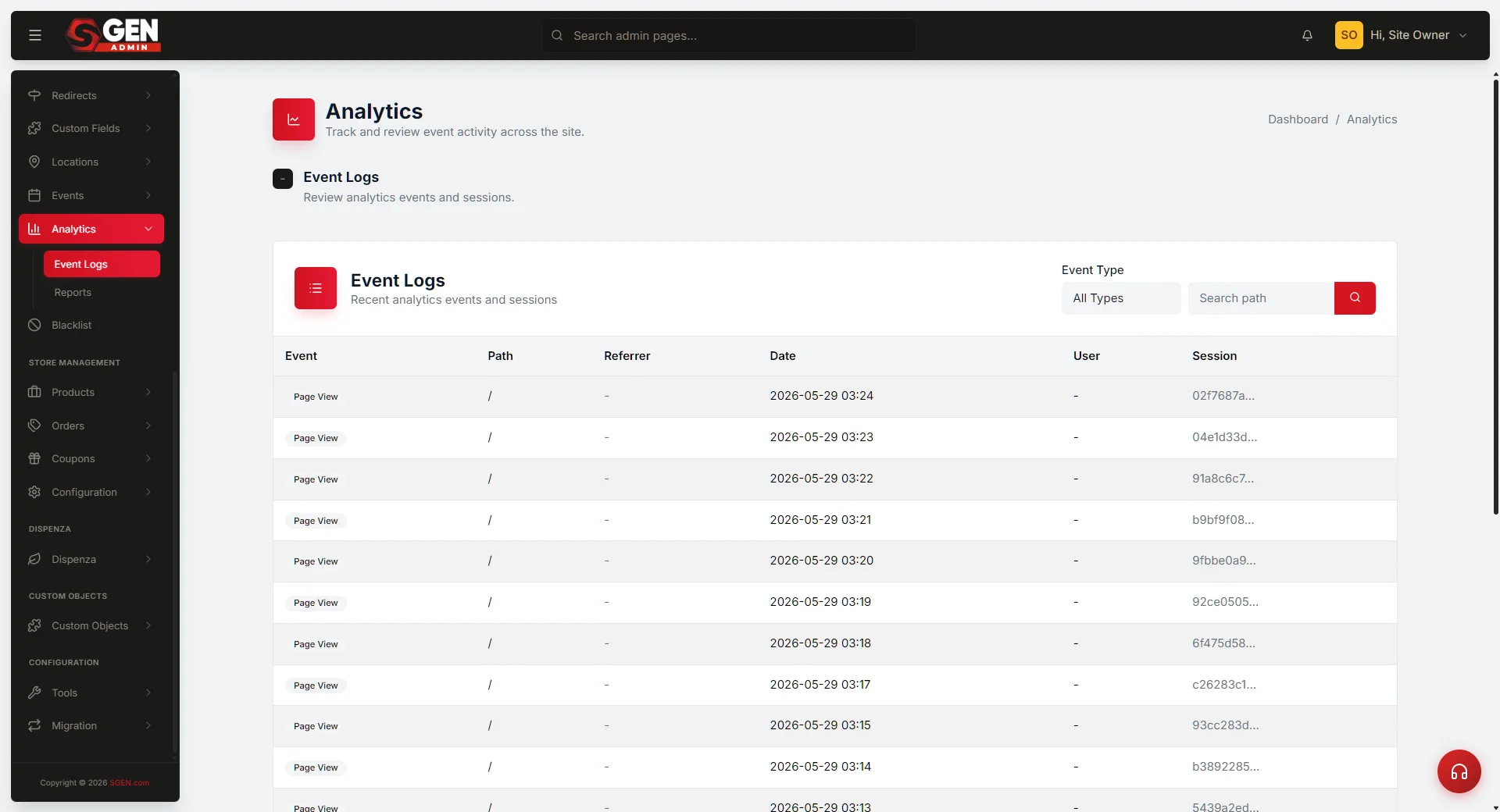
1
Open SGEN Analytics Event Logs
Navigate to SG-Admin → Analytics → Event Logs. The Event Logs panel shows every event SGEN has fired in reverse chronological order. Each row shows the event name, the page where it fired, the visitor session identifier, and the timestamp. Confirm the events you care about are appearing here before checking GA4 — this is the first verification point.
2
Identify the exact event names
Filter Event Logs by event name to see only the events relevant to your conversions. The Event name column shows the exact string SGEN fires — use these exact strings when configuring GA4. Standard SGEN event names: form_submit (form submitted), phone_tap (phone number tapped), page_view (page viewed), popup_shown / popup_closed (popup interactions). Note: some SGEN versions use form_submitted (past tense) — verify in Event Logs before configuring GA4.
3
Trigger the conversion actions manually
Open your site in an incognito browser window and accept the consent banner so tracking is active. Submit your contact form using test data, tap the phone number on the contact page, and navigate to any page you are treating as a micro-conversion. Return to SG-Admin → Analytics → Event Logs and refresh. The events should appear at the top of the log within 60 seconds. If phone_tap does not appear after tapping the number, confirm that phone tap tracking is enabled in Analytics settings — some SGEN versions require explicit opt-in.
4
Verify the events arrive in GA4 Realtime
Open GA4 Realtime in your second browser tab. The events triggered in Step 3 should appear in the Event count by event name table within a few minutes. Realtime shows events from the last 30 minutes. If form_submit appears in SGEN Event Logs but not in GA4 Realtime, the issue is in the GA4 connection — re-check the measurement ID in Tracking Consent and confirm the GA4 script is loading on the page.
Mark events as conversions in GA4
Once events are verified firing and arriving in GA4, mark the relevant ones as conversions. This makes them available in GA4 conversion reports and in linked Google Ads campaigns.
5
Open GA4 Events configuration
In Google Analytics, navigate to Admin → Events. This panel lists all events GA4 has received from your property. Events that have fired at least once appear automatically — no manual registration is required. Locate form_submit in the list. If you verified it firing in Steps 3 and 4, it will appear here.
6
Toggle the Mark as conversion switch
In the Events list, find the form_submit row and toggle the Mark as conversion switch to on. Repeat for phone_tap. GA4 now counts every instance of these events as a conversion — they appear in GA4 Conversions reports and are available as conversion actions in linked Google Ads campaigns. Mark as few events as are genuinely meaningful; for most sites, 2–5 conversion events is the right range.
7
Create a scoped conversion for a specific form (optional)
To count submissions from multiple forms separately — for example, a contact form vs. a wholesale inquiry form — create a scoped custom event. Navigate to GA4 Admin → Events → Create event. Set the custom event name (for example, wholesale_inquiry_submit), add a matching condition where Event name equals form_submit, and a second condition where page_location contains the path of the specific page (for example, /wholesale-inquiry). Save the event, then return to the Events list and mark it as a conversion once it has fired at least once. Custom events only appear in the Events list after they fire — trigger a test submission from a consenting incognito session to make the event surface.
Read conversion results
Conversion data is visible in two surfaces: SGEN Analytics Reports for platform-level counts with page breakdown, and GA4 Reports for traffic-source attribution and campaign data.
8
Read conversions in SGEN Analytics Reports
Navigate to SG-Admin → Analytics → Reports. Filter to your conversion events and set the time window to the last 30 days. The report shows total event count per conversion event, a trend over time, and a breakdown by page — which pages are generating the most conversion events. The page breakdown is particularly useful for identifying where conversion events cluster and where content improvements will have the most impact.
9
Read conversions in GA4 Reports
In Google Analytics, navigate to Reports → Engagement → Conversions. It may take 24–48 hours for conversion data to populate in this non-realtime view. The Conversions report shows counts for all marked conversion events and supports dimension breakdowns by traffic source, device type, and landing page — answering which traffic source is producing the most conversions. Once the GA4 property is linked to Google Ads, navigate to Google Ads → Goals → Conversions → import from Google Analytics to make conversion events available for bidding.
What success looks like
When conversion tracking is fully operational, all five of these are true at the same time.
SGEN Event Logs shows conversion events within 60 seconds
form_submit, phone_tap, and any other conversion events appear at the top of Event Logs within 60 seconds of being triggered.
GA4 Realtime receives the same events
Events triggered from a consenting incognito session appear in GA4 Realtime's Event count by event name table.
GA4 Admin shows the conversion toggle on
GA4 Admin → Events shows form_submit and phone_tap with the Mark as conversion switch toggled on.
GA4 Conversions report populates within 48 hours
GA4 Reports → Conversions shows aggregated counts for each marked conversion event after the standard processing delay.
Declining consent prevents GA4 counts — not SGEN counts
Visitors who decline the consent banner are excluded from GA4 conversions but still appear in SGEN Analytics with identifying data stripped. The gap between the two counts is correct behavior, not a misconfiguration.
What to check if it does not work
Five common failure patterns and what each one means.
Missing
Event fires in SGEN but not in GA4
Confirm GA4 is receiving page_view events as the baseline check. If page_view arrives but form_submit does not, check whether SGEN fires form_submit or form_submitted — use the exact string from Event Logs when configuring GA4.
Access
Conversion toggle is greyed out
You do not have Editor or Admin access to the GA4 property. Contact the GA4 property owner to grant the appropriate role before attempting to mark events as conversions.
Custom event
Scoped event never appears in GA4 Events list
Custom events only appear after they fire at least once. Trigger a test submission on the relevant page from a consenting incognito session and wait five minutes for the event to surface in the Events list.
Counts
GA4 shows lower numbers than SGEN Analytics
Expected. SGEN Analytics counts events regardless of consent state. GA4 only counts events from consenting visitors. The gap reflects visitors who declined tracking — this is correct, not a misconfiguration.
Ads
Google Ads is not showing conversions from GA4
Confirm the GA4 property is linked to the Google Ads account via GA4 Admin → Google Ads Links. Confirm the conversion event is marked as a conversion in GA4 Admin → Events — not merely created as a custom event. Google Ads imports conversions from GA4 within 24 hours of the link being active.
Heads up Conversion tracking without GA4 is still useful. SGEN Analytics counts events natively — if you do not use GA4 or Google Ads, those event counts in SGEN Analytics serve as your conversion data without any additional configuration.