
Set Up GA4 in SGEN via Tracking Consent
GA4 connects to your SGEN site through one field in Tracking Consent: your measurement ID. Paste it in, save, open GA4 Realtime in another tab, make two test visits — one accepting consent, one declining — and confirm events are behaving correctly. This guide walks that sequence end-to-end.
One field to connect
GA4 connects to SGEN through a single measurement ID field in Tracking Consent. No code, no Custom Codes, no GTM required for the direct path.
Consent is automatic
Connecting GA4 through Tracking Consent means visitors who decline analytics are not tracked — the script does not fire for them. No extra configuration needed.
Verify before traffic lands
GA4 Realtime confirms the connection in under two minutes. Run the two-session consent test before any campaign launches to confirm the gate is working.
What Tracking Consent does for GA4
Tracking Consent is the SGEN module that manages third-party tracking scripts and the consent banner that governs them. Enter a GA4 measurement ID and SGEN loads the GA4 script on every page load for consenting visitors, firing the standard page_view event. Visitors who decline are not tracked — that behavior is automatic once GA4 is connected through Tracking Consent.
Scope
When to follow this guide
Wiring GA4 on a new SGEN site before launch. Re-verifying a broken connection. Replacing a UA-XXXXXXXXX Universal Analytics ID (UA is retired — swap it for the GA4 G- ID). Running the consent-mode test before a regulated campaign goes live.
Out of scope
Not covered here
If your organisation uses Google Tag Manager, enter the GTM container ID in Tracking Consent instead of the GA4 measurement ID — do not enter both. GTM deployment, GA4 internal traffic filtering, and server-side measurement protocol are outside the scope of this guide.
Before you start
Have these ready before opening SGEN.
A GA4 property and measurement ID
Log in to Google Analytics at analytics.google.com. Navigate to Admin → Data Streams → your web stream. The measurement ID appears at the top in the format G-XXXXXXXXXX. Copy the full string — the G- prefix is part of the ID and must be included.
Admin access to SGEN
Tracking Consent is accessible to users with admin-level access on the SGEN account.
GA4 Realtime open in another tab
Open GA4 Realtime before starting the SGEN configuration. Log in to Google Analytics, select your property, and navigate to Reports → Realtime. You will need it open during verification in Step 6.
Know your deployment path
Direct measurement ID (this guide) or Google Tag Manager. Do not enter both — you will double-count events. If your organisation already uses GTM, enter the GTM container ID in Tracking Consent and manage GA4 inside GTM.
Steps — Connect GA4 through Tracking Consent
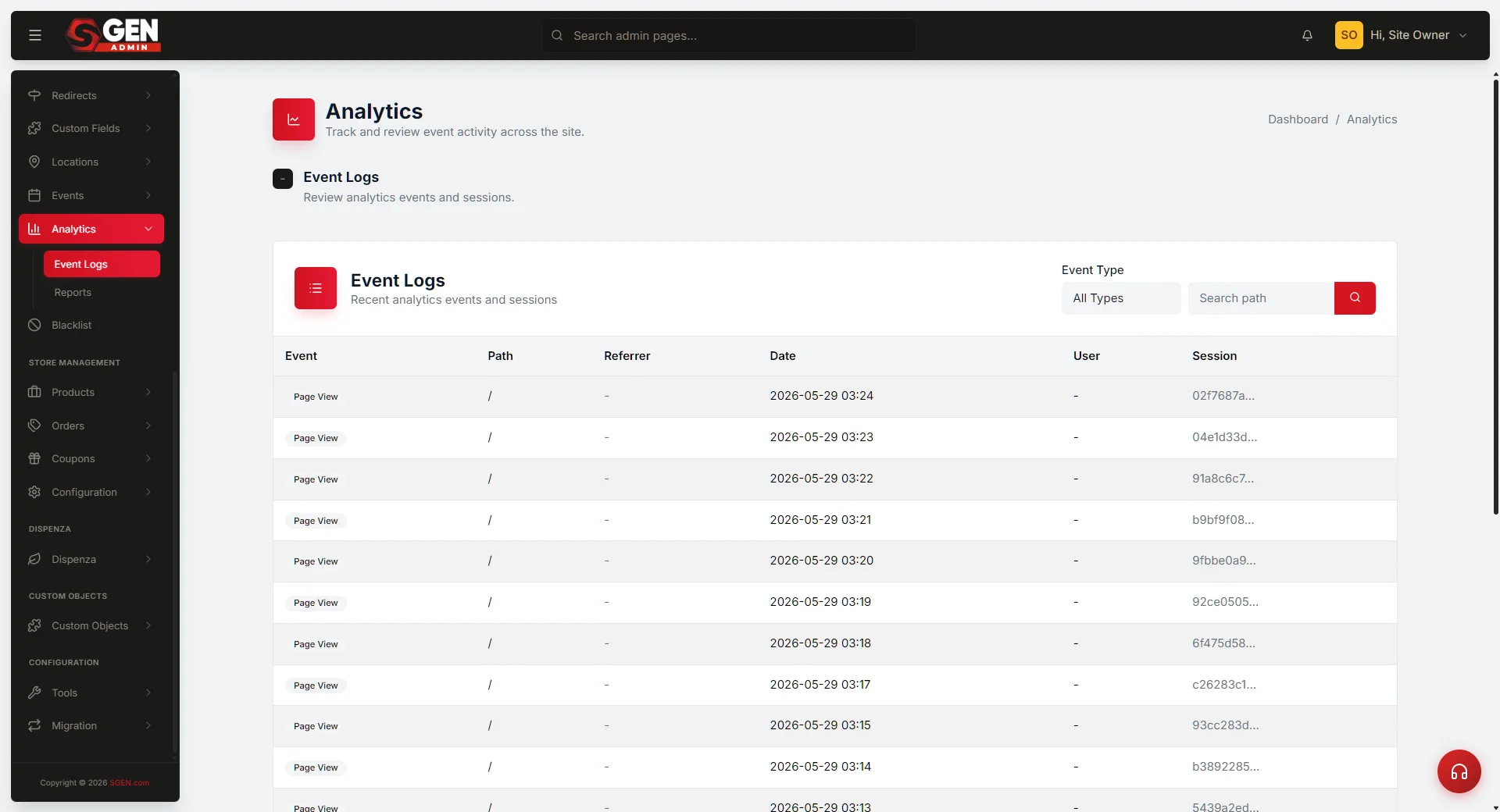
Navigate to SG-Admin → Tracking Consent to begin. The panel manages the consent banner configuration and all third-party tracking integrations including GA4.
1
Locate the GA4 measurement ID in Google Analytics
Open Google Analytics at analytics.google.com. Select the property for this SGEN site. Navigate to Admin → Data Streams and click the web stream. The measurement ID appears at the top in the format G-XXXXXXXXXX. Copy the full string including the G- prefix. A common error is copying only the numeric portion — the full string is required.
2
Open Tracking Consent in SGEN
In SG-Admin, navigate to Tracking Consent. Locate the Google Analytics 4 section. It shows either a blank measurement ID field (not yet configured) or the currently active ID if a previous configuration exists.
3
Enter the measurement ID
Paste the measurement ID into the GA4 Measurement ID field. Confirm the field shows the full value including the G- prefix before proceeding.
4
Confirm the consent trigger setting
Check the Trigger on consent setting. The standard setting for most sites is Analytics cookies accepted — GA4 fires only after a visitor accepts the analytics cookie category in the consent banner. For any site with visitors in the EU, UK, or other consent-regulated jurisdictions, keep this setting. Only set it to Always if your legal counsel has confirmed a legitimate interest basis applies.
5
Save and publish
Click Save. SGEN saves the measurement ID and updates the tracking configuration on the live site. The GA4 script begins loading on page views for consenting visitors immediately after save. No cache flush is required.
6
Verify in GA4 Realtime
Switch to GA4 Realtime (Reports → Realtime). In a separate incognito window, navigate to your SGEN site, accept analytics cookies when the consent banner appears, and visit two or three pages. Return to GA4 Realtime. Within 30 seconds to two minutes you should see: Active users counter showing at least 1, page_view events in the Event count by event name table, and the page titles or paths you visited under the page dimension. These three together confirm SGEN is loading the GA4 script correctly, the measurement ID matches the GA4 property, and the consent flow is working.
7
Verify consent-mode behavior
Open a new incognito window and navigate to the site. When the consent banner appears, click Decline or Reject all. Navigate through two or three pages, then return to GA4 Realtime. You should not see any new page_view events from this session. If GA4 is correctly wired through Tracking Consent, declining analytics consent prevents the script from firing. If you do see events from the declined session, a second GA4 script is loading outside Tracking Consent — check Custom Codes in SG-Admin for any gtag.js or analytics.js entries and remove them. Also check whether a GTM container is active and loading GA4 without consent conditions.
What success looks like
When GA4 is correctly connected through Tracking Consent, all five of these should be true.
GA4 Realtime shows page_view events
Within two minutes of a consenting visitor navigating the site, page_view events appear in GA4 Realtime with the correct page paths.
Declining consent prevents GA4 events
The declined-consent incognito session produces no new page_view events in Realtime.
Tracking Consent shows GA4 as active
The Tracking Consent panel in SG-Admin shows GA4 as active with the correct measurement ID.
No duplicate GA4 script
GA4 is not also loaded via Custom Codes or any other path outside Tracking Consent. A duplicate script fires for all visitors regardless of consent state.
If it does not work
The four most common issues and how to resolve each.
No events
GA4 Realtime shows nothing after consent
Check the measurement ID in Tracking Consent — confirm it matches GA4 → Admin → Data Streams exactly, including the G- prefix. A single character mismatch routes events to a different property or nowhere. Confirm the Enable GA4 toggle is on. Clear the incognito window, accept consent again, and wait two full minutes — Realtime has up to 60 seconds processing delay.
Consent leak
Events fire even when consent is declined
A second GA4 script is loading outside Tracking Consent. Check Custom Codes in SG-Admin for any gtag.js or analytics.js entries and remove them. Also check whether a GTM container is active and loading GA4 without consent conditions — if so, add consent conditions inside GTM.
Wrong ID
Measurement ID format looks wrong
GA4 measurement IDs always start with G- followed by alphanumeric characters. If the field in Tracking Consent contains a UA-XXXXXXXXX format ID, that is a Universal Analytics property ID — UA is retired. Create a new GA4 property in Google Analytics and use the GA4 measurement ID.
Delayed reports
Realtime works but standard reports show no data
Standard reports process data with up to a 24–48 hour delay. If Realtime shows events, the standard reports will populate. If after 72 hours standard reports still show nothing, check GA4 → Admin → Data Settings → Data Retention and confirm it is set to at least 2 months.
Example scenarios
Three common patterns and what the setup looks like in each case.
Pre-launch setup
Paste the measurement ID into Tracking Consent and verify in Realtime before the first visitor arrives. GA4 has data from day one — no gap, and campaigns can use conversion data from launch week.
Post-migration re-connect
A site migrating to SGEN from a different CMS had GA4 loaded via a manually embedded script. On SGEN, the measurement ID goes into Tracking Consent and the manual script in Custom Codes is removed. Realtime confirms events are flowing. Historical data in the GA4 property is preserved — the same property receives events, not a new one.
GDPR campaign check
Run the Step 7 two-session test — one incognito session accepts, one declines — before ad spend goes live. Realtime confirming that declining blocks GA4 is the compliance evidence you need before the campaign starts.
Common questions
Answers to the questions that come up most often after connecting GA4.
Coexistence
Does connecting GA4 affect SGEN Analytics?
No. SGEN Analytics and GA4 are independent. SGEN Analytics fires its own event layer regardless of GA4 state. The two do not interfere with each other and do not share data.
GTM vs direct
Should I use GTM or the direct measurement ID?
The direct measurement ID (this guide) is simpler if your only tracking need is GA4. GTM is the better path if you manage multiple tags centrally, use GA4 alongside other pixels, or need conditional firing logic beyond consent state. Do not use both paths simultaneously for GA4 — you will double-count events.
Ad blockers
Will GA4 track visitors who use an ad blocker?
Ad blockers that block GA4's script prevent tracking regardless of consent state. This is a known limitation of client-side tracking. GA4's server-side measurement protocol can partially address this; that configuration is outside the scope of this guide.
Google Ads link
How do I link GA4 to Google Ads?
In Google Analytics: Admin → Google Ads Links → Link. SGEN does not manage this link directly — it is a property-level configuration in Google Analytics. Completing this link enables conversion import from GA4 into Google Ads. See Track Conversions for defining the conversion events that flow through this link.
Multiple properties
Can I connect multiple GA4 properties to one SGEN site?
Standard Tracking Consent configuration supports one GA4 measurement ID per site. If your use case requires multiple properties — for example, a rollup property alongside a site-specific property — use GTM to load both and enter the GTM container ID in Tracking Consent.
Heads up Do not load GA4 through Custom Codes. Scripts loaded through Custom Codes bypass Tracking Consent and fire for all visitors regardless of consent state. This creates compliance exposure and inflates your GA4 data. Use Tracking Consent for GA4 — that is the path this guide covers.