
Sync locations from Google Business Profile
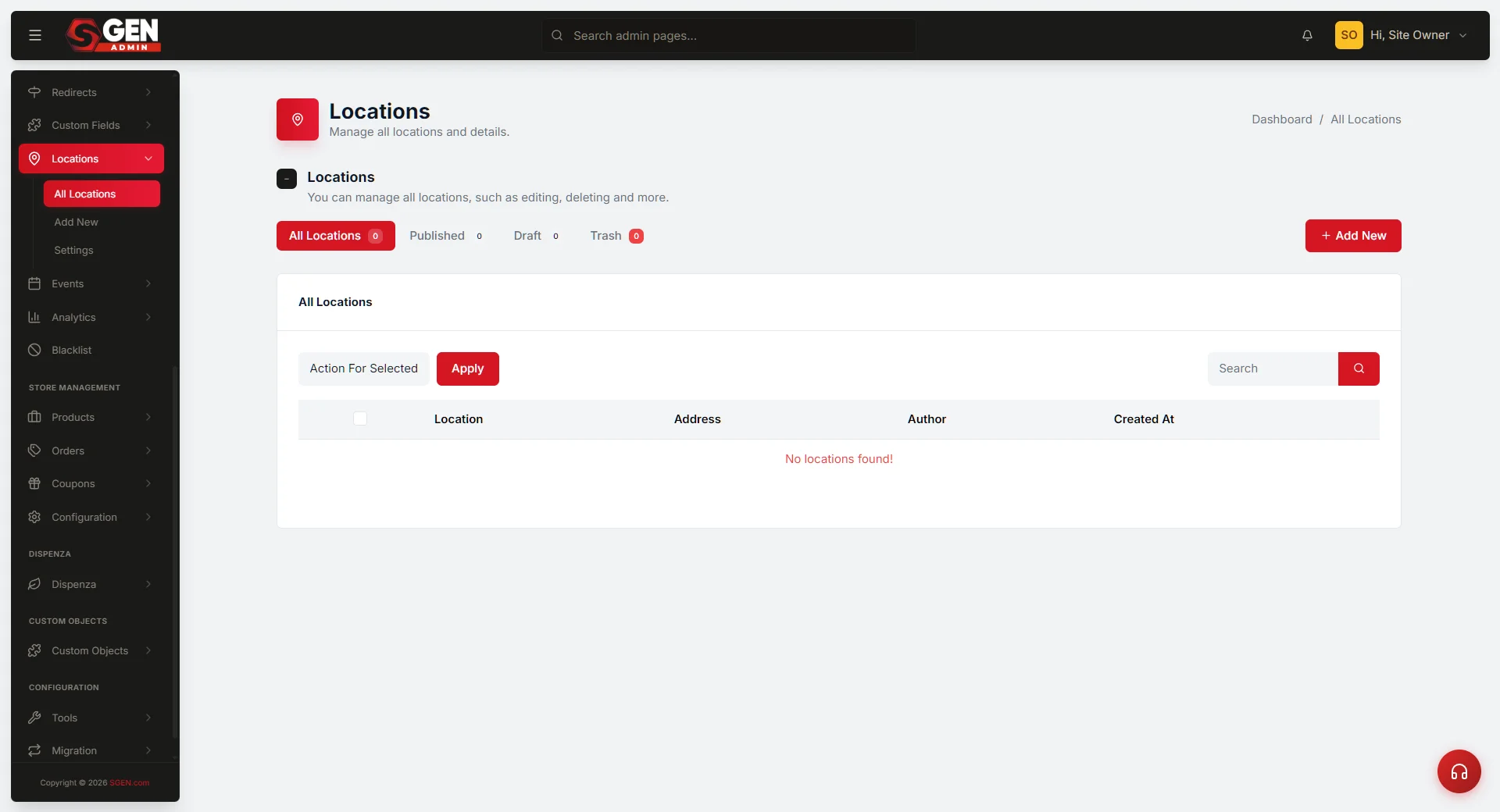 Locations All Locations table with the Sync Locations button in the top-right header strip and synced rows carrying the External badge" loading="lazy" style="width:100%;max-width:900px;height:auto;border-radius:8px;border:1px solid #e5e7eb;display:block;margin:12px 0">
⏱ ~4 min read · quick-answer above the fold · full reference below.
In short. Go to Locations in the sidebar. If your account has a connected Google Business Profile, a Sync Locations button appears top-right of the All Locations table. Click it. SGEN pulls every GBP location into your table — address, hours, phone, Place ID, and supported attributes all populate automatically. New rows land with an External badge. Hand-created rows are untouched. Synced rows default to Draft or Published depending on GBP verification status — check the Status column after sync. Treat GBP as the master record; your site is the downstream consumer. Do not edit the Place ID by hand.
On this page: What this syncs · When to use it · Run a sync · Periodic syncs · Troubleshooting · Connected features
How to pull location records from your connected Google Business Profile into the All Locations table
If your business already has a Google Business Profile (GBP) — the listing customers see in Google Maps and local search — the Sync feature reads that existing data and creates matching location entries in your site. One click. Address, hours, phone, place identifiers, and any GBP-side attributes flow over and become rows in your All Locations table.
The Sync button is hidden until your account has a connected Google Business Profile. If you do not see the button, your account does not yet have a GBP connection. Talk to your account admin or support team about setting one up.
Sync creates fresh rows for any GBP location not yet in your site, and reconciles existing rows against the GBP data. Hand-created rows (no Place ID) stay untouched. Synced rows are flagged with a small External badge in the list view.
Scope
| In scope | Out of scope |
|---|---|
| Running the Sync Locations action | Setting up the GBP integration for the first time |
| What data fields sync from GBP | Editing or publishing synced rows after import |
| Understanding the External badge on synced rows | Pushing data from your site back to Google |
| Periodic sync cadence recommendations | Configuring GMB Attributes in Settings |
| Diagnosing a sync that produced unexpected results | Bulk operations on synced rows |
Reference
| Field | Synced from GBP? | Notes |
|---|---|---|
| Location Name | Yes | From GBP listing name |
| Address (street / city / state / ZIP / country) | Yes | Full formatted address from GBP |
| Phone Number | Yes | Primary phone from GBP |
| Hours of Operation | Yes | Weekday + weekend hours from GBP |
| Place ID | Yes | Google's unique identifier; enables map embeds |
| GBP Link | Yes | URL of the GBP listing |
| Photos | Partial | URL formats differ; re-upload recommended |
| GMB Attributes | Partial | Flow over if they match your configured attribute groups |
| Status | No | Synced rows land in Draft; you publish manually |
| Hero Image / Gallery | No | Must be attached manually after sync |
What is this for?
The Sync feature lets you say: "Whatever I have in Google, mirror it here." One click and every GBP location your account has access to becomes a row in the All Locations table — address, phone, hours, and place identifiers all populated.
Sync flows one way: Google → your site. To update Google, edit GBP directly. Your site does not write back. Treat GBP as the master record and your site as the downstream consumer.
When to use Sync:
| Situation | What happens |
|---|---|
| Bootstrapping a new site | Bulk-imports all GBP locations; no retyping |
| New location added to GBP | Sync adds the row; you attach photos and publish |
| Hours or phone changed in GBP | Sync updates the relevant rows |
| Teammate made a GBP edit you did not know about | Periodic sync catches and flows it through |
| Duplicate row / drift investigation | Sync reconciles site data against GBP |
When NOT to use Sync:
- Pushing your site's data to Google. Edit GBP instead.
- Importing from a CSV or another platform. Sync is GBP-only.
- Maintaining hand-edited rows that diverge from GBP. A future sync may overwrite them.
- Importing photos at full quality. Sync brings thumbnail-quality references; re-upload high-res from your Media Library.
- Hourly refreshes. Once or twice a day during peak periods is enough; weekly or monthly for steady state.
After a sync, new rows land with a blue External pill. You can edit synced rows, but a future sync may overwrite hand-edits if the GBP value diverges. The cleanest pattern: edit GBP, sync, let changes flow through.
Before you start
- A Google Business Profile must be connected. No button = no GBP connection. Ask your account admin or support team to set one up under account Integrations.
- Hand-edits to existing synced rows may be overwritten. Decide whether edits live in GBP (canonical) or in the site. Mixing both causes drift.
- Sync runs immediately and is not undoable. No undo. To revert, manually edit rows back or trash new ones.
- Sync may take several seconds to a minute or two. Do not double-click while it runs; a success toast appears when complete.
- Synced rows land as Published or Draft. New rows may default to Draft. Check the Status column after sync to confirm what is public.
- Hand-created rows are NOT touched. Rows with no Place ID remain exactly as typed.
- Sync is admin-only. If you cannot see the button, confirm your role with your account admin.
Where to go
Sidebar path: Dashboard → Locations.
Land on the All Locations table. Look in the top-right header strip — alongside the + Add New button, you should see a button labeled Sync Locations. The button is visible only when your account has a connected Google Business Profile.
If you do not see the button, your account does not yet have a GBP connection. Contact your account admin or support team to set one up.
Steps — Run a sync from your Google Business Profile
1. Open the All Locations page
Click Locations in the sidebar. The page lands with the All tab active. Note the current counts of Published, Draft, and Trash rows — you will compare these after sync.
2. Click the Sync Locations button
In the page's header strip (top right of the table), click Sync Locations. A small spinner may appear; the button may grey out briefly while the sync is in progress. Do not click again while it is running.
3. Wait for the success toast
When the sync completes, a green toast appears: Locations synced successfully. N total, X added, Y updated. The page reloads so new and updated rows are visible.
If a red toast appears with an error message, the sync did not complete. See What to do if it does not work below.
4. Scan the table for new and updated rows
Newly created rows appear with a small blue External pill next to the name. Check the filter-tab counts — the difference from your pre-sync baseline shows what was added or updated.
For each new row, click into Edit and verify:
- Location name matches your GBP listing's customer-facing name.
- Address is the exact street, city, state, ZIP, country.
- Hours match your GBP hours (most common drift point — verify carefully).
- Phone is the local-line number, formatted clearly.
- Photos may be empty or thumbnail quality; re-upload high-resolution originals from your Media Library.
- GMB Attributes card shows ticks for any attributes Google had configured for this location.
5. Set status to Published on any new Draft rows
If a new synced row landed as Draft, it is invisible to the public. To make it public:
- Click into the row.
- In the Status field, switch to Published.
- Click Save.
The row appears on the public store-finder map within seconds.
6. Hand-edit any rows that need polish
Sync data is a starting point. Common polish steps:
- Re-upload photos — click into the row, open the Photos card, attach high-resolution versions from your Media Library.
- Refine hours — if your hours have a quirk GBP does not capture (long lunch break, seasonal closures), edit the hours card.
- Add a Description — GBP rarely has a polished description; edit the Description card to match your brand voice.
- Verify GMB Attributes — open the GMB Attributes card and confirm the ticked attributes are correct.
Steps — Periodic syncs to keep data fresh
1. Choose a cadence
| Business profile | Recommended cadence |
|---|---|
| Single location, stable hours | Quarterly |
| 2–5 locations, occasional updates | Monthly |
| 6–20 locations, active hours management | Weekly |
| 20+ locations or fast-moving network | Twice weekly |
| Promotional period (sale, holiday) | Daily |
| First-time onboarding | Once, then settle into cadence |
2. Audit GBP before clicking Sync
Open your GBP, walk each location's hours, phone, address, and photos. Fix any errors in GBP first — Sync flows GBP into your site, so a GBP error becomes a site error.
3. Run the sync and walk changed rows
Click Sync Locations, wait for the green toast, confirm the count badges moved as expected. Click into each newly affected row and confirm the data. Polish photos and descriptions that Sync did not capture.
What success looks like
After a clean sync:
- Green toast — "Locations synced successfully. N total, X added, Y updated."
- All Locations table updates — new rows with the External badge; existing synced rows reflect latest GBP data.
- Filter-tab counts move — All, Published, and Draft counts shift to match.
- Public-site store-finder reflects new rows immediately — Published synced rows appear on the public map within seconds.
- Hand-created rows are unaffected — no row without a Place ID was touched.
- Trashed rows stay trashed — Sync does not auto-revive trashed rows.
What to do if it does not work
- Sync Locations button not visible. Your account does not have a connected GBP. Ask your account admin to set one up.
- Clicked the button and nothing happened. Hard-refresh (Ctrl+F5) and try again. If still nothing, confirm you are still logged in.
- Red toast: "External sync request failed." The connection to Google is having an issue. Wait a few minutes and retry; if persistent, ask your support team to check integration health.
- Red toast: "Authentication failed." GBP credentials may have expired. Ask your admin to reconnect the GBP under account Integrations.
- Red toast: "No locations found." Your GBP has no locations the integration can see, or all locations are still under verification by Google.
- Toast says success but no new rows appeared. Refresh the page. Your GBP may have had no new locations to add — existing rows were just refreshed in place.
- Sync said "X added" but those rows are not in the table. Check the Trash tab and the Draft filter. If genuinely missing, ask your support team.
- Synced rows have placeholder photos. Sync brings thumbnail-quality references. Click into each row, open the Photos card, and re-upload high-resolution originals from your Media Library.
- Hand-edited details vanished after a sync. Sync overwrote them with the GBP value. Either fix in GBP and sync again, or move to a hand-only workflow for that row.
- Duplicate rows for the same location. Check whether both a synced row and a hand-created row exist. Trash the hand-created duplicate; the synced row continues to receive future syncs.
- Sync took longer than two minutes. Refresh the page; the sync may have completed silently. If the spinner is stuck indefinitely, refresh to clear UI state and try again.
- Permission denied. Your role does not include Sync permission. Ask your account admin.
Examples
| Scenario | What to do |
|---|---|
| Initial onboarding — GBP has existing locations | Click Sync. Rows appear pre-populated with address, hours, phone. Walk each row for photo polish and publish. |
| New location added to GBP | Click Sync. The new row appears. Attach a hero photo, set Status to Published. |
| Hours changed in GBP | Click Sync. The hours field on affected rows updates automatically. Verify by clicking into each. |
| Onboarding a partner whose GBP is shared with your account | Click Sync. Their storefront row appears with address and hours. Set Status to Published when ready. |
| Duplicate row from simultaneous sync + hand-creation | Identify the synced row (External badge) and the hand-created row (no badge). Trash the hand-created one. |
How this connects to other features
- Browse and manage all locations — After a sync, new rows appear in the All Locations table with the External badge. See Manage all locations.
- Add a new location — Hand-creating an entry covers everything Sync does not (private locations not in GBP, partner records maintained manually). See Add a new location.
- GMB Attributes settings — Attributes that flow over are matched against your configured attribute groups. If GBP has attributes you have not configured locally, they may be skipped. See Configure GMB attributes.
- Trash and Restore — Trashed synced rows do not auto-revive on the next sync; the trash flag overrides. Restore from the Trash tab. See Trash a single location and Restore a trashed location.
- Save changes to a location — Edits to synced rows save into your site's row, but the next sync may overwrite them if GBP has different data. See Save changes to a location.
- Public-site store-finder — Synced Published rows appear on the public map immediately. The public site does not distinguish source — only Status determines visibility.
- Place IDs — Each synced row is bound to its GBP Place ID. Do not edit the Place ID by hand; doing so disconnects the row from its GBP source and breaks future syncs.
Tips for healthy ongoing syncs
- Treat GBP as the canonical source. Edit there first; let Sync flow changes through to keep both in lockstep.
- Run Sync on a regular cadence. Weekly, monthly, or quarterly — pick one and stick to it.
- Spot-check after each sync. Confirm count badges moved as expected. Walk newly affected rows.
- Polish photos and descriptions after sync. Sync brings structured fields; presentation polish is your job.
- Be cautious with hand-edits to synced rows. A future sync may overwrite them. When possible, edit GBP and sync through.
- Keep the Place ID untouched. The Place ID connects a row to its GBP source. Editing it breaks future syncs.
Next steps
- See Add a new location for the hand-creation path that complements Sync.
- See Manage all locations for the master list view where synced rows appear.
- See Save changes to a location for editing details on a synced row.
- See Configure GMB attributes for matching synced GBP attributes to your local attribute groups.
- See Trash a single location for cleaning up duplicates after a misfired sync.