
Read Live Analytics in SG-Dashboard
⏱ ~8 min read · quick answer above the fold · full reference below.
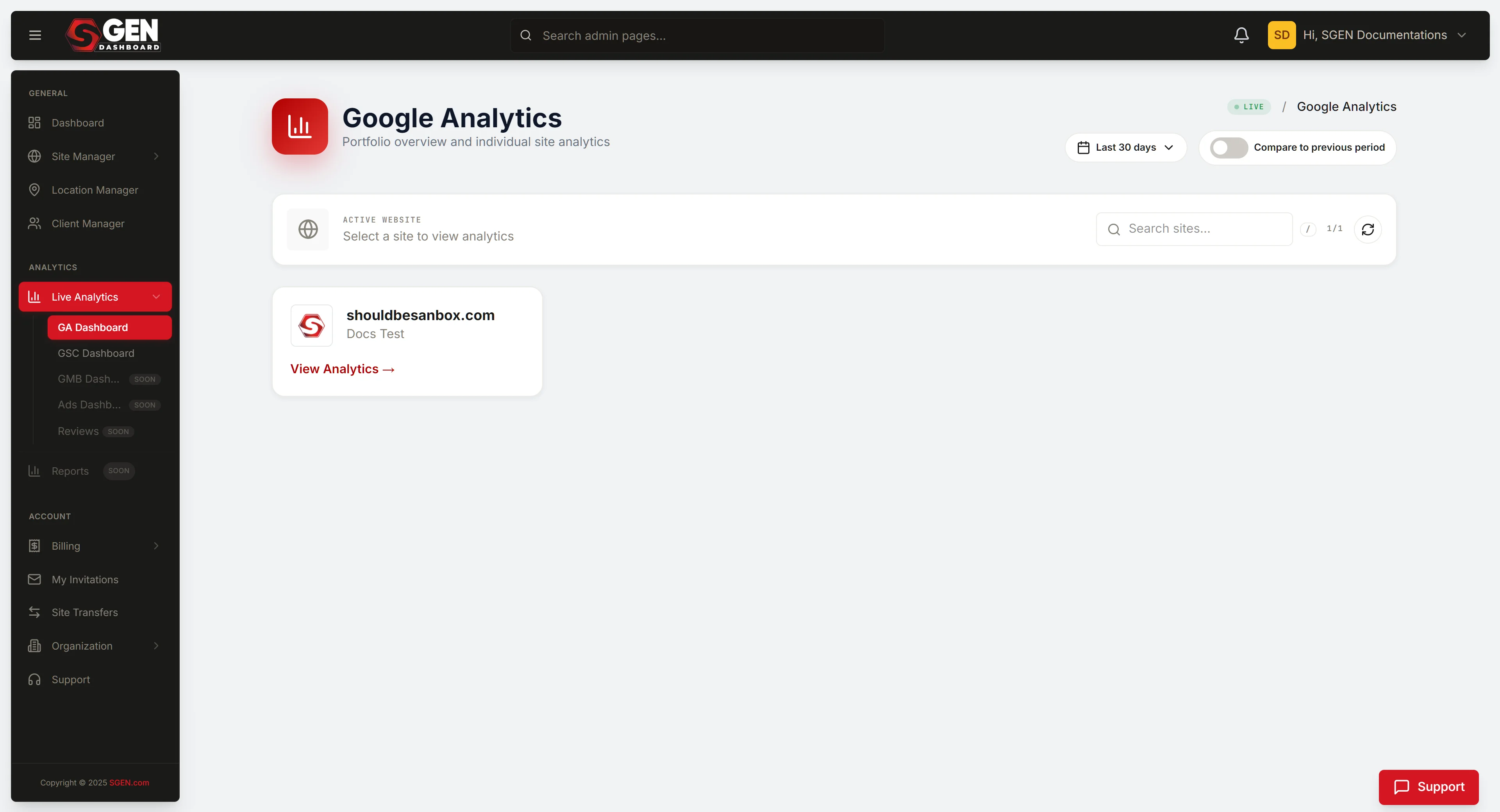
In short. Open SG-Dashboard → ANALYTICS → Live Analytics (dashboard.sgen.com/analytics/ga-dashboard). You get a tabbed hub with four live data sources: Google Analytics (traffic), Search Console (search impressions), Google Business (profile views and calls), and Google Ads (campaign spend). Two more tabs — Reviews and Reports — are coming soon. The hub is read-only: you see the numbers, you do not configure anything here. If a tab shows a "connect" prompt, that integration has not been set up yet — contact your account admin.On this page: What this hub is for · What each tab shows · Steps · Examples · Troubleshooting · FAQs
View Google Analytics, Search Console, Google Business, and Ads from one hub
What is this for?
Live Analytics answers "how is the site doing right now?" without leaving SG-Dashboard. It collapses Google Analytics, Search Console, Google Business Profile, and Google Ads into one screen — no separate sign-ins, no tab-switching.
Use it for the morning traffic check, before a client call, to confirm a recently published page is getting impressions, or after a promotion to see whether traffic lifted.
Live Analytics is a reading surface, not a configuration surface. To configure GA, GSC, GMB, or Ads, use each respective Google product directly.
Live Analytics belongs to SG-Dashboard, not to any individual site's admin panel. The hub shows data for whichever site context is active — confirm you are on the right site before reading numbers.
Scope
| In scope | Out of scope |
|---|---|
| Reading GA traffic metrics for the active site | Configuring Google Analytics properties |
| Reading GSC search performance (impressions, clicks, position) | Adding or modifying Search Console properties |
| Reading GMB overview data (views, searches, actions) | Editing Google Business Profile listings |
| Reading Google Ads summary metrics | Managing ad campaigns or budgets |
| Spotting traffic anomalies without leaving SG-Dashboard | Detailed funnel analysis |
| Cross-source comparison at a glance | Per-visitor or per-session drill-downs |
How this connects to other features
- SGEN Analytics (site admin) —
/sg-admin/analyticshas a first-party traffic dashboard. Live Analytics pulls from Google's data. The two show similar trends but different absolute numbers — they count different things. See How to view your analytics reports. - Location Manager — if you operate multiple locations with Google Business Profile connected, Live Analytics shows GMB data for the active site context. Underlying location records are managed at
dashboard.sgen.com/locations. - Custom Codes — GA4 events fired via Custom Codes snippets surface in Live Analytics under the GA tab.
- SG-Dashboard → Site Manager — if you manage multiple sites and are seeing wrong numbers, switch your site context in Site Manager first.
- Billing → Subscriptions — Live Analytics is part of SGEN's Foundation Pack and included on every plan. Advanced Google integrations are included on every plan.
What NOT to use this for
- Do not use Live Analytics to configure Google products. It reads from GA, GSC, GMB, and Ads — it does not write to them.
- Do not use Live Analytics for detailed funnel or conversion reporting. The hub shows summary metrics. For conversion paths and A/B test results, open Google Analytics directly.
- Do not expect Reviews or Reports tabs to be live yet. Both are marked as coming soon.
- Do not rely on Live Analytics alone for ad spend decisions. The Ads tab shows summary figures; campaign decisions belong in Google Ads.
Before you start
- Sign in to SG-Dashboard (
dashboard.sgen.com) as a site admin or account owner. Editor-role and below may not see the ANALYTICS group. - Confirm you are on the correct site context in SG-Dashboard.
- Your Google Analytics, Search Console, Google Business Profile, and Google Ads accounts must be connected to SGEN for data to appear. If a tab shows a "connect" prompt, that integration has not been set up yet.
Where to go
- Sign in to
dashboard.sgen.com. - In the left navigation, find the ANALYTICS group.
- Click Live Analytics (or navigate directly to
dashboard.sgen.com/analytics/ga-dashboard).
The Live Analytics hub — what you see
Live Analytics is organized as a tabbed hub. Each tab corresponds to one connected Google data source.
- Google Analytics — traffic metrics from your connected GA property
- Search Console — search performance from your connected GSC property
- Google Business — overview metrics from your connected Google Business Profile
- Google Ads — summary metrics from your connected Google Ads account
- Reviews — (coming soon — not yet live)
- Reports — (coming soon — not yet live)
If a source is not connected, the tab's panel shows a prompt to connect.
Steps
1. Open Live Analytics and read the Google Analytics tab
- Navigate to
dashboard.sgen.com/analytics/ga-dashboard. - The hub opens to the Google Analytics tab by default.
- Review the summary metrics for your connected GA property.
- If the panel is empty or shows a "connect" prompt, your GA property has not been linked yet.
Common metrics include sessions, users, pageviews, and bounce rate.
2. Switch to the Search Console tab
- Click the Search Console tab.
- Review impressions, clicks, average position, and CTR.
A high impression count with a low CTR means the page is ranking but the title or description is not compelling. A high position number (like 34) means the page is on page 3–4 of results.
3. Switch to the Google Business tab
- Click the Google Business tab.
- Review profile views, search queries, and customer actions (calls, direction requests, website clicks).
GMB data tells you how your business listing is performing on Google Search and Google Maps.
4. Switch to the Google Ads tab
- Click the Google Ads tab.
- Review impressions, clicks, cost, and conversions at a glance.
The Ads tab answers "are my ads running and spending as expected?" without requiring you to open the full Google Ads console.
5. Note that Reviews and Reports tabs are coming soon
Both tabs are visible in the tab bar but are not yet live. Clicking them shows a coming-soon state.
What success looks like
After opening Live Analytics:
- Tab panels load within a few seconds with real numbers (not empty states or connection prompts).
- Data reflects the connected property for the active site context.
- For Search Console: impression, click, CTR, and average position figures are present.
- For Google Business: profile views, search impressions, and customer action counts are present.
- For Google Ads: impressions, clicks, cost, and conversion figures are in the expected range.
If any tab shows an empty state or connection prompt, that integration is not connected. Contact your account admin or SGEN support.
Examples
Example 1: Morning performance check before a stakeholder call. Open dashboard.sgen.com/analytics/ga-dashboard at 8:50 AM. The GA tab shows sessions and users for the last 28 days — traffic is up 12% versus the prior period. Switch to Search Console — impressions are rising, CTR is steady. Two data points, two minutes of context, ready for the call.
Example 2: Checking whether a newly published page is getting search impressions. Open Live Analytics, click Search Console. If the page is indexed, impressions should begin showing within 1–4 weeks of publication. Zero impressions means the page may not be indexed — check Google Search Console directly to inspect indexing status.
Example 3: Validating GMB impact after updating a business profile. You updated your business hours and added new photos to your Google Business Profile last week. Open Live Analytics, click Google Business. Compare profile views and customer actions against the prior period. A lift in direction requests or website clicks suggests the update is improving engagement.
Example 4: Quick ad spend sanity check before end-of-month close. Open Live Analytics, click Google Ads. The cost figure should be close to your monthly budget. Significantly under means ads may have paused; significantly over means something changed in campaign settings. This 30-second check catches problems before they become invoice surprises.
Example 5: Orienting a new team member. Walk through Live Analytics tab by tab: GA (traffic volume) → Search Console (search visibility) → Google Business (local presence) → Google Ads (paid reach). One screen, no Google console access required.
What to do if it does not work
Live Analytics is not in the ANALYTICS nav group. Confirm you are signed in as a site admin or account owner. Also confirm the correct site context is active via Site Manager.
A tab shows an empty state or a "connect" prompt instead of data. The Google integration for that source has not been set up for this account. Contact your account admin or SGEN support to link the relevant Google property.
The GA tab shows zero sessions or users. Check which Google Analytics property is linked. If the property was set up recently, it may take 24–48 hours for data to appear. Confirm the GA snippet is firing on your live site.
The Search Console tab shows very low impressions. Low impressions are typical for a new site or recently published pages. If the site has been live for several weeks and impressions are still near zero, inspect your GSC property directly for indexing issues.
The Google Ads tab cost figure looks wrong. For full budget and spend details, open Google Ads directly. If the summary figure is inconsistent with your Ads console, the integration may be reading from a different account or date range — contact support.
The Reviews or Reports tab shows data. These tabs were not yet live at the time this document was written. If they are now showing data, refer to the SGEN changelog.
Metrics are stale or not updating. Live Analytics pulls from Google's APIs on a sync schedule. Check the "Last synced" timestamp. Reload the page. If the issue persists, contact SGEN support.
Live Analytics shows a login or permission error. Sign out and sign back in. If the error includes a Google OAuth prompt, your Google account connection may have expired — re-authorize the integration.
Tips
- Check site context first. If numbers look wrong, open Site Manager, confirm the correct site, then return to Live Analytics.
- Use Live Analytics for the morning pulse, GA for the deep dive. Live Analytics answers "is traffic up or down?" in seconds. For drill-down analysis, open Google Analytics directly.
- GA and SGEN's own analytics will not match exactly. They cover similar ground but differ on bot filtering, admin traffic exclusion, and page-load timing. Both sources are useful.
- Search impressions lag behind publishing. A page published today may not appear in GSC impressions for one to four weeks.
- GMB data is especially useful after any listing update. Check the GMB tab a week after changing hours, adding photos, or responding to reviews.
FAQs
Q: What is the difference between Live Analytics and the Analytics module in my site admin? Live Analytics in SG-Dashboard pulls from Google's external data (GA, GSC, GMB, Ads). The Analytics module in /sg-admin/analytics uses SGEN's own first-party event counter. Both show traffic data, from different measurement systems.
Q: Who can access Live Analytics? You need to be signed in as a site admin or account owner in SG-Dashboard. If the ANALYTICS nav group is not visible, ask your account admin to check your role.
Q: Is Live Analytics included in my plan? Live Analytics is part of SGEN's Foundation Pack, included on every plan. Advanced Google integrations are included on every plan. See pricing for details.
Q: Can I edit Google Analytics, Search Console, or Google Business from Live Analytics? No. Live Analytics is a read-only surface.
Q: Why does the Google Analytics data here differ from what I see in GA directly? Live Analytics may apply a different date range or aggregation than the GA console's default view. If the gap is large (more than 15–20%), check whether the same GA property is connected to both views.
Q: When will Reviews and Reports tabs be live? No release date has been published at the time this document was written. Check the SGEN changelog for updates.
Q: Does Live Analytics work for multiple sites? Live Analytics is scoped to the site context active in SG-Dashboard. Switch site context in Site Manager before reading Live Analytics data for a different site.
Reference — tabs and data sources
| Tab | Data source | Read-only | Status |
|---|---|---|---|
| Google Analytics | Connected GA4 property | Yes | Live |
| Search Console | Connected GSC property | Yes | Live |
| Google Business | Connected Google Business Profile | Yes | Live |
| Google Ads | Connected Google Ads account | Yes | Live |
| Reviews | (coming soon) | — | Not yet live |
| Reports | (coming soon) | — | Not yet live |
Reference — common empty states and what they mean
| Empty state message | What it means |
|---|---|
| "Connect your Google Analytics account" | GA integration not set up for this site |
| "Connect your Search Console account" | GSC integration not set up for this site |
| "Connect your Google Business Profile" | GMB integration not set up for this site |
| "Connect your Google Ads account" | Ads integration not set up for this site |
| "Coming soon" | Tab is not yet live (Reviews, Reports) |
| "No data for this period" | Integration connected but no data in the selected date range |
Next steps
- Manage locations in Location Manager — the account-level location list that underpins GMB data
- How to view your analytics reports — SGEN's first-party traffic charts inside the site admin
- Traffic reports in SGEN Analytics — detailed traffic reporting from the site admin analytics module