
How to duplicate a page as a starting point for another
⏱ 30-second answer below · full page ≈ 7 min · skim the bold lead-ins to move faster.
In short. The Duplicate action copies any page in a single click. The copy lands in your Drafts list with a(Draft)suffix on the title and a numbered slug (e.g.pricing-1). Your original is never touched. Rename the title, update the slug, clear the inherited canonical URL in the SEO tab, edit what is different, and publish. That is the whole workflow.
On this page: When to use it · Steps · What success looks like · Troubleshooting · Tips
What is this for?
Duplicate gives you a starting point for a new page that should look and behave a lot like one you already have. Rather than rebuilding from scratch, click Duplicate on the closest existing page and edit the copy. The duplicate inherits everything: page banner, SEO defaults, custom code, page settings, and content blocks.
The same Duplicate action appears on your Blog and Events lists; the behavior is identical across all three.
Good use cases
When it saves the most time:
- Sibling pages with shared layout. A "Pricing 2026" built from "Pricing" saves rebuilding the structure — just update the tiers.
- Live-page redesign staging. Duplicate the live page, edit the copy as a Draft, review with stakeholders, then publish the duplicate at a new URL or swap content into the original.
- Language variants. Duplicate the English page, translate the copy, publish at a localized URL. Both pages stay independent.
- Holiday or campaign refreshes. Last year's promo page had the right layout but stale products — duplicate and swap.
What NOT to use this for
- Editing a live page — Duplicate creates a new page; it does not change the source. Use the Edit button instead.
- Page backups — the duplicate does not stay in sync with the original. Use your platform's backup-and-restore tools for that.
- Retiring the original — duplicating does not remove the source. If you want to trash the original afterward, that is a separate action: see How to trash a page.
- Media independence — the duplicate references the same media library entries as the source. If you need true independence (e.g. deleting the source's banner without affecting the duplicate), re-upload the image after duplicating.
How this connects to other features
- Page editor — your next step after duplicating is opening the copy in the editor to set a new title, slug, and content. Full detail: How to use the page editor — fields and tabs explained.
- Drafts vs Published tabs — duplicates always land as Draft at the top of the Draft tab. The original stays on whichever tab it was on, unchanged.
- Bulk-publish — if you duplicate several pages and want them all live at once, use the Apply dropdown on the Draft tab. Full detail: How to bulk-manage your pages.
- Redirects — when retiring the original after duplicating, set up a redirect from the old URL to the new one first to preserve rankings and inbound links.
- Page history — duplicates start with empty history. The source's revision history stays with the source.
Before you start
- Confirm you are on the right list. Pages, Blog, and Events each have their own Duplicate action — you cannot duplicate across types.
- Confirm the source is the version you want. If the page has been edited recently and you want an older version, restore it from the page's history first, then duplicate.
- No confirmation modal. Once you click Duplicate, the system commits immediately.
Where to go
Go to Dashboard → Pages. Each row has a hover-revealed inline action menu showing Edit, Duplicate, and Trash.
How to duplicate a page
Steps — Duplicate a page
1. Find the page you want to duplicate
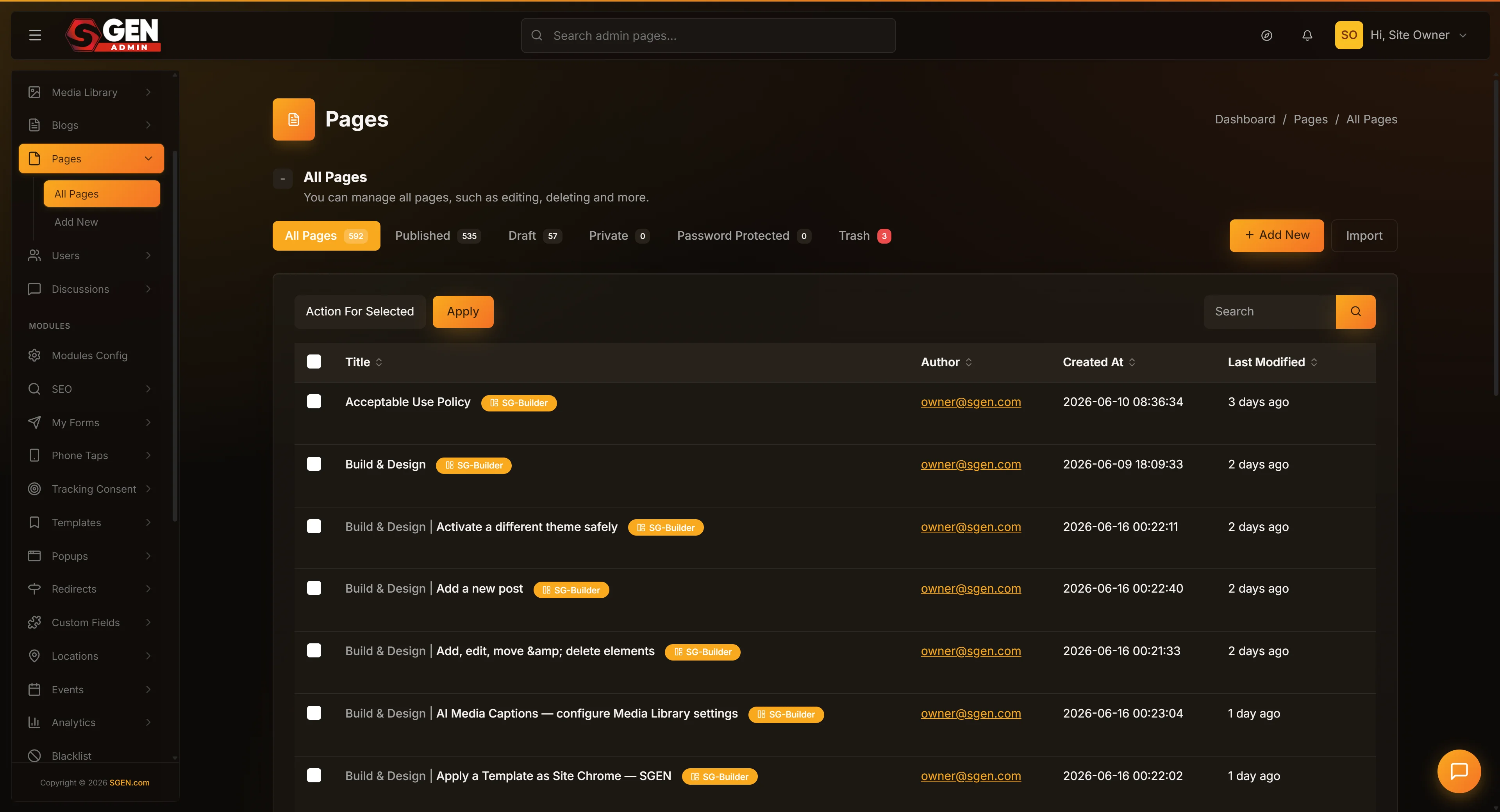
Go to Dashboard → Pages and locate the page you want to use as your starting point. Use the search box to narrow the list by title. Duplicate works from any tab — All, Published, Draft, or Trash — but the copy always lands in the Draft tab. If you have multiple pages with similar titles, hover the row to confirm the slug column matches the one you mean.
2. Hover the row and click Duplicate
Hover the row and click Duplicate from the inline action menu. Your browser navigates briefly and returns to the same Pages list — that is the system creating the new row. If you click Duplicate twice, you get two separate duplicates.
3. Find the duplicate in the Draft tab
Switch to the Draft tab. The duplicate is at the top — the freshest Draft is always first. Its title has (Draft) appended (e.g. Pricing (Draft)) and its slug has a number suffix for uniqueness (e.g. pricing-1). Both are placeholders you will edit next.
4. Open the duplicate and customize it
Click the duplicate's title to open it in the editor. Change the title (remove the (Draft) suffix), update the slug under Permalink, and edit the content blocks for what differs from the source. In the SEO tab, clear or update the inherited canonical URL — this is the most common gotcha. Save when done, then click Publish to take the page live at its new slug.
What success looks like
After clicking Duplicate, you land back on the Pages list. A new row appears at the top of the Draft tab with the title -1 (or -2, -3 for multiple copies). The original is unchanged on the Published tab. Open the duplicate in the editor — every section, banner image, custom setting, and SEO field has been copied over. Nothing changes on your live site until you publish.
What to do if it does not work
- I clicked Duplicate and nothing seems to have happened. Refresh the Pages list and switch to the Draft tab. The duplicate is almost always there — the system finished the work but the list view sometimes does not auto-refresh. If the duplicate still is not there after a refresh, the source page may have been trashed by another admin in the meantime; pick a different source.
- I see two duplicates instead of one. This usually means Duplicate got clicked twice. Each click creates a separate duplicate. Trash the extra one from the Draft tab — Trash is reversible if you change your mind.
- The duplicate has a slug like "about-1" instead of "about". That is intentional. Two pages cannot share the same URL, so the system added a number to keep the duplicate's slug unique. You can change the duplicate's slug in the editor's Permalink field — pick something meaningful for the new page.
- My SEO tool flags my duplicate as having the same canonical URL as the source. That is a known gotcha. The duplicate inherits the source's canonical URL setting. Open the duplicate in the editor, go to SEO tab, and either clear the Canonical URL field (so the duplicate uses its own URL) or set it to the duplicate's own URL.
- I duplicated the wrong page. Trash the duplicate from the Draft tab. The original is unaffected. The duplicate goes to Trash and can be permanently deleted later if you do not need it.
Example: spinning up a sibling page
Your site has a polished Wholesale Program page — banner photo, six content blocks, an embedded contact form, and tuned SEO meta. The team is launching a B2B Subscription Program with the same structure but different content. Open Dashboard → Pages, hover Wholesale Program, click Duplicate. The copy appears in Drafts as "Wholesale Program (Draft)". Open it, rename it to "B2B Subscription Program", change the slug to subscription-program, swap three content blocks, and publish. Done in under twenty minutes — half a day saved over starting from scratch.
Example: independent language variant
Duplicate the English page, translate every text block, update the slug (e.g. /about-fr/), and publish. Both pages are fully independent rows in the Pages list — edits to one do not affect the other.
Pre-publish checklist on a duplicate
Before publishing, step through each editor tab to confirm everything carried over correctly. The SEO canonical is the most common gotcha — it inherits the source URL and almost always needs to be cleared.
Tips
- Duplicate the closest existing page, not the most polished one. A page that is 90% similar saves more work than a page that is 50% similar but has the prettiest banner.
- Always edit the slug after duplicating. The auto-suffixed slug like "pricing-1" is a placeholder — rename it to something meaningful for the new page.
- Always review the SEO tab. The duplicate inherits the source's canonical URL, which is the most common gotcha. Clear it or set it to the duplicate's own URL.
- Duplicate stays as Draft until you publish. This is a feature, not a limitation. It gives you space to edit before exposing the new page.
- The duplicate references the same media library images as the source. If you delete an image from the source's banner, the duplicate's banner is also affected. Re-upload images for true independence.
- Trash the duplicate if you change your mind. Trash is reversible — you can restore a trashed duplicate from the Trash tab if you decide you want it back.
- Avoid clicking Duplicate twice. Each click creates a separate duplicate. If you accidentally end up with two, trash the extra.
Next steps
- Page editor — fields and tabs explained — full list of fields you can update in the duplicate.
- How to bulk-manage your pages — publish multiple duplicates at once.
- How to trash a page — retire the original after the duplicate goes live.
- Create a new page — start from a blank slate instead.