
Editor Actions
⏱ ~5 min read · the full set of moves inside the editor — insert and arrange blocks, style them per device, step back mistakes, preview, and publish.
In short. SG-Builder gives you six categories of editor actions: block (insert, select, configure), arrangement (drag-reorder, copy, delete, group), state (undo/redo — your draft is kept as you edit), preview (switch breakpoints in the action bar; Preview Changes shows the page as a visitor sees it), publish (the Publish button pushes your work live), and keyboard shortcuts (always active in the workspace). Everything you do in the editor stays a draft until you publish — visitors see no change until then.
On this page: How the editor is laid out · Block actions · Arrangement actions · Styling per device · State actions · Preview actions · Publish actions · Keyboard shortcuts · Quick-reference table · Troubleshooting · Vocabulary · Related reading
How the editor is laid out
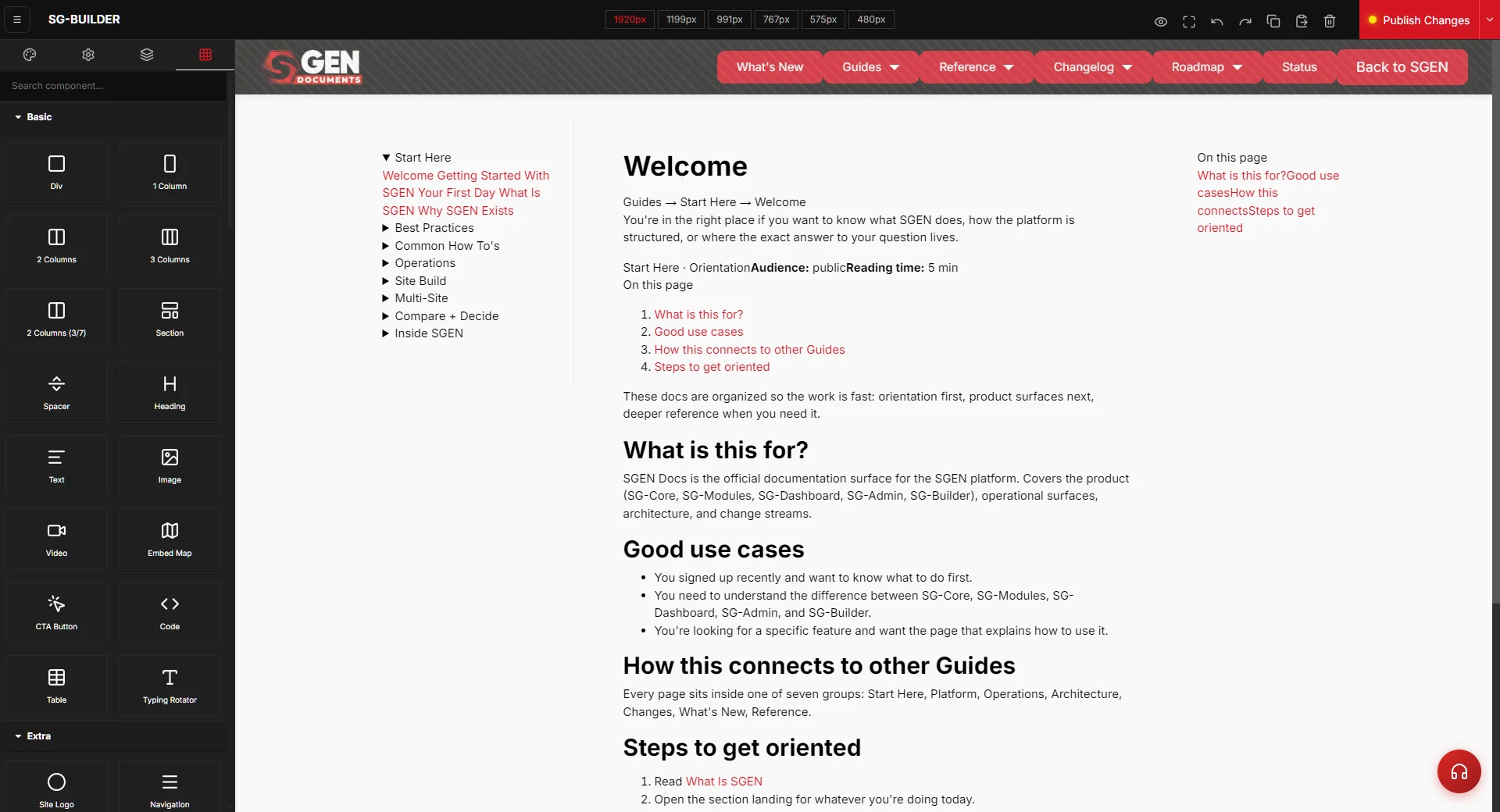
The editor actions in SG-Builder all happen in one drag-and-drop workspace. You build a page from two kinds of pieces: sections (the layout areas that run down the page) and blocks (the content elements that sit inside them — headings, text, images, buttons, cards, forms, and more). You arrange these on a central canvas, pull new pieces from a block library, and fine-tune whatever you've selected in a right panel. Most moves come down to drag and drop on the canvas, with editor shortcuts for the rest.
Three regions account for nearly everything you'll do:
- The canvas — the live preview of your page in the middle. You drop blocks here, click to select them, and drag to rearrange.
- The block library — your palette of available blocks. Dragging from here onto the canvas is how new content gets added.
- The right panel — where a selected block's settings and styles appear, so you can change its text, swap its image, or adjust spacing and color.
Above the canvas sits the action bar, which holds the breakpoint switcher and the Publish button. SG-Builder is included on every plan; if you don't see the editor option on a page, that's the first thing to check.
Block actions
Three moves cover the whole life of a block:
- Insert — drag a block from the block library onto the canvas. The block lands where you drop it, ready to configure. SG-Builder offers a wide set of blocks: basic ones like headings, text, images, and call-to-action buttons; richer ones like cards, pricing tables, accordions, tabs, galleries, and testimonials; and store blocks for product titles, prices, galleries, and add-to-cart buttons on sites with the ecommerce module enabled.
- Select — click a block on the canvas to select it, or pick it from the Layer Manager when blocks are stacked or nested and clicking is fiddly.
- Configure — with a block selected, set its content and options in the right panel. A heading carries its text and heading level; a button carries its label, style, and link; a card carries its title, image, and body. Type into the panel rather than the canvas — the editor re-renders the block from its settings, so panel changes are the ones that stick.
Arrangement actions
Once content is on the page, arrangement actions move it around:
- Drag-reorder — grab a block on the canvas and drag it to a new spot in the layout.
- Copy and paste — copy a selected block (Ctrl+C / Cmd+C) and paste it elsewhere (Ctrl+V / Cmd+V). This is the fast way to repeat a pattern — duplicate a styled card, then change its text.
- Delete — remove a selected block with the Delete key.
- Group — combine blocks into a section so they move and style together.
Styling per device
Selecting a block also opens its style controls in the right panel. SG-Builder groups those controls into six style sectors so you can find the right setting without scanning a flat list:
| Sector | What it controls |
|---|---|
| General | Display, overflow, and position |
| Flex | Flex direction, wrap, align, and justify |
| Dimension | Width, height, padding, and margin |
| Typography | Font, size, weight, line-height, and color |
| Decorations | Background, border, border-radius, and shadow |
| Extra | Opacity, cursor, and custom CSS class |
Layout decisions (positioning, sizing, spacing) live in General, Flex, and Dimension; how something looks (color, type, borders) lives in Typography and Decorations.
Styling is also per device. SG-Builder defines six breakpoints, from widest to narrowest: SG Desktop, SG Laptop, SG Notebook, SG Tablet, SG Mobile LG, and SG Mobile SM. A style you set at a wider breakpoint cascades down to the narrower ones unless you override it there — the same way CSS itself behaves. The practical upshot: after you style for desktop, switch down through the narrower breakpoints and check your work. Forgetting to look at the small sizes is the most common cause of a layout that looks right on a monitor but breaks on a phone.
State actions: undo, redo, and draft
As you edit, SG-Builder keeps your work as a draft — your changes are held, not lost, and they are not live. If you make a change you didn't mean to, undo steps it back (Ctrl+Z / Cmd+Z) and redo reapplies it (Ctrl+Shift+Z / Cmd+Shift+Z). Undo and redo are also available from the editor toolbar. For a larger reversal that goes beyond stepping back individual edits, you restore a backup of the site rather than relying on undo.
Preview actions
Two preview actions let you check your work before it goes anywhere:
- Switch breakpoint — use the breakpoint switcher in the action bar to view your layout at each of the six device widths. This is how you confirm a section looks right from desktop down to the smallest phone.
- Preview Changes — see the page the way a visitor will, without the editor's panels and handles around it.
Full detail: Responsive Preview
Publish actions
Publish is the only action that makes your edits go live. Click the Publish button in the action bar to push the current page state from draft to live. Nothing you do in the editor reaches visitors until you publish, so you can build and rearrange freely first. For exactly what happens at that moment — the checks that run, success and failure paths, and the record kept of each attempt — see Publish Changes.
Keyboard shortcuts
These bindings are always active inside the workspace:
| Action | Mac | Windows |
|---|---|---|
| Undo | Cmd+Z | Ctrl+Z |
| Redo | Cmd+Shift+Z | Ctrl+Shift+Z |
| Copy | Cmd+C | Ctrl+C |
| Paste | Cmd+V | Ctrl+V |
| Delete selected | Del | Del |
Where each category lives
- Block: canvas (drag to insert, click to select), right panel (configure traits).
- Arrangement: canvas (drag-reorder), keyboard (copy / paste / delete).
- State: keyboard (undo / redo). Draft state is automatic — no save indicator exists separately.
- Preview: action bar (breakpoint switcher); Publish → More Actions dropdown (Preview Changes).
- Publish: action bar (Publish button).
- Shortcuts: keyboard layer — always active inside the workspace.
Quick-reference table
| Category | Actions | Where |
|---|---|---|
| Block | Insert, select, configure | Canvas + right panel |
| Arrangement | Drag-reorder, copy, paste, delete, group | Canvas + keyboard |
| State | Undo, redo (draft auto-saves) | Keyboard |
| Preview | Breakpoint switch, Preview Changes | Action bar + Publish → More |
| Publish | Publish, promote staging | Action bar |
| Shortcuts | Full shortcut layer | Keyboard (always active) |
Troubleshooting
- My text change disappeared. Type into the right panel, not directly onto the canvas. The editor re-renders a block from its settings, so an edit made on the canvas can be overwritten — the panel value is the one that holds.
- It looks fine on my screen but wrong on a phone. Switch down through the breakpoints with the breakpoint switcher and check each one. A style set at a wider device cascades down, so the fix is to select the block at the narrow breakpoint and override the setting there.
- I can't click a block that's behind another one. Select it from the Layer Manager instead of the canvas — the layer view lists every block, including nested and stacked ones.
- My changes aren't showing on the live site. The editor holds your work as a draft until you publish. Click Publish in the action bar; see Publish Changes for what runs at that point.
- I don't see the SG-Builder option on a page. SG-Builder ships on every plan — check your role permissions for that site.
Vocabulary
- Block action — insert / select / configure.
- Arrangement action — drag-reorder / copy / paste / delete / group.
- State action — undo / redo / version checkpoint. Draft state is automatic; no dedicated save control.
- Preview action — breakpoint switch (action bar) or Preview Changes (Publish → More Actions).
- Publish action — publish / promote staging-to-live.
Related reading
- SG-Builder Overview — parent surface.
- Builder Workspace — the workspace shell where actions live.
- Layer Manager — alternate selection and arrangement surface.
- Publish Changes — publish action in detail.
- Responsive Preview — breakpoint switching and preview detail.
SG-Builder keyboard shortcuts
| Action | Mac | Windows |
|---|---|---|
| Undo | Cmd+Z | Ctrl+Z |
| Redo | Cmd+Shift+Z | Ctrl+Shift+Z |
| Copy | Cmd+C | Ctrl+C |
| Paste | Cmd+V | Ctrl+V |
| Delete selected | Del | Del |