
Publish Changes
⏱ ~5 min read · what publishing does, the staging-to-live model behind it, how to check before you go live, and how to publish several items at once.
In short. The Publish button in SG-Builder is the only thing that makes your edits go live. Your work is kept as a draft as you edit, and nothing reaches visitors until you publish. When you click it, the platform validates required fields, permissions, and page structure — then either transitions the page to live in full, or fails without touching the live site. Every publish attempt records to the audit log. That's the model; read on for the detail.
On this page: Draft, published, and the staging-to-live model · Where the action lives · Pre-publish validation · Atomic transition · Before you publish · Publishing several items at once · Audit trail · Examples · Troubleshooting · Related reading
Publish changes is the SG-Builder action that transitions a page from draft editor state to live. It is explicit (you click to publish; nothing auto-publishes as you save), atomic (fully succeeds or fully fails — no partial state), validated (pre-publish checks run first), and audited (every attempt records to the audit log).
Draft, published, and the staging-to-live model
Two states matter most. A draft is a page you're still working on — visible to you in the admin, not to the public. A published page is live on your site for anyone with the URL. You move between the two as you edit.
Behind that is a staging-to-live model: your editing happens on a staged version of the page, and publishing pushes that staged version to live — the version your visitors see. You don't edit the live site directly. That separation is what lets you rearrange a page, change copy, and restyle for mobile without anyone seeing a half-finished page; the public version only updates the moment you publish.
It helps to keep three distinct ideas apart:
| Action | What it does |
|---|---|
| Save | Holds your work as a draft on staging. Not public. |
| Publish | Pushes the staged version live for visitors. |
| Back up | Saves a full restore point of the whole site, so you can roll back later. |
Before you've published anything, your unpublished drafts aren't public, and a site in your Sandbox is kept out of search results. A page becomes public only when you publish it.
Where the action lives
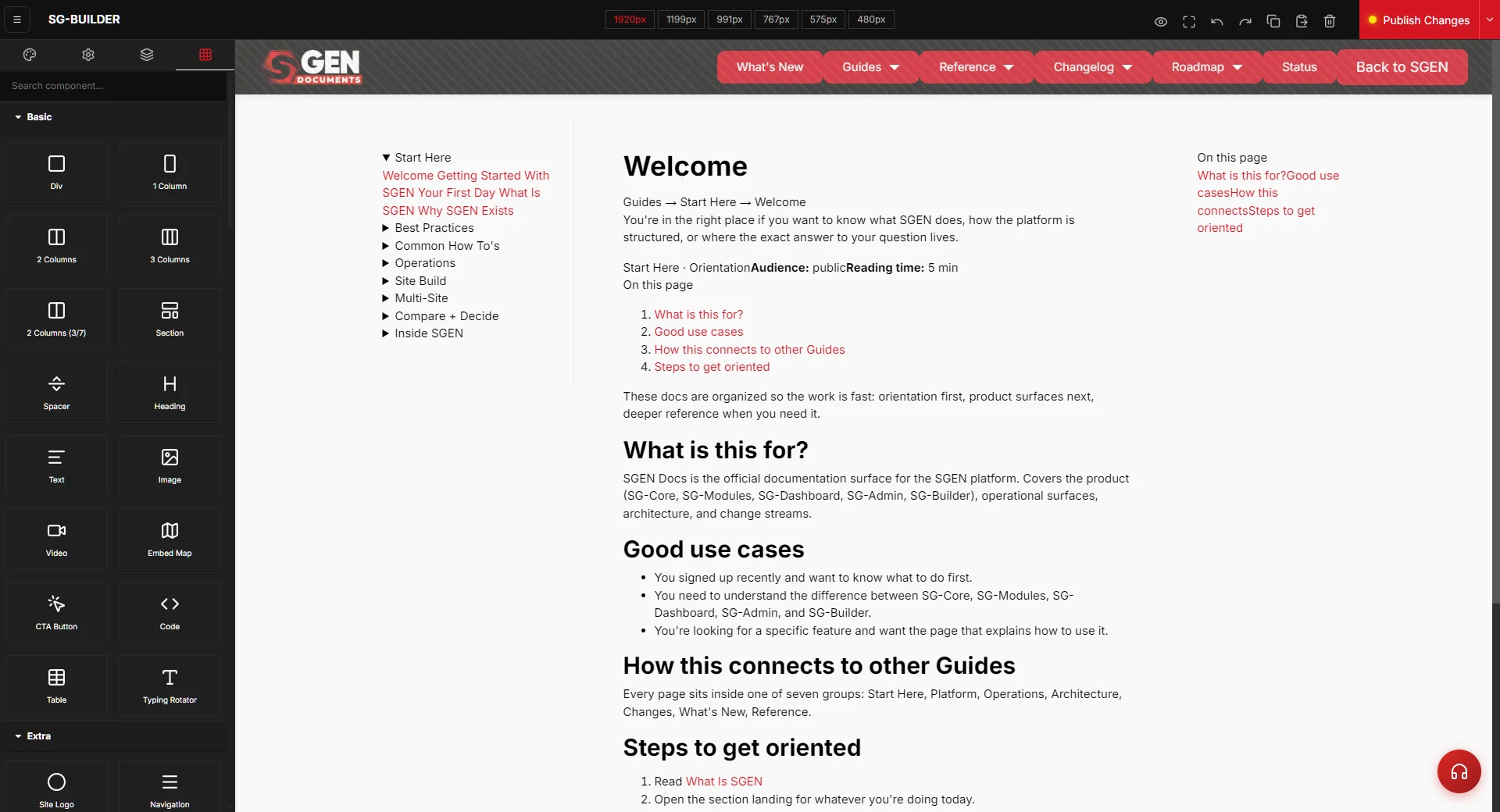
The Publish button sits in the top action bar of the SG-Builder workspace, at the right edge — always visible during an editing session.
Save state indicator
A save indicator next to the publish button shows whether the editor holds unsaved changes. Save state and publish state are independent — saving keeps the change as a draft; publishing makes it live.
"Draft saved" means the draft is held; the page is not live until you click Publish:
Pre-publish validation
Clicking Publish triggers the following checks before any state changes:
| Check | What it confirms |
|---|---|
| Required fields | All required fields for the record (page, post, product) are populated |
| Structural validity | No broken nesting; no required regions left empty |
| Permissions | You have publish permission on this site for this record type |
A failing check surfaces the issue inline. The publish does not proceed and nothing changes on the live site.
Atomic transition
The publish either completes in full or fails entirely — there is no half-published state.
Success path — validation passes; the page transitions to published state; the live URL reflects the new content within the platform's render cadence; a confirmation toast fires at the bottom of the screen:
Failure path — validation fails or the transition itself errors; you see an inline error; nothing changes on the live site; the audit log records the failed attempt.
Before you publish
Publishing is reversible, but a few habits keep the live site clean:
- Check every device width. Switch through the SG-Builder breakpoints — desktop down to the smallest phone — before you publish. A style set at a wide breakpoint cascades down to the narrower ones, so a layout that looks right on a monitor can still break on mobile. Catch it on staging, not live.
- Preview as a visitor. Use Preview Changes to see the page without the editor's panels and handles around it. It's the closest look at what visitors will get.
- Confirm the page status. A page is only public when it's published. If you've staged a page as a draft for review, it stays out of the public site until you publish it.
- Know your safety net. Publishing pushes staging to live; a backup is a separate, full restore point for the whole site. If something looks wrong after a publish, you can restore a backup to roll back.
Publishing several items at once
When you need to take several pages or posts live (or pull them back) together, you don't have to open each one. On the relevant admin list page — Pages, Blogs, Forms, and similar — tick the items you want, choose the action from the Action For Selected menu (for example, move them to Publish, Draft, or Trash), and click Apply. This is the fast path for batching a set of changes live in one step instead of publishing them one at a time from the editor.
Audit trail
Every publish attempt — success or failure — records to the audit log:
- Timestamp
- Operator identity
- Page / record (title + ID)
- Before-state and after-state
- Validation outcome
The audit log is queryable per the broader audit-log surface. A single publish event looks like this:
Examples
Publishing a page edit — you finish editing, click Publish. Validation passes. The page goes live; the live URL updates within seconds.
Validation blocks an incomplete publish — you click Publish; a required field is missing. The platform surfaces the issue inline. You fill the field, click Publish again, and it succeeds.
Auditing a recent change — a stakeholder asks who published a change. Open the audit log, find the publish event, and read off the timestamp, operator, and before/after state.
Troubleshooting
- I published but the live page hasn't changed. Confirm the publish succeeded — a failed validation leaves the live site untouched. Give the live URL a moment and refresh; if it still hasn't updated, recheck that you published the right page.
- Publish won't go through. A pre-publish check is failing. The issue surfaces inline — usually a required field left empty or a structural problem. Fix what's flagged and click Publish again.
- I don't have a Publish button / it's disabled. Publishing depends on your permissions for this site and record type. If you can't publish, ask an administrator on your site to grant publish access or to publish on your behalf.
- The page looks broken on mobile after publishing. Reopen the editor, switch to the narrow breakpoints, and override the styles that didn't carry down correctly, then publish again.
- I need to undo a publish. Stepping back individual edits is undo's job inside the editor; reversing a published change across the whole site is what a backup restore is for. Restore a backup to roll back to an earlier state.
Vocabulary
| Term | Meaning |
|---|---|
| Publish action | The operator click that initiates the publish |
| Pre-publish validation | The check sequence that runs before transition |
| Atomic transition | Publishing either fully succeeds or fully fails |
| Audit entry | The record of a publish attempt in the audit log |
Related reading
- SG-Builder Overview — parent surface.
- Editor Actions — the broader action set publish belongs to.
- Publishing Workflow — the cross-product workflow this action lives inside.
Save vs Publish vs Back up
| Action | What it does |
|---|---|
| Save | Holds your work as a draft on staging. Not public. |
| Publish | Pushes the staged version live for visitors. |
| Back up | Saves a full restore point of the whole site, so you can roll back later. |