
Custom CSS vs Custom Codes vs SGB Additional CSS
SGEN gives you three places to add CSS. They look interchangeable on the surface, but each has a different scope, cascade position, and right time to use it. Picking the wrong one creates cascade fights, bloated files, and rules that vanish when a page becomes the homepage. This guide is the decision rule.
Default to Custom CSS
Design tokens, base element styles, and site-wide utilities all belong in Custom CSS — your design system layer. If the rule applies everywhere, it lives here.
Drop to SGB Additional CSS for one page
Layout tweaks and component overrides that only affect a single page go into that page's Additional CSS panel in SG-Builder. Auto-scoped, no body selector needed.
Custom Codes is last resort
Tracking scripts, third-party widgets, and tag managers go here. CSS in Custom Codes means audit hell. Only reach for it when the first two surfaces cannot do the job.
The three surfaces at a glance
Each surface has a distinct role in the SGEN CSS stack. Use this table to place any new rule in under 30 seconds.
Scope
Custom CSS — site-wide design system
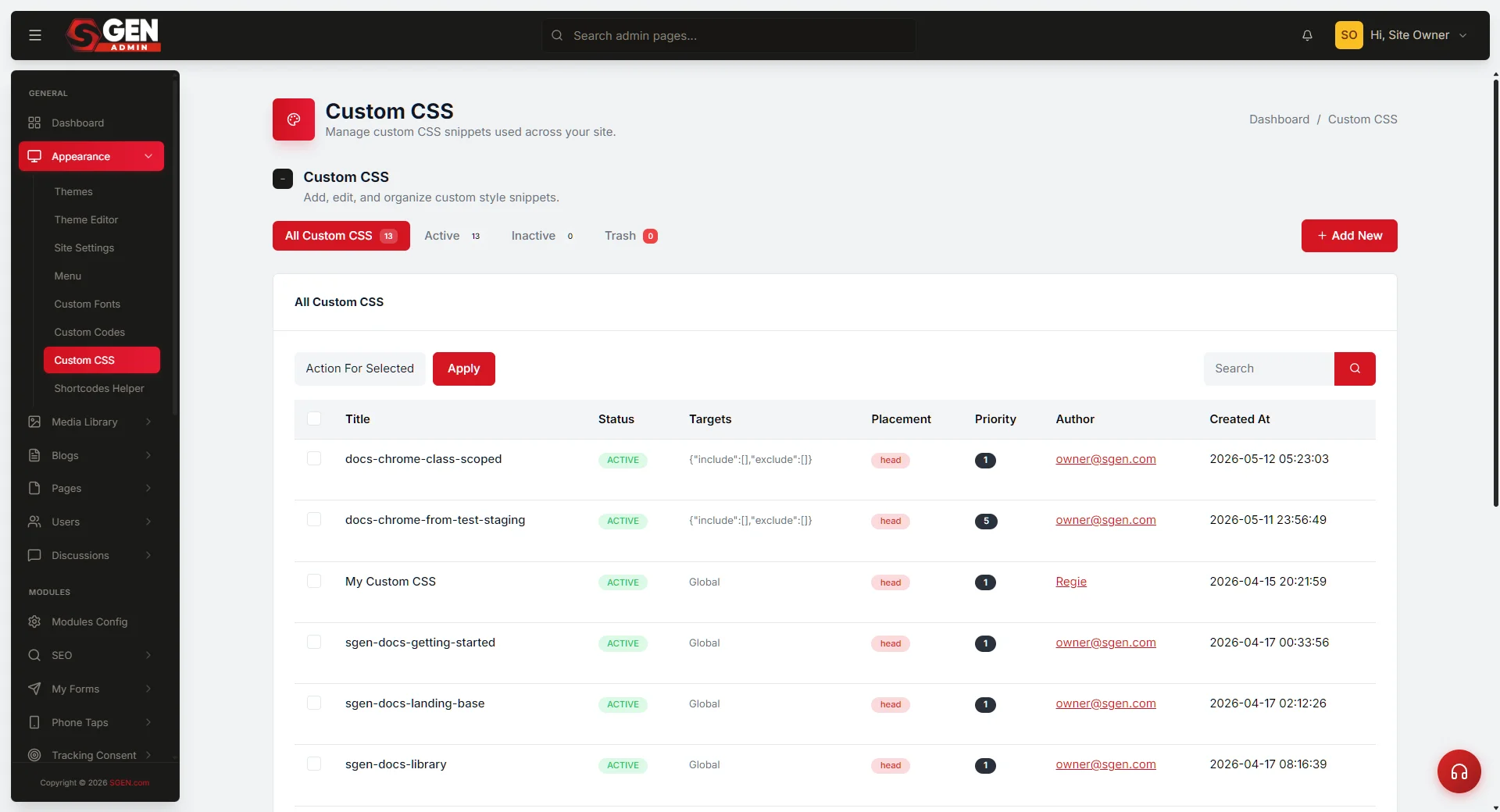
Location: Admin → Appearance → Custom CSS
Cascade: loads after the theme, before page-level styles
Use for: CSS custom properties (design tokens), base element styles, site-wide utilities, reusable component patterns
Scoping: site-wide by default; use body.page_id-<n> (never body.page-<slug>) for page-specific overrides at this layer
Scope
SGB Additional CSS — page-level tier
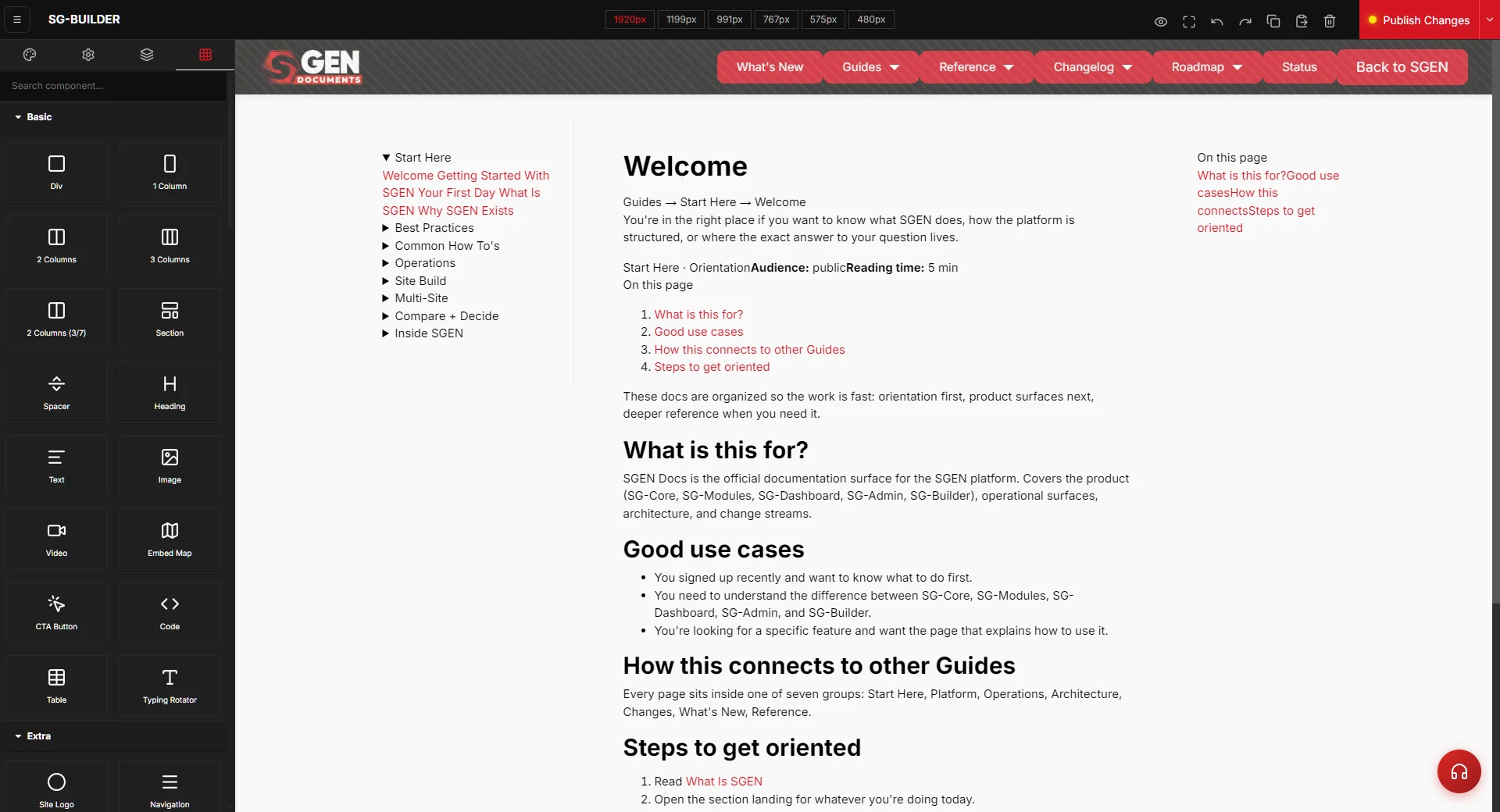
Location: SG-Builder → Settings (gear icon) → Additional CSS
Cascade: loads after Custom CSS — wins specificity ties
Use for: layout tweaks unique to this page, one-off color overrides for a campaign page, component variants that must not bleed to other pages
Scoping: automatically scoped to the page — no body selector wrapping needed
Access
Custom Codes — last resort
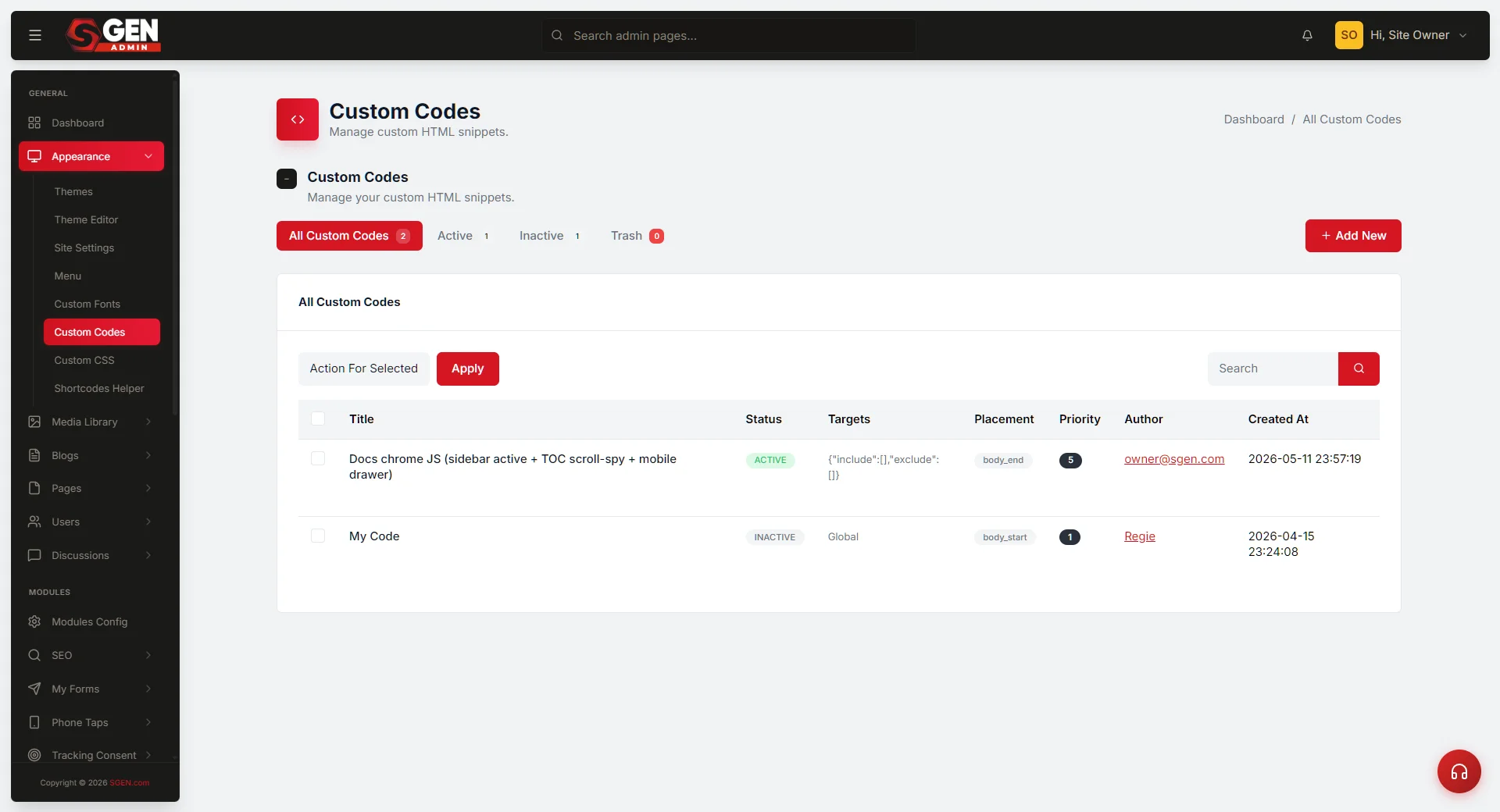
Location: Admin → Tools → Custom Codes
Cascade: wherever you inject (head/body, before/after content)
Use for: tracking scripts (GA4, Meta Pixel), third-party widgets (chat, calendar embeds), tag manager containers
Not for: style rules that belong in Custom CSS or SGB Additional CSS — harder to audit, cannot be re-themed cleanly
Decision
Quick pick rule
Every page? → Custom CSS
This page only? → SGB Additional CSS
A script or embed? → Custom Codes
A behavior, not visual? → Custom Codes (or wait for the platform to expose it natively)
The cascade order
When the same property is set at multiple layers, SGEN resolves in this order — later wins. If your CSS is not applying, walk this list to find what is overriding it.
1. Theme defaults
Lowest priority. The base styles shipped with the active theme.
2. Custom CSS (design system)
Your site-wide tokens, base element styles, and utilities. Loads after the theme.
3. SGB component inline styles
Styles set via the visual builder controls. These override Custom CSS — the most common cause of "my CSS is not taking effect."
4. SGB Additional CSS (page-level)
Per-page CSS from the SG-Builder Settings panel. Wins specificity ties against Custom CSS.
5. Custom Codes (head injection)
Depends on placement (head/body, before/after content). Use head placement for overrides that must beat SGB inline styles.
6. CSS importance declarations
Override everything — avoid. Cascade fights escalate and the next developer cannot reason about specificity.
How to consolidate a messy site
If CSS has spread across all three surfaces, this six-step process moves every rule to its correct layer. The Your Store team used this method to reduce their Custom CSS from 2,400 lines to 380 lines in one afternoon.
1
Inventory all three surfaces
Open Custom CSS, SGB Additional CSS on your five most complex pages, and Custom Codes. Note approximate line counts and scopes. Flag any rules that look page-specific inside Custom CSS, or design tokens inside SGB Additional CSS.
2
Move design tokens up to Custom CSS
Anything that defines colors, spacing, or typography moves to Custom CSS as CSS custom properties. Example:
/* === Design tokens === */
:root { --brand-charcoal: #3b2010; --brand-sand: #f5f0e8; --text-base: #1a1a1a; --space-md: 1.5rem;
}
3
Move base element styles up to Custom CSS
body, h1–h6, p, a base rules belong in Custom CSS. These are site-wide, not page-specific.
4
Move page-specific tweaks down to SGB Additional CSS
Any rule that targets one page moves to that page's SGB Additional CSS. Open the page in SG-Builder → Settings → Additional CSS and paste the rules there. No body selector wrapper needed — it is already auto-scoped.
5
Audit Custom Codes for style blocks
Check Custom Codes for CSS rule blocks. Move style rules to Custom CSS. Keep Custom Codes for tracking scripts and third-party embeds only.
6
Test representative pages
View 3–4 representative pages (homepage, a blog post, a product page, a contact page). Confirm visual parity before declaring the consolidation done.
Common mistakes
These four patterns cause most CSS confusion on SGEN sites. Each one has a clear fix.
Problem
Page-specific tweaks in Custom CSS
Symptom: Custom CSS grows to 2000+ lines; every change risks breaking a different page.
Fix: Extract page-scoped rules into the relevant page's SGB Additional CSS.
Problem
Design tokens in SGB Additional CSS
Symptom: Same color hex repeated on every page; brand update means editing every page.
Fix: Define --brand-blue once in Custom CSS, reference via var(--brand-blue) everywhere.
Problem
CSS rules inside Custom Codes
Symptom: Tracking scripts and style rules in the same file — audit nightmare.
Fix: Custom Codes is for scripts. Move style rules to Custom CSS or SGB Additional CSS.
Problem
body.page-<slug> selectors that vanishSymptom: Page-scoped rule works fine until the page is set as the homepage, then breaks.
Fix: Use body.page_id-<n> (numeric ID, stable). Or use SGB Additional CSS — auto-scoped, no body selector needed.
CSS scoping patterns reference
When you need to target specific pages from Custom CSS — prefer SGB Additional CSS for this, but when you do need it — use these stable selector patterns.
/* Target a specific page by numeric ID — stable even if the page becomes the homepage */
body.page_id-42 .hero-section { background: var(--brand-charcoal);
}
/* Target a post type (all blog posts) */
body.single-post .post-content { max-width: 720px;
}
/* Target a category archive */
body.category-lookbook .archive-header { font-size: 2rem;
}
/* Target the homepage specifically — use page_id, not page-home */
body.page_id-1 .announcement-bar { display: block;
}
Never use body.page-<slug> for any page that might become the homepage — SGEN strips the slug class when a page is set as the homepage.
Heads up — The
body.page-<slug> class vanishes the moment a page is set as the site homepage. Any selector relying on it will silently stop working. Use body.page_id-<n> (the numeric ID from the edit URL) or move the rule to SGB Additional CSS instead.