
Build a navigation menu
How to build and assign site menus (header, footer, mobile drawer)
The Menu panel is the navigation builder. Create a menu, pick the pages or custom links it contains, arrange them (including sub-menus), and tick which locations render the menu — Header, Footer, Mobile Menu, or any combination.
What is this for?
Menus are the navigation layer of your site. Every link in the header bar, footer column, or mobile drawer comes from a menu you built here. A menu is one tree of links + which location(s) show it. You can have multiple menus (primary, footer-only, utility) active at the same time.
Good use cases
Example 1: Build Acme Coffee's primary nav. Acme Coffee Roasters has Shop / Subscribe / Brewing / About / Contact as its primary pages. Create a menu called "Primary", drag those five in order, tick Header + Mobile Menu, Save.
Acme's menu form populated:
Menu — Primary (Acme Coffee Roasters)
On save:
Menu saved
Apr 23, 2026 11:18menu.primary.treemenu.primary.locations- Home (page)
- Services (page)
- Consulting
- Training
- Contact (page)
Example 2: Add a child sub-menu under "Services". On the same menu, drop "Consulting" and "Training" under the Services item. The header shows a dropdown on hover; the mobile drawer indents them.
Example 3: Keep a separate footer menu. Create a "Footer Links" menu with Privacy, Terms, Cookies, Contact. Assign only the Footer location. The footer column renders them; the header is unaffected.
What NOT to use this for
- Do not use Menu to style the navigation. The visual treatment (font, colour, spacing) is owned by the header/footer/mobile-menu chrome and the active theme swatch.
- Do not share the deletion URL. A menu is deleted via a GET on
?delete=<id>— anyone with that URL and an admin session can wipe the menu. Delete only from the Menus page, never by sending a link. - Do not bind a single menu to conflicting locations. If two menus claim "Header", whichever saved last usually wins — unpredictable.
How this connects to other features
- Pages — menu items reference pages from Site → Pages. Create or rename a page there, then pick it in Menu.
- Posts / Blog — the same picker surfaces posts; link directly or link the category index.
- Header / Footer / Mobile Menu — the location checkboxes here decide which chrome surfaces render this menu.
- Templates — the active chrome templates wrap the rendered menu. If a template does not have a nav slot, the menu does not show even when location is ticked.
Before you start
- The pages you want to link are already created under Site → Pages (or the Posts / categories you want to link exist).
- You know which locations you want the menu on (Header, Footer, Mobile Menu — any combination).
Where to go
- Open the left navigation.
- Click Appearance → Menu. The panel is a three-column layout: pickers on the left, tree in the middle, locations on the right.
Steps
1. Create a new menu (if needed)
Click New menu, give it a name, Save Menu. The empty tree appears in the middle column.
2. Pick items to add
Use the left column's tabs: Pages (every site page), Custom Link (any URL with your own label). Tick the items, click Add to Menu.
- Home (page)
- Services (page)
- Consulting
- Training
- Contact (page)
3. Arrange the tree
Drag items to reorder. Drag items slightly right under another item to make them children (sub-menu under the parent).
4. Tick locations
The right column lists every active location. Tick Header, Footer, Mobile Menu — any combination.
Menu Locations
Assign this menu to one or more locations on your site.
5. Save Menu
The menu appears on every page it's ticked for on next reload.
The complete flow
For a new site nav in one pass:
- Click New menu, name it "Primary", Save.
- Pick Home, About, Services, Contact from the Pages tab; Add to Menu.
- Drag "Consulting" under Services; "Training" under Services.
- Tick Header + Mobile Menu.
- Save Menu. The header and phone drawer pick it up on reload.
What success looks like
- The public site's header shows your items in order.
- The mobile drawer shows the same tree, indented for children.
- Reordering and saving updates the public site without a rebuild.
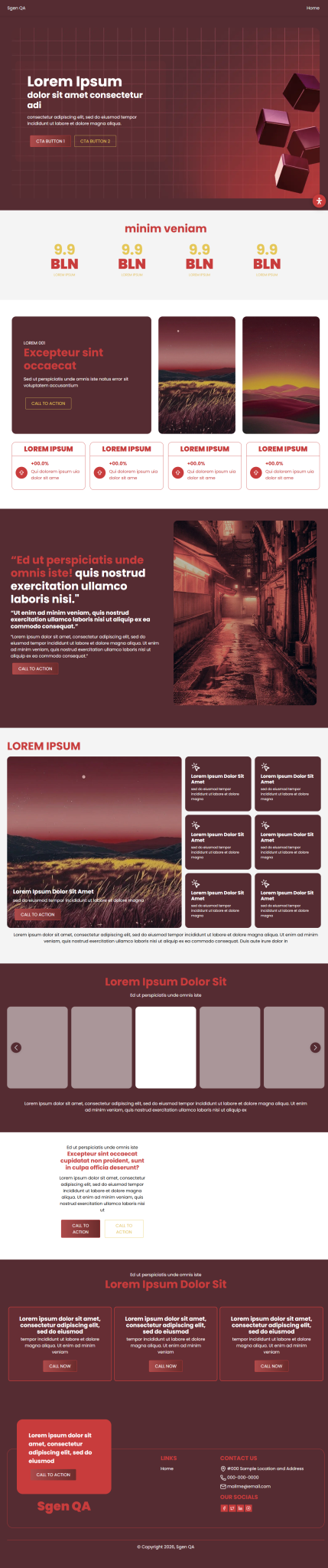
Before / after a menu rebuild during the 2026-04-20 QA run:
What to do if it does not work
- The header is empty. No menu has the Header location ticked. Go back to the Menu page and tick it.
- I accidentally put two menus on the same location. Whichever saved last usually wins. Untick one and Save.
- My new page is not in the picker. Confirm the page is published (not draft) in Site → Pages.