
Pick a theme
How to re-skin your SGEN site with a color swatch
The Themes panel is the fastest way to re-paint your site. Pick a Color Swatch and every button, link, heading, and background on the public site updates to the preset's palette — no per-page edits, no rebuild step.
What is this for?
The Themes panel holds eight "chrome" presets in one place: the main palette (Color Swatches) plus seven optional presets for Header, Footer, Blog Archive, Location Selector, Age Verification, Global Buttons, and Bottom Bar Sticky Mobile. Picking a preset is "apply this full look instantly" — it is not the place for one-off colour tweaks.
Good use cases
Example 1: Brand relaunch in one click. Acme Coffee Roasters is rolling out a moodier brand palette. Open Appearance → Themes, pick Slate Ember from the Color Swatches grid, click Save Changes. Every button, link, heading, and hero on acmecoffee.com repaints to the new primary (#4394BE) and accent (#2A2A42) within one reload:
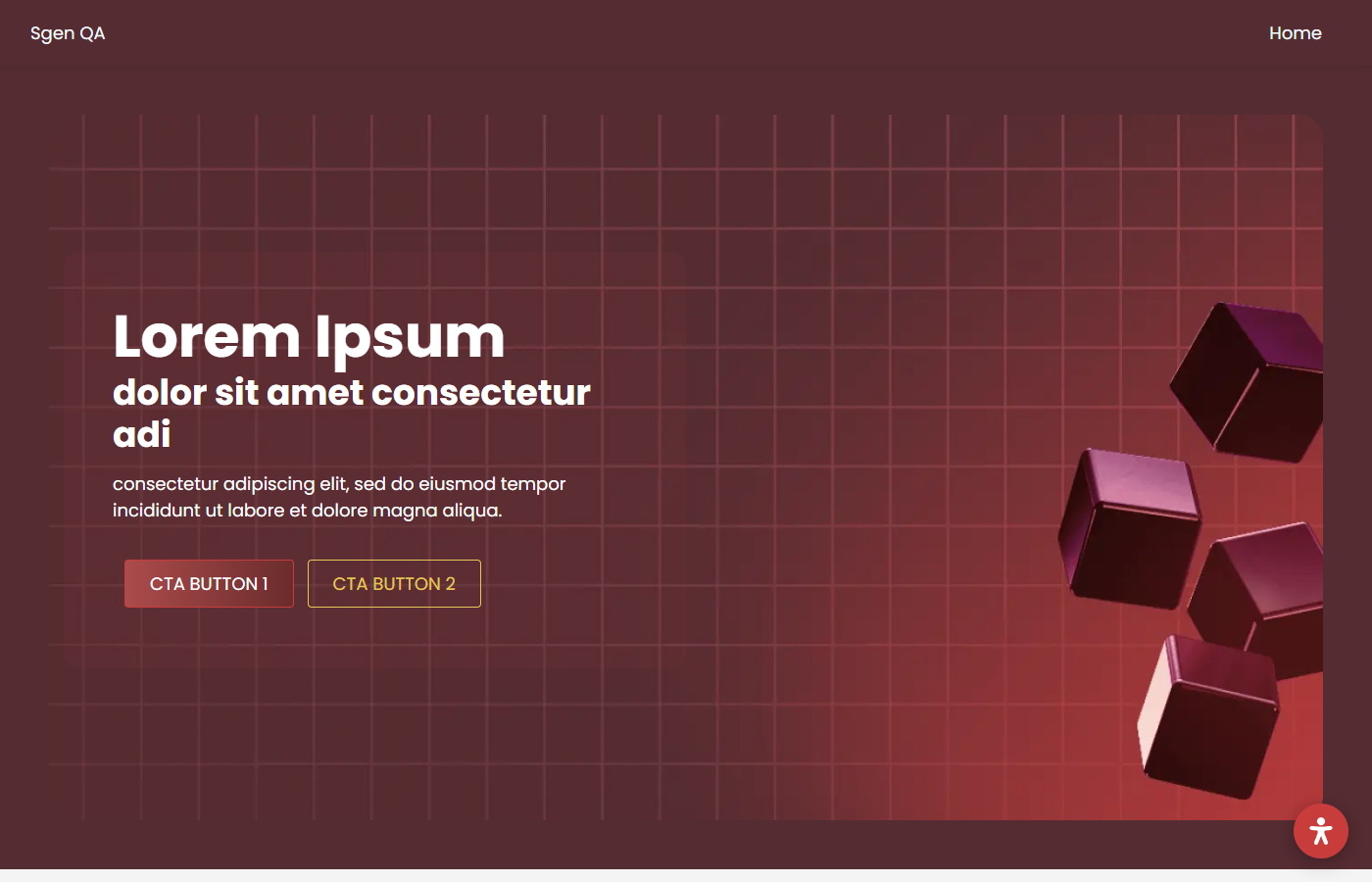
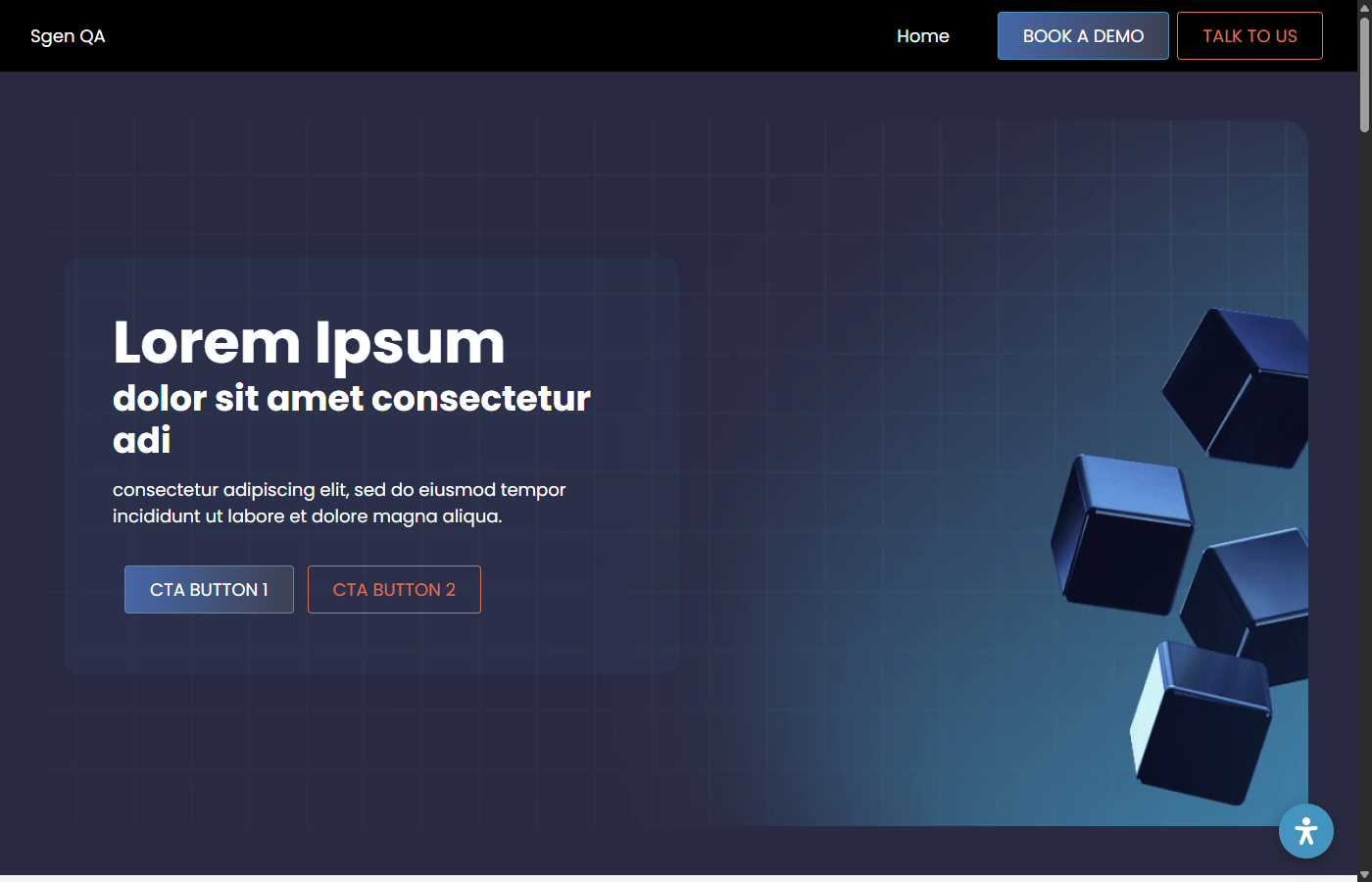
Here is how the public home hero renders after the Slate Ember swatch is active:
Small-batch coffee, shipped fresh from our roastery
Single-origin beans roasted the day before they ship. Subscribe and skip a month any time.
Example 2: Match chrome presets to a campaign. Acme wants a warmer skin for the blog index during the Brewing Guide launch, without touching the rest of the site. Click the Blog Archive tab inside Themes, pick the Magazine Warm preset, Save. Only /blog/* inherits the new look. The Save Changes flash confirms which slots wrote:
Themes saved
Apr 22, 2026 14:03themes[blog_archive]styles_layout (merged)Example 3: Restore a known-good look after a hand-edit went wrong. Someone on the team edited Styles & Layouts by hand and the Acme homepage now shows the wrong accent colour on CTAs. Open Themes, re-pick the intended swatch (for example Burgundy Gold), click Save. The Themes grid header then shows the restored active swatch:
What NOT to use this for
- Do not use Color Swatches as a colour palette picker. Swatches aren't cosmetic-only — picking a different swatch rewrites parts of your Styles & Layouts. If you customised button backgrounds or link colours by hand, they may be overwritten. Use Styles & Layouts → Global Colors for fine-grained colour edits.
- Do not rely on the Themes page's active indicator on brand-new sites. On fresh installs the panel may render "Midnight Orchid" as checked while the public site renders a different palette. If the colours look wrong, re-pick your intended swatch and save to force the match.
How this connects to other features
- Styles & Layouts — picking a swatch rewrites parts of Styles & Layouts (typography/colors/buttons). Back up hand-tuned values before you switch swatches.
- Media Library — your logo and brand imagery live in the Media Library; the theme references them but does not host them.
- Custom Codes / Custom CSS — for overrides that a swatch can't express, layer a Custom CSS rule on top instead of editing the preset.
- Templates — the active header / footer / mobile menu templates (site chrome) wrap every page the swatch repaints.
Before you start
- You are signed in to SGEN as an admin with Appearance access.
- You know that a swatch change affects every page; there is no per-page preview before Save.
- If you have hand-tuned button / link colours, record the hex values first — a swatch change may overwrite them.
Where to go
- Open the left navigation.
- Click Appearance → Themes. The page opens on the Color Swatches tab. Seven sibling tabs sit above the cards:
Steps
1. Pick a swatch
Each card is a pre-built palette. Click a card to select it; the active card gets a red check:
2. Save Changes
Scroll to Save Changes. The site repaints on next reload.
Heads up — swatches also reset fine-grained colours. Changing a swatch merges the preset's defaults into Styles & Layouts. If you previously hand-picked a button accent colour, the new swatch's default may win.
3. (Optional) Pick chrome presets on the sibling tabs
If you want a different look for the Header, Footer, Blog Archive, Location Selections, Age Verification, Global Buttons, or Bottom Bar Sticky Mobile, click the matching tab and pick a preset there. Each tab saves independently.
What success looks like
- The public site reloads with the new palette — every button and link repaints.
- The Themes card with the red check is the one the site is rendering.
What to do if it does not work
- I clicked Save and the public site did not change. Hard-reload (Ctrl+Shift+R) — CSS can be cached in the browser for up to an hour.
- My custom button colours are gone after a swatch change. Expected — a swatch merges the preset's defaults onto Styles & Layouts. Re-apply your hex values in Styles & Layouts → Global Colors and → Button Styles.
- My admin shows one swatch checked but the site renders another. Re-pick your intended swatch on the Themes page and click Save Changes to force the match.