
Team Lead SGEN Onboarding Guide
Your role as a team lead sits one rung below admin — you coordinate Authors, Editors, and Contributors, own the editorial cadence and the quality bar, and escalate to your admin for permission changes, billing, and any structural platform decisions. This guide walks you through what to do before your first team member logs in, what to do every week, and what to do when the system breaks down. You do not configure the platform. You configure the people using it.
Set up before the first deadline
Invite every team member with the correct role assigned before anyone drafts a single piece. Role determines what the member sees the moment they log in for the first time.
Run the training pass first
One guided run through draft → submit → review → publish with each new member prevents the first production failure from teaching the lesson instead.
Hold cadence with 60–90 minutes a week
Audit log scan, notification clearance, calendar cross-reference, quality spot-check, and a consolidated escalation to admin. No more, no less.
Before your first session
Confirm these five things with your site admin before you onboard a single team member. If anything is missing, share the relevant sections of this guide with your admin first.
Access
Your role and admin areas
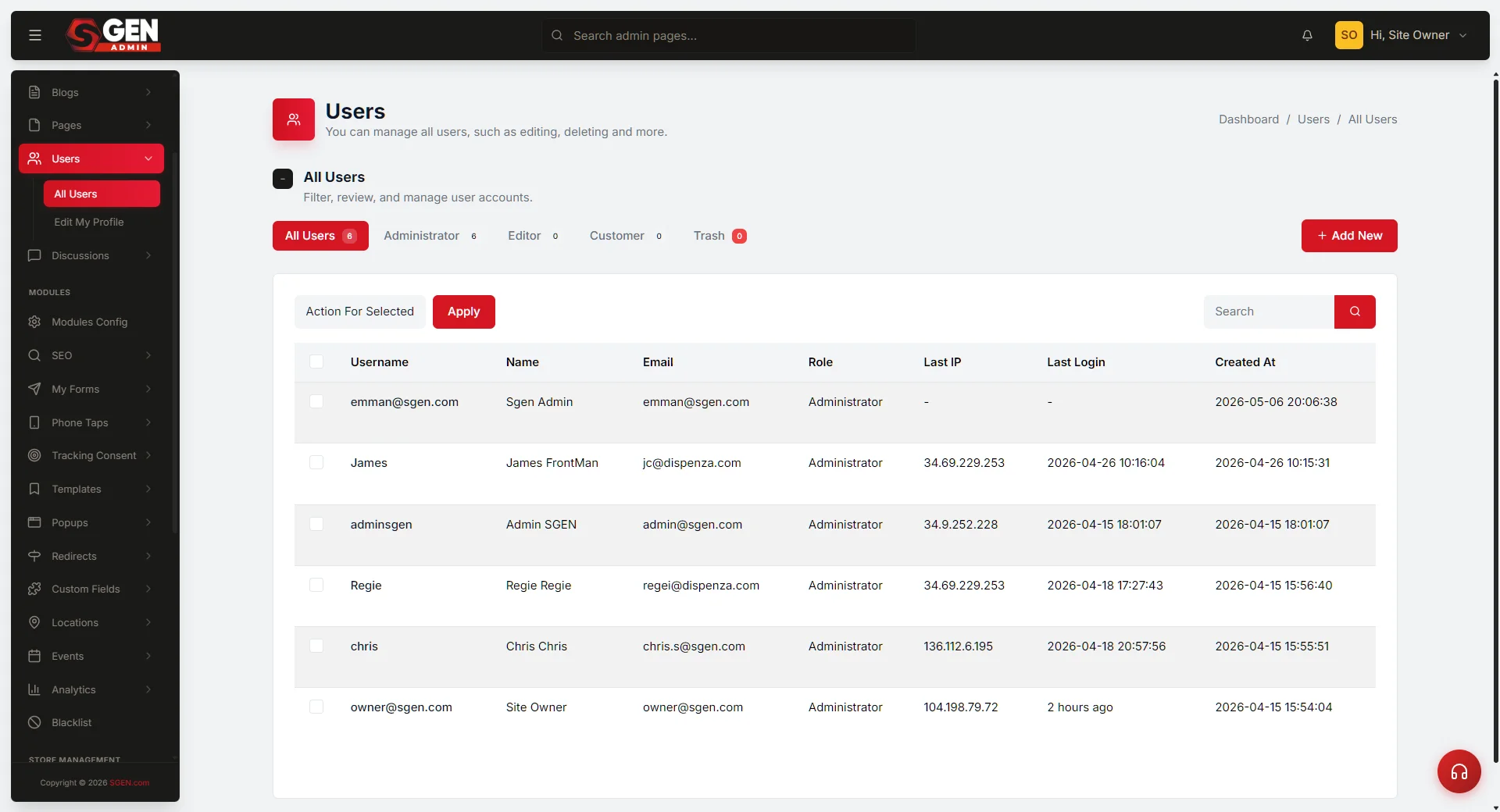
Your account must be assigned the Editor role at minimum. Confirm you can open Users and see your team listed, and open Audit Log and see recent team activity. If either screen shows an access error, your admin needs to update your role permissions.
Templates
Content starting shapes
At least one template must exist for each content type your team produces — blog post, page, or both. If none exists, create one from a recent piece that met your quality bar before your team starts writing.
Notifications
Submission alerts to your inbox
Go to Settings → Notifications and confirm your email is on the receive list for new content submissions. You need to know when a draft is submitted for review before it sits unread for three days.
Scope
Your six admin areas
Users · Audit Log · Notifications · Templates · Calendar · Blog / Pages. You do not need Settings (beyond notifications), Custom Codes, Theme Editor, or Billing. Those are your admin's territory.
Setup — build your team before the first deadline
A team that starts without clear role assignments and a live cadence spends the first month firefighting structure instead of shipping content. Get this right first.
1
Invite each team member
Go to Users and use the Add New button for each team member. Fill in their name, email address, and role before sending the invite. Do not invite everyone at once and set roles later — the role determines what the member sees the moment they log in for the first time.
2
Assign the right role to each person
Roles determine access at the action level. Assign based on what each person does, not seniority. If someone needs to publish on behalf of the team, they need Editor. If someone primarily produces content for others to review and publish, Author is correct. If someone is part-time and their work always gets reviewed before publish, Contributor is appropriate. Do not over-assign Editor — every Editor can publish immediately without a review step.
3
Set up notification routing
Go to Settings → Notifications and confirm submission alerts are configured to reach you. Route submission alerts to your primary inbox, not a shared alias. Set publish alerts for QA, not awareness — if a piece publishes that you did not review, that is a process gap, not a notification problem.
4
Confirm your template library
Go to Templates and confirm the content types your team produces each have a starting template. A blog post template should contain the required sections (intro, body, summary, call to action), the correct formatting defaults, and placeholder text that signals where images and pull quotes go. If no template exists, create one from a recent piece that met your quality bar — strip it to structure only before saving.
Role reference
Three roles are in a team lead's scope. Assign by capability need, not seniority.
Editor
Can draft, edit, publish, and review others' drafts. Cannot manage users or change site settings. Use for team members who need to publish on behalf of the team or who co-own the review step with you.
Author
Can draft and submit their own content for review. Cannot edit others' drafts, publish, or access users. Use for team members primarily producing content that goes through your review before it publishes.
Contributor
Can draft content in their own queue. Cannot submit for review without team lead approval or publish. Use for part-time contributors whose work always requires a review step before it goes near the publish button.
Run the training pass with each new hire
The training pass is a guided run through the full workflow — draft → submit → review → publish — done together before the team member works independently. Skip it and the first production failure teaches the lesson instead. At Your Store, the team lead runs the training pass with a new Author on a brief to update the team blog intro post.
1
Assign a practice piece
Give the new team member a low-stakes brief — a short blog post, a simple page section, or a placeholder content update. The brief should be real work, not a "for training" exercise, but short enough to complete in one session.
2
Walk through the draft-to-submit flow together
Watch the team member open the blog or pages editor, select the correct template, draft the content, and submit for review. Do not touch the keyboard — ask them to narrate each step out loud so you catch confusion before it becomes a pattern. Common points of confusion: not selecting the template first, saving as Published when they mean to submit for review, uploading images before alt text has been agreed.
3
Run the review step yourself
When the draft lands in your notification email, open it, review it against the quality bar, and either return it with comments or advance it toward publish. Show the team member where your feedback appears and how they action it. If you are using a QA checklist, run through it visibly so the team member sees the criteria.
4
Publish the practice piece together
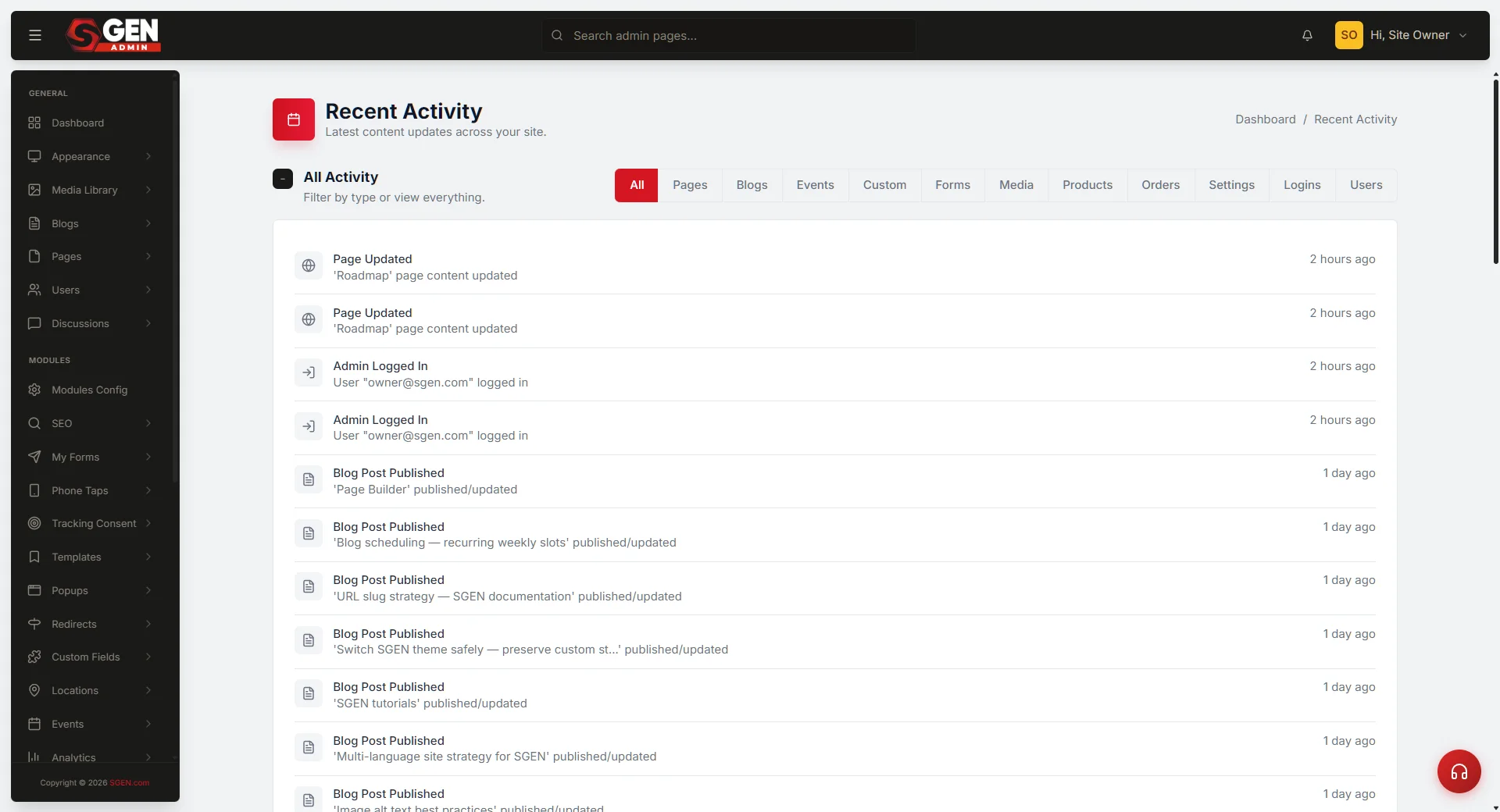
If the piece clears the quality bar, publish it together. After publishing, open the Audit Log and show the team member their own activity — the draft creation, the submission, the review, the publish — as a single thread of events. Seeing their own work in the log is a useful anchor for understanding how team activity is tracked.
5
Debrief and set the independent standard
Run a 10-minute debrief. Ask: what was unclear, where did you hesitate, what do you need before working independently. Confirm three things before the session ends: they know which template to use for which content type; they know the difference between Save as Draft, Submit for Review, and Publish; they know how to reach you when a piece is ready to review.
Weekly cadence — hold the bar without touching every piece
Once the team is set up and through at least one training pass each, your job shifts from hands-on to supervisory. Budget 60–90 minutes per week for the five steps below.
1
Open the Audit Log and scan team activity
Go to Audit Log. Set the date filter to the last 7 days. Scan for two things: activity from every team member, and any action that looks out of place (a publish by someone who should not be publishing, a deletion without a matching replacement). If a team member shows no activity for the week, follow up before the next weekly check.
2
Check notification email clearance
Open your inbox and confirm you have actioned every submission notification from the past week. A submission sitting unread for more than 48 hours is a missed deadline waiting to happen. If notification volume is high enough that things are slipping through, route submission emails from each author into a dedicated folder and review that folder at a fixed time each day.
3
Review the Calendar against actual publishes
Go to Calendar and look at the current week's planned publish dates. Cross-reference each planned publish against the Blog or Pages draft queue. For each planned piece: is it drafted, has it been submitted for review, and has it been approved? A piece planned to publish Friday but still sitting in draft Thursday morning needs immediate attention.
4
Run a quality spot-check on one published piece
Pick one piece published this week — ideally one that went through review without your direct involvement — and read it against the quality bar. You are looking for three things: correct template structure, brand voice consistency, and no content that should have been escalated (off-brand claims, missing legal disclaimers, references to unreleased product features). If the piece misses any of the three, note which author submitted it and which Editor approved it, and run a targeted feedback conversation before the next weekly check.
5
Surface escalations to admin
Collect anything from the week that requires admin action: role changes needed, a user account that should be deactivated, a template that needs a platform-level update, a notification routing change. Send one consolidated escalation per week rather than individual requests. Your admin gets a clearer picture and acts faster on a list than on a stream of single-item asks.
What to do when it breaks down
Four failure patterns come up in almost every team lead's first month. Each has a direct fix.
Access
Team member cannot do their job
Go to Users, find their account, and check the Role field. Authors cannot publish — they can only submit drafts. If an Author needs to publish, your admin needs to change their role to Editor. Escalate with the exact role change needed, not a general "something is broken" message.
Cadence
Missed publishes
Open the Calendar and cross-reference against the Blog or Pages draft queue. A missed publish usually means: the author did not mark the draft ready, the Editor who was meant to review it did not act, or the publish date in the Calendar does not match the actual status in Blog. Run through the weekly cadence steps above to reset.
Quality
Quality drift — bar has dropped
Quality drift is a training problem, not a permissions problem. Go to Audit Log and look at which pieces were published without an Editor review step — content that went from Author to Published without an intermediate Edit event. Run a training pass with the relevant author using the steps in the training pass section above.
Activity
No Audit Log activity from a team member
No activity usually means: the account exists but the member has not logged in yet, the member is working in a different area than expected, or the account has been deactivated. Go to Users, confirm the account is active, and follow up with the member directly. At Your Store, the team lead found one author was drafting in a shared Google Doc — a short training session resolved it the same day.
What is out of your scope
The following areas are explicitly outside team-lead scope. If someone asks you to make changes here, route the request to your admin.
Settings (beyond notifications)
Billing, SMTP credentials, integrations, and platform-wide defaults belong to your admin. If a Settings change is needed to unblock your team, escalate it — do not improvise.
Custom Codes
Injecting or editing HTML, CSS, or scripts has platform-wide consequences and requires admin access. A team lead should never be in this screen.
Theme Editor
Typography, layout, and visual design are not team-lead territory. If a piece of content requires a design change, that is a separate workstream with your designer or admin.
Billing and subscriptions
Plan tier, seat counts, and invoice details are admin-only. If your team needs more seats, escalate the request; do not attempt to action it yourself.
Heads up If you find yourself needing access to an area not listed in the six team-lead surfaces (Users, Audit Log, Notifications, Templates, Calendar, Blog/Pages), raise it with your admin before taking action. Scope creep in admin access is the most common source of accidental platform-wide changes.
What to do next
Team-lead role reference
| Role | Can do | Cannot do | Use for |
|---|---|---|---|
| Editor | Draft, edit, publish, review others' drafts | Manage users; change site settings | Members who publish on behalf of the team or co-own the review step |
| Author | Draft and submit own content for review | Edit others' drafts; publish; access users | Members producing content that goes through your review before publish |
| Contributor | Draft content in own queue | Submit for review without approval; publish | Part-time contributors whose work always needs a review step before publish |