
How to pack orders faster with the barcode scanner
⏱ 30-second answer below · full page ≈ 5 min · skim the bold lead-ins to move faster.
In short. Open the Scan Orders page at the packing bench, click into the scan input, and pull the trigger on your barcode scanner. Each scan flips the matching line item to "picked." When all line items are picked, the order is ready to ship — and any wrong item gets caught before the box is sealed. That is the whole workflow. The rest of this page covers setup, troubleshooting, and edge cases.
On this page: What it is for · Scope · Good use cases · Before you start · Steps · Troubleshooting · Reference · Connected features
What is this for?
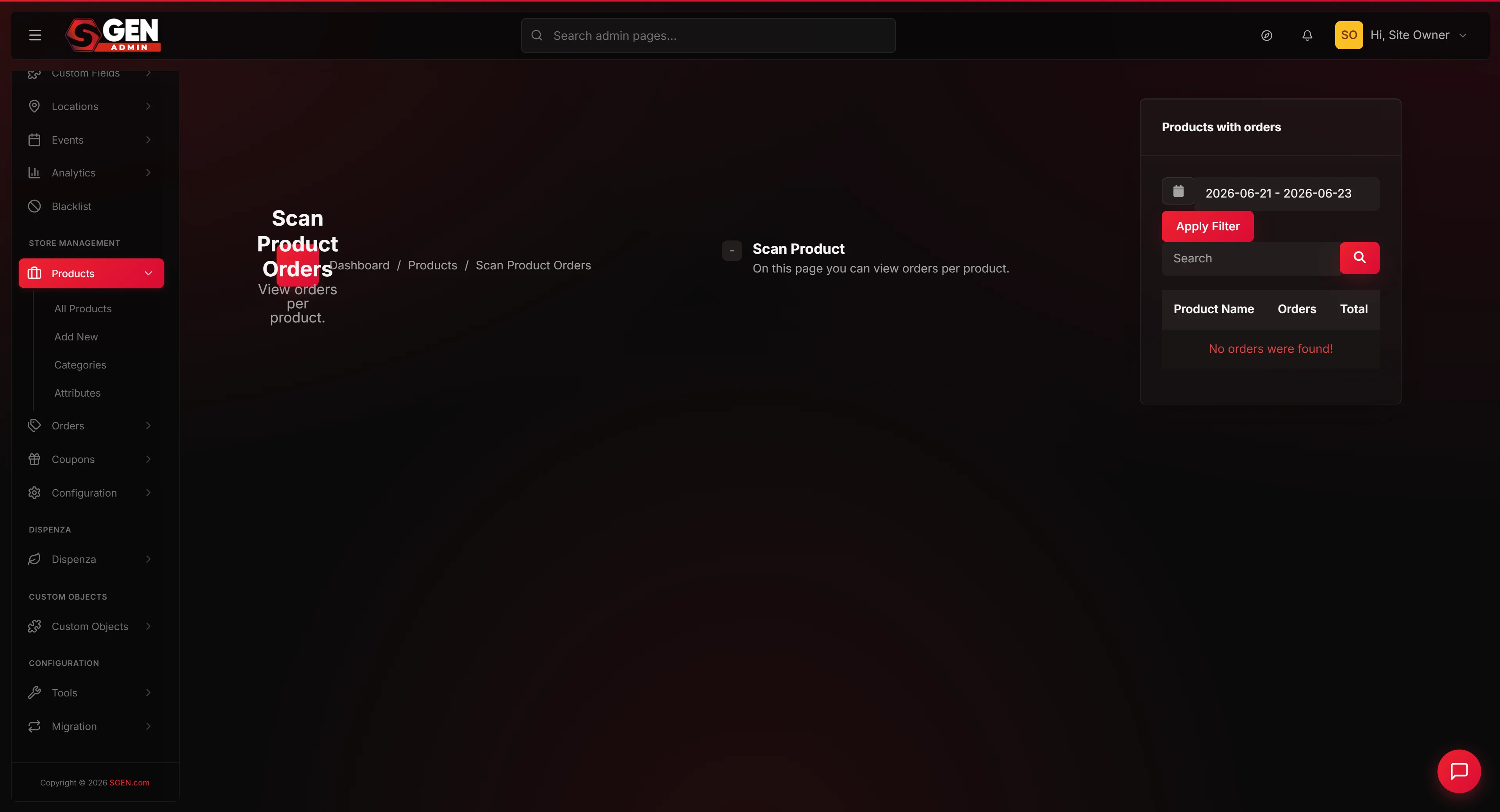
The Scan Orders page is a fulfillment station — one input field, one recent-scans list, nothing else. Open it on a tablet or laptop at the packing bench. Plug in any USB or Bluetooth scanner that types into a focused field. As your packer scans each item, the order's line items flip to "picked" automatically. When everything is scanned, the order is ready to ship.
The key guardrail: if the wrong item is reached for, the scanner says so before the box gets sealed. That single check prevents the most common — and most expensive — fulfillment error. This page is not a place to edit product details, change prices, or manage inventory. It is outbound fulfillment only.
Scope
The Scan Orders page covers outbound order fulfillment only — scanning SKUs to mark line items as picked and advancing orders toward shipped status.
It does not cover:
- Editing product details, prices, or images (use Dashboard > Ecommerce > Products)
- Creating or canceling orders (use the order page)
- Digital downloads or services (no physical SKU to scan)
- Partial shipments or split-order fulfillment (use the order page to mark partial fulfillment)
- Printing packing slips (print from the order page before going to the shelf)
- Returns processing (the scan station is outbound only; use the returns workflow)
Good use cases
- Packing physical products — anything with a SKU label: tote bags, apparel, sticker packs, accessories.
- Catching mis-picks before they ship — if the scanner says "SKU not on this order," the packer checks before sealing the box.
- Small-team warehouses — one or two packers working through the daily queue, including subscription-box runs where the same SKU set repeats across many orders.
- Busy peak periods — multiple packers on separate browser sessions clear the queue independently without stepping on each other.
- Audit trail — the recent-scans list confirms what went out; useful when a customer disputes a fulfillment.
How this connects to other features
- Products — each product needs a unique SKU. Set SKUs at Dashboard > Ecommerce > Products > edit a product.
- Orders — the scan station flips line items on real orders. Open Dashboard > Ecommerce > Orders to see the queue and undo a wrong scan.
- Order statuses — once every line item is scanned, the order moves toward "shipped." Confirm the status flip on the order page.
- Roles and permissions — only admin-tier users can open the scan station. If your packer cannot reach the page, check their user role on the team page.
- Inventory levels — when a line item is scanned and the order ships, the inventory count decrements. Watch counts on the products page.
- Customer notifications — when the order flips to shipped, the customer receives an automatic tracking email. Configure that template in your store settings.
Before you start
Every product has a SKU. Walk through Dashboard > Ecommerce > Products and confirm each product carries a SKU. Products without one cannot be scanned.
No two products share the same SKU. Duplicate SKUs prevent the scanner from telling products apart — fix any duplicates before starting.
Your scanner is paired and focused. Most USB and Bluetooth scanners type into whatever field has focus. Click the scan input once, then test by scanning a label.
Your orders queue has work in it. The scan station does not display the queue — open Dashboard > Ecommerce > Orders in a second browser tab so you can watch orders flip as you work.
You know how to undo a mis-scan. Open the order, toggle the line item back to unpicked. Practice once before a busy shift.
Your device is charged and connected. The recent-scans list lives in the browser session — a battery death or network drop loses it. The orders themselves are saved server-side, but you will need to recall which order you were mid-pack on.
Where to go
Dashboard > Ecommerce > Products > click Scan Orders. Also reachable from Dashboard > Ecommerce > Orders > click Scan to fulfill. Both paths land on the same page.
How to use the scan station
Steps — start a packing session
1. Open the Scan Orders page on the packing bench
Go to Dashboard > Ecommerce > Products > click Scan Orders. The page loads with a single scan input at the top and a recent-scans list below. Click into the input field once — some browsers do not auto-focus on load.
2. Bring up the orders queue in a second tab
Open Dashboard > Ecommerce > Orders and filter to "processing." This is your work list — the scan station does not show it. Having it open alongside lets you watch orders flip to shipped as you go.
3. Pick each item and scan it as you pack
For each item in the picking pile, point your scanner at the SKU label and pull the trigger. The scanner types the SKU into the input and presses Enter automatically. A green check means the scan was accepted and the line item flipped to "picked." A red message — "SKU not on this order" or "SKU not found" — means the wrong item was grabbed; put it aside and check the picking sheet.
4. Confirm every line item is picked before sealing the box
When the picked count matches the total line item count, all items are scanned — seal the box and move on. If a line item is still unpicked and you have nothing left to scan, something is missing from the picking pile. Go back to the shelf and find it. Do not seal a box with an unpicked line item.
5. Move to the next order
Go to the orders queue, pick the next order, walk to the shelf, scan each item. Each new order resets the recent-scans list. When the queue is empty, packing is done.
What success looks like
- Green check after each scan; picked count advances with each item.
- Orders queue tab shows orders moving from "processing" to "shipped" as you finish them.
- Every order sealed has its picked count equal to its total line items.
- The recent-scans list at end of shift matches the line items across all orders you packed.
- No wrong-product customer emails the next day — because the scanner caught those at the bench.
What to do if it does not work
The page shows a login screen. Your session timed out — log back in and reopen the page.
The scan input will not focus. Click directly inside the input box once. Some browsers do not auto-focus on load.
The scanner types the SKU but Enter does nothing. Your scanner is set to "no Enter at end." Either reconfigure it to add a carriage return, or press Enter manually after the SKU appears.
"SKU not found" — but you know the SKU exists. Check the product list. The SKU may be misspelled on the product, or two products may share the same SKU. Fix the catalog and rescan.
"SKU not on this order" — but the SKU is on the picking sheet. The picking sheet may be stale or the order may have been edited since printing. Open the order page to confirm the current line items.
The second scan of the same SKU was rejected. Expected — once a line item is picked, it cannot be picked again. If the order contains two of the same item, the second scan is accepted (two line items, not one).
The recent-scans list disappeared after a page refresh. That list is session-only. The picked status of each line item is saved on the order — open the order page to confirm.
An order will not flip to "shipped" even though everything shows picked. Refresh the order page — status updates occasionally lag a few seconds. If still stuck after a minute, contact support with the order ID.
Two packers started packing the same order. The first scan wins; the second packer will see "SKU already picked." Sort the queue and assign halves to avoid this.
A scan on one order accidentally flipped a line item on a different order. This is a serious bug — contact support immediately with both order IDs and the SKU. Do not seal either box until support confirms.
Examples
Morning rush — 19 orders in queue. Your packer opens the Scan Orders page on the packing bench tablet, clicks the scan input, and opens the orders queue in a second tab. They pull the first picking sheet, grab a Canvas Tote Bag and a Classic T-Shirt for order ORD-1042, and scan both — "2 of 3 picked." They retrieve the Sticker Pack from the merchandise shelf, scan it — "3 of 3 picked." ORD-1042 flips to shipped. By 12:30 PM: 12 orders packed, 38 items scanned, 3 mis-picks caught — including two T-Shirts where the size variants have near-identical packaging but different SKUs.
Subscription-box run — same SKU set repeating. When the same SKU appears across 50 orders, the scanner catches the one order where the wrong variant was picked. Open each order in the queue, scan the set, seal the box. The scan station handles the repetition without confusion because each session is tied to the active order.
Peak day: two packers working in parallel. Each packer opens their own browser session and claims a portion of the queue. They scan independently — the first scan on any line item wins; the other packer's duplicate scan is rejected with "SKU already picked." Divide the queue in advance to avoid overlap.
Reference
| Concept | Detail |
|---|---|
| Where to open | Dashboard > Ecommerce > Products > Scan Orders, or Dashboard > Ecommerce > Orders > Scan to fulfill |
| Scanner type | Any USB or Bluetooth barcode scanner that sends keystrokes to the focused field — no driver required |
| SKU requirement | Every product must have a unique SKU; duplicate or missing SKUs cause scan failures |
| Scan result: green check | SKU matched a line item on the current order; line item flipped to "picked" |
| Scan result: "SKU not found" | SKU does not exist in the product catalog — fix the catalog and rescan |
| Scan result: "SKU not on this order" | SKU exists but is not a line item on the active order — check the picking sheet |
| Scan result: "SKU already picked" | Line item was already marked picked — expected on duplicate scans or multi-packer overlap |
| Session persistence | Recent-scans list is browser-session-only; picked status per line item is saved server-side |
| Multi-packer support | Multiple packers can work in parallel on separate browser sessions; first scan wins per line item |
| Inventory decrement | Inventory count decrements when the order ships after all line items are scanned |
| Customer notification | Automatic tracking email sent to the customer when the order status flips to shipped |
| Access level | Admin-tier users only; packers without admin access cannot reach the scan station |