
How to reply to a comment as the site owner
⏱ 60-second answer below · full page ≈ 8 min · skim the bold lead-ins to move faster.
In short. When a customer leaves a comment on one of your posts, you can reply publicly right under it — your reply shows on the post for every visitor, and the commenter gets an email notification if they left an address. Open Discussions, click the comment, type in the "Reply in thread" form, and click Post Reply. That's the full flow. Keep reading for notification controls, the public-vs-private decision, and what to do when things don't behave.
On this page: What this is for · Steps · Field reference · Notifications · Public vs private · Troubleshooting · FAQ
How to reply to a comment as the site owner
Scope
This doc covers the Reply in thread action in the Discussions admin — posting a public reply to a customer comment from within the SGEN admin. It does not cover moderating comments (approve / spam / trash), bulk actions, or Discussion Settings configuration; those are linked under "How this connects to other features" below.
What is this for?
When customers leave a comment on one of your posts — asking a question, sharing feedback, or starting a conversation — you can reply publicly, right under their comment. Your reply shows on the post for every visitor. If the commenter left their email and "Notify on Reply" is on, they also get an email notification.
This is the right tool when you want to be seen helping. A public reply turns a single question into content any future visitor can learn from. For conversations you want to keep private — refunds, order details, personal follow-ups — email the customer directly instead.
Good use cases
- A customer asks a question about a product or service. Replying publicly turns the answer into useful content for every future visitor with the same question.
- Someone leaves a kind comment. Replying keeps the conversation going and signals that you read every comment.
- A customer points out a factual error or typo. Replying with the correction acknowledges the catch gracefully.
- A reviewer leaves a detailed product review. Replying to thank them, or clarify a follow-up question, signals to other shoppers that you are present.
What NOT to use this for
- Replying privately. Admin replies are public — every visitor to the post sees them. If your reply contains anything you wouldn't want a stranger reading (a refund, an order detail, a personal apology), email the customer directly instead.
- Bulk responses. This form is for one-at-a-time, hand-written replies. For broadcasting to many comments, use a blog post or an email campaign.
- Moderation actions. If a comment needs to be approved, marked as spam, or trashed, use the Discussions list row actions or bulk action menu — not the Reply form. The Reply form posts a new comment; it does not change the parent's status.
- Replying to spam or trashed comments. If the parent comment is in spam or trash, your reply is silently rejected — nothing happens and your typed text is lost. Approve the parent first.
- Replying to bump thread order. Replies don't change the visible order of comments on the post. To highlight an old thread, edit the post itself or share the link directly.
How this connects to other features
- Discussions list — where you triage incoming comments. Open a comment from there to reach the Reply form. Full detail: Moderating discussions
- Discussion Settings — controls site-wide rules: whether visitors can reply, how deeply nested replies render, whether email notifications fire on reply. Full detail: Configure Discussion Settings
- Posts and Pages — comments live under the post they were left on. The Reply form is reachable both from the admin Discussions list and from the post's public URL.
- Email settings — when "Notify on Reply" is on, your reply triggers an email through your site's outgoing mail config. If emails aren't reaching customers, check the global mail settings first.
Before you start
- You're posting publicly, as the site owner. Your display name (from your admin profile) appears next to the reply. Update your profile if you want a different name shown — changing it later doesn't update past replies.
- Replies fire an email to the original commenter if "Notify on Reply" is on AND they left an email. To post silently, turn off the setting in Discussion Settings before posting — there's no per-reply opt-out.
- Make sure the comment is approved. If it's in spam or trash, your reply won't post — the form silently rejects it and your text is lost. Approve the parent first.
- There's no edit-after-post safeguard. Once you click Reply, the comment is live. You can edit or delete it from the Discussions list afterwards, but if "Notify on Reply" is on, the email has already gone out.
- Don't double-click the Reply button. No duplicate-prevention guard exists. Two clicks = two replies posted and two emails sent.
Where to go
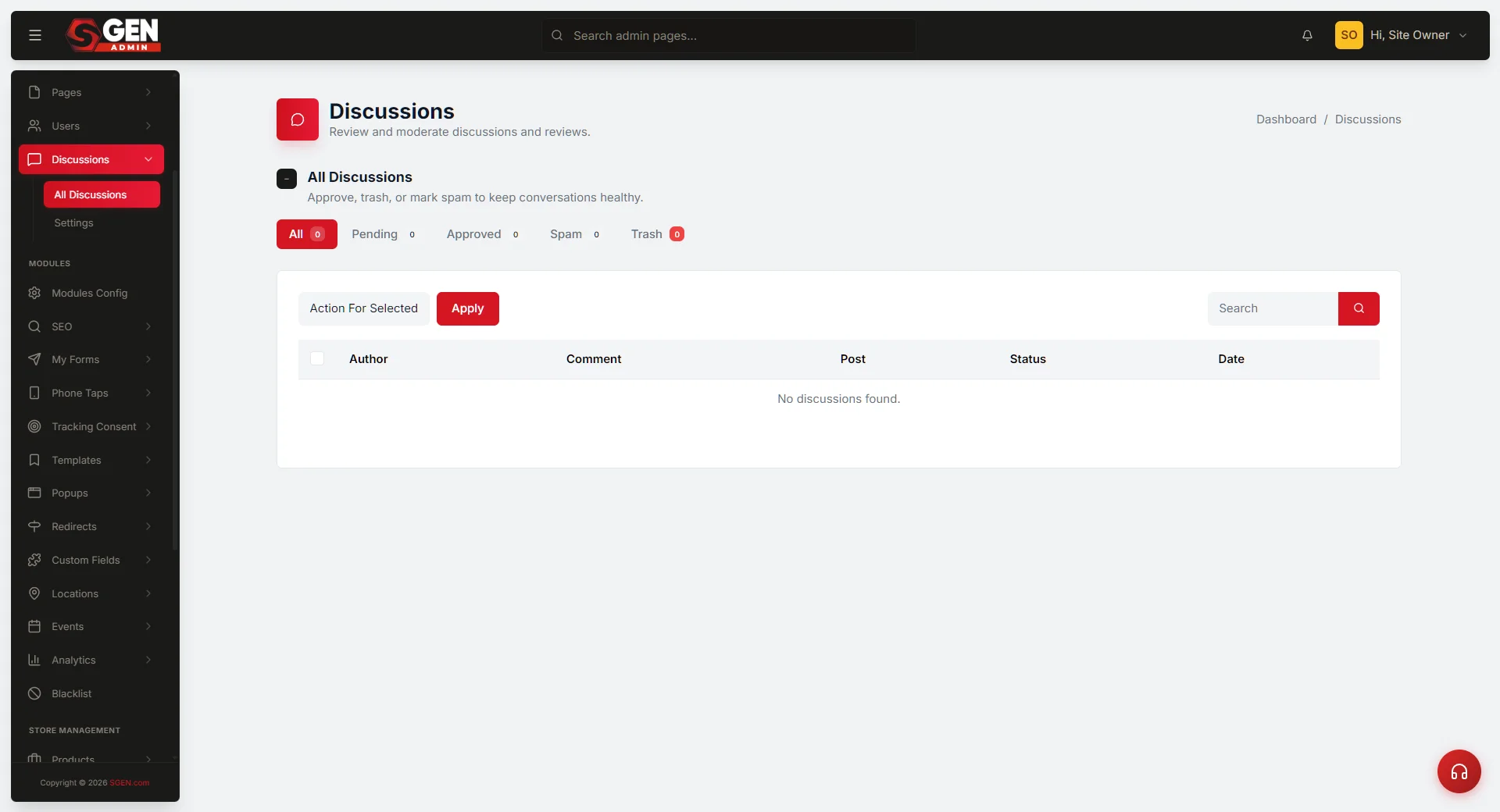
Dashboard → Discussions → click on a comment → "Reply in thread" form at the bottom of the comment view.
Or from any post on your live site: scroll to the comments section, find the comment you want to reply to, and click "Reply" — that opens the same admin view.
Steps — Reply to a single comment
1. Open the comment you want to reply to
From your dashboard, go to Discussions. Click on the comment (or click the "View" row action) to open its detail page. The detail page shows the comment text, who left it, when, and what post it's on. The "Reply in thread" form is at the bottom.
2. Type your reply in the textbox
Scroll to the "Reply in thread" form. Type your reply in the textbox. Replies are plain text only — no formatting toolbar. If you want to include a link, paste the URL; it renders as plain text on most posts.
3. Click Post Reply
The page refreshes and your reply is now visible nested under the parent comment. If notifications are on, the commenter has also received an email with a link back to the public post.
4. Verify on the public side
Open the post on your live site and scroll to the comments section. You should see the parent comment with your reply nested below it, attributed to your display name.
What success looks like
All three of these will be true when the reply posts correctly:
- The detail page shows your reply in the Replies block, attributed to your display name.
- The Discussions list shows your reply as its own row, nested under or next to the parent.
- On the public post page, your reply is visible beneath the parent comment with an "Author" or similar badge.
If "Notify on Reply" is on and the commenter left an email, they also received an email with a link back to the public thread.
What to do if it does not work
The reply form doesn't appear under the comment. Make sure the comment is fully open on its detail page, not in an inline preview popup. The Reply form lives on the full detail page only.
You clicked Post Reply but nothing changed. Check the comment's status — if it shows "Spam" or "Trash", your reply was silently rejected. Move the parent back to Approved via the Discussions list row actions, then try again. If the parent is approved and it still doesn't post, refresh the page and try once more (most common cause is a brief network blip).
The reply posted twice. Open the Discussions list and find both copies. Use the row action menu to move the duplicate to Trash. If "Notify on Reply" was on, two emails already went to the commenter — there's no recall.
The reply shows in the admin list but not on the public post. Most often, the parent comment was moved to spam or trash after your reply was posted. Approve the parent and the reply should reappear publicly. If the parent is approved and the reply still doesn't render, contact support — there's a known edge case for replies on certain non-blog post types.
You wanted the reply to be private. There's no way to retroactively privatize a reply. Move it to Trash to remove it from the public side, then email the customer directly.
Examples
Straightforward public reply — product question. Your Store publishes "How we make our Canvas Tote Bags." A customer asks: "What material are the Canvas Tote Bags made from?" You open Discussions, click the comment, type a two-sentence materials answer, and click Post Reply. The customer gets an email; future visitors see the answer nested under the question — one reply, infinite reuse.
Taking a complaint offline — pending + private email + brief public reply. A customer leaves a frustrated comment about a checkout bug (already fixed). You mark the comment Pending so it's hidden from the public thread, email the customer directly with an apology and a discount code, and once they confirm the order went through, approve the original comment and post a brief public reply: "Sorry for the trouble. Reached out by email and we're back on track." The public thread shows a resolved tone; the details stayed private.
Weekly engagement — short replies at scale. You block 15 minutes each morning for Discussions. This week: 18 new comments, 7 replied to (thank-yous + one clarification), 3 marked pending for follow-up, 1 marked spam.
Reference
Fields and behaviors in the "Reply in thread" form and the surrounding comment detail view.
| Field / behavior | What it does |
|---|---|
| Your reply (textarea) | Plain text only — no formatting. Visible publicly on the post under the parent comment. |
| Post Reply (button) | Posts the reply immediately. The page refreshes. No draft state — once clicked, the reply is live. |
| Cancel | Discards your draft and returns to the comment detail view. |
| Posting as (display name) | Shows the admin profile name that will appear next to your reply publicly. Update your profile to change it. |
| Notification email | Sent automatically to the original commenter if "Notify on Reply" is on in Discussion Settings AND they left an email. Fires on click — no delay, no recall. |
| Reply ID | Assigned by SGEN on post. Used to find the reply in the Discussions list. |
| Reply depth | Replies nest under the parent. Maximum depth is set in Discussion Settings. Replies to your reply are allowed if "Allow user replies" is on. |
| Spam / Trash parent guard | If the parent comment is in spam or trash, Post Reply is silently rejected — your text is lost. Approve the parent first. |
| Double-click guard | None. Two clicks = two replies. Click once and wait for the page to refresh. |
Notification on reply: when emails go out
When "Notify on Reply" is on, every public reply triggers an email to the original commenter (if they left an email). The email includes the post title, a link back to the public thread, your display name, and a snippet of your reply text.
If "Notify on Reply" is off, your reply is still public on the post — the commenter only sees it if they come back to check.
The setting is global, not per-reply. If you have one specific reply you want to be silent, turn the setting off, post the reply, then turn it back on.
When to reply publicly vs follow up privately
Reply publicly when the conversation has value to other readers — questions any future visitor might ask, factual clarifications, or thank-yous that reward the commenter and signal an attentive author.
Follow up privately by email when the content is sensitive or transactional — order details, refund logistics, return shipping addresses, account access questions, anything you wouldn't want a stranger reading. Post a brief public reply ("Thanks for raising this — I've sent you an email") and continue privately.
A useful test: read your draft reply and ask whether you'd be comfortable with any future visitor — including a competitor or a prospective customer — reading it. If yes, post publicly. If no, email instead.
Tips for an effective reply
- Open with the commenter's name. "Thanks Riley — reads warmer than "Thank you for your comment."
- Keep replies short. Two to four sentences is the sweet spot.
- Answer the actual question. Resist adding caveats, related links, or upsells. Answer, then stop.
- Don't sign your reply. Your name is already shown next to it. A signature is redundant.
- If you don't know, say so. "I'm not sure — I'll check and come back to you" is better than a wrong answer.
- For repeat questions, link to the post that answers them. If three customers ask the same thing, write a post, then link to it from future replies.
Editing or deleting a reply after posting
Replies you post are saved in the same Discussions list as customer comments. To edit or remove a reply:
- Open Discussions and find the reply (search by your name or by the reply text).
- Use the row action menu — "View" to see it in context, or "Trash" to remove it.
- To edit the text, open the reply and use the comment editor; save when done.
If the reply triggered a notification email, deleting the reply does NOT recall the email. If you posted something you regret: (a) edit the reply to a corrected version, AND (b) email the customer separately.
Common mistakes to avoid
- Replying to spam comments. If the parent is in spam, your reply is silently rejected and your text is lost. Always check the parent's status first.
- Posting a long, multi-paragraph reply when one line would do. Long admin replies look defensive on a public thread. Keep it short; use a private email if more context is needed.
- Forgetting that the notification email fires immediately. Once you click Post Reply, the email is sent — there's no draft-then-send flow.
- Double-clicking the Post Reply button. Two clicks = two replies posted and two emails sent. Click once and wait for the page to refresh.
- Replying with a name your customers don't recognize. If your admin profile says "Owner" but customers know you as "Sam", update your profile before replying.
Frequently asked questions
Can I reply privately so only the original commenter sees it? No. Admin replies posted through this form are public. Every visitor to the post can read them. For private follow-ups, copy the customer's email from their comment and email them directly.
Can I reply without sending the customer an email? Yes — turn off "Notify on Reply" in Discussion Settings before posting, then turn it back on after. The setting is global, so plan accordingly.
Can I edit my reply after posting? Yes, from the Discussions list. Find your reply, open it, and use the comment editor. The original notification email is not updated — the customer's email shows the original text.
What happens if I delete a reply I already posted? The reply is removed from the public post immediately. The notification email that was already sent cannot be recalled. To walk something back cleanly: edit the reply to a corrected version AND email the customer separately.
Can I reply to my own past replies? Yes. The form treats every comment row the same way. This creates deeper nesting in the Replies block, up to the depth limit set in Discussion Settings.
My reply shows in the admin list but not on the public post. What's wrong? Most often, the parent comment was moved to spam or trash after your reply was posted. Approve the parent and the reply will reappear publicly. If the parent is approved and the reply still doesn't render, contact support — there's a known edge case for certain non-blog post types.
Can a customer reply to my admin reply? Yes, if "Allow user replies" is on in Discussion Settings AND the reply depth limit hasn't been reached. Their reply nests under yours, just like any other comment.
My display name in the public reply shows as "Admin". How do I fix it? Update your admin profile (first name, last name, or username). New replies will use the updated name. Past replies retain the old name — they're not retroactively updated. To fix a high-visibility old reply, delete and re-post.
Community management notes
For sites with a steady flow of comments, a few habits that help:
- Block 15 minutes a day for comments. Scan new arrivals, reply to anything that needs a reply, mark obvious spam. Clearing the queue all at once at week's end is harder.
- Reply to every kind comment, even briefly. A 10-second "Thank you for the kind words!" meaningfully strengthens the customer relationship.
- Don't reply to obvious spam. Mark it as spam and move on.
- For controversial threads, reply once and move on. A single calm reply is usually right. If more is needed, take it to email.
- On a multi-person team, agree on who handles which posts. Inconsistent reply tone confuses customers; the original author is the sensible default.
Next steps
- Configure Discussion Settings — tune notification behavior, allowed reply depth, and moderation defaults.
- Moderating discussions — triage tools: bulk approve, bulk spam, search by author.
- Bulk moderate discussions — act on many comments at once.