
How to edit an existing coupon
⏱ 60-second answer below · full page ≈ 8 min · skim the bold lead-ins to move faster.
In short. The Edit Coupon screen (/sg-admin/ecommerce/coupons/edit/) re-opens any existing coupon with all saved values pre-filled. Change what you need — Status, Amount, usage caps, Allowed user, Expiry — and click Update a Coupon. The change takes effect immediately for the next storefront cart that validates the code. The most common edit is a single Status flip: Draft → Publish launches a promo; Publish → Draft ends it.On this page: How to edit a coupon · Field reference · What NOT to do · Troubleshooting · FAQ
How to edit a coupon
What is this for?
The Edit Coupon screen is where you change anything about a coupon that already exists. The same form used to create the coupon appears with all saved values filled in. Update what you need, click Update a Coupon, and the change takes effect immediately for any future redemptions.
Common reasons to edit a coupon:
- Flip Status from Draft to Publish to launch a staged promo (or Publish → Draft to end one).
- Raise a usage cap mid-campaign when demand outpaces expectations.
- Extend or close an expiry window.
- Add or remove a customer from the Allowed user list.
- Fix a description typo or append a change note as an audit log.
,{"text":"Percent","muted":true},{"text":"20%","muted":true},{"text":"143 / 500","muted":true},{"text":"$3,847.20","muted":true},{"text":"2026-11-01","muted":true}]},{"cells":[{"html":"SUMMERPREP edit | trash","badge":{"label":"Draft","tone":"draft"}},{"text":"Percent","muted":true},{"text":"15%","muted":true},{"text":"0 / 1000","muted":true},{"text":"$0.00","muted":true},{"text":"2026-05-09","muted":true}]},{"cells":[{"html":"WELCOME10 edit | trash | view orders","badge":{"label":"Published","tone":"pub"}},{"text":"Percent","muted":true},{"text":"10%","muted":true},{"text":"289 / -","muted":true},{"text":"$1,205.50","muted":true},{"text":"2026-01-15","muted":true}]},{"cells":[{"html":"WHOLESALE5 edit | trash | view orders","badge":{"label":"Published","tone":"pub"}},{"text":"Percent","muted":true},{"text":"5%","muted":true},{"text":"137 / -","muted":true},{"text":"$4,890.00","muted":true},{"text":"2026-02-08","muted":true}]}]}}}
Scope
All nine fields from the Add New form are editable on the Edit screen: Code, Description, Discount Type, Amount, Usage limit per coupon, Usage limit per user, Allowed user, Expiry Date, and Status.
What this covers:
- Opening Edit via the edit row action on the Coupons listing.
- Changing code, amount, type, caps, and status.
- Flipping Status Draft → Publish (launch) or Publish → Draft (pause).
- Adding or removing an entry from the Allowed user list.
- Extending or shortening the expiry date.
What this does not cover:
- Creating a new coupon — use Add New Coupon.
- Restoring a trashed coupon — use the Restore action on the Trash tab.
- Permanently deleting a coupon — separate action on the listing or Trash tab.
- Bulk status changes — use the bulk-action dropdown on the listing.
Reference
| Edit action | Field changed | Effect on live cart |
|---|---|---|
| Launch Draft | Status → Publish | Code accepted at checkout immediately |
| Pause live code | Status → Draft | Code rejected at checkout immediately |
| Change amount | Coupon Amount | New discount amount on next redemption |
| Raise / lower cap | Usage limit per coupon | Cap updated for ongoing redemptions |
| Extend expiry | Coupon Expiry Date | Code redeemable until new end date |
| Restrict to customer | Allowed user | Only that account can redeem |
| Change code string | Coupon Code | Old code stops working; new code activates |
Before you start
- You have signed in to SGEN as an admin with access to Ecommerce → Coupons.
- You know which coupon you want to edit and what change you intend to make.
- If you plan to change the Code field on a live coupon distributed in marketing materials, you have a plan for updating those references first.
- If you plan to lower a Usage limit, verify the current redemption count on the listing — your new cap must be at or above that number.
- Known bug: The "Created" and "Modified" date labels in the Edit form's metadata sidebar are swapped. The values are correct; only the labels are flipped.
Where to go
- Open the left navigation in the SGEN admin.
- Select Ecommerce → Coupons. You land on the Coupons list at
/sg-admin/ecommerce/coupons. - Find the coupon. Use the status tabs (All / Published / Draft / Trash) and the search-by-code box.
- Click the coupon's Edit row action (or click the coupon code itself). You land on
/sg-admin/ecommerce/coupons/edit/.
Steps to edit a coupon
1. Find the coupon on the listing
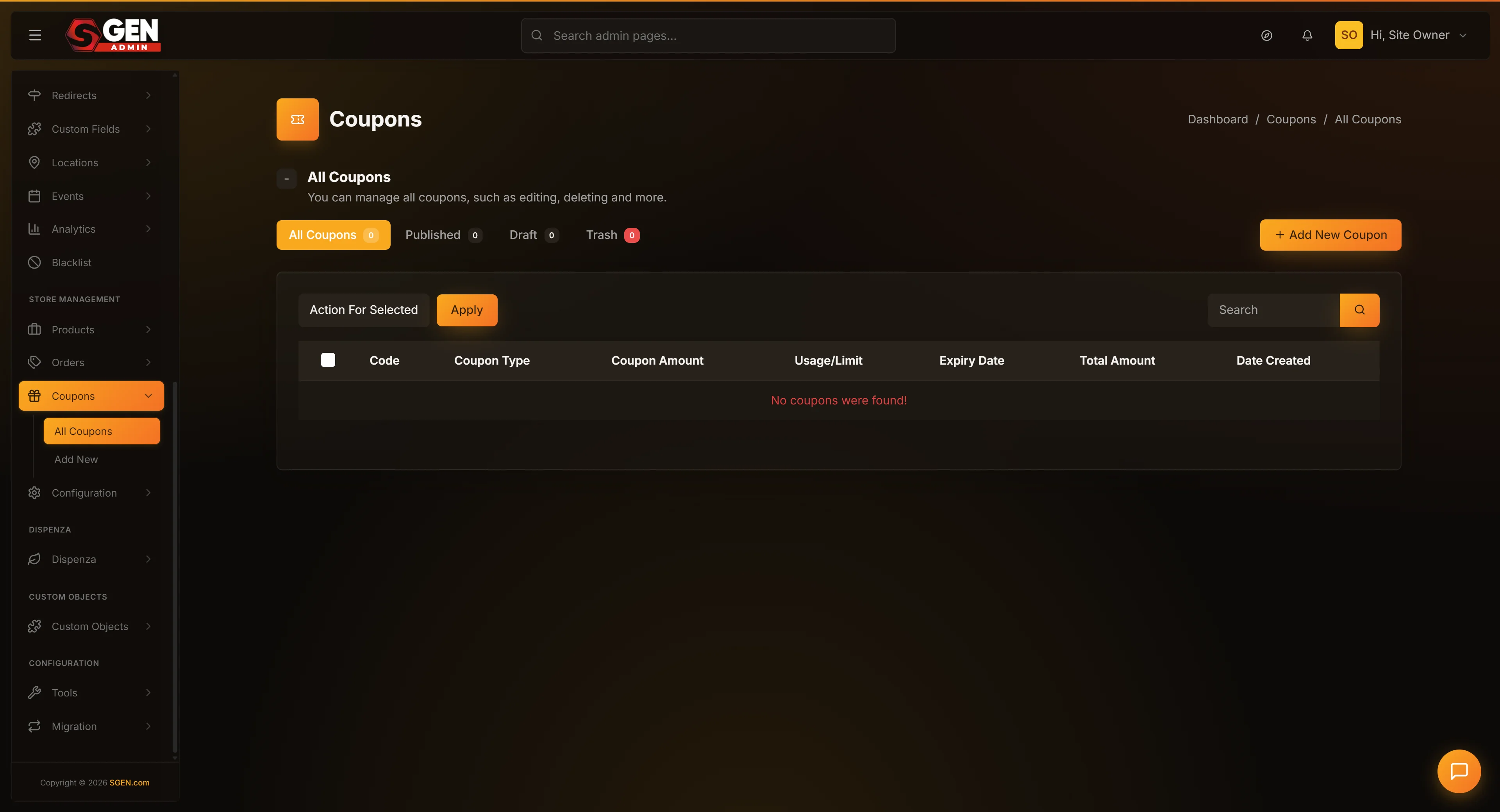 Coupons list (status tabs + search + edit/trash/view-orders row actions) used to open a coupon, and the Edit Coupon form with the Update a Coupon button." loading="lazy" style="width:100%;max-width:900px;height:auto;border-radius:8px;border:1px solid #e5e7eb;display:block;margin:12px 0">
Open the Coupons list. The All tab shows up to 20 coupons per page in reverse-chronological order. Use the search box (filters by Coupon Code) or paginate if the coupon is older.
If the coupon is trashed: switch to the Trash tab first. The Edit row action works on trashed rows, but saving from Edit does not restore the coupon — it stays in Trash. Use the Restore action to move it to Draft first, then edit.
2. Click the Edit row action (or the coupon code)
On the coupon row, click Edit (or the code itself, which is a hyperlink to the same screen). The browser navigates to /sg-admin/ecommerce/coupons/edit/ with all saved values pre-filled.
3. Review the form values
The Edit form has the same two-column layout as Add New Coupon. Above the right sidebar's Update button you will see additional metadata not on the Create form:
- Created / Modified dates — labels are swapped on this version (known issue). The values are accurate.
- Author — the admin who created the coupon.
- Delete Permanently link — hard-deletes the coupon. Use only for unused coupons.
- View Orders (count) — appears when the coupon has at least one redemption. Opens a modal listing orders that used this coupon.
Before changing anything, confirm this is the right coupon: the header code matches, the redemption count looks right, and the Description matches the campaign you remember.
4. Make your changes
Edit any field. Common changes:
- Status (right column) — flip Publish ↔ Draft to launch or end a promo.
- Coupon Amount — raise or lower the discount value.
- Usage limit — raise the global cap if performance is hot; lower it carefully (see warnings) to throttle.
- Usage limit per user — adjust per-customer redemption rules.
- Allowed user — add or remove specific customer accounts.
- Description — append a note about the change as a running log.
The Code field is editable but rename with caution. The same applies to changing Discount Type — a percent → fixed-cart switch produces a very different discount that may surprise customers mid-checkout. If making multiple changes and one is risky, do the safer changes in a first save and the risky change in a second save — easier to pinpoint if something goes wrong.
5. Click Update a Coupon
The primary red button at the bottom of the right sidebar reads Update a Coupon. Click it. SGEN saves your changes and reloads the same Edit screen with your new values. A green success flash appears. The change takes effect immediately.
What success looks like
When the coupon updates successfully:
- The page reloads to the same Edit screen (no redirect to the listing).
- A green success flash reads "Coupon has been successfully updated!"
- The right sidebar's Modified date updates to the current timestamp (subject to the swapped-labels bug).
- Any field you changed shows the new value.
- Status flip to Publish: the badge on the Coupons list changes from Draft to Published. The storefront cart immediately accepts the code.
- Status flip to Draft: the badge changes to Draft and the storefront cart starts rejecting the code.
To verify a Status flip on the public side, open your storefront cart in a private/incognito window, add a product, and try the code. Publish = discount applies. Draft = "invalid coupon."
What NOT to use this for
- Do not use Edit to copy a coupon. Edit always saves back to the same row. To create a similar coupon with a different code, use Add New Coupon from the listing.
- Do not change the Code on a coupon already live in marketing materials. Anyone who tries the old code at the cart sees "invalid coupon." Either leave the code alone or update every marketing reference first.
- Do not lower a Usage limit below the current redemption count. The cart immediately starts rejecting new attempts. The Edit screen does not warn you — check the
Usage / Limitcolumn on the listing before lowering. - Do not rely on the Expiry Date Range field to start or stop a promo. Known issue: coupons with any expiry range filled in are rejected by the storefront cart even within the valid window. Leave it empty; use Status (Publish/Draft) to time-box promos manually. If an existing coupon has the field populated, clear it.
- Do not Delete Permanently a coupon with redemptions on real orders. The order records keep their discount snapshot, but the running redemption count and total-given report disappear. Prefer trashing (recoverable from the Trash tab) over permanent deletion.
- Do not edit a trashed coupon expecting it to behave differently. Trashed coupons accept saves silently, but do not work at the cart regardless of what you change. Restore from Trash first, then edit.
- Do not change Status while a customer is mid-checkout. The cart re-validates the coupon at Place Order. A Status flip to Draft right before submit may fail in-flight checkouts. Wait for promotional windows to wrap up, or accept that a small number of in-flight carts may abort.
- Do not edit a single coupon to A/B test discount levels. Create two distinct coupons (
SPRING10/SPRING20), share each with different audience segments, and compare redemption counts. Editing back and forth muddies the data.
What to do if it does not work
- "Coupon code is already exists!" — You changed the Code to a value another coupon already uses. Pick a different code, or revert to the original.
- "Spaces are not allowed in your coupon code!" — Replace spaces with a hyphen or underscore.
- Saved successfully but change doesn't appear at the cart. — Customer browsers may cache cart state. Have the customer remove and re-apply the code, or refresh the cart. If still broken, check Status — Draft coupons never redeem regardless of other settings.
- You changed the Code and an old marketing email's code no longer works. — Expected. The cart honors only the current saved code. Revert the code change, or update the marketing reference.
- Created / Modified shows wrong dates. — Known label-swap bug. Values are correct; labels are reversed.
- Usage / Limit column shows redemptions above the new cap (e.g. 143 / 100). — Expected when you set the cap below the existing redemption count. Historical redemptions remain; the cart rejects new attempts. Raise the limit again to reopen.
- Clicked Delete Permanently by accident. — No undo. The coupon row is gone. Orders that used it retain their discount snapshot, but running counts are lost. Recreate with the same code if needed.
- Edit on a trashed coupon saved but nothing changed. — Trashed coupons accept saves but don't work at the cart. Restore from the Trash tab first, then edit.
- Allowed user picker is sluggish. — Large stores with thousands of registered users have larger picker payloads. Wait a few seconds for the picker to fully load. If still unresponsive, refresh the Edit page and try again.
Common questions
Will customers mid-checkout be affected by my edit?
Possibly. The cart re-validates at Place Order. If your save invalidated the coupon (Status = Draft, code change, cap reached), in-flight orders may fail at submit. Wait for promotional windows to wrap up, or accept that a small number of checkouts may need to be re-attempted.
Can I see who redeemed a coupon and on which orders?
Yes. When a coupon has redemptions, the Edit screen shows a View Orders button at the top-right. It opens a modal with orders, customer names, discounted amounts, statuses, and dates — each row links to the full order detail.
What if I want to reuse a code I previously trashed?
Restore the trashed coupon from the Trash tab, then edit it. The original redemption history is preserved and running counts continue from where they left off.
Can I bulk-edit multiple coupons at once?
The bulk-action menu lets you bulk-trash, bulk-publish, bulk-draft, or bulk-delete. There is no bulk-edit for Amount or Usage limit — you must open each Edit screen individually.
The Modified date shows the wrong day.
Known label-swap bug: the rows labeled "Created" and "Modified" are reversed. The actual values are correct. Treat what reads as "Modified" as the original creation date and "Created" as the latest update date.
Can I roll back a save?
No built-in version history. Once you click Update a Coupon, the previous values are gone. Reset fields manually if needed. Keep a running log in the Description field as part of every Update for an audit trail.
Can I change Discount Type from Percent to Fixed Cart on a live promo?
Technically yes, but it is almost always a bad idea — customers who expect a percent discount will see a fixed-dollar amount instead. Better practice: trash the existing coupon, create a new one with the new Type and a different code, then communicate the change.
My Edit saved without error but I see no change. What happened?
Confirm you clicked Update a Coupon in the right sidebar (not Cancel or the back arrow). If you saw the success flash, your change is saved — refresh the listing to confirm. If no flash appeared, the save was lost; try again.
Is there a way to schedule a Status change?
Not in this version. No scheduler exists. To launch at a specific moment, be at the screen at that moment and click Update a Coupon. Set a calendar reminder.
Can a coupon be Published with no Allowed user list and no usage caps?
Yes — that is the default for a public marketing coupon (BLACKFRIDAY, WELCOME10). Empty Allowed user means anyone can redeem; empty caps mean unlimited redemptions globally and per customer.