
How to handle a coupon code already exists message
⏱ 60-second answer below · full page ≈ 5 min · skim the bold lead-ins to move faster.
In short. When you save a new or edited coupon and see "Coupon code is already exists!", another coupon — active, drafted, or trashed — is already using that code. SGEN enforces one unique code per coupon across all statuses. Fix: open the Coupons list in a new tab, search the conflicting code, then either rename your new code, restore the trashed coupon, or coordinate with the teammate who drafted it.
On this page: Why it happens · Scope · Examples · Resolution steps · Troubleshooting · Common questions
What is this for?
When you click Create a Coupon or Update a Coupon, SGEN checks whether the code you typed is already in use anywhere in your store's coupon database. If another coupon — currently active, drafted, or sitting in Trash — uses the exact same code, SGEN blocks the save and shows: "Coupon code is already exists!"
Why uniqueness is enforced. Coupon codes are identifiers — when a customer types WELCOME10 at checkout, the storefront has to resolve exactly one coupon row. If two coupons shared WELCOME10, the cart would not know which rule to apply. So SGEN enforces uniqueness at save time, across all statuses (Published, Draft, Trash).
A sister error fires if your code contains a space: "Spaces are not allowed in your coupon code!" — fix by replacing the space with a hyphen or underscore, then save again. The rest of this guide covers the duplicate-code case.
Scope
The duplicate-code check covers the server-side uniqueness validation that fires when you attempt to save a coupon (create or edit) with a code that already exists in the database — across all status tabs including Trash.
What this covers:
- The inline error on the Coupon Code field when a duplicate is detected.
- Both the Add New form (Create a Coupon) and the Edit form (Update a Coupon).
- Codes in Trash — trashed coupons still block new codes with the same string.
- The three resolution paths: rename the new code, restore the old code, or permanently delete the old code and recreate.
What this does not cover:
- Customer-facing cart validation errors (invalid code, expired code) — those are storefront messages, not this admin-side guard.
- Bulk code uniqueness — each code is checked individually on submit.
- Case sensitivity — codes are compared case-insensitively, so
Welcome10andWELCOME10conflict.
Examples
Reference
| Scenario | Code status | Resolution |
|---|---|---|
| Code exists as Published | Active in use | Rename new code (add suffix/version) or edit the existing coupon instead. |
| Code exists as Draft | Staged, not live | Rename new code, or coordinate with the original drafter. |
| Code exists as Trash | Retired but blocking | Restore (edit and republish) OR permanently delete and recreate. |
| Code matches case-insensitively | Any status | Same conflict — codes compared case-insensitively at save. Rename new code. |
Example: New code collides with a trashed seasonal. You try to create SPRING2026 for a new campaign. The form rejects it — the code exists on the Trash tab from last year. Open the Trash tab, permanently delete the old SPRING2026, return to Add New, and create the new code.
Example: Teammate coordination. You draft PRESSKIT50 and see the error. Searching the Coupons list shows a Draft row authored by a teammate. Message them — the error forced a 90-second coordination conversation that prevented two near-duplicate coupons from existing.
Good use cases
- Typo catcher. You meant
WELCOME11but typedWELCOME10. SGEN refuses the save. You correct the typo, save again. The error did its job. - Reminder of existing codes. You gravitate toward
SPRING2026. The error fires. You realize the code was already used last year — it is in Trash. Restore the old one or pick a variant likeEARLYSPRING. - Team coordination trigger. In a team where multiple people manage coupons, a duplicate-code error on a Draft is a signal to talk before creating near-duplicates.
- Convention enforcement. A predictable naming scheme (
SPRING-YYYY,BLACKFRIDAY-YYYY) plus the duplicate guard means nobody accidentally overwrites a previous year's data.
What NOT to use this for
- Do not treat this as a code-availability search. The only way to check availability is to attempt the save. For a faster pre-check, use the Coupons list search box (searching
BLACKsurfaces every code starting withBLACK). - Do not add random characters until the code saves. Codes like
WELCOME10X3are awkward to share. Think of a fresh meaningful name (FIRSTORDER10,SUBSCRIBED10). - Do not assume the error always points to a trashed coupon. The duplicate could be in Published, Draft, or Trash. Search all three before acting.
- Do not assume the error means editing the same coupon will trigger it again. SGEN excludes the row being edited from its uniqueness check — saving a coupon without changing its code never collides.
- Do not generate codes that look identical except for trivial differences.
WELCOME10andWELCOMEONE0(O vs 0) are different codes, but customers will confuse them. Pick visually distinct codes.
How this connects to other features
- Add new coupon — the duplicate check fires when you click Create a Coupon on the Add New form. See How to add a new coupon.
- Edit coupon — the duplicate check also fires on Update if you type a Code that another coupon already uses. The check excludes the coupon being edited. See How to edit an existing coupon.
- Coupons list — Trash tab — most "code already exists" surprises trace to a trashed coupon nobody remembered. Search the Trash tab first. See How to view, filter, and search the Coupons list.
- Restore from Trash — if the duplicate is a trashed coupon you want to revive, click Restore on the row. The coupon flips to Draft and you can edit it. See How to restore a coupon from Trash.
- Spaces-in-code rejection — sister error: "Spaces are not allowed in your coupon code!" Resolution is the same: fix the code, re-save.
- Description field validation — a separate gate fires if your Description has 1-2 characters (must be empty or 3+ characters). You may see both errors on the same save.
Before you start
- You are signed in to SGEN as an admin with access to Ecommerce → Coupons.
- You have just seen the red error message "Coupon code is already exists!" or "Spaces are not allowed in your coupon code!" after clicking Create a Coupon or Update a Coupon.
- Do not refresh the page — your draft values (Description, Type, Amount, etc.) are still in the form fields. Refreshing discards them.
Where to go
The duplicate error appears on the form you were already on — you do not need to navigate away.
To investigate which coupon is conflicting:
- Open a new browser tab (so you do not lose your draft work).
- In the new tab, navigate to Ecommerce → Coupons.
- Use the search box or the Trash tab to find the conflicting coupon.
Then return to your original tab and resolve.
How to handle a coupon code already exists message
Steps to resolve a duplicate-code error
1. Read the exact message
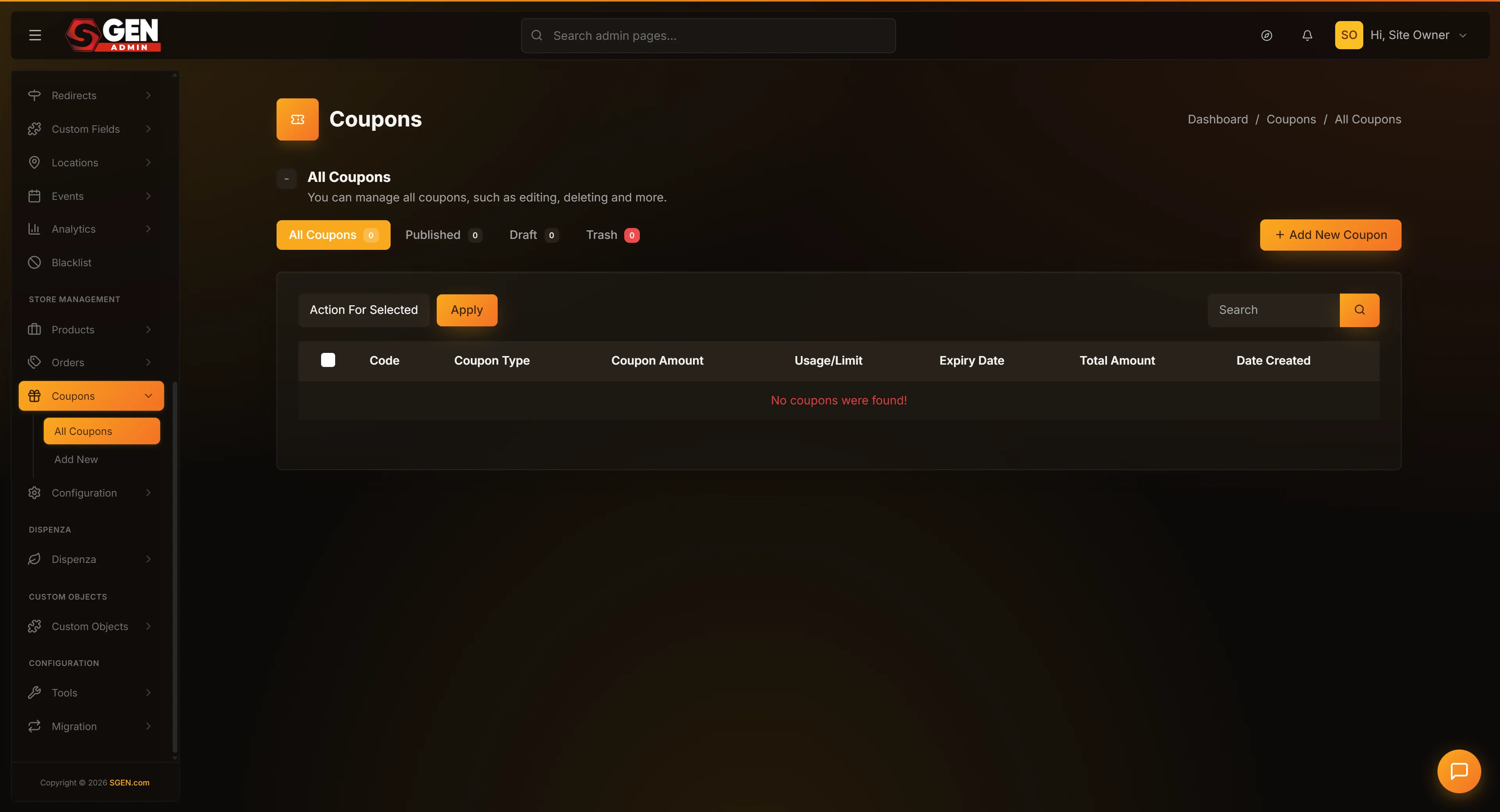 Coupons list with the search box / status tabs (All, Published, Draft, Trash) used to locate the conflicting code; the red 'Coupon code is already exists!' error sits " loading="lazy" style="width:100%;max-width:900px;height:auto;border-radius:8px;border:1px solid #e5e7eb;display:block;margin:12px 0">
- "Coupon code is already exists!" — another coupon (any status) uses the same code. Continue with the steps below.
- "Spaces are not allowed in your coupon code!" — your code has a space. Replace spaces with hyphens or underscores and re-save. Skip the remaining steps.
2. Stay on the form — do not refresh or close the tab
Your draft work is preserved in the form fields. Refreshing or navigating away discards everything you typed (Description, Type, Amount, Usage limits, Allowed user, Status). Keep this tab open and investigate in a separate tab.
3. Investigate which coupon already uses the code
Open a new browser tab. Navigate to Ecommerce → Coupons. In the search box, type the conflicting code. Click Search.
- Published — live and being redeemed. Pick a different code; renaming the live coupon could break marketing references.
- Draft — staged by a teammate. Coordinate before deciding. Either pick a different code or work with the drafter to consolidate.
- Trash — retired previously. Restore it (edit and republish) or pick a different code.
- No match found — rare. Try refreshing the listing or searching with a shorter prefix. If still nothing, contact support.
,{"text":"Percent","muted":true},{"text":"10%","muted":true},{"text":"289 / -","muted":true},{"text":"$1,205.50","muted":true},{"text":"2026-01-15","muted":true}]}]}}}
4. Decide your path forward
- Pick a new code — if the existing coupon is live or recently active, picking a new code is almost always the cleanest move. Try a variation:
WELCOME10→WELCOMEPLUS10,WELCOME-2026,FIRSTORDER10. - Restore the trashed coupon — if the conflicting coupon is in Trash and you want to bring it back, click Restore. The coupon flips to Draft; edit it as needed. The prior redemption history is preserved.
- Coordinate with a teammate — if the conflict is in Draft under someone else's authorship, talk to them before proceeding.
5. Apply your fix
Switch back to your original tab. Change the Code field to your new value (or, if you restored the trashed coupon, close this form and edit the now-restored coupon instead).
Click Create a Coupon or Update a Coupon. The save should succeed. A green flash confirms. SGEN redirects you to the Edit screen for the saved coupon.
What success looks like
- The red error banner is gone.
- A green success flash appears: "Coupon has been successfully created!" (new) or "Coupon has been successfully updated!" (renamed).
- SGEN redirects you to the Edit screen for the saved coupon, or reloads the same Edit screen with the new code displayed.
- The Coupons list shows your coupon under the appropriate tab (Published or Draft, depending on Status).
If you took the "restore from Trash" path:
- The trashed coupon disappears from the Trash tab.
- It now appears under the Draft tab.
- The original redemption history is preserved.
What to do if it does not work
- You see the duplicate error but the Coupons list shows no matching code. Refresh the listing, then try searching with a shorter prefix (e.g.,
WELCOinstead ofWELCOME10). If still nothing, there may be a data inconsistency — contact support. - You see the duplicate error after editing the same coupon without changing the code. This should not happen — SGEN excludes the row being edited. Refresh the form and try again. Persistent occurrence is worth reporting.
- You see the spaces error but you did not type a space. Pasted text can include invisible whitespace. Click into the code field, select all, retype from scratch.
- You see "The Description field must be at least 3 characters in length" instead. That is a different gate — your Description has 1-2 characters. Delete it (leave blank) or expand to 3+.
- The error appears even after you change the code. Confirm you clicked Save after editing, not just tabbed away. The Save click triggers re-validation.
- You changed to a code you are sure is unique and still got the error. Search the listing for the new code to confirm it is not also taken. If both codes are flagged, try logging out and back in to reset any stale session state.
- The form lost all your other fields when the error fired. SGEN preserves form data across validation errors, but a browser refresh wipes it. Re-fill the fields and save again. To prevent loss next time, do not refresh after a validation error.
- Restore from Trash did not bring the coupon back. Refresh the Coupons list — the coupon should now be in the Draft tab. If it still appears in Trash, click Restore again. If nothing changes, the coupon may have been permanently deleted previously — in which case it is gone and you need to recreate it.
Common questions
Why does the duplicate check include trashed coupons?
Trashed coupons are not deleted — they are moved to a separate bucket. Order records that reference a coupon code still point to that row, and creating a brand-new coupon with the same code but different rules could confuse the historical record. Uniqueness applies across the entire coupon table.
Is the check case-sensitive?
For most setups: no. WELCOME10 and welcome10 collide. Stick to uppercase A-Z and 0-9 to stay safe across all configurations.
What if I want to reuse exactly the same code from a previous campaign?
Restore the trashed coupon. It flips to Draft. Update the Amount, Description, Status — whatever needs to change for the new campaign. The original redemption history is preserved. This is the cleanest pattern for recurring seasonal codes.
Will the duplicate check stop me from saving a coupon without changing its code?
No. SGEN excludes the row being edited from its uniqueness check. Saving WELCOME10 while editing the WELCOME10 coupon always passes. Only changing the code to one another coupon already uses triggers the check.
The error does not tell me which existing coupon has the conflict. Where do I find it?
Use the Coupons list search box. Search the conflicting code across the All and Trash tabs to cover every possibility. The error message itself gives no detail — the search is the only tool.
Can I disable the duplicate check?
No. Uniqueness is enforced at the data level. There is no admin toggle.
If a coupon is permanently deleted, does its code free up?
Yes. Hard deletion removes the row entirely, and the code becomes available for reuse. Trashed coupons (soft-deleted) keep their code reserved; permanently-deleted coupons release it.
Are there other characters besides spaces that get rejected?
Spaces get the dedicated error. Most other characters technically save, but apostrophes, ampersands, plus signs, and brackets are awkward to type at checkout. Stick to A-Z, 0-9, hyphens, and underscores.