
Discussions
⏱ ~6 min read · approve and reject comments, mark spam, reply as the site owner, work the queue in bulk, and turn comments and reviews on.
In short. Discussions is where you moderate the comments and reviews visitors leave on your site. New comments wait in the moderation queue until you approve them; from there you can publish, hide, mark as spam, or reply in the public thread. A separate Settings page controls where comments appear and whether product pages show star ratings. On a fresh site, comments are off everywhere until you switch on at least one scope.
On this page: Where to find it · The moderation queue · Approve or reject a comment · Mark a comment as spam · Reply as the site owner · Work the queue in bulk · Turn comments and reviews on · Worked examples · Troubleshooting
Where to find it
Open the admin for your site and click Discussions in the left navigation. The submenu shows two entries: All Discussions (the moderation queue) and Settings. Editors and Administrators can moderate; Authors typically cannot.
Click All Discussions to land on the queue, where you do all your day-to-day moderation. Across the top are status tabs — including Pending, Approved, Spam, and Trash — and each row is one comment, showing the author name, the comment text, and the post it was left on.
The moderation queue
Each comment carries an author identity (a visitor or a registered user), the post it belongs to, its body text, a moderation state, and a timestamp. The moderation state is one of pending, approved, spam, or trash. Whether a brand-new comment lands as pending or goes straight to approved depends on how your site is configured — pre-moderation holds everything for your review, while auto-approval publishes immediately. The Blacklist sits in front of the queue and intercepts unwanted content before it ever reaches you.
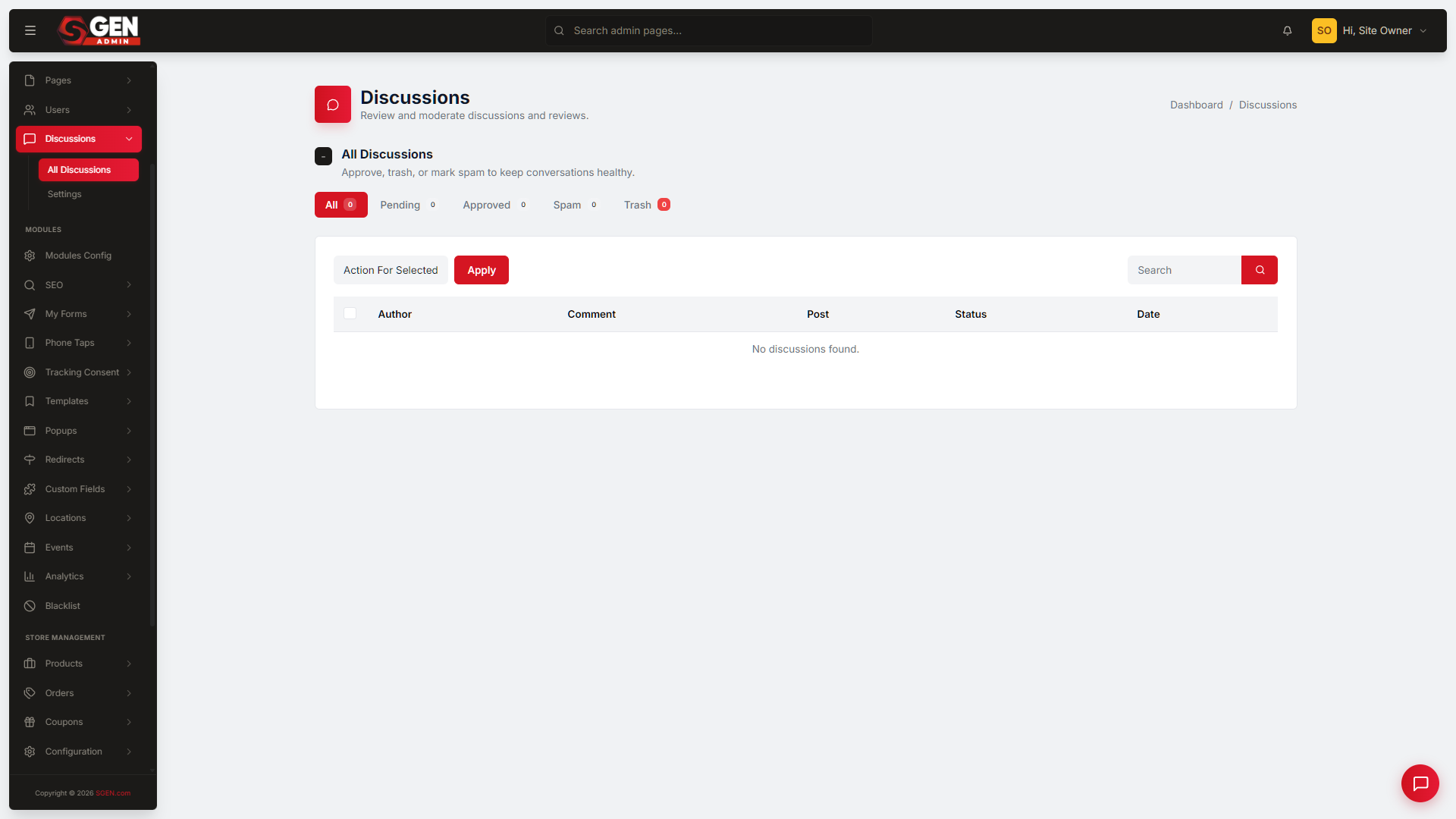
Approve or reject a comment
The fastest path is the inline toolbar on each row:
- Open Discussions → All Discussions and click the Pending tab. Each row here is a comment waiting on your decision.
- Read the author name, the comment text, and the post it was left on.
- To publish the comment, click Approve in the row's inline toolbar.
- To hide it instead, click Spam (marks as spam) or Trash (soft-delete you can recover later). Confirm the prompt to complete the action.
The status updates straight away, and an approved comment appears on the public post on the next page load.
Mark a comment as spam
When a comment is junk rather than just unwanted, marking it as spam keeps it out of sight and out of the public post:
- Open Discussions → All Discussions and find the comment — check the Pending tab first, though spam can also slip into Approved.
- Below the comment text, click Spam in the row's inline toolbar.
- Confirm the prompt.
The comment moves to the Spam tab and is hidden from your public site. If you marked one by mistake, open the Spam tab, find the row, and click Approve to restore it to public view.
Reply as the site owner
You can answer a commenter in the public thread, under your admin name:
- Open Discussions → All Discussions, find the comment, and click View on its row to open the detail page.
- Confirm the comment shows Approved in the sidebar — replies to spam or trashed comments are silently rejected.
- Scroll to the Reply in thread box at the bottom of the detail page.
- Type your reply. Use plain text — HTML tags show as literal text on the public post.
- Click Reply. Your response is live immediately, nested under the original comment with your admin display name.
If Notify on Reply is turned on in Discussions → Settings, the original commenter receives an email when you reply.
Work the queue in bulk
After a wave of comments — or a spam run — bulk actions clear the queue in one move:
- Open Discussions → All Discussions and click the tab that holds the comments you want to act on — for example, Pending to approve a batch, or Trash to delete old ones for good.
- Tick the checkbox on each row, or tick the master checkbox in the table header to select every row on the page.
- Open the Bulk Actions dropdown above the list and choose Approve, Move to Pending, Mark as Spam, Move to Trash, or Delete Permanently.
- Click Apply and confirm. The comments move at once, and the tab counts update right away.
Delete Permanently only works from the Trash tab. From any other tab the action is silently blocked — move comments to Trash first if you want to remove them for good.
Turn comments and reviews on
Comments and reviews are controlled on the Settings page, and they're independent of each other.
Comments on your blog. Open Discussions → Settings. The page is headed Discussions Settings. In the first card, Discussion Scope, tick Blog — on a fresh site every scope is off, so comments won't appear anywhere until you switch one on. Leave All post types unchecked unless you also want comments on events, products, and custom pages. Then click Save Changes and look for the green success banner. Open any published post and scroll to the bottom — the comment form now appears.
Reviews and ratings on products. On the same Settings page, scroll to the Reviews & Ratings card (it's separate from Discussion Scope). Tick Ecommerce to add a star-rating form to every product page, then click Save Changes. To guard the review form against spam bots, turn on the reCAPTCHA toggle in the Spam Protection card — note you also have to configure Google reCAPTCHA keys in Integrations before that takes effect.
Comments and reviews don't enable each other. Turning on Reviews & Ratings → Ecommerce adds star ratings to product pages but not comment threads — for those, also tick Ecommerce under Discussion Scope.
You can also turn comments on for one post at a time: open the post in Blogs, find Discussions & Reviews in its editor, switch on Enable discussions, and save. Incoming comments are then managed from the Discussions queue as usual.
Worked examples
| Goal | What you do |
|---|---|
| Publish a pending comment | All Discussions → Pending → click Approve on the row. |
| Hide a junk comment | Click Spam on the row → confirm. It moves to the Spam tab. |
| Answer a commenter publicly | Click View → confirm it's Approved → type in Reply in thread → Reply. |
| Clear a spam wave | Tick the spam rows → Bulk Actions → Mark as Spam → Apply. |
| Empty the trash for good | Switch to the Trash tab → select rows → Bulk Actions → Delete Permanently → Apply. |
| Turn on blog comments | Settings → Discussion Scope → tick Blog → Save Changes. |
| Add product star ratings | Settings → Reviews & Ratings → tick Ecommerce → Save Changes. |
Troubleshooting
- The comment form doesn't appear on my posts. Open Discussions → Settings and tick a scope (for example Blog) under Discussion Scope, then Save Changes. On a fresh site all scopes start off.
- I saved settings but still see no form. Hard-refresh the post (hold Shift and reload), then check whether that individual post has a "Closed for comments" override set inside its own edit page.
- My reply won't post. Replies only attach to Approved comments. Approve the comment first, then reply.
- My reply shows raw HTML tags. Replies are plain text — re-enter the text without HTML.
- Delete Permanently does nothing. It only works from the Trash tab. Move the comments to Trash first.
- Star ratings aren't blocked by reCAPTCHA. The reCAPTCHA toggle needs Google reCAPTCHA keys configured in Integrations before it takes effect.
Related reading
- SG-Admin Overview — the parent surface.
- Blogs — posts that commonly carry comment threads.
- Blacklist — the at-capture filter that intercepts unwanted comments before they reach the queue.