
Tracking Consent
⏱ ~6 min read · reference page — configuration steps, integration gating, and consent-log governance.
In short. Tracking Consent is the per-site module that surfaces a consent banner to visitors, records each response per measurement category, and gates connected tracking integrations on that recorded state. No tracker fires until the visitor's decision allows it.
On this page: What this is for · Where to find it · Steps · What success looks like · Troubleshooting · Integration gating · Privacy-sensitive notes · Related reading
The Tracking Consent module in the admin is the per-site surface for visitor consent capture and consent-aware behavior. The platform surfaces a configurable consent banner on the public site; visitor responses (accept / reject / partial) are recorded; tracking integrations gate behavior on the recorded consent state.
What is this for?
Use this page to understand the structure of consent handling — what gets captured, how integrations gate on consent, and how consent records are retained.
Good use cases
- You are scoping a new site's compliance posture.
- You are explaining to a stakeholder how SGEN handles tracking consent.
- You hit a "is the consent banner configurable?" question.
What NOT to use this for
- Step-by-step procedures — open the relevant Guide.
- Legal compliance counsel — out of scope; consult legal.
- Per-release shipped change — open What's New or Changelog.
How this connects to other features
- SG-Admin Overview — parent surface.
- Google Analytics 4 — example tracking integration that gates on consent.
- Discussions — visitor identity fields collected with comments interact with the consent posture.
- Phone Taps — call-signal recording is consent-gated where the posture requires it.
Before you start
You need the following before configuring Tracking Consent on a live site:
- A clear answer to "which measurement categories does the site use?" — typically some combination of necessary, analytics, marketing, and personalisation.
- The default posture you want to apply when a visitor has not yet decided — opt-out (track until refused) or opt-in (do not track until accepted). Pick one and apply it consistently.
- The visitor-facing wording for the prompt. Wording is content; the surface is governance. Keep them aligned.
- The retention window you intend to apply to the consent log.
- Confirmation from counsel where the site serves a jurisdiction with explicit consent rules. The platform exposes the surface; the legal interpretation is the site owner's.
Where to find it
Tracking Consent lives in the admin under the privacy / compliance group, alongside Discussions and Phone Taps. The grouping is intentional — these modules sit at the trust and interaction edge of the platform.
Steps
The steps below cover a typical first-time configuration of Tracking Consent for a site that has decided to run measurement. Complete them in order — posture comes before categories, and categories come before prompt copy, because each earlier choice shapes what the later steps require.
1. Decide the consent posture
Open Tracking Consent in the admin. Choose the default posture for the site:
- Opt-in. No measurement runs until the visitor explicitly accepts. The default in jurisdictions that require explicit consent.
- Opt-out. Measurement runs until the visitor refuses. Acceptable where local rules allow soft consent or where the categories are narrow.
The posture decides the visitor's experience on first visit. It also decides what the prompt has to ask.
2. Configure the categories the site offers
Decide the measurement categories the site will surface to the visitor. Common categories include:
- Necessary. Records required for the site to work at all (session, security). Not optional under most consent models.
- Analytics. Measurement of how visitors use the site. Usually optional.
- Marketing. Advertising-related tracking, retargeting tags, conversion measurement for ad platforms. Usually optional.
- Personalisation. Content adapted to a known visitor. Optional where used.
A visitor decision applies to each category separately; the platform retains the per-category state, not a single yes/no.
3. Set the prompt wording and position
Set the visitor-facing prompt text. The wording is content; treat it the same way as other public copy — clear, plain, no jargon. State what each category does in one sentence; do not pad with legal abstractions.
Set the prompt position (footer banner, modal, sidebar) according to the site's design.
4. Confirm log retention and the review surface
Set the log retention window. The platform keeps a per-decision record so the site can answer "did this visitor consent at the time we measured them?" later. The retention window decides how long these records are kept.
Confirm that the log surface is reachable from Tracking Consent. Operators reviewing a compliance question open the log here.
What success looks like
A site whose Tracking Consent posture is configured and live has five observable behaviors. Check each one after your initial setup and again after any posture or category change.
A site whose Tracking Consent posture is configured and live behaves as follows:
- A first-time visitor sees the consent prompt before any optional measurement starts (under opt-in posture) or sees the prompt and can refuse before further measurement (under opt-out posture).
- A returning visitor's prior decision is remembered; the prompt does not re-appear unless the visitor clears their decision.
- Connected measurement (analytics, advertising tags, phone taps where consent-gated) respects the per-category state. A visitor who has accepted Analytics but not Marketing is measured by analytics and not by marketing tags.
- The consent log shows decisions for visitors who have responded, with the timestamp and the per-category state at the time of decision.
- A compliance review can answer the "what did this visitor agree to and when?" question from the log alone.
What to do if it does not work
- The consent prompt does not appear for a new visitor. The default posture may be set to opt-out with no prompt. Check the posture in Tracking Consent and confirm the prompt is enabled for first-time visitors.
- The prompt appears every visit, even after the visitor has answered. The decision is not being remembered. Most often this is a browser-side state problem (the visitor is in private mode, or has cleared site storage). Confirm in another browser session that the decision persists.
- Analytics is collecting data from visitors who refused. The analytics integration is not reading the consent state. Open the Analytics integration Reference and confirm the integration is set to respect the consent posture from this area.
- The log shows no entries for a day where visitors clearly used the site. The prompt may not be wired to write to the log. Re-confirm in Tracking Consent that logging is enabled.
- A compliance review needs a decision older than the log retention window. The log only retains decisions for the configured window. Decisions older than the window are not recoverable; set the retention window to match the longest review horizon the site needs.
Definition
Tracking Consent administers the per-site consent banner, the consent-record store, and the integration-gating rules. The banner surfaces on first visit per session (or per the configured policy); the visitor's response records as a session-scoped consent state; tracking integrations check the state before firing their trackers.
The defining property is consent-gated tracking. Tracking integrations do not fire blindly; they check consent first. This page covers consent banner config, consent-record retention, and integration gating. It does not cover legal compliance work (consult legal) or per-step setup (Guides).
Consent banner
Surface
Default surface is a footer banner appearing on first visit per session. Position, copy, and accept/reject options configurable.
Response model
Accept (all categories) / reject (no tracking) / partial (per-category opt-in where the configuration supports it).
Persistence
The visitor's response persists for the configured retention window so the banner does not re-prompt every visit.
Integration gating
Tracking integrations (GA4 and others) check the consent-record state before firing trackers. The check runs per-category, so a visitor who has accepted Analytics but refused Marketing is measured by analytics and not by advertising tags.
- Accepted: trackers fire normally.
- Rejected: trackers do not fire; data is not captured.
- Partial: per-category gating where supported (e.g., analytics OK, advertising not).
Examples
Example 1 — Operator configures banner copy for a region
Operator updates banner copy to match local language and regulatory requirements. The banner re-renders on the public site.
Example 2 — Operator reviews consent-rate trend
Operator opens the consent-record summary, reviews accept-rate trend over the last 28 days. Drops indicate banner copy or visibility may need tuning.
Example 3 — Visitor rejects tracking
A visitor clicks Reject; no tracking integrations fire for the session; their behavior is not captured by GA4 or others.
Consent banner configuration fields
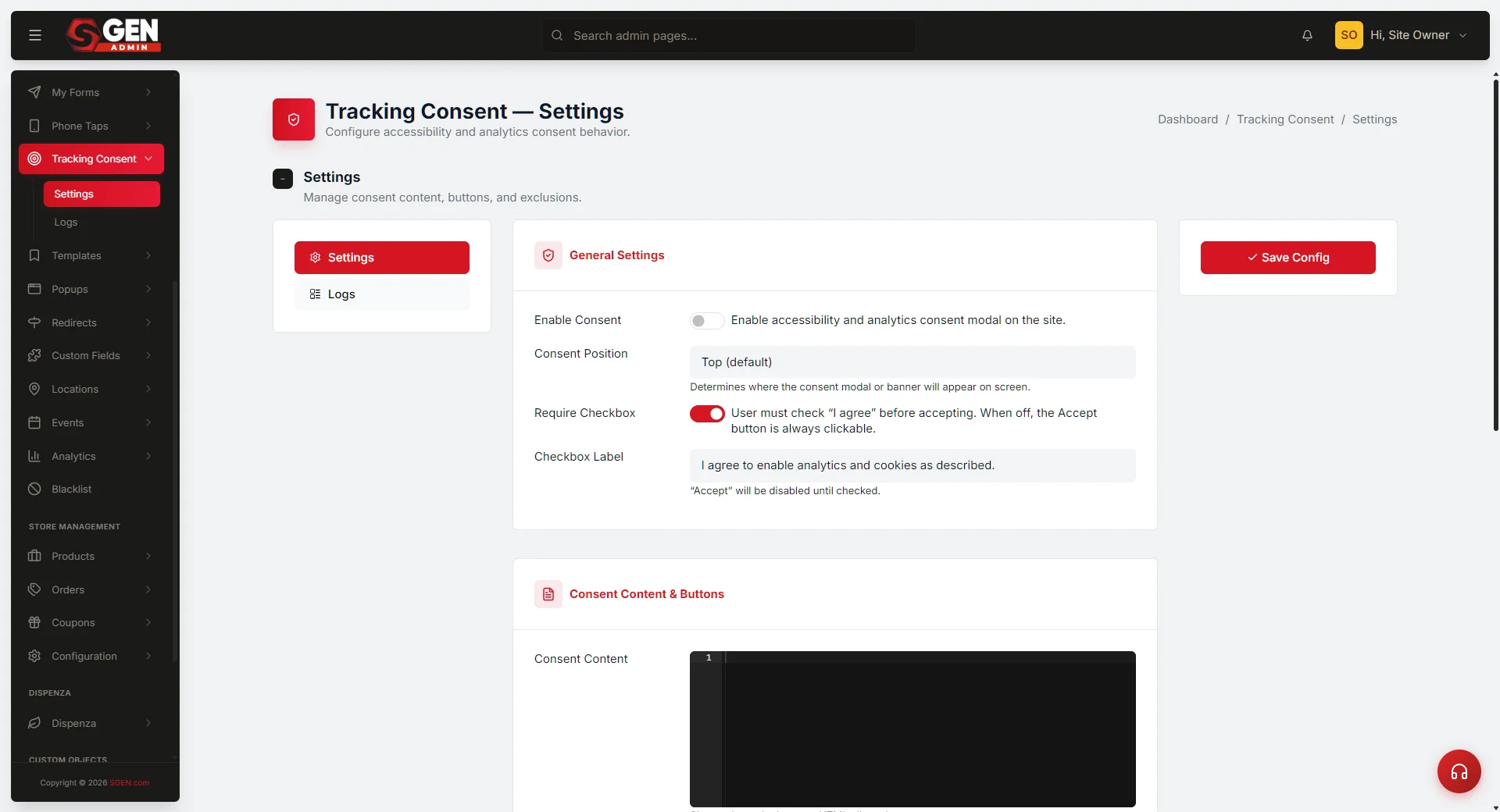
Open Dashboard → Tracking Consent → Settings to configure the banner. Key settings:
- Consent Content — the visitor-facing message (required; blank banner shows nothing).
- Accept / Decline button labels — customise button text.
- Banner position — footer banner, modal, or sidebar.
- Excluded pages — pages where the banner does not appear (e.g., your Privacy Policy page).
- Controlled scripts — tracking scripts that wait for consent before loading.
Click Save at the bottom. A green confirmation banner confirms the change is live. Changes take effect for new visitor sessions immediately.
Consent logs — browsing and using the record
Open Dashboard → Tracking Consent → Logs to see per-session consent decisions. Columns:
| Column | What it shows |
|---|---|
| Session Key | Pseudonymous server-generated identifier (not a personal identifier) |
| Decision | accepted / declined / no decision |
| Landing Page | The page where the visitor first saw the banner |
| Visible | How long the banner was on screen |
| TtD | Time-to-Decision (seconds until the visitor clicked) |
| Updated | Timestamp of the decision |
To look up a single visitor's record: search the session key (or UTM source, date, landing page path) in the search box at the top right. Click View on any row to open the full session detail — decision, timestamp, landing page, UTM source, and banner interaction timeline.
Filtering and bulk-cleaning consent records
The toolbar at the top of the Logs list has two controls: a search box (top right) and a bulk-action dropdown + Apply button (top left).
- Search — partial-match against session key, stored URLs, UTM tags. Non-destructive; run freely.
- Bulk Delete Permanently — select rows with checkboxes, choose Delete Permanently from the dropdown, click Apply. Permanent, no undo, and no confirmation prompt — unlike the per-row Delete action which does show a confirmation modal. Verify your selection before clicking Apply.
When to bulk-delete: quarterly retention sweeps (records beyond your retention window), bot-traffic cleanup, pre-handoff removal of internal test records. Confirm with legal counsel before deleting records you may be required to retain (most jurisdictions set a minimum consent-record retention window of 12-24 months).
Related reading
- SG-Admin Overview — parent surface; full module index.
- Google Analytics 4 — example consent-gated integration; shows how the consent state is read before the GA4 tag fires.
- Discussions — visitor identity fields collected with a comment interact with the consent posture.
- Phone Taps — call-signal recording is consent-gated where the posture requires it.
Vocabulary cross-reference
- Consent banner — the UI surface (footer banner, modal, or sidebar) that captures visitor response on first visit.
- Consent record — the persisted response per visitor session; the platform stores this for the configured retention window.
- Consent state — one of accept / reject / partial (per-category opt-in where the configuration supports it).
- Integration gating — the check that each connected tracking integration runs against the consent state before firing its trackers.
- Posture — the site-level default behavior applied when a visitor has not yet responded: opt-in (do not track until accepted) or opt-out (track until refused).
- Retention window — the duration for which per-decision consent records are kept; set in Tracking Consent; determines how far back a compliance review can reach.
Governance scope
Tracking Consent is one of three modules that sit at the trust, interaction, and attribution edge of the platform: Discussions, Phone Taps, and Tracking Consent. They are grouped because they touch the visitor's identity, the visitor's behavior, and the visitor's permission. The grouping preserves category separation; each module governs a distinct meaning that documentation must not collapse together.
- Consent is not traffic. A consent decision is about the visitor's permission for measurement to occur. It is not a measurement event. Counting decisions is governance work, not analytics work.
- A phone tap is not a form submission. A call-signal record is attribution-adjacent behavior. A form submission is a content surface (My Forms) interaction. Treating them as the same event loses the operational meaning of each.
- A discussion body is not another page type. Comment moderation is its own interaction surface (Discussions). A page is content. A discussion is conversation.
Where Tracking Consent feeds analytics or attribution downstream, the documentation preserves one clear meaning for what consent itself governs versus what downstream reporting later interprets.
What this area is not responsible for
This is a privacy-sensitive surface. Boundary clarity prevents the area from absorbing responsibilities that belong elsewhere.
- Legal compliance writing. Counsel writes the legal language. The platform surface exposes the configuration the legal language requires.
- Per-region detection. The platform does not detect the visitor's jurisdiction and rewrite the prompt automatically. The site owner chooses one posture; if the site needs different postures per region, the site owner configures that at the routing layer.
- Tag implementation. Tracking Consent records the decision. Tags (analytics, ad pixels, third-party scripts) read the decision and decide whether to run. A tag that ignores the decision is a tag-side problem.
- Visitor identity resolution. The consent log records decisions against a session-level identifier. The platform does not stitch decisions to a long-lived personal identity; that boundary is deliberate.
Privacy-sensitive notes
Operators handling Tracking Consent are handling visitor permission data. Two practical habits keep that handling safe.
Treat the log as evidence
The consent log is the answer to "did this visitor consent?" Treat it as evidence. Do not edit log entries. If the log surface allows export, use export for sharing with compliance; do not screenshot or paraphrase decisions when the original is available.
Treat changes to posture as a release event
Switching the default posture or adding a new category changes the behavior the visitor sees. Treat the change like a release — announce it internally, record the change date, and re-check that connected integrations still read the posture correctly after the change.
Avoid mixing categories
Categories exist because visitors decide differently about each one. A visitor who accepts Analytics but refuses Marketing has made a specific decision; a tag that runs because "the visitor accepted something" violates the decision. When adding a new tag or integration, name the category it belongs to; if it does not match an existing category cleanly, add the category rather than placing the tag under the closest match.
Cross-cutting reference: the privacy/compliance group
Tracking Consent does not stand alone. It governs the permission posture for measurement that flows from other modules. The consent posture is the source of truth that other modules in the privacy / compliance group read before taking actions that touch visitor data. The table below summarises the per-module relationship.
| Module | What it governs | Consent dependency |
|---|---|---|
| Discussions | Comment moderation, visitor-generated content | Identity fields collected with a comment may need consent under the configured posture. |
| Phone Taps | Call-tap session signals, attribution-adjacent | Recording the call signal is consent-gated where the posture requires it. |
| Tracking Consent | Consent posture, prompt, decision log | The source of truth other modules read. |
The relationship runs in one direction: Tracking Consent declares the posture; other modules read it. A module that ignores the posture is a module-side problem, not a Tracking Consent problem.