
Cookie compliance playbook
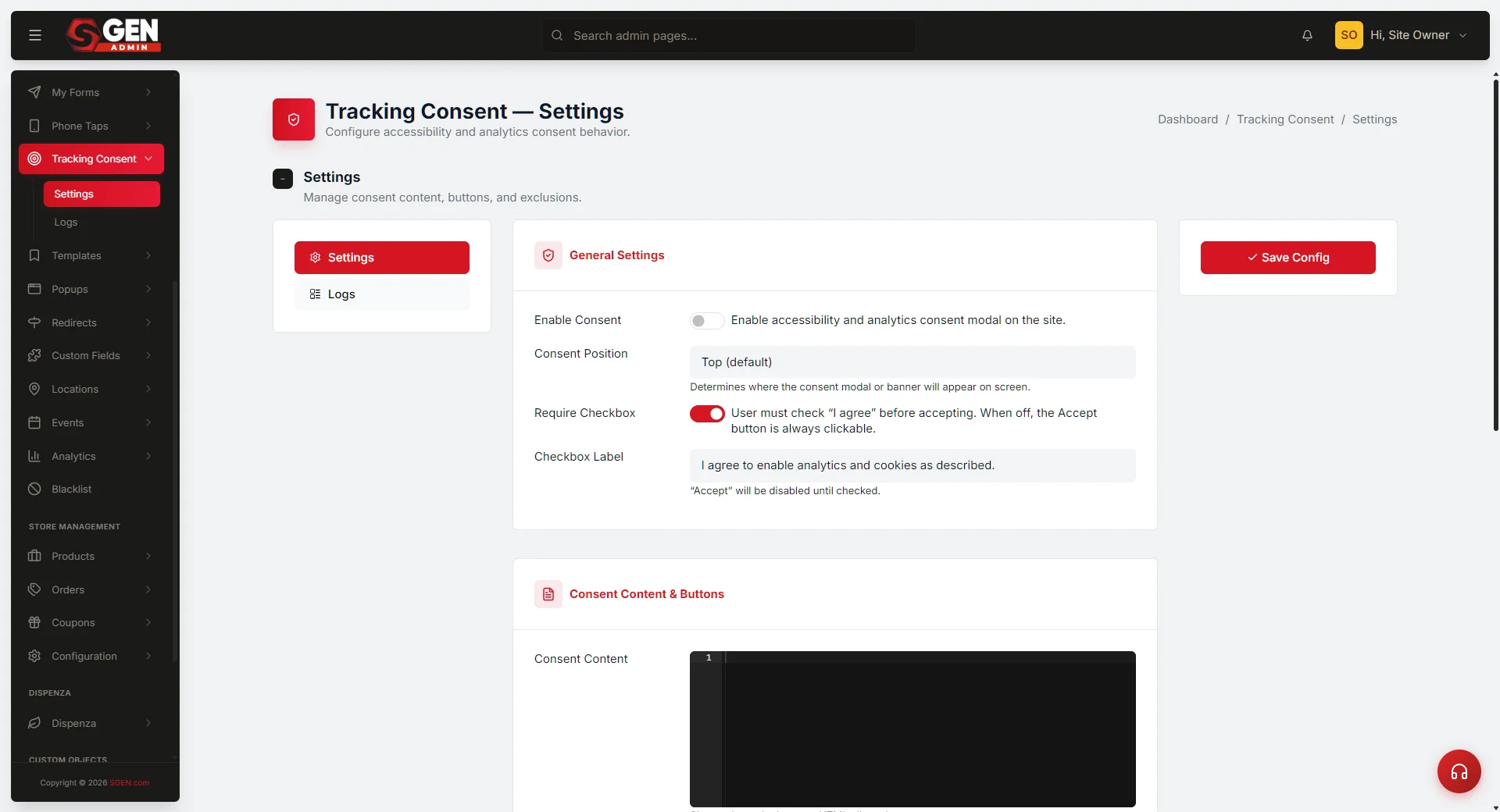 Settings — banner heading/body, Accept and Decline button labels, policy link URL, built-in tool gating toggles, Other scripts regex, Excluded Pages" loading="lazy" style="width:100%;max-width:900px;height:auto;border-radius:8px;border:1px solid #e5e7eb;display:block;margin:12px 0">
⏱ ~7 min read · 7-step recipe — banner, policy page, script gating, and test.
Not legal advice. This doc describes operational steps inside SGEN. What your site must disclose, how long consent must be retained, and whether you need a dedicated Consent Management Platform depends on your audience, your legal counsel, and the regulations that apply to you. Treat this as a technical how-to, not compliance sign-off.
In short. Most cookie banners collect a click and fire all scripts anyway. This recipe wires all three pieces together so visitor choice gates what loads: configure the banner, create /cookie-policy/, map every third-party script to a consent category, wrap each non-essential script in a consent check, test the three consent states, add a re-open link, then publish. The result is auditable and repeatable.On this page: What is this for? · Good use cases · What NOT to use this for · How this connects · Before you start · Where to find it · Steps · What success looks like · Troubleshooting · Variations · Anti-patterns · Examples
Wire the banner, the policy page, and the consent state together so the site honors visitor choice
Most sites bolt a cookie banner on and stop there. The banner shows, the visitor clicks something, and the tracking scripts fire regardless — regulators see non-compliance, visitors lose trust, and the analytics data is unreliable.
This recipe wires all three pieces: a banner that captures consent, a policy page that explains what runs and why, and a consent state that gates which scripts load.
What is this for?
Use this recipe when launching a new site, or when a regulator notice or legal review flags the current cookie flow. The end state: a banner that appears once per visitor, a policy page linked from the banner, and tracking scripts that only fire when consent is given.
- A banner at first visit, dismissible after the visitor makes a choice.
- A
/cookie-policy/page that lists every cookie the site sets, who runs it, and what category it falls into. - A consent state stored in the visitor's browser that the site reads before loading analytics or marketing scripts.
- Re-prompt path for visitors who want to change their mind later.
Good use cases
Site launch. Cookie banner and policy page are launch-day requirements alongside terms and privacy policy.
Regulator complaint. A visitor or regulator flagged the existing flow as non-compliant. Follow this recipe to rebuild from banner through script gating.
New tracking script. Adding a new analytics or marketing pixel. Cookie policy gets a new row; banner copy may need updating; the consent state gets a new category.
What NOT to use this for
- Replacing the privacy policy. The cookie policy is one document; the broader privacy policy is another. They reference each other but do different jobs.
- A regulator-defense audit. This recipe gets the site to a reasonable baseline. A formal compliance audit by counsel is a separate exercise.
- Geographic targeting. This recipe applies one banner everywhere. Region-specific banners (EEA-only, California-only) require a third-party consent manager.
- Granular IAB TCF v2.0 compliance. SGEN's consent banner is binary (Accept / Decline). If your audience requires Functional / Performance / Marketing category toggles for IAB TCF v2.0, pair SGEN with a dedicated CMP like OneTrust or Cookiebot.
- Skipping the Cookie Policy page. A live banner that links to a missing or thin policy page is worse than no banner — regulators note mismatches between what the banner says and what the policy discloses. Do not add your homepage to the Excluded Pages list; use Excluded Pages only for your Privacy Policy and Cookie Policy pages.
How this connects to other features
- Tracking Consent module — the consent state lives here. The banner reads from it and writes to it.
- Custom Codes — most third-party tracking scripts (analytics, retargeting pixels) drop into Custom Codes. Gate them with the consent check.
- Pages — the cookie policy is a regular page. It carries no special status; it needs to exist at a stable, permanent URL.
- Legal corpus — the policy text itself lives in the cookie policy reference. The banner copy lives in the cookie banner specification.
Before you start
Signed in as an Administrator. Legal sign-off on the cookie policy text is in hand — if counsel has not reviewed it yet, do that before publishing.
Build the script inventory from what is installed, not from memory. Open the site in a fresh browser session and observe what network requests fire to third-party domains before any consent is given. That list is ground truth.
Script inventory — what to capture before starting:
| Script name | Third-party domain | Category | Gated? |
|---|---|---|---|
| Analytics | analytics.example.com | Analytics | No |
| Retargeting pixel | ads.example.com | Marketing | No |
| Chat widget | widget.example.com | Analytics | No |
| Essential session token | (first-party only) | Essential | n/a |
Where to find it
The five steps span four separate areas in your SGEN admin. Use this map before starting so you know where each step lands:
| Step | Admin area | Path |
|---|---|---|
| 1 — Cookie Policy page | Pages → All Pages | /sg-admin/pages/ |
| 2 — Consent banner | Tracking Consent → Settings | /sg-admin/tracking_consent |
| 3 — Script category mapping | (planning step, no admin screen) | — |
| 4 — Script gating | Custom Codes | /sg-admin/custom_codes |
| 5-7 — Test + re-open link + publish | Tracking Consent → Logs | /sg-admin/tracking_consent/logs |
Bookmark Tracking Consent → Settings — you land there for step 2 and return for the weekly audit.
Steps
1. Create the cookie policy page
Navigate to Pages. Click + Add New. Title the page Cookie Policy. Slug stays as cookie-policy.
Paste the policy text from the cookie policy reference. The reference covers the required sections: what cookies are, the categories the site uses (essential, analytics, marketing), the third parties involved, the visitor's choices, and the contact path for questions.
Save the page as Published. Confirm /cookie-policy/ resolves on the public site.
2. Configure the banner copy and link
Navigate to Settings → Tracking Consent. Set the banner text to a short, plain-language statement that names cookies and links to the policy. The exact wording lives in the cookie banner specification; pull from there rather than writing your own.
Three required pieces in the banner:
- A clear question or statement about cookies.
- An Accept button.
- A Decline or Cookie settings button.
A "Learn more" link to /cookie-policy/ is also required. Pre-ticked consent or accept-only banners do not meet the GDPR standard.
Key settings to configure while in Tracking Consent → Settings:
- Gate all four built-in tools — GTM, Clarity, Session Attributer, Draft Form Entries.
- Other scripts regex — add one pattern per line for any script not covered by the built-in toggles. For Hotjar:
/hotjar\.com/i. For Amplitude:/cdn\.amplitude\.com/i. For Meta Pixel:/connect\.facebook\.net/i. - Decline redirect URL — if your site needs a CCPA "Do Not Sell" confirmation page, set this to
/privacy/do-not-sell-confirmedso visitors who click Decline land on an opt-out confirmation. - Excluded Pages — select your Privacy Policy and Cookie Policy pages only. Do not add the homepage.
3. Map your scripts to consent categories
For every third-party script on the list from the prerequisites, decide which category it belongs to:
| Category | What goes here |
|---|---|
| Essential | Cart, login, security tokens. Always loads. No consent needed. |
| Analytics | Page-view tracking, heatmaps, user behaviour tools. Loads only after Accept. |
| Marketing | Ad pixels, retargeting, conversion tracking. Loads only after Accept. |
Write the category beside each script in your list. Anything you cannot categorise gets flagged for review with counsel — do not default to "essential" to avoid the work.
4. Gate the scripts in Custom Codes
Navigate to Settings → Custom Codes. Open each non-essential script and wrap it in a consent check. The exact check syntax depends on the SGEN consent state — the reference is in the Tracking Consent module documentation.
The pattern: the script body only runs if the visitor has accepted that category. If consent is declined or not yet given, the script does not load and no third-party request fires.
After saving, reload a public page in a fresh browser session and confirm the third-party requests do not fire until you click Accept on the banner.
The script inventory after gating should look like this — every non-essential row carries a consent check, and the Ungated count is zero before launch:
The banner itself renders on the public site at first visit. The visitor sees the heading, the body copy, the Accept button, the Decline button, and the link to the policy page — all driven by the values saved in step 2:
5. Test the three consent states
Open the site in a fresh browser session (incognito works). Confirm the banner shows. Then walk through three test cases:
- Decline non-essential. Click Decline. Reload a page. The banner is gone. Analytics and marketing scripts have not fired — confirm in the browser network panel that no third-party requests are present.
- Accept all. Open a second incognito session. Click Accept. Reload. The banner is gone. Analytics and marketing scripts have fired — confirm the network panel shows the requests.
- Change of mind. From the Accept-all session, navigate to
/cookie-policy/and click the "Manage cookie settings" link. The banner re-opens. Switch to Decline. Reload. The next page load no longer fires the analytics requests.
6. Add the "Manage cookie settings" link to the policy and the footer
A visitor who accepted but later wants to change their mind needs a way back to the banner. Add a "Manage cookie settings" link in two places:
- At the bottom of
/cookie-policy/. - In the site footer.
The link calls the SGEN consent-manager open API — the exact wiring lives in the Tracking Consent overview. Confirm the link re-opens the banner from any page on the site.
7. Publish and document the setup
Once the three test cases pass, publish the configuration. Save the script list with categories and a note about who reviewed the policy text. Store the list with the other launch documentation so the next person who adds a tracking script knows where to look.
What success looks like
After all seven steps:
- A visitor reaching the site for the first time sees the banner.
- Declining non-essential blocks every analytics and marketing request.
- Accepting all lets every gated script run.
- The visitor can re-open the banner from the footer or the policy page.
- The cookie policy page lists every cookie the site sets, the third party behind it, and its category.
- The consent state persists across page loads in the same browser session and survives reload.
What to do if it does not work
Analytics requests fire even after Decline. The Custom Codes gate is missing or the consent check is not wrapping the script body. Re-open the script in Custom Codes and confirm the consent check wraps the entire script — not only the opening line.
The banner does not appear on a fresh session. Confirm Tracking Consent is enabled in Settings. Also check that the visitor has not already accepted in this browser — clear site data in the browser, reload, and the banner should appear.
The policy link in the banner returns a 404. The page slug does not match the URL in the banner config. Open the cookie policy page and confirm the slug is cookie-policy. Adjust either the page slug or the banner link to match.
The "Manage cookie settings" link does nothing. The link is not calling the consent-manager open API correctly. Check the Tracking Consent overview for the exact call.
The script list and the policy disagree. Every script in Custom Codes should appear in the policy table, and every row in the policy should map to a real script. Run the comparison at every launch. Drift between them is the most common compliance gap.
Variations
Region-specific banners (EEA-only, California-only). This recipe applies one banner to all visitors. The EEA under GDPR and California under CCPA have different rules — if the brand needs region-specific consent requirements, a third-party consent manager handles the routing. SGEN's Tracking Consent module is the fallback layer; the third-party manager sits above it and calls the consent API to record state.
Cookie preferences panel instead of Accept/Decline. Some brands prefer a full preferences panel on first visit — three toggles (essential, analytics, marketing) rather than a binary accept/decline. The Tracking Consent module supports this. Configure the banner to show a "Manage preferences" path alongside Accept and Decline. This approach increases transparency but typically lowers the rate of full acceptance.
Banner re-trigger on policy update. When the policy changes materially — a new tracking script added, a category re-classified — clear the stored consent state so the banner re-appears for all visitors as if they are arriving for the first time.
No analytics scripts at all. Some sites set no non-essential cookies. A banner is still good practice — it signals a deliberate choice to visitors, not an oversight. The consent gate in Custom Codes is empty; the policy lists only essential cookies; the three-state test still runs.
Anti-patterns
Defaulting unclassified scripts to "essential." An analytics pixel is not essential. A retargeting tag is not essential. Essential is for cart, login, security tokens — things the site cannot function without. Putting non-essential scripts in that bucket loads them without consent and voids the compliance posture.
Banner without a decline option. A banner with only an Accept button is not valid consent under GDPR. The visitor must be able to decline non-essential cookies without losing access to the site.
Script list that drifts from the policy. A script added to Custom Codes without a corresponding policy row means the policy says three cookies while the site sets five. This is the most common compliance failure at audit time. The script list comparison in step 7 catches it — run it at every launch and after every new script.
Forgetting the footer link. The "Manage cookie settings" link must be reachable from every page, not the policy page alone. A policy page without a path back to the banner is incomplete.
Examples
Launch-day baseline — SGEN's own site launch. A brand-new site goes live with one analytics script, one retargeting pixel, and an embedded chat widget. Three rows in the policy table; three entries in the Custom Codes gating. Banner copy uses the standard template.
After gating, the script inventory shows no ungated non-essential scripts:
New marketing pixel. Six months in, marketing adds a second retargeting pixel. The work: add a row to the policy page, add the script to Custom Codes with the marketing-category gate, re-test the three consent states. Banner copy needs no change because "marketing" is already a category.
Regulator notice. A regulator notice flags the banner as non-compliant. Counsel rewrites the banner copy and the policy. The technical work: update the banner copy in Tracking Consent, replace the policy page body, re-test. The script gating in Custom Codes does not change.
The cookie policy page itself is a standard SGEN page — set Status to Published, confirm the slug is cookie-policy, and verify it renders at the public URL before the banner links to it:
Related recipes
- Black Friday playbook — any campaign with new tracking pixels requires a new policy row and a new consent gate before launch
- Lead-magnet funnel — the landing page and thank-you page carry conversion tracking; confirm each script is gated before the funnel goes live
- Webinar promotion — registration pages often carry event tracking pixels; wire the consent gate before the registration page is published
Related reading
- Tracking Consent — full reference — banner config, policy text, consent-manager API, and banner specification all live here.
Cookie-compliance steps by admin area
| Step | Admin area | Path |
|---|---|---|
| 1 — Cookie Policy page | Pages -> All Pages | /sg-admin/pages/ |
| 2 — Consent banner | Tracking Consent -> Settings | /sg-admin/tracking_consent |
| 3 — Script category mapping | (planning step, no admin screen) | — |
| 4 — Script gating | Custom Codes | /sg-admin/custom_codes |
| 5-7 — Test + re-open link + publish | Tracking Consent -> Logs | /sg-admin/tracking_consent/logs |