
Configure the age gate on your SGEN site
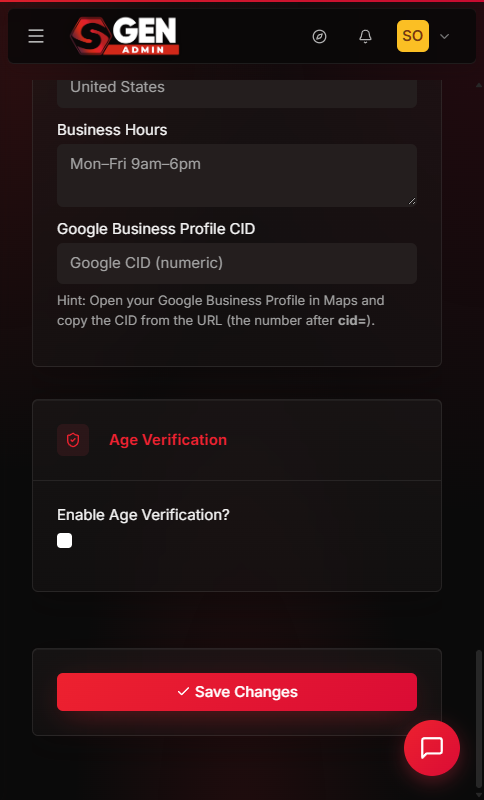
The age gate is a modal overlay that asks first-time visitors to confirm their age before any page content loads. Enable it in Settings → Age Verification, set a cookie duration, and SGEN handles the rest — storing the visitor's confirmation in a browser cookie and skipping the gate on every return visit until that cookie expires. Available on all plans from SGEN 3.0.
Cookie-based, not identity-verified
The gate collects an attestation click, not a government ID. It is the standard compliance signal for age-restricted consumer sites, not a substitute for hard ID verification.
Site-wide, first visit only
Every public page shows the modal to visitors without a valid cookie. Admin users and returning visitors within the cookie window pass through without interruption.
Configurable in two panels
Cookie duration and the on/off switch live in Settings → Age Verification. Minimum age, modal text, and button labels live in Home Actions → Age Verification.
What the age gate does
When you enable the age gate, SGEN overlays every public page with a modal on the visitor's first load. The visitor clicks the confirm button; SGEN sets a first-party cookie (age_verified=1) that is HttpOnly and SameSite=Lax. On every subsequent visit within the cookie window the theme detects the cookie server-side and skips the modal. When the cookie expires — or the visitor clears their browser data — the gate appears again on the next visit.
Before you start
Three things to confirm before enabling the gate.
Plan
Available on all plans
Age Verification is included on every SGEN plan from SGEN 3.0. No upgrade needed.
Duration
Pick the right cookie window
The default is 1 day — too aggressive for most sites. 30 days is common for alcohol and cannabis. Shorter than 7 days frustrates returning visitors; longer than 90 days may not satisfy auditors.
Theme
Style the modal first
Your active theme controls the modal's visual design, headline, and button labels. Style via Appearance → Theme Editor before enabling the gate on a live site.
Use case
Right tool for the job
The age gate is for age-restricted content (alcohol, cannabis, tobacco, adult). For login-gating use user roles; for cookie-consent use Settings → Tracking Consent; for hard ID verification use a third-party service.
Steps
Set up the age gate in five steps. The gate goes live for new visitors as soon as you save Step 1.
1
Enable the gate and set cookie duration
Go to Settings → Age Verification. Tick Enable age verification and enter the number of days for the cookie. Click Save Changes. The gate is now live for first-time visitors.
2
Set minimum age, heading, and body text
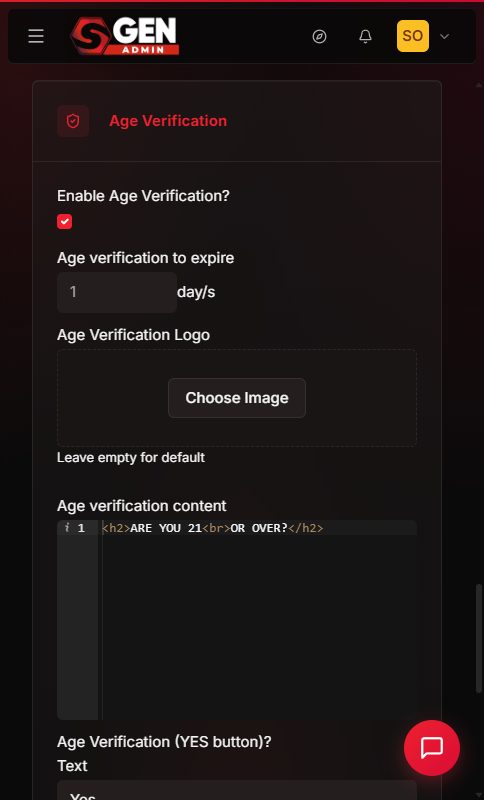
Go to Home Actions → Age Verification. Set Minimum age (e.g. 18 or 21), customize the Heading and Body text shown to first-time visitors, and confirm the Storage duration matches what you set in Step 1. Click Save.
3
Verify the gate appears for a new visitor
Open your site in a fresh private / incognito window. Your homepage should immediately show the age gate modal. Click the confirm button. The modal closes and the site loads normally.
4
Confirm the cookie is set
After clicking confirm, reload the page. The modal should not appear on the second load. The cookie name is age_verified, value 1, HttpOnly, SameSite=Lax, with an expiry matching your configured duration.
5
Test the reset flow
To re-test the gate without clearing all your browser cookies, visit yoursite.com/do_actions/remove_age_verification while logged into your admin. This deletes only the age_verified cookie. Reload your homepage and the modal appears again as it does for a new visitor.
Settings reference
All age gate configuration lives across two panels.
Enable age verification — Settings → Age Verification
Turns the age gate on or off site-wide. Off by default.
Cookie duration (days) — Settings → Age Verification
How many days before a confirmed visitor sees the modal again. Default is 1 day; 30 days is recommended for most age-restricted retail sites.
Minimum age — Home Actions → Age Verification
The age threshold shown in the modal headline. Match to your jurisdiction: commonly 21 in the US for alcohol, 18 in many EU countries. Cannabis varies.
Heading and body text — Home Actions → Age Verification
The copy displayed inside the modal. Keep body text plain — avoid legalese. Supports basic HTML (line breaks, emphasis, links); avoid embedded scripts.
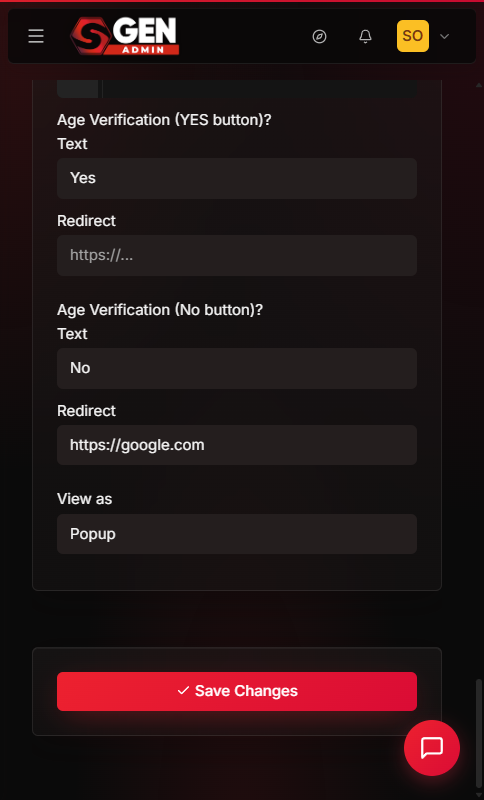
Confirm / Decline button labels — Home Actions → Age Verification
Configurable button labels. Localize them per market.
Decline redirect URL — Home Actions → Age Verification
Where visitors who decline are sent. Must be a non-restricted URL. A common choice is a generic landing page explaining the age requirement.
Gate background image — Appearance → Theme Editor
Optional background image for the modal overlay. Your active theme controls the modal's visual design.
Troubleshooting
Common issues and what to check.
Modal never appears for new visitors
Confirm the feature is enabled in Settings → Age Verification. Then confirm your theme renders the age gate modal template. Themes that predate SGEN 3.0 may not include the modal template file — contact SGEN support for the current template snippet.
Feature is enabled but nothing shows
Check whether your test browser already accepted the gate — an existing age_verified cookie skips the modal. Open a private window to test with no cookie present.
Modal appears on every visit despite confirmation
The confirm button may not be saving the visitor's choice. In a fresh private window: click confirm, close the modal, reload. If the modal reappears immediately, the theme's confirm button is not wired correctly — contact your theme developer or SGEN support.
Visitors report seeing the gate every visit
Storage duration may be set too low, or the visitor's browser is in a privacy mode that blocks cookies. In that case the gate shows on every session — this is a browser-side constraint.
Modal disappears after a few hours despite 30-day duration
The visitor is likely using a browser privacy mode (Safari ITP, Firefox strict mode) that caps cookie lifetimes. This cannot be overridden by the site.
Confirm and Decline buttons do nothing
A JavaScript error is blocking interaction handlers. Open the browser console and look for an error from the gate's component.
Decline redirect shows a redirect loop
The destination URL is itself age-gated. Pick a non-restricted URL for the decline redirect.
Compliance considerations
The age gate is an attestation modal, not a verified-identity check. Know what it does and does not cover for your jurisdiction.
Attestation, not ID verification
For markets that require government-ID verification (some cannabis jurisdictions, some adult content), pair this with a third-party verification service. The age gate collects a click, not a proof of age.
No server-side record of decisions
The age gate stores no server-side record of each visitor's decision. If your jurisdiction requires one, implement a server-side logging layer or use a dedicated consent-management platform.
Visitors with cookies disabled
Visitors whose browsers block cookies cannot persist the decision and will see the gate every visit. The gate cannot override browser-level cookie blocking.
Decline redirect destination
The redirect-on-decline destination must be a non-restricted URL. A common choice is a generic landing page explaining the age requirement.
Heads up Disabling the age gate in Settings → Age Verification removes the modal immediately for new visitors. Existing
age_verified cookies on returning visitors' browsers are not cleared — those visitors continue to bypass the gate until their cookies expire naturally.