
Troubleshooting SGEN — Common Issues and Fixes
⏱ 60-second answer below · full reference ≈ 15 min · jump to the right section with the links below and skim the bold symptoms.
In short. Most SGEN problems fall into one of eight areas: site not loading, page not found, content not updating, forms, images, SEO, store/checkout, or login. Start with the symptom table for your area — each entry gives the most likely cause and the first fix to try. A hard refresh (Ctrl+Shift+R / Cmd+Shift+R) and a private browser window clear a surprising number of issues before you even dig into settings.
On this page: Site Not Loading · Pages Not Found · Content Not Updating · Forms · Images and Media · SEO · Domain and Connectivity · Store and Checkout · Login and Account · Where to find it
What this covers
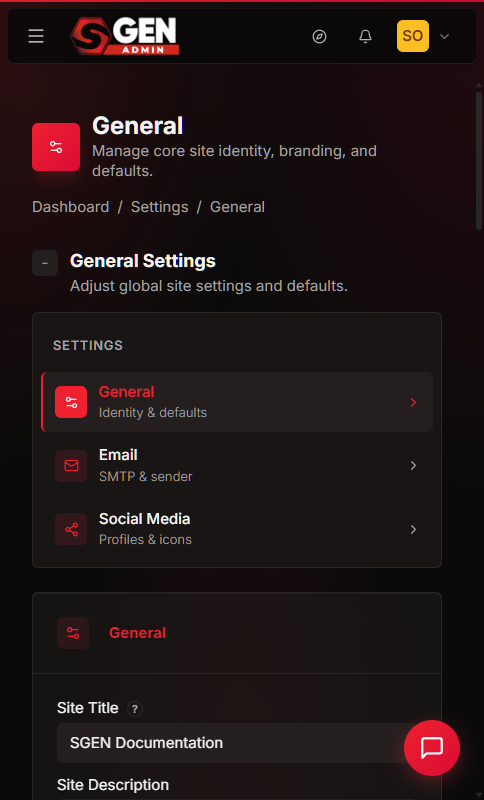
Each entry follows the same shape: symptom → most likely cause → fix steps. Most problems resolve in under five minutes. Anything unverified is flagged with ⚠.
Out of scope: developer-level server configuration, third-party integrations not listed here, and platform-wide outages (check SGEN status or contact support for status).
Quick-reference tables
Preview: Troubleshooting quick-reference — Site and Pages — a screenshot of this screen will be added here.
Preview: Troubleshooting quick-reference — Login and Account — a screenshot of this screen will be added here.
Site Not Loading
Blank white screen
Symptom: Your site or admin shows a completely blank white screen with no content.
Likely cause: A stale browser cache or session cookie is serving an incomplete page.
Steps:
- Press Ctrl+Shift+R (Windows) or Cmd+Shift+R (Mac) to hard-refresh.
- Open a private/incognito window and try loading the page again.
- Clear your browser cache and cookies, then reload.
- Try a completely different browser to rule out browser-specific issues.
- If the blank screen appears across multiple browsers and devices, contact SGEN support — they can check for a platform issue.
Site loading slowly
Symptom: Pages take noticeably longer than expected to load for visitors.
Likely cause: Unoptimized images are the most common cause. Images larger than 1-2 MB add significant load time even on fast connections.
Steps:
- Open your admin and go to Media Library, then sort by file size. Look for images above 1-2 MB.
- Re-upload large images using the WebP format with compression enabled (toggle both options on the upload dialog before uploading).
- Check that the SEO & Performance tools are switched on for the site in Modules Config — they include additional performance tools and are included on every plan.
- If the site is still slow after optimizing images, contact SGEN support with your site address. Mention whether the slowness is on all pages or specific ones.
See also: Site Performance and Speed — SGEN Reference
Site shows "not secure" or missing padlock
Symptom: Visitors see a "Not Secure" warning in the browser address bar. The padlock is missing or shows as broken.
Likely cause: Your secure certificate is provisioned automatically once your domain's DNS records are verified. If DNS was recently pointed to SGEN, the certificate may still be provisioning.
Steps:
- Open your Dashboard and go to your site's domain settings. Confirm the domain status shows as verified.
- If DNS is verified, the certificate activates automatically — wait up to 30 minutes for it to become active.
- Hard-refresh (Ctrl+Shift+R / Cmd+Shift+R) after waiting.
- If the padlock is still missing after an hour with verified DNS, contact SGEN support with your domain name.
Note: Custom domains require a paid plan. The free Sandbox uses an SGEN subdomain and does not support custom certificate provisioning.
Pages Not Found
Preview: 404 causes at a glance — a screenshot of this screen will be added here.
Page not found after renaming a page
Symptom: Visitors who bookmarked or linked the old URL now see a "page not found" message. The page itself exists — it just moved to a new URL.
Likely cause: Renaming a page in SGEN changes its URL slug. Any external links, bookmarks, or search engine listings pointing to the old path now lead nowhere.
Steps:
- Confirm the SEO & Performance tools are switched on for the site in Modules Config — the Redirects tool is part of them, and they are included on every plan.
- In your admin, go to Tools → Redirects.
- Click Add Redirect.
- Enter the old path as the source (example:
/old-page-name) and the new path as the destination (example:/new-page-name). - Set the redirect type to permanent.
- Save. Test the old URL — it should now forward to the new page.
See also: Redirects and URL Routing in SGEN
Page works in admin but is missing on the live site
Symptom: You can see the page fine inside your admin, but the same URL shows "page not found" when visited on your live domain.
Likely cause: The page was never published to live, or a URL change was not followed by a redirect.
Steps:
- Open the page in your admin under Pages, and check its status. If it shows Draft, click Publish.
- After publishing, flush the site cache (Tools → Optimization → Flush Cache).
- Test the live URL again.
- If the URL changed when you published (for example, a slug edit), add a redirect from the old path to the new one.
See also: Redirects and URL Routing in SGEN
Content Not Updating
Published changes not showing on the live site
Symptom: You made edits inside your admin and can see them there, but your live site still shows the old version.
Likely cause: Either the page is still in Draft status (not published), or your browser is serving a cached version of the old page.
Steps:
- In your admin, open the page and confirm the status shows Published — not Draft.
- If it shows Draft, click Publish.
- Visit the live URL and press Ctrl+Shift+R (Windows) or Cmd+Shift+R (Mac) to force a hard refresh, bypassing any local browser cache.
- Still seeing the old version after publishing and hard-refreshing? Contact SGEN support.
Changes disappeared or didn't save
Symptom: You made edits, but when you returned to the page, the changes were gone.
Likely cause: The Save or Update button was not clicked before navigating away. Or you edited in one environment but checked another.
Steps:
- Re-make the change and confirm you click Save or Update before leaving the editor.
- Check which environment you are in. Changes you make in a staging environment do not appear on live until published.
- If you lost a significant amount of work, restore from a backup: open Tools → Migration → Backups and restore an earlier snapshot.
Can't save or publish
Symptom: The Save or Publish button appears to do nothing, spins without completing, or returns an error.
Likely cause: A session timeout or temporary browser state is blocking the save.
Steps:
- Do not close the tab. Copy or photograph any unsaved content first.
- Wait 10-15 seconds and try saving again.
- Open a new browser tab, log back in to your admin, and return to the page.
- Try saving again in the fresh session.
- If it still fails, try a different browser. If the problem persists across browsers, contact SGEN support.
Menu changes not showing on the live site
Symptom: You edited or rebuilt your navigation menu in your admin but the live site still shows the old menu.
Likely cause: The Save Menu button was not clicked, the updated menu is not assigned to the correct location (Header, Footer, Mobile), or the browser is showing a cached version.
Steps:
- In your admin, go to Appearance → Menu.
- Confirm you clicked Save Menu after making your changes.
- Confirm the menu is assigned to the correct location (Header, Footer, or Mobile) in the Menu Location panel.
- Flush the site cache: Tools → Optimization → Flush Cache.
- Hard-refresh the live site (Ctrl+Shift+R / Cmd+Shift+R).
Forms
Preview: Form issues at a glance — a screenshot of this screen will be added here.
Form not sending or no submissions received
Symptom: Visitors fill out and submit your contact form, but you receive no notification emails. Or the form itself fails to submit.
Likely cause: Forms is included on every plan but may not be switched on for this site, or the notification recipient email may be incorrect or missing.
Steps:
- Confirm the Forms module is switched on for the site in Modules Config — it is included on every plan.
- In your admin, go to My Forms and select the form.
- Open the form's Notifications settings and verify the recipient email address is correct.
- Check your spam/junk folder for missed notification emails.
- Submit a test entry through the live form, then check your inbox and spam folder.
- If you still receive nothing after confirming the above, contact SGEN support.
Form notification emails going to spam
Symptom: Form submissions are being sent, but SGEN's notification emails arrive in your spam or junk folder rather than your inbox.
Likely cause: Your email provider is filtering automated notifications from SGEN's sending domain. This is a mail deliverability issue, not a form configuration problem.
Steps:
- Open your spam folder and find the SGEN notification email.
- Mark it as Not Spam (or move to inbox) — this trains your email provider to accept future messages.
- Open the form in your admin and confirm the Recipient Email under Mail Settings is the address you want.
- Add the sender address to your contacts to prevent future filtering.
- If notifications continue landing in spam after these steps, contact SGEN support to look at deliverability settings.
Form flooded with spam submissions
Symptom: Your form is receiving large numbers of automated or obviously fake submissions.
Likely cause: Bot submissions. reCAPTCHA is not enabled on the form.
Steps:
- In your admin, go to Tools → Google Integrations and set up your reCAPTCHA site key and secret key. (Obtain keys from the Google reCAPTCHA admin console if you don't have them yet.)
- Open the form in My Forms and go to its Settings.
- Enable reCAPTCHA for the form.
- Save. Bots that cannot pass the challenge will no longer submit the form.
- For persistent repeat offenders, use the form's blacklist option to block specific email addresses or address patterns.
Images and Media
Preview: Image and media issues — a screenshot of this screen will be added here.
Image or file won't upload
Symptom: Clicking Upload in the Media Library does nothing, shows an error, or the upload bar starts and then fails.
Likely cause: The file format is not supported, the file size exceeds the upload limit, or a browser issue is interrupting the upload.
Steps:
- Confirm the file is one of the supported formats: JPG, PNG, GIF, WebP, PDF, MP4.
- Check the file size. Very large files may exceed your plan's upload limit. Try the WebP format option and enable compression before uploading — this reduces file size significantly.
- Try a different browser or clear your browser cache, then retry the upload.
- If you are uploading many files at once, try uploading one at a time to isolate whether a specific file is causing the failure.
- If a supported-format, reasonably-sized file still fails to upload, contact SGEN support and include the file type and size.
Images look blurry or low quality
Symptom: Images appear soft, pixelated, or noticeably lower quality than expected on the live site.
Likely cause: The source image is smaller than the space it is displayed in (the platform stretches it to fit), or compression was set too aggressively during upload.
Steps:
- In your admin, open Media Library and locate the image. Check its dimensions. If the image is, for example, 400px wide but displayed in a 1200px-wide slot, it will appear blurry.
- Re-upload a higher-resolution version of the image — aim for a source that matches or exceeds the display size.
- If the image was uploaded with heavy compression, re-upload with compression set to a lower level.
Logo too big or too small
Symptom: The site logo in the header appears at the wrong size — either filling too much of the header or appearing so small it's hard to see.
Likely cause: The logo dimensions are set in the Theme Editor. If only the desktop size is set, the mobile breakpoint may inherit an oversized or undersized logo.
Steps:
- In your admin, go to Appearance → Theme Editor and open the header section.
- Select the logo element and adjust its width and height values.
- Switch to the mobile breakpoint and set a separate logo size appropriate for smaller screens.
- Save and publish, then check on both desktop and mobile.
Content runs off the screen on mobile
Symptom: On a phone or narrow screen, some content extends beyond the right edge of the screen, creating an unwanted horizontal scroll.
Likely cause: A section or element has a fixed width, large padding value, or oversized image that was set for desktop and not overridden for mobile breakpoints in SG-Builder.
Steps:
- Open the page in your admin and click Edit in SG-Builder.
- Switch to the mobile device breakpoint using the breakpoint buttons at the top of the editor.
- Identify the element causing the overflow — look for sections with a fixed width wider than the viewport, or large padding/margin values.
- Reduce the element's width or padding for the mobile breakpoint.
- Save and publish, then test on a real device or in the browser's responsive mode.
See also: SG-Builder Concepts — Blocks, Sections, Breakpoints, and the Canvas
SEO
Google still shows the old page title after an update
Symptom: You updated the SEO title or meta description for a page in SGEN, but a Google search still shows the old title.
Likely cause: Google does not re-read your page instantly. It re-crawls pages on its own schedule, which can take days or weeks. The page might also have an index-blocking setting active.
Steps:
- In your admin, go to SEO → SEO Manager and confirm the new SEO Title is saved and the page is Published.
- Check the page's Index Status. Make sure it is not set to No-Index — pages marked no-index are excluded from Google's results entirely.
- In Google Search Console, use the URL Inspection tool to request indexing for the specific URL. This sends a signal to Google to recrawl it sooner.
- Allow time for Google to process the request — updates can still take several days to appear in search results.
See also: SEO in SGEN — How It Works and What You Control
Site search returns no results
Symptom: Visitors using your site's internal search bar get no results, even when searching for words that exist in published content.
Likely cause: Site search indexes only published content. If pages were recently published, the search index may still be catching up. The relevant module may also not be switched on for the site.
Steps:
- Confirm all relevant pages have status Published — draft pages are not included in the search index.
- Check Modules Config to confirm the relevant module is switched on for the site — every plan includes it.
- If you recently published new content, give the search index time to update — this typically takes a few minutes.
- Test with a word you know appears in a published page title.
- If published content still returns nothing after waiting, contact SGEN support.
Domain and Connectivity
Preview: Domain issues — a screenshot of this screen will be added here.
Custom domain won't connect
Symptom: You added a custom domain in your SGEN Dashboard and entered the DNS records at your registrar, but the domain is not connecting to your site.
Likely cause: The DNS records were not entered exactly as provided by SGEN, or DNS propagation has not completed yet. Custom domains also require a paid plan — the free Sandbox supports subdomain access only.
Steps:
- Open your SGEN Dashboard and navigate to your site's domain settings. Copy the exact DNS records (CNAME or A record) that SGEN provides.
- Log in to your domain registrar and enter those records exactly as shown — character for character, including any trailing dots if present.
- Save the records at your registrar.
- Use a free DNS checker tool to confirm the records are visible. DNS propagation typically takes a few minutes to a few hours, but can take up to 24 hours in some cases.
- If the records look correct on the DNS checker but the domain still does not connect after 24 hours, contact SGEN support with your domain name and the records you entered.
Store and Checkout
Preview: Store and checkout issues — a screenshot of this screen will be added here.
Store / Ecommerce section not showing in admin
Symptom: The Ecommerce or store section does not appear in your admin navigation menu.
Likely cause: The store module is not enabled in Modules Config, or your current plan does not include it.
Steps:
- In your admin, open Modules Config and scroll to the Commerce category.
- Check whether the store module is switched on for the site. If it is not, switch it on — every plan includes it.
- Refresh your admin after switching it on — the Ecommerce menu should appear.
Product not showing in the store
Symptom: You added a product, but it does not appear to visitors on the store pages.
Likely cause: The product's status is still set to Draft rather than Publish, a scheduled release date is hiding it, or the store is set to Offline.
Steps:
- In your admin, open Ecommerce → Products and select the product.
- Confirm the product Status is set to Publish — not Draft.
- Open the Schedule tab and check whether start/end dates are restricting visibility.
- Go to Ecommerce → Configuration → General and confirm the store status is set to Online.
- Flush the site cache (Tools → Optimization → Flush Cache) and check the store again.
Checkout or payment not working
Symptom: Customers reach checkout but cannot complete a payment. The payment step fails, shows an error, or does nothing.
Likely cause: The payment gateway is not connected, or the gateway keys (the credentials your provider gives you) are incorrect. If no gateway is enabled, checkout cannot complete. Using test/sandbox keys on a live site also causes failures.
Steps:
- In your admin, open Store → Configuration → Payment Gateways.
- Confirm a payment gateway is enabled and the keys are correct. For a live site, use your gateway's live keys — not test/sandbox keys.
- Confirm your SGEN plan includes the store at pricing.
- Place a test order to identify exactly where the failure occurs.
- If live payments continue to fail after verifying the above, contact SGEN support with the order details and any error messages shown.
Shipping options not showing at checkout
Symptom: Customers reach the shipping step of checkout but no shipping methods appear to select.
Likely cause: No shipping method is configured for the customer's region (zone), or the products in the cart are marked as Virtual (which requires no shipping).
Steps:
- In your admin, open Store → Configuration → Shipping.
- Confirm a shipping method is added and that it covers the customer's geographic zone. If you have customers in multiple regions, you may need separate methods for each zone.
- Open the products in the cart and confirm they are not marked as Virtual — virtual products intentionally skip the shipping step.
- Place a test order with an address in the relevant zone to confirm shipping appears correctly.
Coupon code not working at checkout
Symptom: A customer enters a coupon code at checkout but it is rejected as invalid, or the discount does not apply.
Likely cause: The coupon has expired, reached its usage limit, or the customer's cart items do not match the coupon's restrictions.
Steps:
- In your admin, open Ecommerce → Coupons and select the coupon.
- Check the Expiry Date — expired coupons are automatically rejected.
- Check the Usage Limit — coupons with a per-coupon or per-customer limit stop working once the limit is reached.
- Confirm the code matches exactly what customers are expected to enter (case sensitivity may apply ⚠).
- Review the coupon's product or category restrictions — if it only applies to certain products, it will not work on a cart containing only other items.
- Save any corrections and ask the customer to retry.
Login and Account
Can't log in to SGEN
Symptom: The login page accepts your email and password but immediately fails, shows a wrong-credentials message, or spins without completing.
Likely cause: The password is incorrect, the email has a typo, or a browser cookie/cache issue is interfering with the session.
Steps:
- Open a private/incognito window and navigate to the SGEN login page.
- Type your email carefully — watch for leading or trailing spaces that password managers sometimes insert.
- If the password is rejected, click Forgot your password to reset it.
- Check your spam folder for the reset email.
- If you are still locked out after resetting, contact SGEN support with your account email address.
No verification email received
Symptom: You signed up for SGEN or triggered an email verification but no email arrived.
Likely cause: The verification email landed in spam. This is the most common reason. A typo in your email address at sign-up can also cause non-delivery.
Steps:
- Check your spam or junk folder for an email from SGEN. If you find it, mark it as Not Spam before clicking the link.
- If it is not in spam, return to the login or sign-up page and request a new verification email.
- Confirm you are checking the correct inbox — verify the email address you registered with has no typos.
- If you still receive nothing after a resend, contact SGEN support.
A feature is missing from your admin
Symptom: You expected to find a feature — Forms, SEO tools, SG-Builder, a store — but it does not appear in your admin navigation.
Likely cause: Every plan includes every module, but a module can be switched off for an individual site in Modules Config. If the module is off for this site, the feature is not loaded.
Steps:
- In your admin, open Modules Config.
- Find the module that covers the feature you are looking for. Common modules: Page Builder, Forms, SEO & Performance, Commerce.
- Switch the module on for the site — every plan includes it.
- Refresh your admin — the feature should now appear in the navigation.
- If the module is switched on but the feature is still missing, contact SGEN support.
Where to find it
Most troubleshooting actions live inside your admin. The Dashboard covers domain settings and plan management.
Reference — where each fix lives in the admin
| Area | How to get there | Module |
|---|---|---|
| Pages / editor | Pages → All Pages | Page Builder |
| Media Library | Media Library | — |
| Forms | My Forms | Forms |
| SEO Manager | SEO → SEO Manager | SEO & Performance |
| Redirects | Tools → Redirects | SEO & Performance |
| Optimization / cache flush | Tools → Optimization | — |
| Menu | Appearance → Menu | — |
| Theme Editor (header) | Appearance → Theme Editor | — |
| Store / products | Ecommerce → Products | Commerce |
| Payment Gateways | Store → Configuration → Payment Gateways | Commerce |
| Shipping | Store → Configuration → Shipping | Commerce |
| Coupons | Ecommerce → Coupons | Commerce |
| Modules Config | Modules Config | — |
| Domain settings | Dashboard → your site → domain settings | — |
| Backups | Tools → Migration → Backups | — (⚠ exact menu label unverified) |
Every module is included on every plan; a module can be switched on or off per site in Modules Config.
Quick router — where to start by problem type
| Type of problem | Starting point |
|---|---|
| Login, account, password, feature missing | Dashboard, then Modules Config |
| Pages, editor, content, mobile layout | Admin → Pages |
| Media, images, uploads | Admin → Media Library |
| Forms, spam | Admin → My Forms |
| SEO, search results | Admin → SEO → SEO Manager |
| Page not found, redirects | Admin → Tools → Redirects |
| Store, products, checkout, payment | Admin → Ecommerce → Products |
| Domain, DNS, secure certificate | Dashboard → domain settings |
| Cache / optimization | Admin → Tools → Optimization |
| Module / feature activation | Admin → Modules Config |
When to contact SGEN support:
- The issue persists after completing all steps in the relevant section above.
- You see an error message not described in this document.
- The problem is intermittent and you cannot reproduce it reliably.
- You suspect a platform issue affecting multiple sites.
Contact: open SGEN and choose Support.
Related features
- Site Performance and Speed — SGEN Reference — CDN, caching, media optimization, Optimization tools
- SEO in SGEN — How It Works and What You Control — SEO Manager, sitemaps, robots.txt, schema, Google Search Console
- Redirects and URL Routing in SGEN — permanent vs temporary redirects, bulk redirect import, visitor "page not found" page
- SG-Builder Concepts — Blocks, Sections, Breakpoints, and the Canvas — mobile breakpoints, layout editing
- Analytics and Metrics — if you need to diagnose traffic drops
- Accessibility and Consent — consent tools that may affect form or page behavior