
Site performance and speed
⏱ 60-second answer below · full page ≈ 8 min · skim the bold lead-ins to move faster.
In short. SGEN handles the infrastructure layer automatically — server-side rendering, a global CDN, and a WAF are included on every plan with nothing to configure. On top of that, Tools → Optimization in your site admin gives you four toggleable controls: page cache (stores rendered pages so repeat visits skip the render step), minification (shrinks CSS/JS/HTML file sizes), deferred loading (stops scripts from blocking page paint), and lazy loading (defers offscreen images until the visitor scrolls to them). For images, turn on WebP conversion and compression in Media → Settings before uploading. Turn everything on, flush the cache, and your site is running at full platform speed.
On this page: Two layers · Foundation Pack (CDN + WAF) · Optimization controls — field reference · Media settings · Traffic spike checklist · Anti-patterns · Glossary
Two layers
Site speed on SGEN comes from two layers working together.
Platform layer — managed by SGEN, always on, nothing to configure. Covers server-side rendering, CDN distribution, and the WAF firewall.
Site-owner layer — controls you switch on inside SG-Admin. These tell the platform how aggressively to cache pages, how to handle CSS and JavaScript files, how to load images, and how your media library is configured.
| Layer | Who manages it | Where to find it |
|---|---|---|
| Server-side rendering | SGEN platform | No action needed |
| CDN + WAF | SGEN Foundation Pack (every plan) | No action needed |
| PHP page cache | You | /sg-admin/tools/optimization |
| File minification (CSS / JS / HTML) | You | /sg-admin/tools/optimization |
| Deferred loading (JS / CSS) | You | /sg-admin/tools/optimization |
| Lazy loading (images / video) | You | /sg-admin/tools/optimization |
| Media format + compression | You | /sg-admin/media/settings |
How SG-Core renders pages server-side
SGEN pages are rendered server-side. SG-Core assembles the complete HTML for a page before the response leaves the server, so the visitor's browser receives a finished page — it does not run JavaScript to construct the page after load.
This matters for speed in two ways. The browser can start displaying content as soon as bytes arrive, without waiting for a JavaScript bundle to execute. Search engine crawlers also see the full page on first fetch.
Without the page cache turned on, SG-Core re-renders the page on every visit. Turning on Enable Cache (Tools → Optimization) stores the rendered HTML so repeat visits skip the render step entirely.
What the Foundation Pack provides
Every SGEN plan — including the free Sandbox — includes the Foundation Pack: managed hosting, SSL, a CDN, and a WAF. None require setup.
CDN (Content Delivery Network) stores copies of your site's files on geographically distributed servers so visitors load from the nearest one. For visitors far from your site's primary server, this makes a measurable difference to initial load time.
WAF (Web Application Firewall) sits in front of your site and filters out malicious traffic — automated scanners, bots, and attack patterns — before those requests reach your pages, keeping server resources focused on real visitors.
Neither the CDN nor the WAF replace the page cache — they operate at a different layer. After a cache flush, first-visit load time may briefly be slower while the page cache rebuilds; that is expected behavior.
| Component | What it does | Configure? |
|---|---|---|
| Managed hosting | Keeps your site's files and database available | No |
| SSL | Encrypts traffic between visitor and server (HTTPS) | No |
| CDN | Serves assets from edge locations closer to visitors | No |
| WAF | Filters malicious requests before they reach your site | No |
Optimization tools — field reference
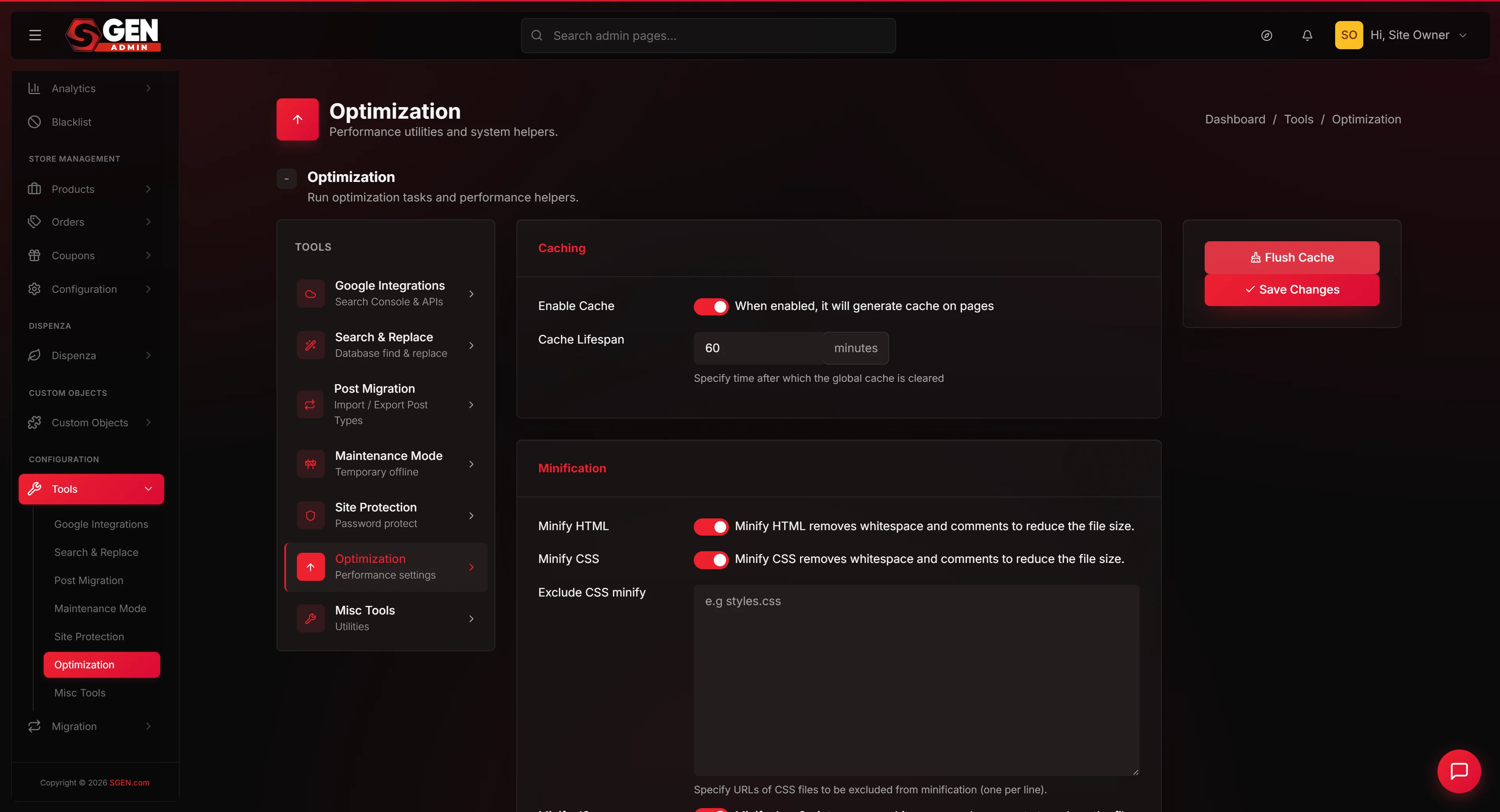
Where to find it: Site admin → Tools → Optimization (/sg-admin/tools/optimization).
The page has two actions: Save Changes (saves settings) and Flush Cache (clears stored pages so the cache rebuilds fresh on next visit).
After saving any settings, flush the cache so the new configuration applies to pages your visitors see. Saving does not automatically flush.
⚠ The Flush Cache button has a known issue as of 2026-05-20: it may show a success message without clearing the cache. If you are not seeing updated content after a flush, contact SGEN support to confirm cache-flush behavior on your plan.
The fields break into four groups.
Cache
| Field | What it does |
|---|---|
| Enable Cache | Master toggle. When on, SG-Core stores rendered page HTML so repeat visits skip the render step. |
| Cache Lifespan | How long (in minutes) a cached page is kept before the next visitor triggers a fresh render. Longer = faster for repeat visitors, but published changes take longer to appear. Flush the cache after publishing if you need changes visible immediately. |
Minification
| Field | What it does |
|---|---|
| Minify HTML | Strips whitespace and comments from page markup at render time. Reduces the size of every page response. Low overhead. |
| Minify CSS | Combines and compresses your site's CSS files into a smaller bundle. |
| Exclude (CSS) | CSS file patterns to skip from minification. Add a file path or URL substring (one per line) if a stylesheet breaks after minification. |
| Minify JS | Same process as Minify CSS, for JavaScript files. |
| Exclude (JS) | JavaScript patterns to skip from minification. Add third-party script URLs here if they stop working after Minify JS is enabled. |
Deferred loading
| Field | What it does |
|---|---|
| Defer JS | Tells the browser to download scripts in the background and execute them after the page structure is parsed, rather than blocking page rendering. |
| Exclude (Defer JS) | Scripts that must load before the rest of the page. If a widget breaks with Defer JS on, add its script URL here. |
| Load CSS asynchronously | Marks non-critical CSS for deferred loading. Can cause a brief flash of unstyled content on first load. |
Lazy loading
| Field | What it does |
|---|---|
| Activate Lazy loading | Defers loading of offscreen images, videos, and iframes until the visitor scrolls near them. Reduces data loaded on first view. |
| Critical Media | URL patterns for media that must load immediately — use this for your hero image and logo (visible on first view, should not be deferred). |
| Preload Media | URL patterns for media to load with high priority. For images that appear immediately and are important to the visitor experience. |
Media settings — WebP and compression
Image files are often the largest single contributor to page weight. SGEN can convert uploaded images to WebP and apply compression before storing them in the Media Library.
Where to find it: Site admin → Media Library → Settings (/sg-admin/media/settings).
| Setting | What it does |
|---|---|
| WebP conversion | Converts uploaded images to WebP format. WebP files are substantially smaller than JPG or PNG at similar visual quality. |
| Compression | Applies compression to uploaded images, reducing file size further. |
⚠ Both settings default to off (Format = Original, Compression = Off). Toggle both on before uploading your site's images. Images already in the Media Library are not retroactively converted — re-upload to get the benefit for existing images.
What success looks like
After saving settings and flushing the cache, the next visitor to any page receives:
- The cached version (no live re-render on each visit)
- Minified CSS and JS, if minification is on
- Scripts that load without blocking the initial page paint, if Defer JS is on
- Images that load as the visitor scrolls — except those in Critical Media, which load immediately
Check the result using Site Vitals on the admin dashboard home.
Preparing for a traffic spike
If you are running a campaign or launching something that could drive a sudden traffic increase:
| Step | Where |
|---|---|
| 1. Turn on WebP + compression; re-upload key images | /sg-admin/media/settings |
| 2. Enable Cache, set Cache Lifespan | /sg-admin/tools/optimization |
| 3. Turn on Minify HTML, Minify CSS, Minify JS | /sg-admin/tools/optimization |
| 4. Turn on Lazy loading; add above-the-fold images to Critical Media | /sg-admin/tools/optimization |
| 5. Save Changes, then flush the cache | /sg-admin/tools/optimization |
| 6. Take a site backup before the event | /sg-admin/tools → Backups |
| 7. Confirm your plan's visit allowance covers expected traffic | pricing |
The Foundation Pack CDN and WAF handle the network layer without any action on your part.
The free Sandbox plan is capped at 1,000 visits per month. A traffic spike will exhaust that cap quickly. Review your plan at pricing before a high-traffic event.
Anti-patterns that slow sites down
| Anti-pattern | Why it hurts | Fix |
|---|---|---|
| Large uncompressed images | Image files dominate page weight | Re-upload with WebP + compression on in Media Settings |
| Cache disabled | Every page view triggers a full server-side render | Enable Cache in Tools → Optimization |
| Flushing cache on every save | Triggers outbound requests per CSS/JS asset if minify is on — slow and resource-intensive | Flush deliberately — after publishing significant changes, not after every small edit |
| Minify on with no exclude lists | Third-party scripts and widgets break silently | Test after enabling minify; add broken scripts to the JS exclude list |
| No Critical Media list with lazy loading on | Hero images load late, making the page appear blank | Add your hero image URL to Critical Media |
| Very long Cache Lifespan on a frequently updated site | Visitors see stale content after you publish | Shorten the lifespan or flush the cache after publishing |
| Defer JS on for scripts that must load first | Widgets that depend on running immediately will break | Add the specific script URLs to the Defer JS exclude list |
Examples
Running a sale on your store: Before the campaign launches, open Media Settings and confirm WebP is on. Upload fresh product images. Open Tools → Optimization, turn on cache, minify (HTML/CSS/JS), and lazy loading. Add product hero images to Critical Media. Save, then flush. Pages serve from cache on every visit during the sale window.
Publishing a new blog post: Write and publish the post, then flush the cache (or wait for Cache Lifespan to expire). Until flushed, visitors may see the previous version of your homepage or blog index if those pages were already cached.
A widget stops working after enabling Minify JS: The widget's script was minified in a way that broke its initialization. Open Tools → Optimization, find the JS exclude list, add the widget script URL (one per line), save, and flush. The widget script now loads unminified.
Managing multiple sites: Optimization settings are per-site. Open /sg-admin/tools/optimization on each site separately — changes to one site do not carry over to others.
Reference — optimization concepts at a glance
| Term | Plain meaning |
|---|---|
| Page cache | A saved copy of a fully rendered page, served to visitors without re-running the render on each visit |
| Cache lifespan | How long the saved copy is kept before the system re-renders it |
| Flush cache | Delete all stored page copies so they are rebuilt fresh on the next visit |
| Minification | Strip whitespace and comments from CSS, JS, and HTML to reduce file size |
| Deferred JS | Load JavaScript in the background, executing after the page structure is parsed |
| Async CSS | Mark non-critical CSS to load after the visible page has painted |
| Lazy loading | Delay loading offscreen images and video until the visitor scrolls near them |
| Critical Media | Images that must load immediately because they are visible without scrolling |
| WebP | A modern image format that delivers smaller files than JPG or PNG at similar visual quality |
| CDN | A network that stores copies of your site's files on distributed servers so visitors load from nearby |
| WAF | A filter that blocks malicious traffic before it reaches your site's pages |
| Server-side rendering | Building the full HTML of a page on the server before sending it to the visitor's browser |
Related
- SEO in SGEN — meta titles, sitemaps, structured data.
- Custom Codes reference — scripts added via Custom Codes pass through the minify and defer pipeline; use the exclude lists if custom scripts break.
- Media Library — where images are uploaded and managed. Media Settings (
/sg-admin/media/settings) is the companion surface for WebP and compression. - Site Vitals (Dashboard) — the admin dashboard view that shows your site's performance read-out.
- Backups — take a backup before enabling minification or flushing cache on a high-traffic site.
- Maintenance Mode — automatically invalidates the page cache when the site enters maintenance mode.
_This reference consolidates the following KB performance concepts:_ _kb-cx-page-speed · kb-cx-caching · kb-cx-cache-lifespan · kb-cx-lazy-loading · kb-cx-minification · kb-cx-webp · kb-cx-what-is-cdn · kb-cx-what-is-waf · kb-vopt-cache · kb-vopt-lazyload · kb-vopt-minify · kb-voptimization · kb-vj-speed-up · kb-vj-prep-for-traffic · kb-improve-seo-and-speed (15 KB cards)_